
Typing tags for every product takes time, and it’s easy to skip. The Product Tags Generator AI Task reads your products and writes relevant tags for you, so shoppers find them faster in search and filters.
This guide shows you how to turn it on, adjust its settings, and generate tags for one product or many. It also covers the automatic check that finds products with no tags.
💡 Want the full WooCommerce tool overview? See the AI Product Tag Generator for WooCommerce.
Prerequisites
Before you start, make sure you have:
- StoreAgent connected to your store, with the setup wizard finished. The Settings and Bulk Actions menus only appear after this.
- AI Tasks available on your plan. To check, go to StoreAgent > Settings, open the Connection tab, and look at the AI Actions row under Plan Limits & Usage.
What the Product Tags Generator looks at
The AI reads each product and suggests keyword-style tags that shoppers might search for or filter by. It looks at:
- Product title
- Product description
- Categories (if enabled in the settings)
- Attributes like size, color, or material (if enabled in the settings)
The clearer your product descriptions, the better the tags. Products with no description are skipped.
How to turn on the Product Tags Generator
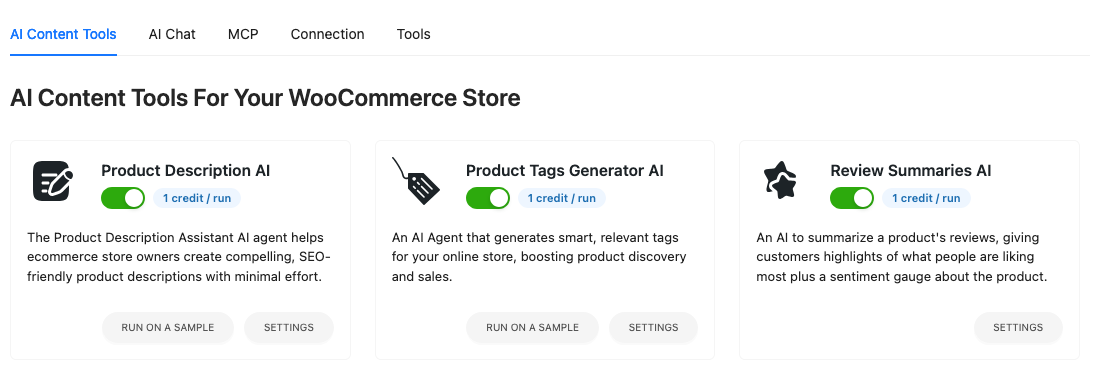
- Go to StoreAgent > Settings in your WordPress Dashboard.
- Open the AI Content Tools tab.
- Find the Product Tags Generator AI card.
- Turn on the switch next to the card title.
How to configure the settings
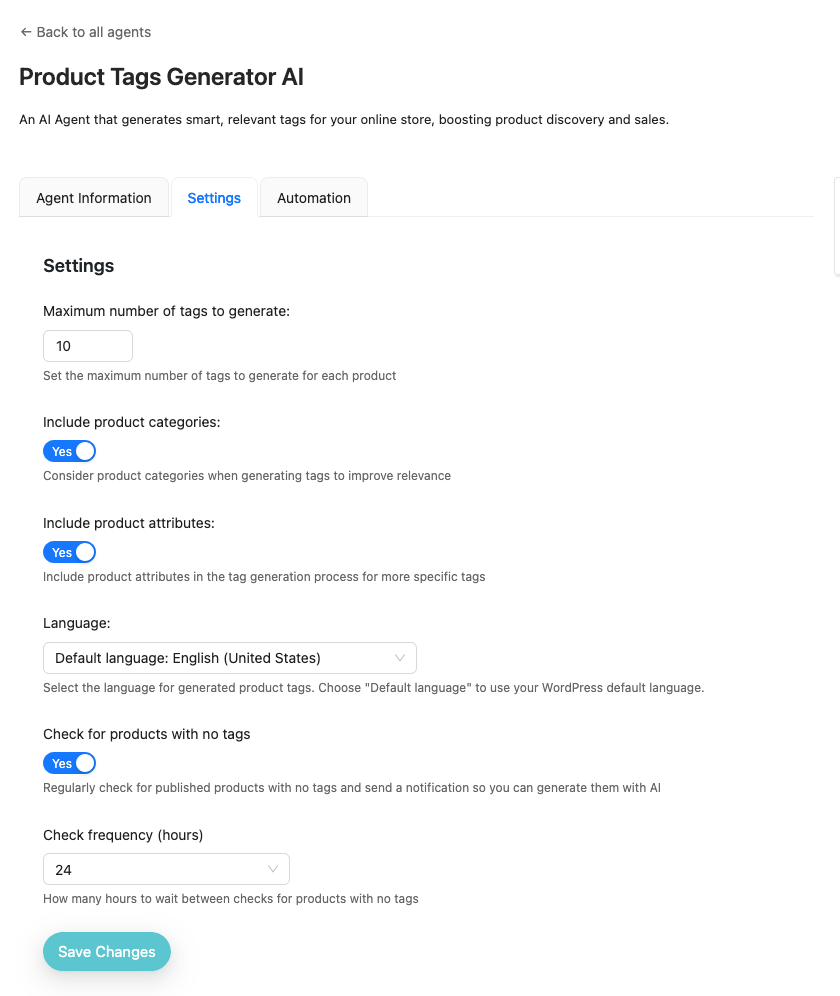
- On the Product Tags Generator AI card, click SETTINGS.
- Open the Settings tab.
- Adjust the settings described below.
- Click Save Changes.
Here’s what each setting does:
- Maximum number of tags to generate: the most tags the AI creates for each product. The default is 10.
- Include product categories: when this is on, the AI uses the product’s categories for extra context. It’s on by default.
- Include product attributes: when this is on, the AI uses attributes like size, material, or color to create more specific tags. For example, “cotton shirt” instead of just “shirt”. It’s on by default.
- Language: the language for generated tags. Choose Default language to use your WordPress default language.
- Check for products with no tags: regularly checks for published products with no tags and sends you a notification. It’s on by default. See the section below.
- Check frequency (hours): how many hours StoreAgent waits between checks. Choose 6, 12, 24, 48, or 72. The default is 24. This setting only shows when the check is turned on.
How to generate tags for a single product
- Go to Products and open the product you want to tag.
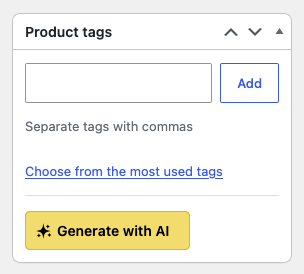
- In the Product tags box, click Generate with AI.
- Click OK on the prompt. If you’ve made other changes to the product, cancel and save them first for better results.
- Wait a few seconds for the new tags to appear in the Product tags box.
- Click Update to save the product with its new tags.
How to generate tags for multiple products
- Go to StoreAgent > Bulk Actions.
- Choose Product Tags Generator AI as the AI agent.
- Select the products you want to tag.
- Click Run on [number] products. The page shows the AI Tasks cost before anything runs.
Selected products that have no description are skipped. The run continues in the background, so you can keep working. For the full walkthrough, including the estimated cost and job history, see How to bulk run StoreAgent AI Tasks in WooCommerce.
You can also start from StoreAgent > Dashboard. In the Catalog Health card, click Generate all next to No product tags. This opens Bulk Actions with the Product Tags Generator AI chosen and the Only eligible products filter turned on. Select the products, then click Run on [number] products.
How to find products with no tags automatically
When Check for products with no tags is on, StoreAgent regularly looks for published products that have a description but no tags. You choose how often in Check frequency (hours).
Each check creates up to five notifications, one per product. To review them:
- Go to StoreAgent > Dashboard.
- Find the Product has no tags notification.
- Click Accept to generate and save tags for that product, or Dismiss to skip it.
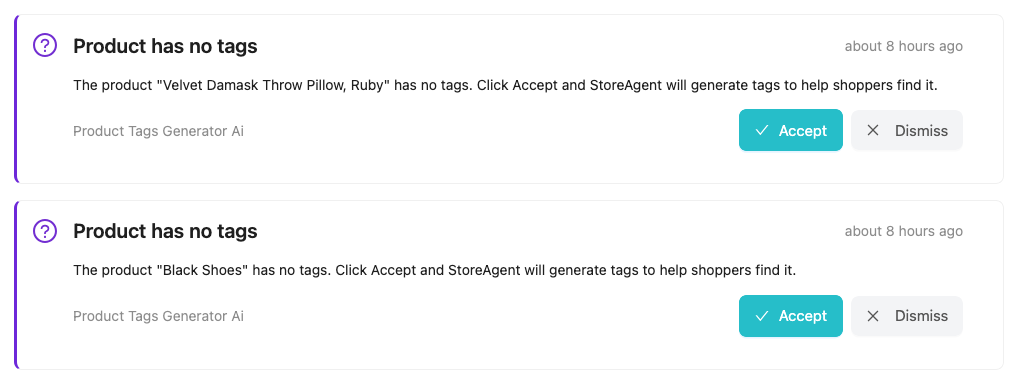
The check itself doesn’t use any AI Tasks. Only clicking Accept uses one AI Task. If you’ve tagged the product yourself before you click Accept, StoreAgent keeps your tags and doesn’t use an AI Task.
When you click Dismiss, StoreAgent won’t flag that product again.
Troubleshooting
I don’t see any “Product has no tags” notifications
Check that the Product Tags Generator AI card is turned on and Check for products with no tags is set to Yes. The check skips products that are not published, have no description, already have a notification waiting, or were dismissed before.
Some products were skipped in a bulk run
Add a product description to those products, then run them again. The Product Tags Generator needs a description to work from.
I clicked Accept, but no new tags were added
Open the product and check its tags. If the product already had tags when you clicked Accept, StoreAgent keeps them and doesn’t generate new ones.
The generated tags aren’t relevant
Add more detail to the product description, and turn on Include product categories and Include product attributes in the settings.
Need help?
If you have a question or run into any issues, we’re here to help.
- Premium users: Open a support ticket
- Free users: Visit our community forum

