
Most product images go live without alt text, the short description that screen readers and search engines use to understand a picture. The Image Alt Tags AI Task in StoreAgent writes it for you. This guide shows you how to turn it on, let it add alt text to new product images automatically, and generate image details by hand when you want more control.
Before you start
- StoreAgent installed and connected to your account (see Getting started with StoreAgent)
- An Administrator account on your WordPress site
- AI Tasks left on your StoreAgent plan. Each image uses one AI Task.
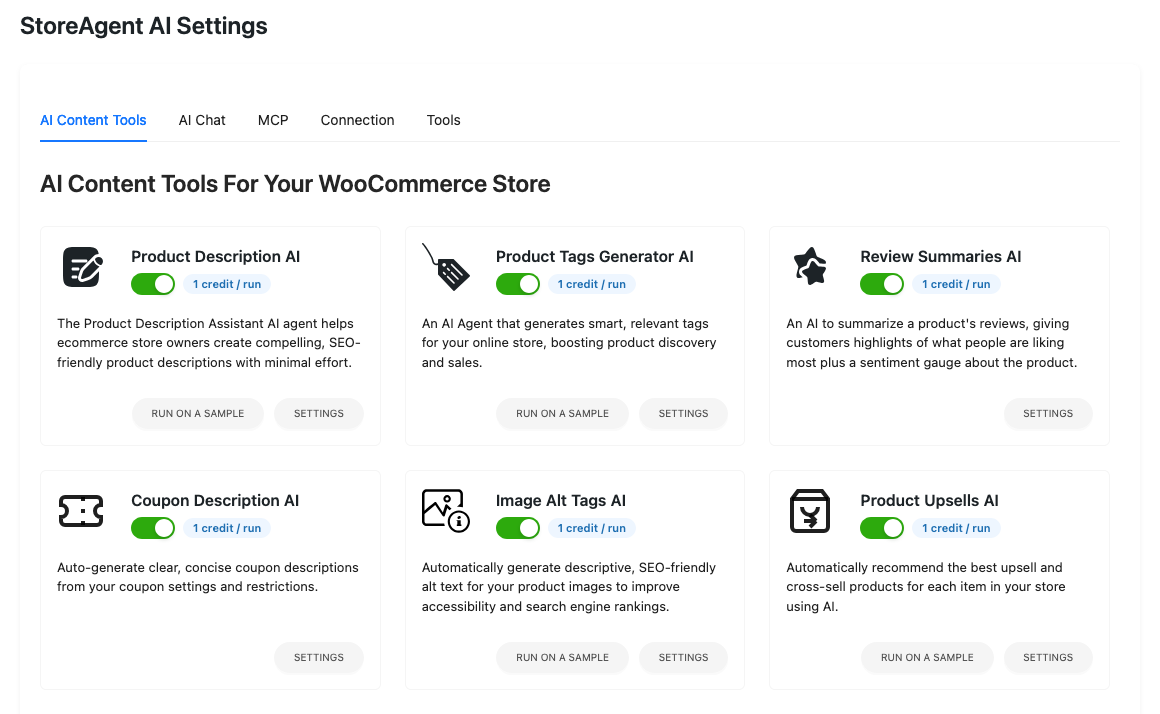
Turn on the Image Alt Tags AI Task
- In your WordPress admin, go to StoreAgent > Settings.
- Click the AI Content Tools tab.
- Find the Image Alt Tags AI card.
- Turn on the switch on the card.
- Your change saves right away. There’s no save button on this screen.
Choose your default fields and automatic alt text
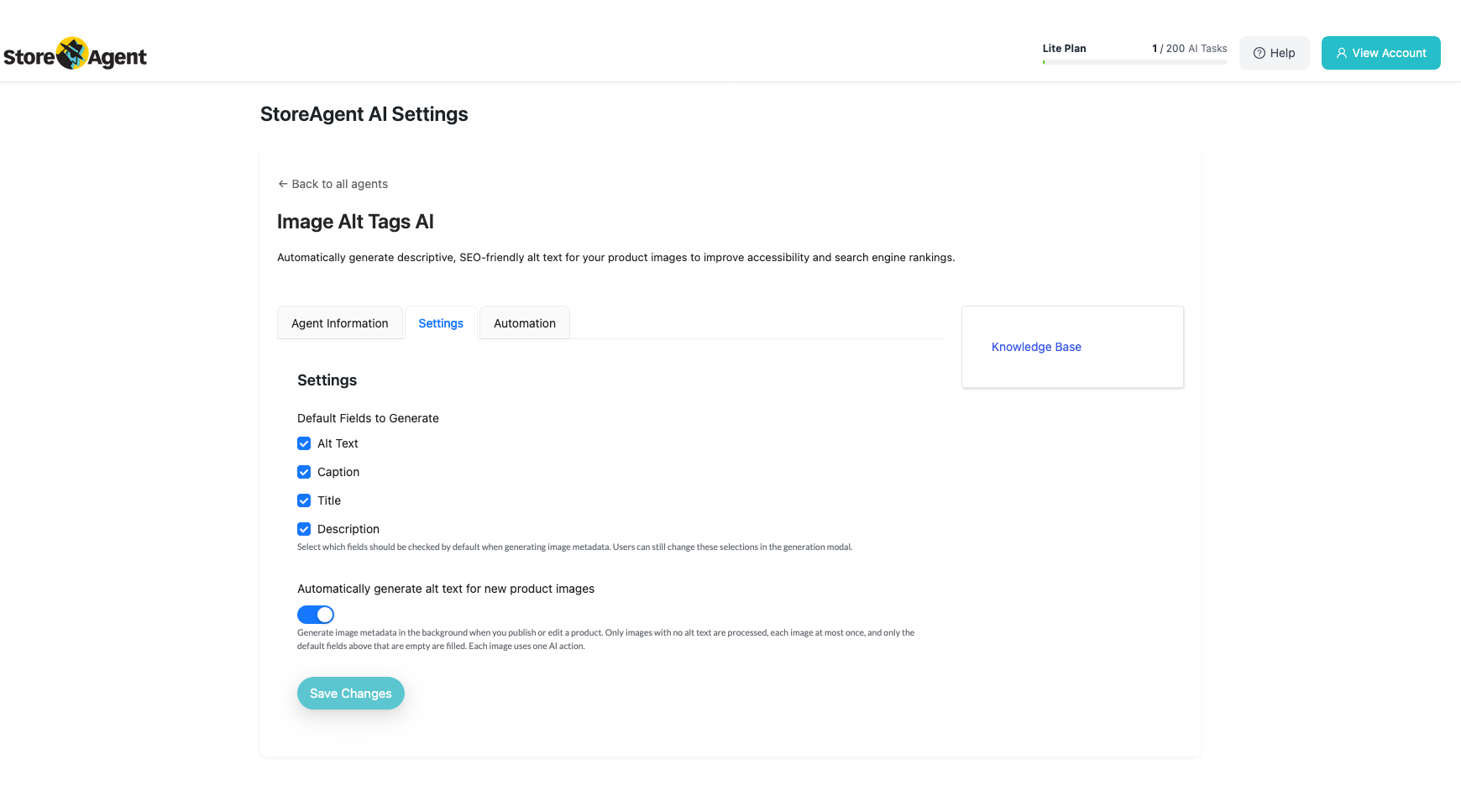
- On the Image Alt Tags AI card, click SETTINGS.
- Click the Settings tab.
- Under Default Fields to Generate, check the fields you want: Alt Text, Caption, Title, or Description.
- Default: Alt Text only.
- These fields start checked when you open the Generate with AI window. You can still change them there.
- Automatic alt text fills only the fields you check here.
- Keep Alt Text checked, or the automatic run won’t add alt text.
- Leave Automatically generate alt text for new product images switched on, or turn it off.
- It’s on by default.
- Click Save Changes.
How automatic alt text works
When the switch is on, StoreAgent checks your product images each time you publish or update a product. If the featured image or a gallery image has no alt text, the AI Task writes it in the background a short time after you save. You don’t need to click anything.
It only fills gaps. Images that already have alt text are skipped, so alt text you wrote yourself is never replaced. If you checked other fields under Default Fields to Generate, such as Caption, those are filled too, but only when they’re empty.
Each image is tried once. If the AI can’t read an image, StoreAgent logs the problem and moves on instead of trying again and again. The one exception is running out of AI Tasks. In that case the image isn’t marked as tried, so StoreAgent tries it again the next time you save the product with AI Tasks available.
Automatic alt text runs when you:
- Publish or update a product on the product edit screen
- Publish a product for the first time with Quick Edit
- Let a scheduled product go live
- Create a product, or change its images or status, through the WooCommerce REST API, which apps that connect to your store use
- Approve a vendor’s product in WC Vendors, or a vendor saves a live product from their dashboard
It doesn’t run when:
- You import products with the WooCommerce CSV importer
- You use bulk edit, including bulk edit to Published
- Only the stock level changes, for example after an order
- The product is a draft, pending review, or private
- The Image Alt Tags AI Task or the automatic switch is turned off
- Your plan has no AI Tasks left
It only covers product images: the featured image and the gallery. Variation images and images in your Media Library that aren’t used on a product are left alone.
Generating image metadata
Want to review the text before it’s saved, or fill in captions and titles for any image? Use the Generate with AI button. It shows in the Media Library and in the image picker on post, page, and product edit screens.
Using the generation tool
- Open your Media Library and click an image to open Attachment Details.
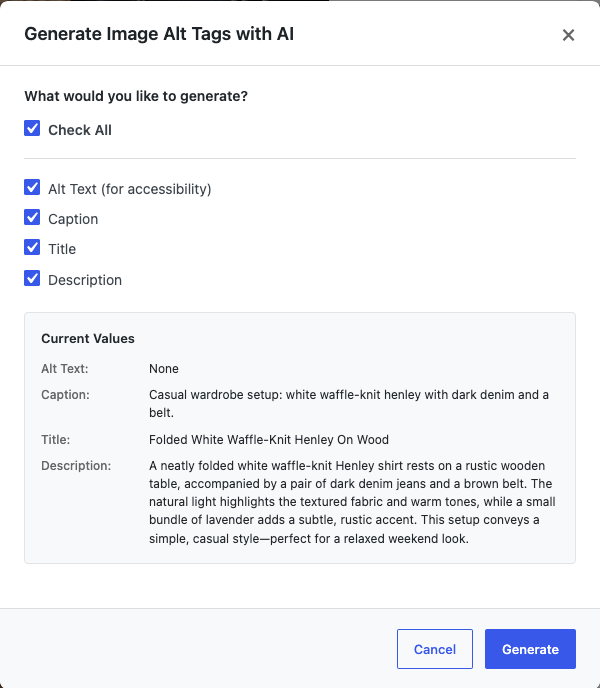
- Click Generate with AI.
- In the Generate Image Alt Tags with AI window, under What would you like to generate?, check the fields you want.
- Check Check All to select every field.
- Click Generate.
- Review the text under Generated Content.
- Click Save Changes.
Troubleshooting common issues
If something doesn’t work as expected, start with the fix for your symptom below.
Alt text didn’t appear after I published a product
Check that the switch on the Image Alt Tags AI card and the Automatically generate alt text for new product images switch are both on. Then check the AI Tasks counter at the top of the StoreAgent screens to make sure you have some left.
The run happens in the background, so wait a minute and reload the product. Remember that it skips images that already have alt text, CSV imports, and bulk edits.
Still nothing? Go to WooCommerce > Status > Logs and look for entries from storeagent-ai-for-woocommerce. They tell you why an image wasn’t processed.
Resolving “failed to generate alt tags”
If you see Failed to generate alt tags. Please try again., click Generate again first. If the error comes back, check these:
- Your site is publicly reachable. StoreAgent sends the AI the image’s web address, so images on a local site or a password-protected staging site can’t be read.
- The image isn’t oversized. StoreAgent sends the Large size of your image, then the Medium size, and only uses the original file when neither exists. If the original is very big, upload a smaller version and try again.
Missing buttons or permission errors
- Turn on the AI Task. The Generate with AI button only shows when the switch on the Image Alt Tags AI card is on.
- Log in as an Administrator. The Generate with AI window needs administrator access (the
manage_optionspermission). - Clear your browser cache. Do this if the button still doesn’t show after a plugin update.
Frequently asked questions
Will automatic alt text overwrite alt text I already wrote?
No. It only processes images that have no alt text, and it only fills fields that are empty.
Does automatic alt text use my AI Tasks?
Yes. Each image uses one AI Task. When you run out, it stops quietly and StoreAgent shows its plan limit notice so you can upgrade.
How do I add alt text to products I already have or imported?
Older products get alt text the next time you update them on the product edit screen. To cover many products at once, go to StoreAgent > Bulk Actions and run Image Alt Tags AI. See How to bulk run StoreAgent AI Tasks in WooCommerce.
Need help?
If you have a question or run into any issues, we’re here to help.
- Premium users: Open a support ticket
- Free users: Visit our community forum

