
Shoppers ask your AI Chat Bot about products, stock, and orders. The bot doesn’t make up answers. It uses a snapshot of your store data called AI Memory, plus a few live lookups. This guide shows which store content the bot indexes, which details it checks live, and how to force a sync after you update a product.
Prerequisites
- StoreAgent AI for WooCommerce installed, activated, and connected to your StoreAgent.ai account.
- The AI Chat Bot enabled in StoreAgent → Settings → AI Chat → General.
Which content the chat can access
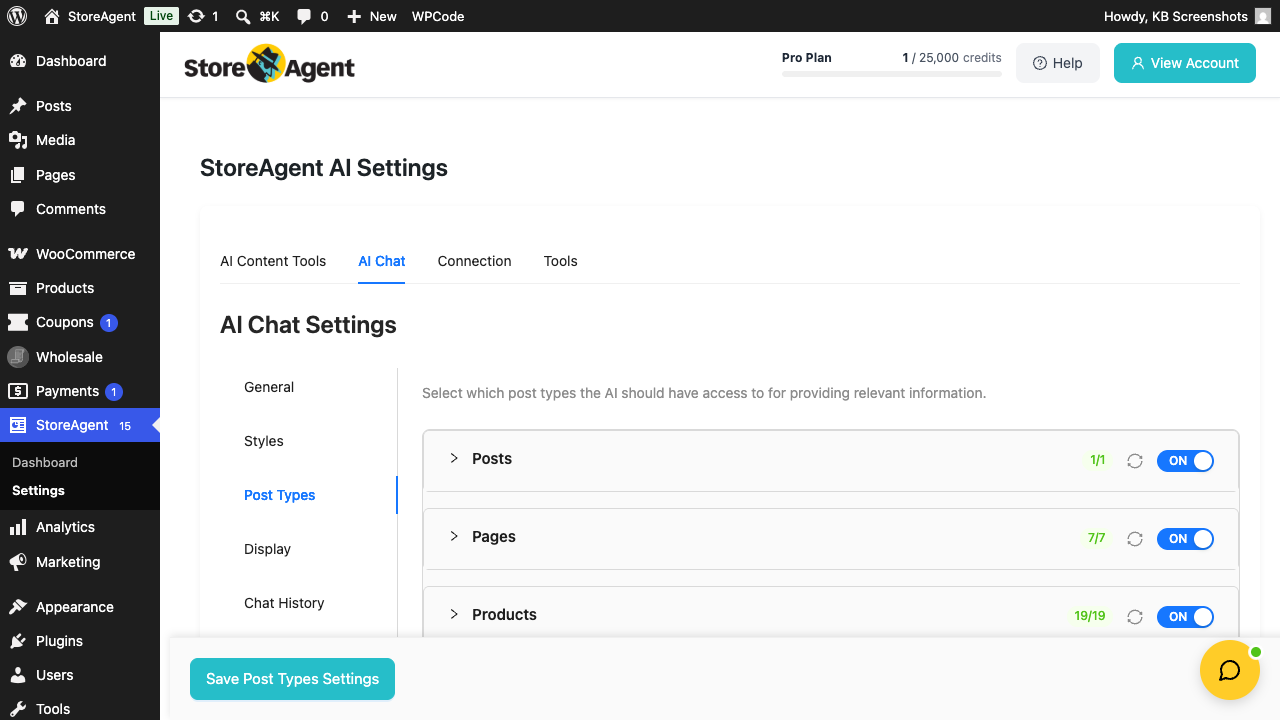
The chat reads from three post types by default, and you can enable others. To configure what’s indexed, go to StoreAgent → Settings → AI Chat → Post Types:
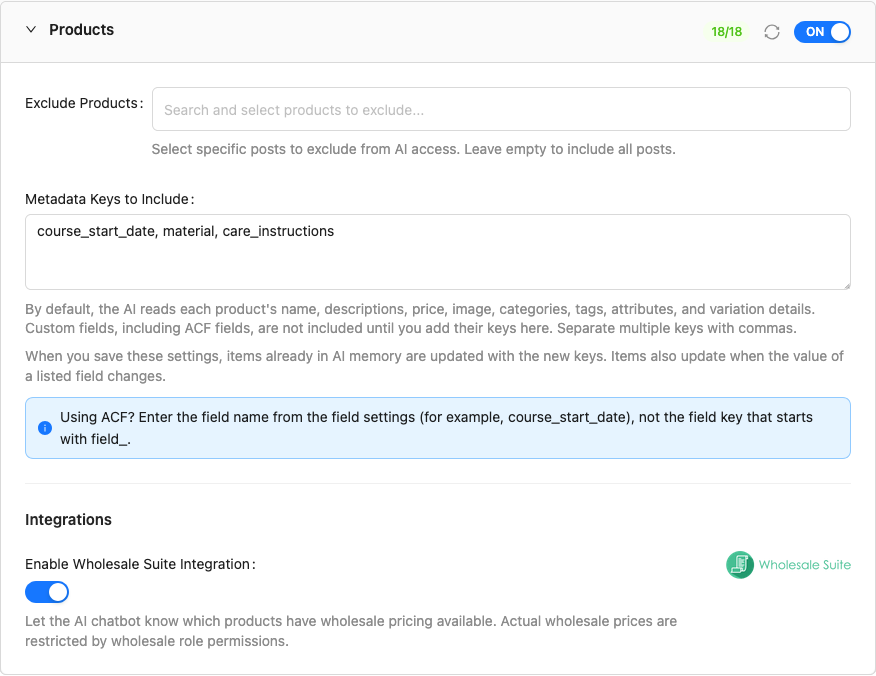
- Products: each product’s name, descriptions, price, image, categories, tags, attributes, and variation details. Custom fields, including ACF fields, are added only when you list their keys in Metadata Keys to Include on the Products panel.
- Pages: your static pages (about, FAQ, shipping, returns). On by default if you kept the recommended choices in onboarding. Turn the toggle off to stop indexing them.
- Posts: blog posts. On by default if you kept the recommended choices in onboarding. Turn the toggle off to stop indexing them.
For each post type you can also exclude specific items via the Exclude [Post Type] search field on its panel, useful for hiding archived, internal-only, or restricted-content posts from the chat.
Add custom fields to the index
Some product details live in custom fields, like a course start date or care instructions saved with Advanced Custom Fields (ACF). The chat can’t see these until you list their keys. For pages and posts, the chat reads each item’s title, content, and any post categories by default, and custom fields work the same way.
- Go to StoreAgent → Settings → AI Chat → Post Types.
- Click the panel of the post type you want, for example Products, to open it.
- Make sure the panel’s toggle is set to ON.
- If you turn the post type on now, StoreAgent starts indexing all of its items a few minutes after you save.
- In Metadata Keys to Include, enter your custom field keys, separated by commas.
- Using ACF? Enter the field name from the field settings (for example,
course_start_date), not the field key that starts withfield_. - Keys you list for products are also read from each variation, so a value that differs per variation is included too.
- Using ACF? Enter the field name from the field settings (for example,
- Click Save Post Types Settings.
- Items already in AI Memory are updated with the new keys in the background, a few minutes after you save.
- After that, an item also updates on its own when the value of a listed field changes, even if an import or another plugin makes the change.
Checking what’s indexed
The Post Types tab shows an indexing summary next to each enabled post type: a fraction (for example 19/19) that tells you how many items of that post type are in the index against the total available. When the two numbers match, every published item is indexed; when they don’t, some are still being processed or have failed.
You also get a per-item view: the Products list has an AI Memory column showing each product’s current sync status. The Posts and Pages lists show the same column when those post types are enabled. Hover over the icon to see the details: added, pending upload, needs re-upload, pending deletion, or a message that starts “The last upload to the AI memory failed”. Instead of an icon, some products show “Not publicly viewable” or “Hidden from catalog”. The Post Types tab also shows a failed count for each post type. See How StoreAgent AI Memory works for the full breakdown of statuses and what to do about each.
Triggering a manual sync
StoreAgent re-uploads a product to AI Memory automatically 3 to 5 minutes after you save it. If you can’t wait, for example you’ve just fixed a typo a customer flagged in chat, use Sync Now.
Sync a post type now
- Go to StoreAgent → Settings → AI Chat → Post Types.
- Click the Sync Now icon (a circular arrow) next to the post type’s enable toggle.
Sync Now retries failed items and uploads changed items straight away. Items that haven’t changed since their last upload are skipped. To send every item again, go to the Tools tab and click Clear Post Hashes. See StoreAgent Admin Tools page reference.
Manual sync also helps when the index is partially out of date after a long period of bulk imports, for example after migrating a catalog or importing a product CSV.
What the chat can and can’t reference
The chat answers from indexed content only. That means:
- Yes: any product, page, or post you’ve enabled in Post Types settings, including custom meta fields you’ve explicitly added to Metadata Keys to Include.
- Yes (with the Wholesale Suite integration on): wholesale-role-specific pricing per the customer’s role. See How to integrate StoreAgent with WooCommerce Wholesale Suite.
- No: draft, pending, password-protected, or trashed posts. The index only stores published items.
- No: products with Catalog visibility set to Hidden in WooCommerce. If you hide a product that’s already indexed, StoreAgent removes it from AI Memory. The AI Memory column shows “Hidden from catalog” for these products.
- No: custom-field data unless you’ve added the meta key to the per-post-type Metadata Keys to Include field.
- No: external websites or third-party services. The chat does not browse the web or pull answers from outside sources.
How the chat gets exact prices, stock, and order details
Most answers come from the indexed content described above. For a few details that change often, the AI Chat Bot also does a live lookup in your store at the moment a shopper asks.
- Variable product prices and variation details. A general answer may quote a starting price or a price range from the index, while the exact price and SKU of a specific variation are fetched live when the shopper asks about that variation.
- Stock. The bot checks stock live at the moment the shopper asks. It can say if a product or variation is in stock, out of stock, or on backorder, and if backorders are allowed. If your store shows stock counts, it can also say how many are left. A stock change shows in chat straight away, with no re-index. Your WooCommerce Stock display format setting (under WooCommerce → Settings → Products → Inventory) is respected, so if your store hides quantities, the bot doesn’t get the number. It never gives a count for a product that’s out of stock or on backorder.
- The shopper’s own order. When a logged-in shopper asks about their order, the chat looks it up live. It only ever returns that shopper’s own order. If a guest asks about an order, the chat can’t look it up. Instead it can ask them to sign in and give them a link to your store’s login page. That link is your WooCommerce My Account page, or the WordPress login screen if there’s no usable My Account page. If your store uses WooCommerce Subscriptions, the chat can also look up the shopper’s own subscriptions.
These live lookups are read-only and stay within your own store. The chat still never calls external websites or third-party services.
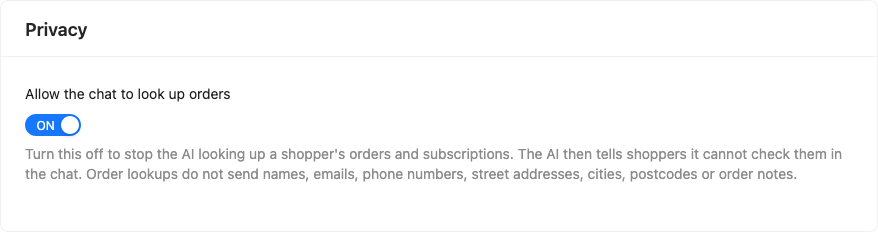
Order and subscription lookups are on by default. To stop them, turn off Allow the chat to look up orders in the Privacy section of StoreAgent → Settings → AI Chat → General, then click Save Settings.
Troubleshooting
The chat returns outdated product details
If a stale answer lasts more than 10 minutes, go to StoreAgent → Settings → AI Chat → Post Types and click the Sync Now icon next to the post type. If it’s still stale, hover over the product’s icon in the AI Memory column. If the message says “The last upload to the AI memory failed”, StoreAgent retries automatically on the date shown after “Scheduled:”. After several failed attempts, it waits about a day before the next try.
To retry now, go to StoreAgent → Settings → AI Chat → General and click Resume indexing in the Indexing needs attention notice. The small delay you see after a normal save is expected: StoreAgent waits 3-5 minutes before it re-uploads a changed product.
The chat answers from a page I don’t want it to reference
Go to StoreAgent → Settings → AI Chat → Post Types, find the post type’s panel, and add that specific page to the Exclude [Post Type] search field. The chat will stop referencing it on the next sync. Alternatively, disable the whole post type’s toggle if you don’t want any of its items in the index.
Custom field values aren’t appearing in chat answers
Go to StoreAgent → Settings → AI Chat → Post Types, open the post type’s panel, and check that each key is listed, comma-separated, in Metadata Keys to Include. For ACF fields, use the field name, not the key that starts with field_. If you add or correct a key, click Save Post Types Settings. StoreAgent updates the items already in AI Memory a few minutes after you save. If the keys were already correct and answers are still missing, go to StoreAgent → Settings → Tools and, under Clear Post Data Hashes, click Clear Post Hashes to send every item again. See StoreAgent Admin Tools page reference.
By default, only standard WooCommerce product fields (name, description, price, and so on) are indexed. Content is also indexed as written, so text that only appears after a shortcode or page builder renders on the front end is not part of the index.
Frequently asked questions
Does the chat see customer personal data?
Customer accounts and personal data are never added to the index (AI Memory) that the chat answers from. Chat transcripts are separate, see the next question. The chat can look up a logged-in shopper’s own order when they ask about it, but only their own order, and only the state and country from its addresses. It never returns a customer’s name, email, phone number, street address, city, postcode, order notes, card details, or anyone else’s orders. It does see the logged-in user’s role, so it can apply wholesale pricing. To turn order and subscription lookups off completely, use the Allow the chat to look up orders toggle described above.
What happens to personal details a shopper types into the chat?
The chat sends each message to StoreAgent exactly as the shopper types it. StoreAgent doesn’t ask shoppers for personal details, but there is no setting that removes them from a message. If a shopper types their name, email, or address, it becomes part of the chat transcript.
StoreAgent deletes a chat transcript 30 days after the last activity in that chat.
How do I export or erase a shopper’s chat data?
From StoreAgent 1.2.0, chat transcripts work with the WordPress privacy tools. Go to Tools > Export Personal Data or Tools > Erase Personal Data and enter the shopper’s email address. The export lists their chat messages under StoreAgent Chat, and the eraser deletes their transcripts from StoreAgent. Tick Confirmation email if you want WordPress to email the shopper to confirm the request first.
A few limits apply:
- The tools find a chat only if the shopper sent a message in it while signed in, on StoreAgent 1.2.0 or later.
- A guest chat isn’t linked to an email address, so it can’t be exported or erased by request. It’s still deleted 30 days after its last activity.
- Your store must be connected to StoreAgent. If it isn’t, or StoreAgent can’t confirm the deletion, the eraser shows how many chats it couldn’t remove and why. Run the erase request again to retry.
What data does the AI Chat Bot actually use?
Two things: the store content you choose to index (your products, and any pages or posts you enable), and the messages in the current conversation. That is separate from your website’s general privacy policy, which covers site-wide topics like cookies, IP addresses, and analytics. Those tracking topics are not what the AI Chat Bot works from. It answers from your published store content and the conversation itself.
How big is the index?
It depends on your plan’s vector item allowance. The free StoreAgent Lite plan includes 1,000 memory items; paid plans include larger allowances. See How StoreAgent calculates your usage for the math, and your StoreAgent.ai dashboard for current usage.
What if I exceed my vector item allowance?
New items aren’t indexed once you’re over the limit, and chat answers may reference older versions of products that have changed. When the limit stops an upload, StoreAgent pauses syncing and shows a StoreAgent: AI Memory Syncing Paused notice with a View account button.
The fix is to either remove items from AI Memory (Bulk actions → Remove from AI Memory) or upgrade your plan. After you upgrade or renew, syncing resumes automatically.
Need help?
If you have a question or run into any issues, we’re here to help.
- Premium users: Open a support ticket
- Free users: Visit our community forum

