
Your AI Chat can only answer questions about content it knows. StoreAgent‘s AI Memory keeps your products and pages in sync with the AI. This guide explains what AI Memory stores, how it syncs, and how to fix syncing problems.
What is AI Memory?
AI Memory is StoreAgent’s content indexing system. When you enable it, StoreAgent reads your WooCommerce products and converts them into vector items. These items live in StoreAgent’s cloud and give the chat widget the knowledge it needs to help customers.
Without AI Memory, the chat widget has no knowledge of your store. Once you set it up, however, it can answer specific questions about your products, descriptions, and attributes.
What are vector items?
A vector item is a mathematical representation of a product or post. Unlike a keyword search index, it captures meaning rather than exact words. As a result, the AI can find the right product even when the customer’s phrasing doesn’t match the product copy exactly.
Your StoreAgent plan sets a limit on how many vector items you can store. Each published product counts as one item. If you reach the limit, StoreAgent pauses syncing until you renew or upgrade your plan.
Products set to Hidden in WooCommerce catalog visibility are not added to AI Memory, so the chat never recommends them. The AI Memory column shows “Hidden from catalog” for these products. Products set to Shop only or Search results only are still indexed.
What data does AI Memory store?
For each WooCommerce product, StoreAgent stores the following data:
- Product name
- Short description and full description
- Price
- Product image URL
- Categories and tags
- Product attributes, for example size, colour, and material
- Custom fields, including ACF fields, if you add their keys to Metadata Keys to Include on the StoreAgent → Settings → AI Chat → Post Types tab. StoreAgent reads these keys from the product and from each of its variations that shoppers can see.
If you use ACF, enter the field name from the field settings, for example course_start_date. Do not enter the field key that starts with field_.
For posts and pages, StoreAgent stores the title, the full content, and any assigned taxonomy terms, for example categories.
How the initial setup works
The first time you enable AI Memory, StoreAgent runs a one-time setup process. Here’s what happens:
- First, StoreAgent creates a dedicated memory store for your site on the StoreAgent cloud.
- Next, it queues all published products, and any other enabled post types, for upload.
- Then, StoreAgent uploads them in the background with WordPress’s built-in task scheduler. During this first sync it sends 25 items per batch. Each batch starts as soon as the one before it finishes, so your catalog syncs as fast as your site allows.
- Finally, a progress notice in your WordPress admin shows when the upload completes.
Before you start setup, make sure the following are in place:
- Your store is connected to StoreAgent. See Getting started with the AI Chat Bot
- You have AI Memory allowance on your StoreAgent plan. The free Lite plan includes up to 1,000 memory items, and paid plans include larger allowances. See the pricing page.
- The AI Chat Bot is enabled
- At least one post type is selected for AI Memory in the Chat settings
How AI Memory stays up to date
Once AI Memory is set up, you don’t need to re-sync it manually. StoreAgent detects content changes automatically.
When you save a product, StoreAgent compares the new content to the version it last uploaded. If something has changed, StoreAgent schedules a re-upload to run a few minutes later (3 to 5 minutes, with random jitter to spread the load). This short debounce window is intentional. It groups multiple quick edits together, so StoreAgent doesn’t run an upload for each individual save.
StoreAgent also re-syncs a product when a custom field listed under Metadata Keys to Include changes, even if nobody saves the product. For example, an import or another plugin can change the field. A change to a variation’s custom field re-syncs its parent product. When you change the Metadata Keys to Include list and save, StoreAgent updates the items already in AI Memory with the new keys.
In addition, StoreAgent queues newly published products automatically. When you delete a product, or when you disable AI Memory for a specific product, StoreAgent removes it from the memory store as well.
Monitoring sync status in the products list
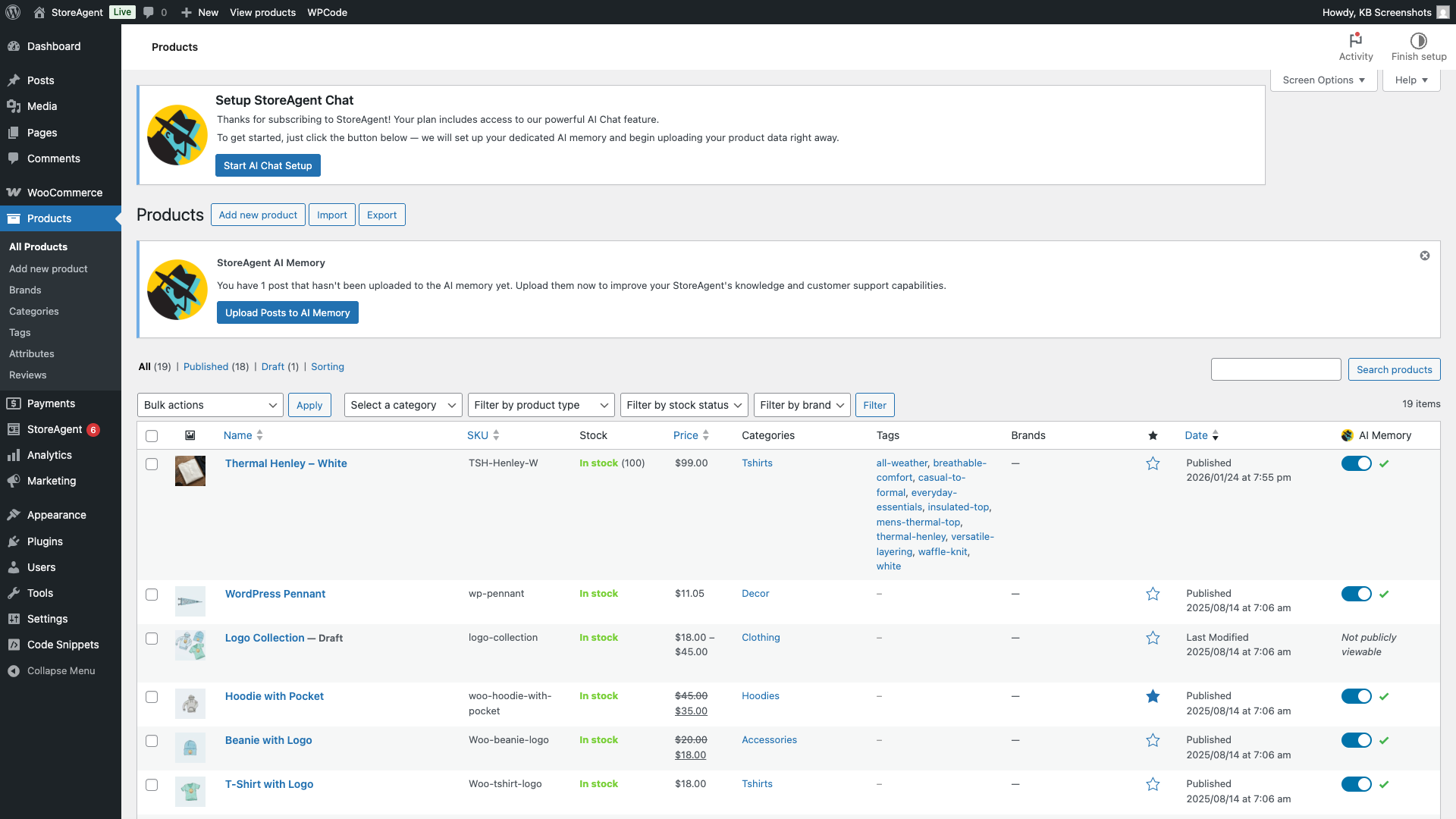
After the initial setup completes, an AI Memory column appears in your Products → All Products list. Each row has an on/off switch for AI Memory and a status icon. Hover over the icon to see what it means.
| Icon | What it means (hover text) |
|---|---|
| Green checkmark | Uploaded: “Post data has been added to the AI memory.” |
| Blue dots | Waiting to upload: “Post data is pending upload to the AI memory.” |
| Green dots | Changed and scheduled for re-upload: “Post data has been modified and needs to be re-uploaded to the AI memory.” |
| Amber warning | Last upload failed: “The last upload to the AI memory failed”, with the time of the next automatic retry. |
| Red dots | Pending removal: “Post data is pending deletion from the AI memory.” |
| Text: Not publicly viewable | The item is not public, so it is not indexed. |
| Text: Hidden from catalog | The product is set to Hidden in catalog visibility, so it is not indexed. |
You can also use the Add to AI Memory and Remove from AI Memory bulk actions in the Products list to manage multiple products at once.
Check indexing status and sync manually
See indexing progress on the General tab
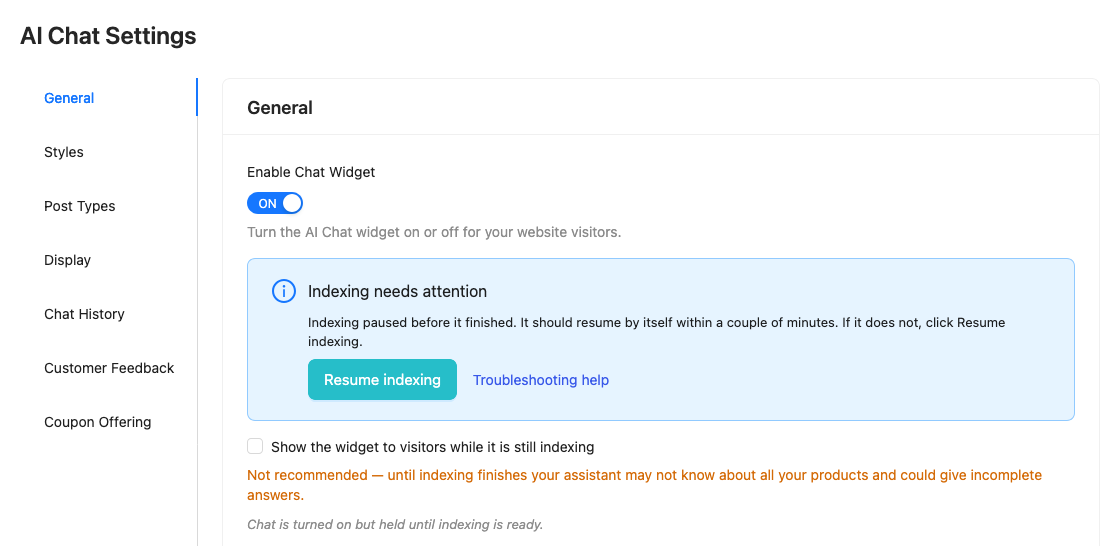
Go to StoreAgent → Settings → AI Chat → General. Under Enable Chat Widget you see one of these:
- A progress bar that starts with “Indexing your store”, with the percentage and item count. Your chat widget stays hidden from customers until indexing is ready, unless you tick Show the widget to visitors while it is still indexing.
- Your AI Chat is ready, with the number of items indexed.
- Indexing needs attention, when a sync stalls or some items failed. Click Resume indexing to retry now. StoreAgent also retries on its own.
Check each content type on the Post Types tab
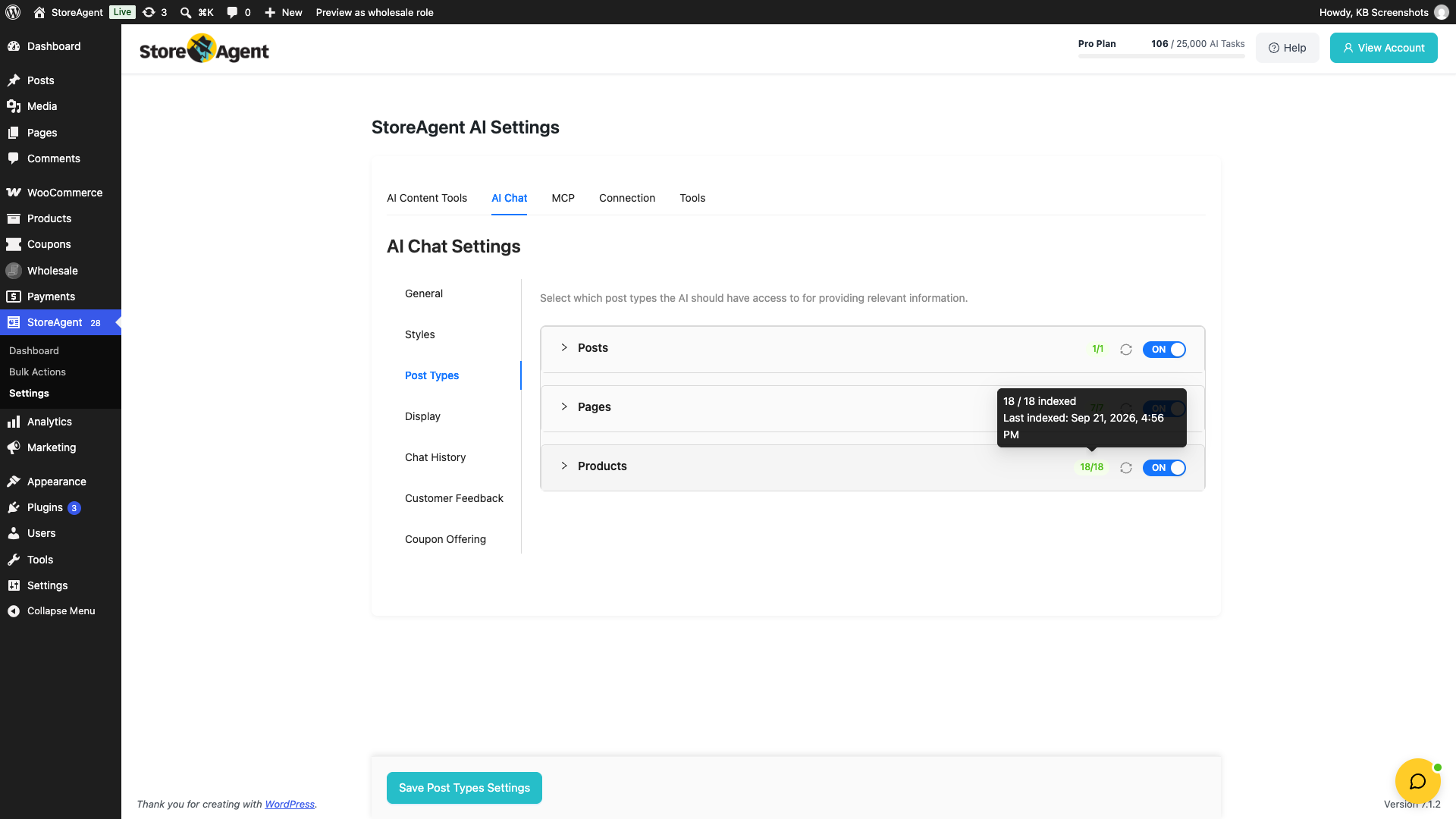
Go to StoreAgent → Settings → AI Chat → Post Types. Each enabled content type shows a count of indexed items out of the total. Hover over the count to see how many items are indexed and the Last indexed: time. If any items failed or are still pending, the tooltip shows those counts too. Click the sync icon (Sync Now) to retry failed items and upload that content type straight away.
Upload retry behaviour
When a product upload fails, for example due to a temporary connection issue, StoreAgent retries it automatically. StoreAgent attempts the upload up to 3 times in total. If all 3 attempts fail, StoreAgent waits about 24 hours and then tries again automatically. AI Memory stays on for the product. Temporary problems such as timeouts or rate limits do not count toward the 3 attempts. To retry now, click the sync icon (Sync Now) on the StoreAgent → Settings → AI Chat → Post Types tab.
For developers: customising batch sizes
By default, StoreAgent uploads AI Memory data in batches of 10 products, or 25 during the first sync. For stores with specific performance requirements, two filter hooks let you adjust this. Both hooks enforce a minimum value of 1.
saai_posts_per_batch
This filter controls how many products StoreAgent uploads per batch. The default is 10 for normal re-uploads and 25 during the first sync. The filter also receives $is_first_sync, so you can set a different size for each case.
add_filter( 'saai_posts_per_batch', function( $batch_size, $is_first_sync ) {
    return $is_first_sync ? 25 : 5; // 25 per batch on the first sync, 5 after that
}, 10, 2 );
saai_posts_delete_per_batch
This filter controls how many products StoreAgent removes per deletion batch. The default is also 10.
add_filter( 'saai_posts_delete_per_batch', function( $batch_size ) {
    return 5; // Remove 5 products per batch
} );
Add these filters to your theme’s functions.php file or a site-specific plugin. Note that StoreAgent treats any value below 1 as 1.
Troubleshooting
The AI Memory column doesn’t appear on the Products list
The column only appears once the initial AI Memory setup has been completed. If you’ve enabled AI Chat but haven’t clicked through the setup notice yet, the column won’t render. Open Products → All Products, then look for the StoreAgent setup notice at the top of the admin and click Start AI Chat Setup. After the upload finishes, refresh the Products list and the column appears.
Products are stuck in “Pending” status for a long time
Go to WooCommerce → Status → Scheduled Actions and search for saai_post_data_upload. If you see many actions in “pending” state from a while ago, your scheduler isn’t running. Triggering the page manually or setting up a real cron job on your server will resume processing.
Uploads run through WordPress’s Action Scheduler in batches (25 per batch during the first sync, 10 after that). If Action Scheduler isn’t processing jobs, most often because your site’s WP-Cron isn’t firing or your host disables it, the queue can stall. If you see the StoreAgent: AI Memory Syncing Paused notice, uploads are paused on purpose and no upload actions are scheduled. See the next entries.
A product shows a failed upload warning
StoreAgent retries each upload up to 3 times, then waits about 24 hours and tries again automatically. To retry now, click the sync icon (Sync Now) on the StoreAgent → Settings → AI Chat → Post Types tab. If it keeps failing, check WooCommerce → Status → Logs for a log entry tagged storeagent-ai-for-woocommerce. The log records the underlying error (most often a connection timeout or an oversized product description).
I see the “StoreAgent: AI Memory Syncing Paused” notice
- Click View account in the notice.
- Renew or upgrade your plan in your StoreAgent.ai account.
- Wait for syncing to resume, or resume it yourself (see below).
StoreAgent pauses AI Memory syncing when your plan limit is reached, instead of retrying in the background. The notice appears on your WordPress Dashboard, your Plugins page, and StoreAgent admin pages. Only administrators see it. You can dismiss it on the Dashboard and Plugins page for 7 days. It stays on StoreAgent pages until the pause clears.
Syncing resumes by itself the next time StoreAgent refreshes your plan details. It checks once a day. To resume now, go to StoreAgent → Settings → AI Chat → Post Types and click the sync icon (Sync Now) for each content type. If your plan still has no room, syncing pauses again straight away.
If the notice says your store credentials need to be re-synced, click View account and follow the steps in your account.
You can also free up room by turning off AI Memory on products you don’t need indexed. Removed items stop counting toward your memory item limit, and the count can take a few minutes to update.
If you reach your memory item limit, new items stop syncing, but the chat keeps answering from the items already in AI Memory. If syncing paused because your chat replies or AI Tasks ran out, or your subscription is not active, the chat and AI Tasks also stop until your allowance resets or you upgrade.

Updates to a product aren’t appearing in chat responses
Saved updates are queued for re-upload a few minutes later (3 to 5 minute debounce window, so quick successive edits get grouped into one sync). If you can’t wait, click the sync icon (Sync Now) on the StoreAgent → Settings → AI Chat → Post Types tab to upload changes straight away. To send every item again, even ones that haven’t changed, go to StoreAgent → Settings → Tools, and under Clear Post Data Hashes click Clear Post Hashes. While everything uploads again, the chat widget can stay hidden until indexing is ready.
The setup notice keeps reappearing even after I’ve completed setup
The notice tracks setup completion via a flag in your StoreAgent admin. If it persists after a successful upload, go to StoreAgent → Settings → Tools and click Recreate AI Memory. This clears the notice. If the chat is also answering from outdated content, first click Clear Post Hashes under Clear Post Data Hashes, then click Recreate AI Memory. Clearing the hashes makes every item upload again, and the chat widget can stay hidden until indexing is ready. Plan for this to take a few minutes on a moderate catalog.
My indexed count is stuck below my plan limit
Go to StoreAgent → Settings → AI Chat → Post Types, hover over the count to check how many items failed, then click the sync icon (Sync Now) to retry them straight away.
Why it happens: when an item cannot be added (for example empty content, an oversized description, or content the system cannot process), StoreAgent tries it up to 3 times, then parks it for about 24 hours before trying again. Parked items are counted as failed and are skipped in the meantime, so the indexed total plateaus below your limit. The plan meter at the top of the StoreAgent admin shows your Memory Items used against your limit. Failed items also retry automatically after the cooldown. A brief spell of timeouts or rate limits only slows the sync down. It does not permanently stall it.
My usage or memory-item count looks too high or will not go down
Your usage counts the items in your memory store. Clearing your local sync data with Clear Post Data Hashes does not add to your usage. When StoreAgent sends an item again, it replaces the existing copy instead of adding a second one, so re-syncing does not increase your count. When you delete items, delete post data, or trim the store to fit a smaller plan, StoreAgent recounts the items and updates your usage to the real total. Recreating AI Memory does not change the count, because it only creates the memory store if it does not exist. If your count still looks wrong after you remove items, contact support.
I downgraded my plan and some items show as pending
When you move to a plan with a smaller memory allowance, StoreAgent reduces your stored items to fit the new limit. The items that were removed show as pending again in your Products list and per-post-type counts. You do not need to clear hashes or recreate memory. If you later upgrade to a larger plan, those items are re-added automatically once there is room.
Frequently asked questions
How long does the initial AI Memory setup take?
It depends on how many products you have. During the first sync, StoreAgent uploads 25 items per batch, and each batch starts right after the previous one. Most stores with a few hundred products finish the setup within minutes to an hour. You can track progress from the notice in your WordPress admin.
Will my product updates appear in the chat widget immediately after saving?
Not immediately. When you save a product, StoreAgent schedules a re-sync for 3 to 5 minutes later (a short debounce window with random jitter). This delay groups multiple quick edits into one sync so the system doesn’t run an upload for every keystroke. The window is short enough that shoppers see your changes reflected in chat answers within minutes.
What happens when I reach my memory item limit?
StoreAgent pauses AI Memory syncing and shows the StoreAgent: AI Memory Syncing Paused notice in your WordPress admin. Renew or upgrade your plan, and syncing resumes by itself after the next plan check. To resume sooner, click the sync icon (Sync Now) on the AI Chat Post Types tab.
Can I exclude specific products from AI Memory?
Yes. From Products → All Products, select the products you want to exclude and choose Remove from AI Memory from the bulk actions menu. StoreAgent removes them from the memory store and won’t re-upload them automatically.
Does re-syncing or clearing my local sync data use up my plan allowance again?
No. Re-sending items that already exist in your memory store does not add to your usage. The system recognises them and skips them, so only brand-new items count toward your allowance.
What’s next
Need help?
If you have a question or run into any issues, we’re here to help.
- Premium users: Open a support ticket
- Free users: Visit our community forum

