
Writing descriptions, tags, or summaries one product at a time takes hours. StoreAgent lets you preview an AI Task on one product, then run it across many products from the Bulk Actions page or WP-CLI. This guide covers both, plus what to check while a run processes.
Prerequisites
- StoreAgent installed and connected to a StoreAgent account.
- To preview with RUN ON A SAMPLE, the AI Task must be turned on in StoreAgent → Settings → AI Content Tools. A bulk run from Bulk Actions does not need this.
- You have permission to manage WooCommerce (your user role can edit products).
- Enough AI Tasks on your plan for the products you select. The Bulk Actions page shows the estimated cost before you start.
AI Tasks that support bulk running
Six AI Tasks support bulk runs. Some skip products that don’t meet their input requirement:
- Product Description AI: generates full product descriptions. No special input requirement beyond the product title.
- Product Tags Generator AI: generates relevant product tags. Products that have no description are skipped.
- Product Summaries AI: writes short product summaries from your existing description. Products that have no description are skipped.
- Review Summaries AI: generates summaries of product reviews. Products that have no reviews are skipped.
- Product Upsells AI: suggests upsell and cross-sell pairings. Products that already have upsells are skipped.
- Image Alt Tags AI: writes alt text for product images. Only images that are missing alt text are processed, and each image uses one AI Task.
Preview an AI Task on a sample product
Before you run an AI Task on many products, preview it on one.
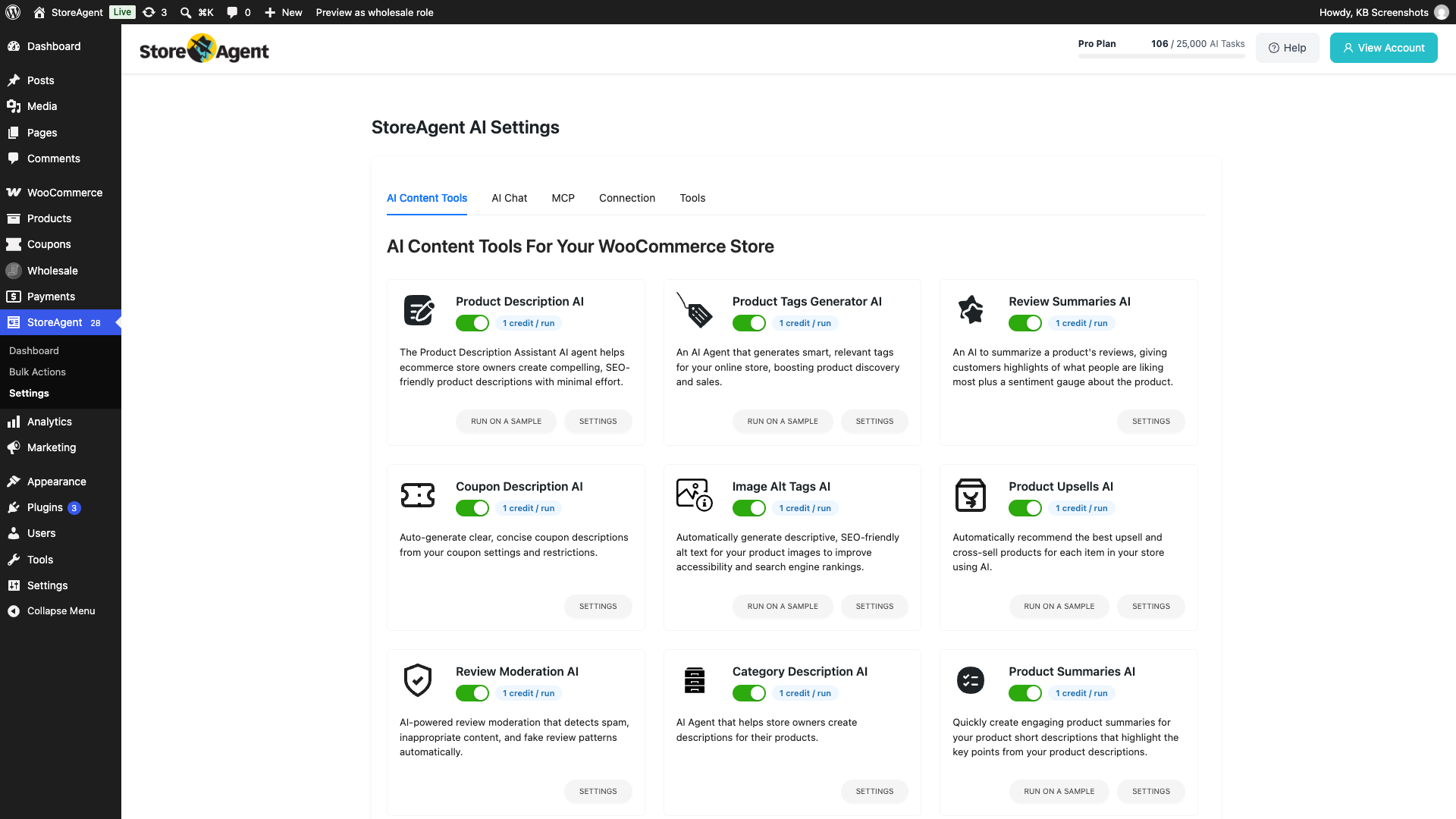
- Go to StoreAgent → Settings → AI Content Tools.
- On the AI Task card, click RUN ON A SAMPLE.
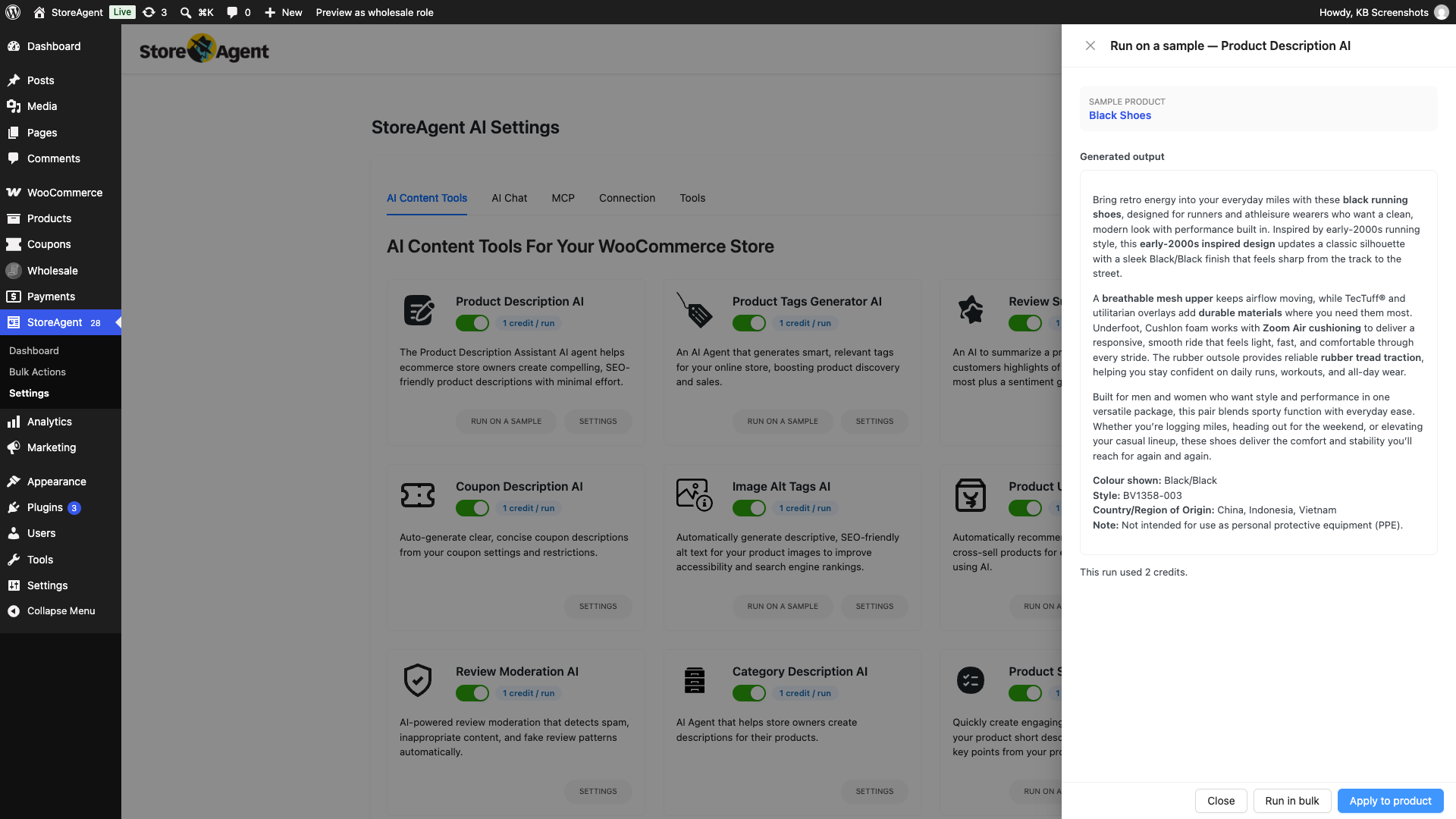
- Read the cost note, then click Run on a sample.
- StoreAgent picks one eligible product and generates a preview.
- Nothing is saved to the product yet.
- Review the Generated output, then choose what to do:
- Click Apply to product to save the result to that one product.
- Click Close to discard it.
The sample run uses AI Tasks from your plan even if you do not apply the result. RUN ON A SAMPLE shows only for Product Description AI, Product Summaries AI, Product Tags Generator AI, Image Alt Tags AI, and Product Upsells AI, and only when that AI Task is turned on. The drawer also has a Run in bulk button, which opens your WooCommerce Products list. To run the AI Task on many products, go to StoreAgent → Bulk Actions instead, as described below.
Each AI Task card shows how much one run costs, for example 1 credit / run. Each AI Task uses 1 per product, and Image Alt Tags AI uses 1 per image. The same cost shows on the Bulk Actions page as AI Tasks per product. See How StoreAgent calculates your usage for how usage is counted.
Bulk run AI Tasks from the Bulk Actions page
Choose an AI Task
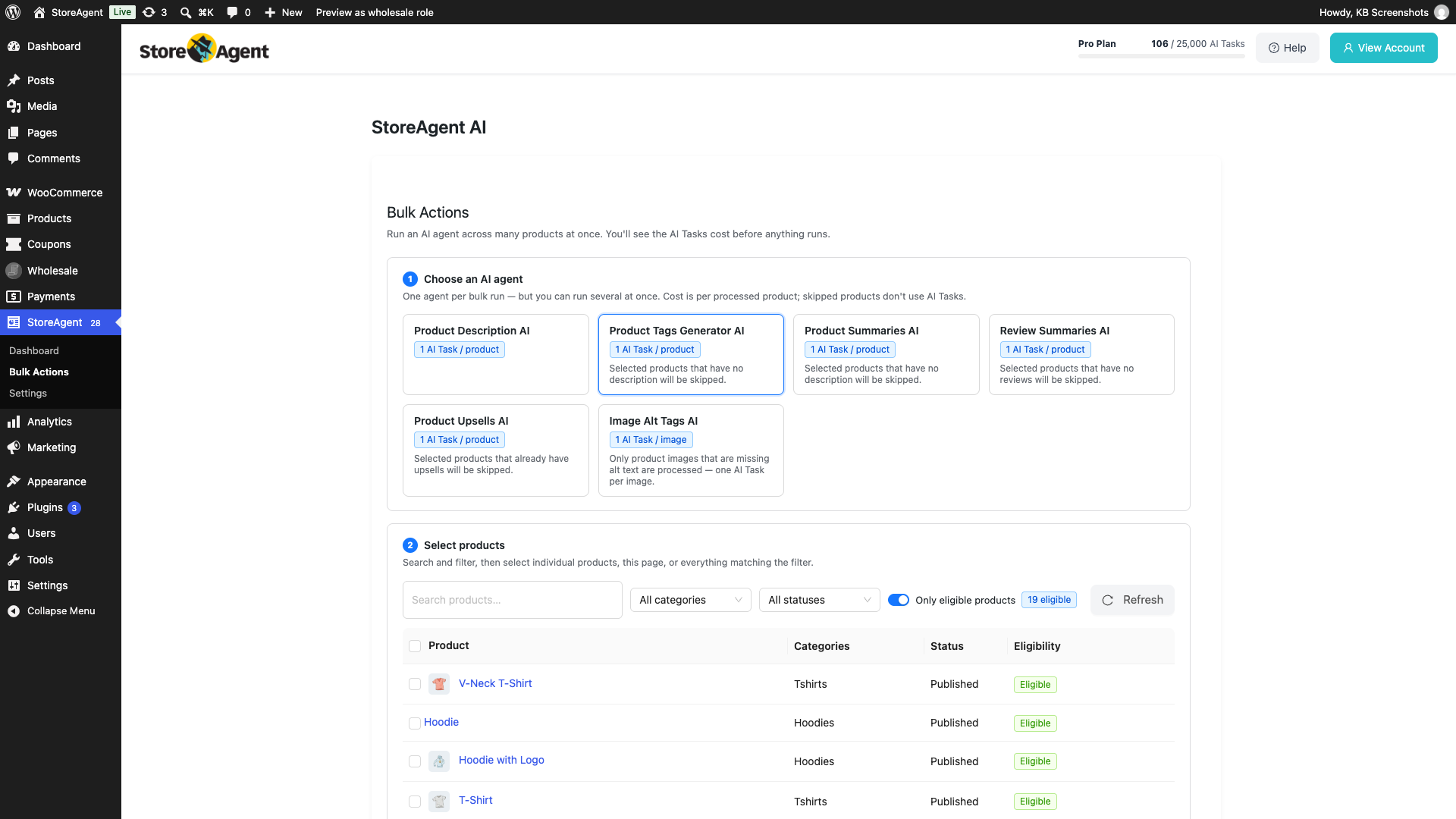
- In your WordPress admin, go to StoreAgent → Bulk Actions.
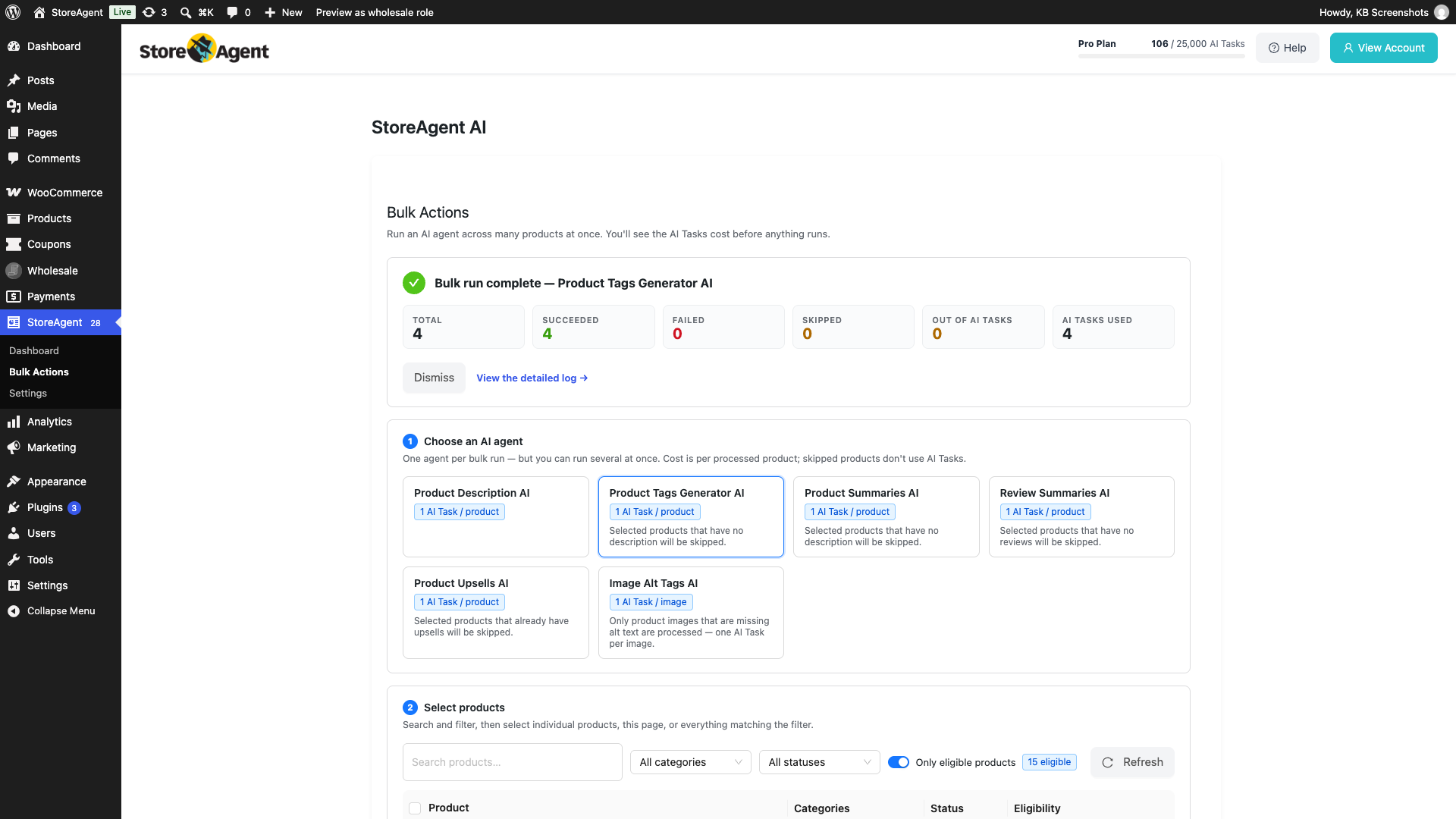
- Under Choose an AI agent, pick the AI Task to run.
- Each option shows its cost in AI Tasks per product, or per image for Image Alt Tags AI.
- You run one AI Task per bulk run, but you can have up to 3 runs going at once.
Select products
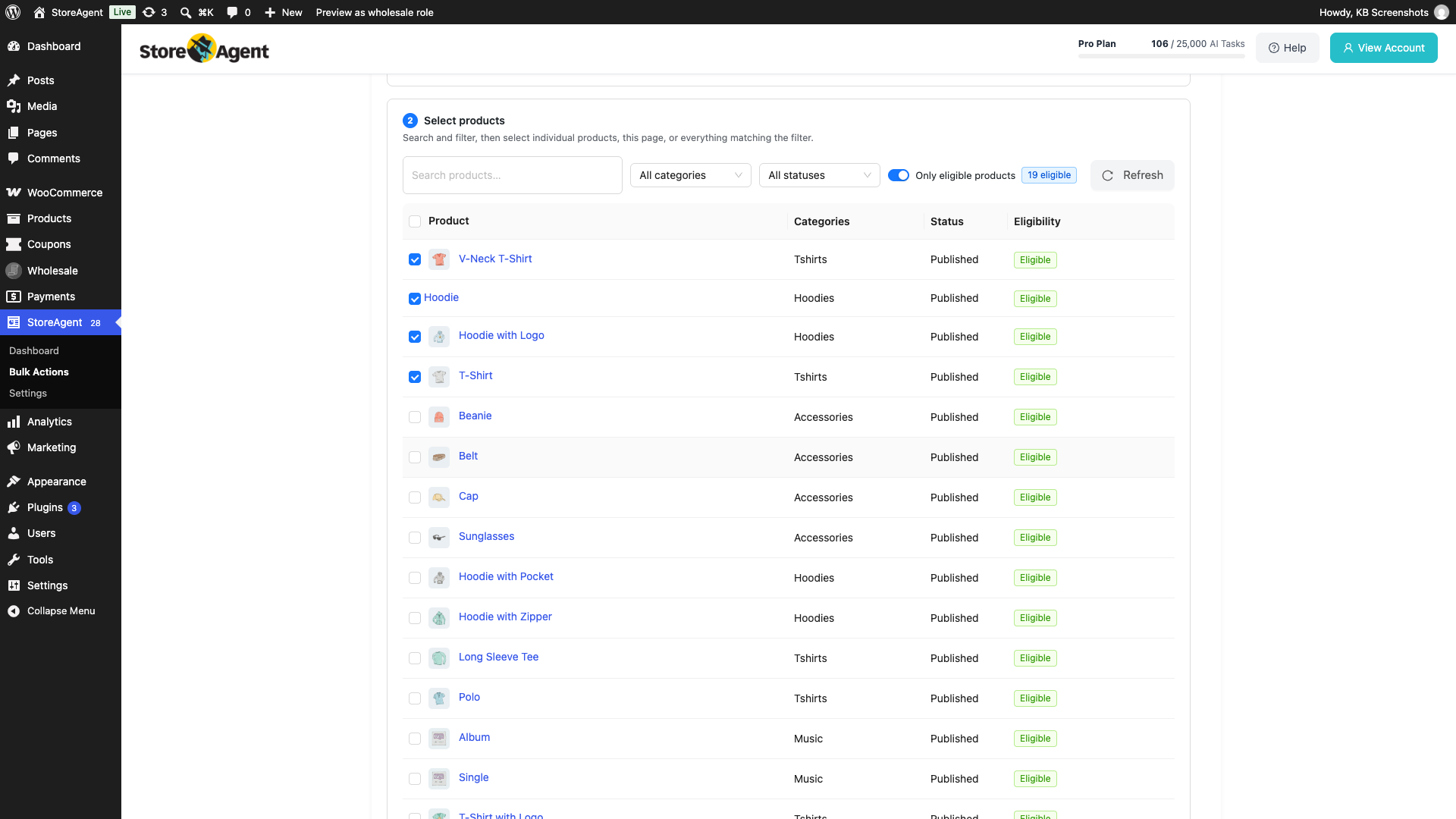
- Use the search box, category filter, and status filter to narrow the list.
- (Optional) Turn on Only eligible products to list only products that don’t have this content yet. If you select other products, StoreAgent replaces their existing content.
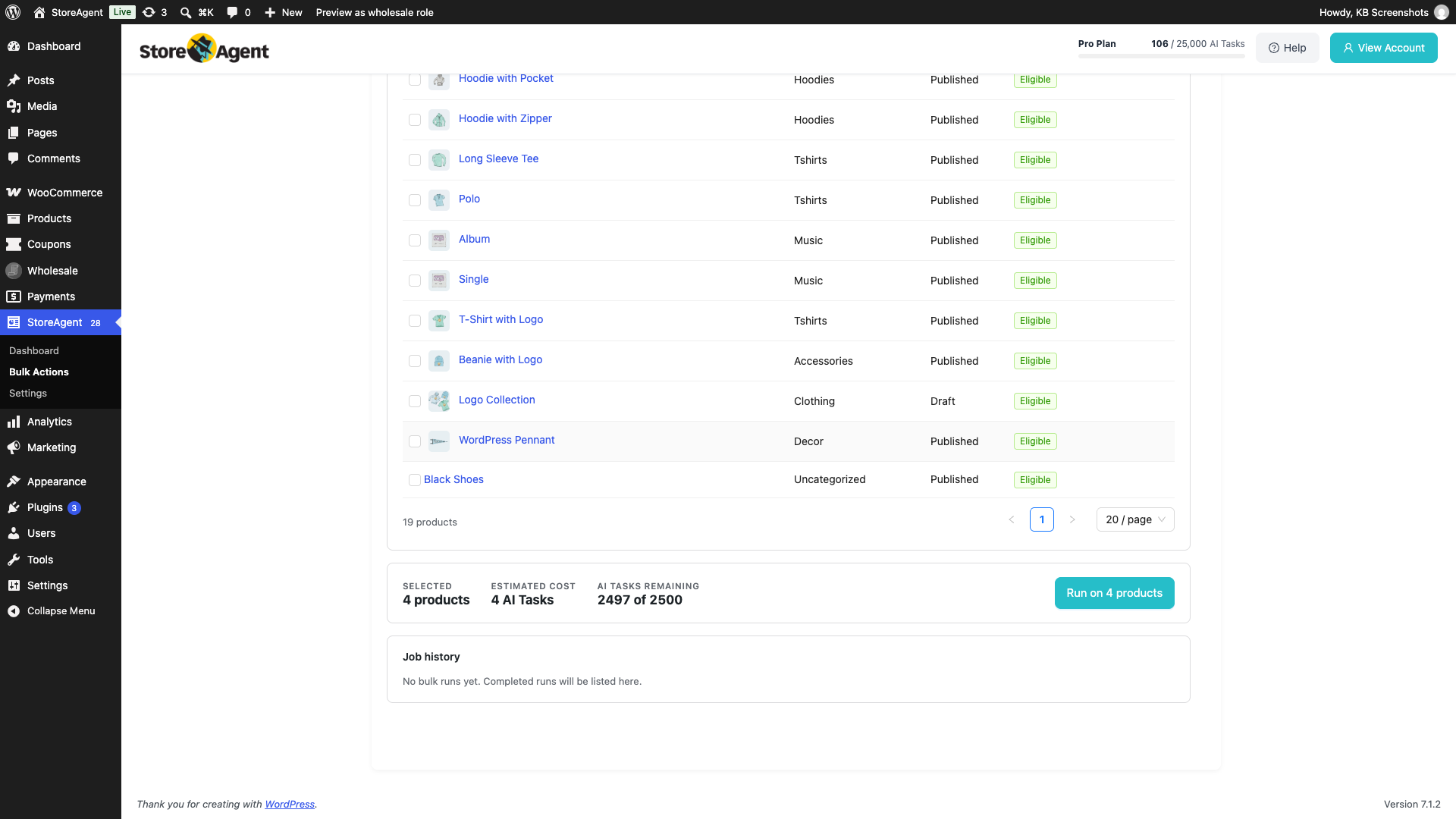
- Tick the products to process. You can also select the whole page, or every product that matches the filter.
- The Eligibility column shows Eligible or Will skip for each product.
- Click Refresh to re-check eligibility after you edit products.
Check the cost and start the run
- Check Estimated cost and AI Tasks remaining in the bar below the table.
- Click Run on [number] products.
If your plan does not have enough AI Tasks for every selected product, the bar shows Not enough AI Tasks for the full run. You can still start the run. StoreAgent processes products in product ID order until your AI Tasks run out, then skips the rest and reports them in the summary as Out of AI Tasks.
Monitor the run
A progress card appears at the top of the page with Total, Processed, Succeeded, Failed, and Skipped counts. You can leave the page. Processing continues in the background. To cancel, click Stop. Products already processed are kept.
When the run ends, a summary shows what succeeded, failed, was skipped, and how many AI Tasks were used. Click View the detailed log → to open the log. Past runs are listed under Job history. You can also find each log in WooCommerce → Status → Logs, under the source storeagent-bulk-run- followed by the AI Task ID.
How bulk processing works
- Products are processed in chunks of 10 at a time for system stability. You can change the chunk size with the
saai_bulk_run_agent_chunk_sizefilter if you have a tuned hosting environment. - The AI Task runs against each product in turn. Products that don’t meet the requirements for the chosen AI Task are skipped automatically and noted in the log.
- Each processed product uses the AI Task’s cost shown in the picker (per image for Image Alt Tags AI). Skipped products do not use AI Tasks. Watch the AI Tasks meter in the StoreAgent admin header, or the progress card on the Bulk Actions page.
- You can run the same bulk operation again later. Product Upsells AI skips products that already have upsells, and Image Alt Tags AI only processes images that are missing alt text. For Product Description AI, Product Summaries AI, and Review Summaries AI, the new output replaces the existing content. Product Tags Generator AI replaces all of the product’s tags, including tags you added by hand.
Bulk run AI Tasks via WP-CLI
If you want to script bulk runs, integrate with deployment pipelines, or operate on a fixed list of product IDs, use the WP-CLI command. Bulk run via CLI is available for the same six AI Tasks.
Basic usage
wp storeagent <task> <product_id> [<product_id> ...]
<task>: the AI Task to run, in kebab-case. Supported values:product-description,product-summaries,product-tags-generator,review-summaries,product-upsells,image-alt-tags.<product_id>: one or more WooCommerce product IDs, separated by spaces (for example10 20 99 51). Do not use commas. With commas, only the first product is processed.
The CLI command and its --help output use “agent” in place of “AI Task”. The behaviour is the same.
Example: bulk generate product descriptions for four specific products
wp storeagent product-description 10 20 99 51
The command processes the four products in sequence, prints progress and any errors to the terminal, and writes the generated descriptions back to WooCommerce. No background log file is created for CLI runs. Output goes to stdout only.
How CLI bulk runs differ from Bulk Actions page runs
No background queue. CLI runs execute in the foreground. The whole product list is processed in a single CLI process, not chunked through Action Scheduler, and the AI Task budget check on the Bulk Actions page does not apply. Use it for predictable, scripted runs.
No log file. Output goes directly to your terminal. Capture it with shell redirection (> output.log) if you need a record.
You pass the product list. The Bulk Actions page works on the products you tick. The CLI takes an explicit list of product IDs.
Getting CLI help
wp storeagent help
Lists every subcommand the StoreAgent CLI registers, including the non-bulk commands below.
Other WP-CLI subcommands
Beyond the per-task bulk runs, the StoreAgent CLI has three operational subcommands. None of these are needed for normal use. They are for developers and site administrators handling migrations, debugging, or scripted maintenance.
wp storeagent upload-data
Manually pushes the current store data to AI Memory. Useful immediately after a catalog import, when you want the AI Chat Bot to start answering from the fresh data without waiting for the scheduled debounce window. Equivalent to clicking the Sync Now icon on StoreAgent → Settings → AI Chat → Post Types, but scriptable from the command line.
wp storeagent reset-data
Resets StoreAgent on this WordPress install to its first-install state, for testing onboarding. This deletes your StoreAgent settings, including chat widget settings, AI Task settings, and generated product summaries. It cannot be undone. The command asks you to confirm unless you add --yes. Add --include-notifications to also clear notifications.
To clear only the AI Memory sync data, use StoreAgent → Settings → Tools → Clear Post Data Hashes instead. See StoreAgent Admin Tools page reference for when to use each cleanup tool.
wp storeagent test-agents
Runs an end-to-end test of every AI Task on real WooCommerce objects. Each registered AI Task runs against a real product, coupon, review, image, or category in your store and the result is printed to the terminal. Use this after a plugin update or migration, or when you diagnose a vague “the AI is broken” report. It shows which AI Task is failing without you having to click through the admin UI for each one.
The command uses AI Tasks from your plan because each AI Task runs a live AI call. Use it sparingly.
Troubleshooting
The Bulk Actions menu doesn’t appear under StoreAgent
Check that your store is connected at StoreAgent → Settings → Connection and that you finished the setup wizard. Your user role also needs permission to manage WooCommerce.
Some products were skipped during the bulk run
Check the run summary, or the log at WooCommerce → Status → Logs. Each skipped product is recorded with the reason. The most common causes are the skip rules for each AI Task: no description for Product Summaries AI or Product Tags Generator AI, no reviews for Review Summaries AI, existing upsells for Product Upsells AI, or images that already have alt text for Image Alt Tags AI.
The bulk run started but seems stuck
Bulk runs process in chunks of 10 products through Action Scheduler. Check WooCommerce → Status → Scheduled Actions and search for saai_bulk_run_agent to see queued and processed actions. If a job is stuck in “pending” longer than expected, your site’s cron or Action Scheduler may not be running. See the section “4. Check your scheduled tasks are running” in Troubleshooting StoreAgent product sync stuck at 0 for how to check and fix this. To cancel a run, click Stop on the progress card.
Some products show “Out of AI Tasks” in the run summary
Upgrade your plan from your StoreAgent.ai account, then run the AI Task again on the skipped products. On a paid plan, you can also wait until your AI Tasks reset when your subscription renews each month. On the free Lite plan, AI Tasks are a one-time allowance and do not reset.
Best practices
Preview on a sample first. Use RUN ON A SAMPLE to check one result before a bulk run. See the Preview an AI Task on a sample product section above.
Test on a small batch first. Run the bulk operation on 5 to 10 products before you run it on your full catalog. It’s the fastest way to confirm the tone, length, and accuracy of the generated content match your brand.
Schedule large runs during off-peak hours. Bulk runs are background jobs but still use server resources. Running 5,000 products against Product Description AI during peak shopping hours is rough on shared hosting.
Review generated content before relying on it. AI output is a strong first draft, not a final answer. Spot-check a sample after each bulk run, especially the first time you run a new AI Task on your catalog.
Re-run after content changes. If you update product attributes, categories, or your AI Task’s settings, re-run the bulk operation on affected products to regenerate output with the new inputs.
Need help?
If you have a question or run into any issues, we’re here to help.
- Premium users: Open a support ticket
- Free users: Visit our community forum

