If you’ve ever stared at a long product list with missing descriptions, half-written summaries, or thin category pages, you know how much manual content work piles up in a WooCommerce store. AI Tasks are StoreAgent’s collection of single-purpose AI helpers that handle that work for you — generating product copy, summarising reviews, tagging products, suggesting cross-sells, and more. This guide walks you through enabling AI Tasks, what each one does, and how to use them across your store.
This is the on-ramp article — once you’ve turned on the AI Tasks you want, each task has its own dedicated guide with deeper how-to detail. For the chat-based AI assistant, see Getting started with the AI Chat Bot.
Requirements
- StoreAgent installed, activated, and connected to your StoreAgent account. If you haven’t done that yet, see Getting started with StoreAgent.
- WooCommerce active with at least one product in your catalog.
- An active AI Tasks allowance on your StoreAgent plan. The free StoreAgent Lite plan includes 200 AI tasks (one-time) — see the pricing page for higher-tier allowances.
Turn on the AI Tasks you want
Every AI Task is opt-in. You enable each one separately so you only spend AI Tasks on the parts of your store you actually want help with.
- In your WordPress dashboard, go to StoreAgent → Settings.
- You’ll land on the AI Content Tools tab — that’s where every AI Task is listed as a card.
- Flip the toggle on each card to ON for the AI Tasks you want to use.
- Click Settings on any card to adjust how that specific AI Task behaves (language, prompt style, fields used, and so on).
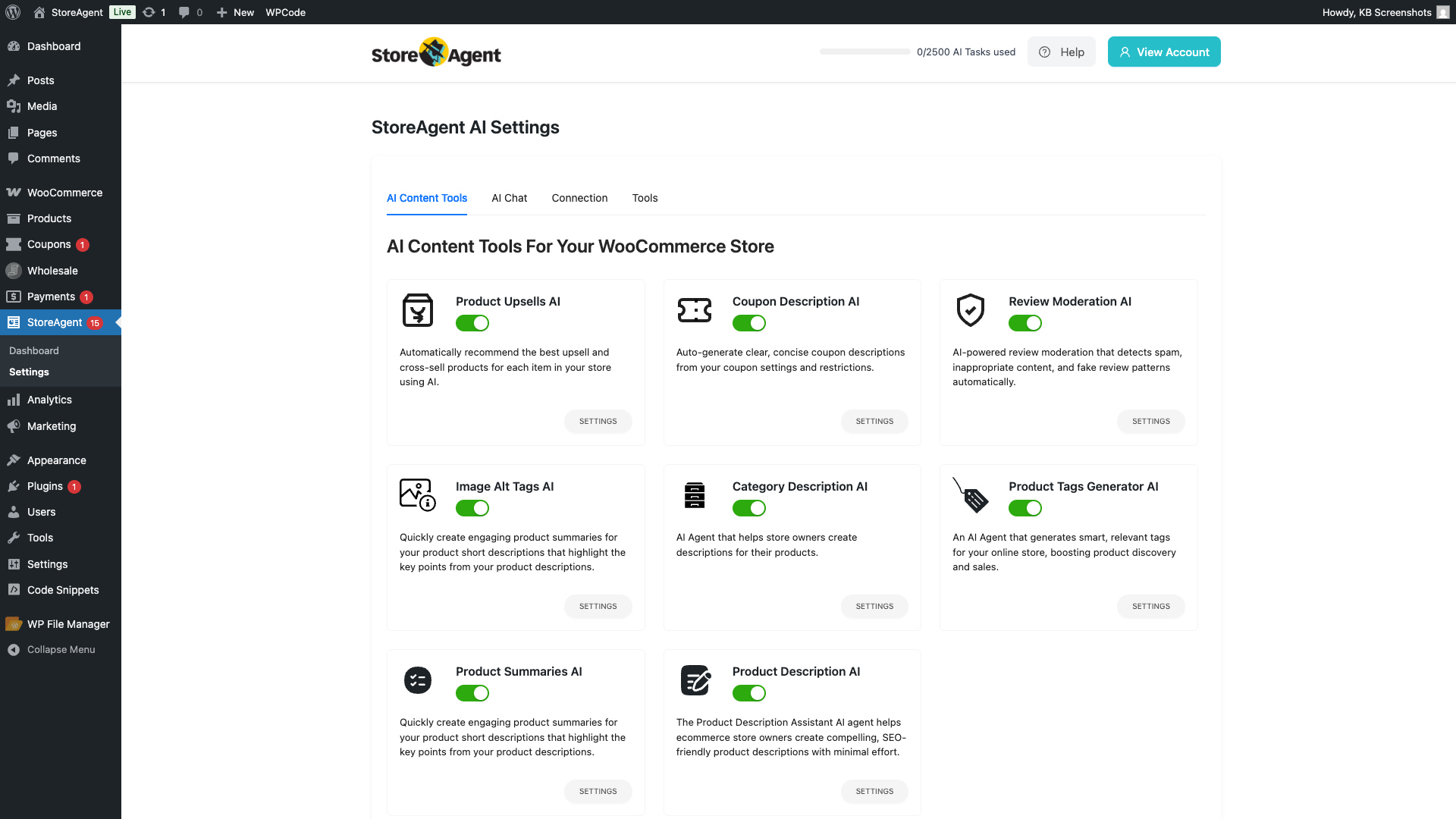
You can always edit and regenerate AI-generated content before applying it. Every AI Task shows you the generated output first and lets you tweak it (or re-run with different settings — for example, a different output language) before it touches your live product page. Nothing goes live until you say so.
What each AI Task does
StoreAgent groups its AI Tasks by purpose. Each one has its own dedicated guide that goes deeper into setup, inputs, and edge cases — links below.
Product page content
These AI Tasks write or improve the copy on your product and category pages.
- Product Description AI — generates full, on-brand product descriptions. Inputs used: product title, short description, categories, tags, and product attributes. The richer your existing product data, the more accurate the generated description. How to use the Product Description AI agent
- Product Summaries AI — writes short product summaries for cards and listing pages. Pulls from the same product fields as Product Description AI (title, attributes, and main description). Useful when you want a tight one-paragraph blurb instead of full long-form copy. How to use the Product Summaries AI agent
- Product Tags Generator AI — suggests and applies relevant tags to each product based on its description, features, and category. Better tags = better internal search and category-page browsing. How to use the Product Tags Generator AI agent
- Category Description AI — writes category page descriptions to improve SEO and give shoppers context when they land on a category archive. How to use the Category Description AI agent
- Image Alt Tags AI — auto-generates accessible, SEO-friendly alt text for every product image. Important for accessibility, and Google reads alt text when ranking image search results. How to use the Image Alt Tags AI agent
Reviews
- Review Moderation AI — flags incoming product reviews that look like spam, fake content, or inappropriate material before they go live on your storefront.
- Review Summaries AI reads the approved reviews on a product and writes a short summary that shoppers see in the Reviews tab, with key takeaways marked positive, neutral, or negative.
Cross-sell and revenue
- Product Upsells AI — scans your catalog nightly, finds products with no upsell or cross-sell pairings set, and brings suggested pairings to your dashboard for one-click approval. Nothing goes live until you say so.
Coupons (with Advanced Coupons)
These AI Tasks integrate with the Advanced Coupons plugin. If you don’t have Advanced Coupons installed, the cards stay disabled in the AI Content Tools tab.
- Coupon Generator AI — for stores using Advanced Coupons, generates fully-configured coupons from a plain-English prompt. See How to use the AI Coupon Generator.
- Coupon Description AI — writes clean, concise marketing copy for an existing coupon based on its configuration. How to use the Coupon Description AI agent
Vendor moderation (with WC Vendors)
For multi-vendor stores running WC Vendors.
- WC Vendors Product Moderator AI — reviews vendor-submitted products against your store policies before they go live, flagging anything that needs human review.
Run AI Tasks per product or across your whole catalog
You can run most AI Tasks two ways:
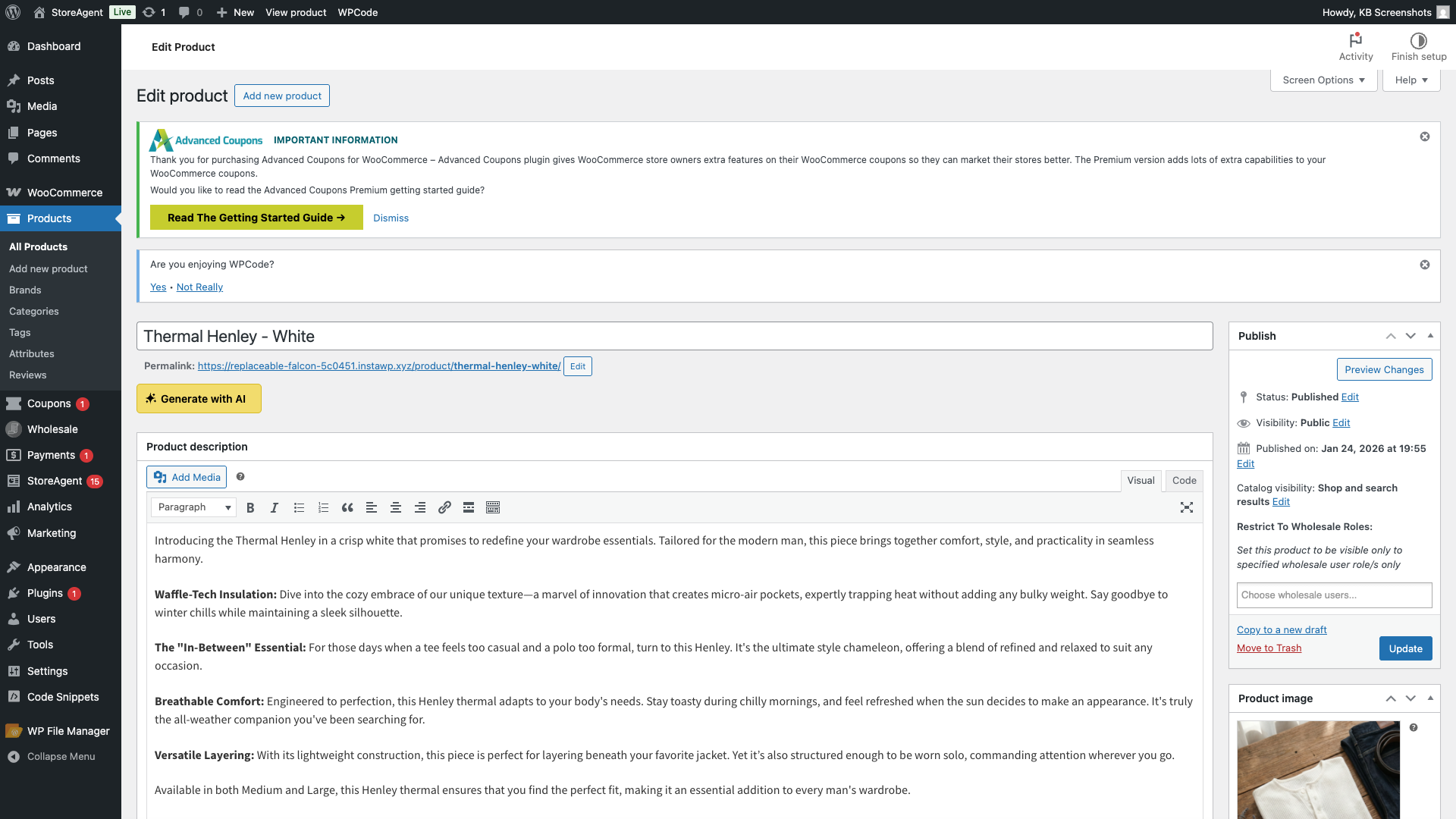
- Per product — open any product in the WooCommerce admin and click the Generate with AI button on the relevant field (description, short description, tags, etc.). The AI Task runs once, on that product. Useful for new products or one-off fixes.
- In bulk across your catalog — use StoreAgent’s bulk operations to run an AI Task on every product (or a filtered subset) in one go. The bot runs in the background, you approve generated content before it goes live, and you can pause or cancel mid-run. See How to bulk run StoreAgent AI Tasks in WooCommerce for the full walkthrough.
Bulk operations include a pre-flight credit check so you know roughly how many AI Tasks a run will consume before you start.
Edit and regenerate before applying
AI-generated content is always reviewed by you before it touches your live product page. After an AI Task runs, you can:
- Edit the generated text directly in the field — fix tone, add brand-specific phrasing, tweak any detail the AI got slightly wrong.
- Regenerate with a different setting — for example, change the output language, switch the tone, or adjust the length, then re-run the AI Task on the same product.
- Discard the suggestion entirely if it’s not useful and try a different AI Task.
For language settings on AI-generated content, see How to select the language for StoreAgent content.
Frequently asked questions
Does the AI overwrite my existing product content?
No — never automatically. Every AI Task generates a suggestion that you review and approve before it replaces your existing content. You can edit, regenerate, or discard the suggestion.
What inputs does Product Description AI need to work well?
Product title is required. Beyond that, the more product data you have — short description, attributes, categories, tags, brand metadata — the more accurate and on-brand the generated description will be. If you’ve only got a product title, the output will be generic; expect to edit it heavily.
Can I exclude price or stock levels from product summaries?
The summary AI Tasks reference your product’s existing fields when generating output. To shape what’s included, edit the AI Task’s settings (click Settings on its card under StoreAgent → Settings → AI Content Tools) and adjust the prompt or excluded fields. See the How to use the Product Summaries AI agent article for the field-level options.
How many AI Tasks does each run consume?
Generally one AI Task per generation — so generating a description for 50 products consumes 50 AI Tasks. Bulk operations show a pre-flight estimate before you start. Your current AI Task allowance is visible in the StoreAgent admin header (“X/Y AI Tasks used”).
Can I run AI Tasks in a language other than English?
Yes. Most AI Tasks have a language setting in their card’s Settings. See How to select the language for StoreAgent content for the full walkthrough.
What’s next
- How to bulk run StoreAgent AI Tasks in WooCommerce — run any AI Task across your full catalog in one operation.
- Getting started with the AI Chat Bot — the AI assistant for your storefront, covered in a separate guide.
- How to select the language for StoreAgent content — generate AI content in your store’s language.

Reclaim the hours you’re spending on product copy
StoreAgent’s AI Tasks generate your product descriptions, tags, summaries, alt text, and review summaries — all from your existing store data. Upgrade and ship months of content in an afternoon.
Need help?
If you have a question or run into any issues, we’re here to help.
- Premium users: Open a support ticket
- Free users: Visit our community forum

