Your chat widget can now start the conversation instead of waiting to be clicked. Turn on Proactive Conversation Starters, write a few short messages in your own words, and after a delay you set, the widget floats one of them above the launcher as a preview bubble with a red unread badge. Click it and the chat opens with that message already sitting at the top of the conversation.
Until now you had two options. Leave the widget closed and hope someone clicks it, or turn on open-by-default and shove the whole panel in front of every visitor on every page. The first gets ignored, the second gets closed on reflex, and on a phone it eats the screen. Conversation starters sit between the two, and you write every word of them.
In this article, we’ll cover what conversation starters are, where to find the settings, how to write good starter messages, what happens on your storefront, and how the cooldown keeps things from getting annoying. So, let’s get started!
Table of Contents
- What Are Proactive Conversation Starters?
- Where To Find The Settings
- How To Set Up Your Starter Messages
- What Your Visitors Actually See
- What Happens When Someone Clicks
- How The Cooldown Stops It Getting Annoying
- When A Starter Stays Quiet
- Get Started
- Frequently Asked Questions
What Are Proactive Conversation Starters?
Proactive conversation starters are short messages you write yourself that the chat widget shows on its own after a visitor has been on a page for a while. The message appears as a small preview bubble anchored to your chat launcher, with a red unread badge on the launcher icon, so it reads like a message waiting rather than an ad.
No AI writes these for you. They are plain settings. You type the messages, StoreAgent picks one at random each time a starter is shown, and the widget shows it word for word as you wrote it, so the tone stays yours.
The whole thing is off by default. Nothing about your widget changes until you switch it on.
Where To Find The Settings
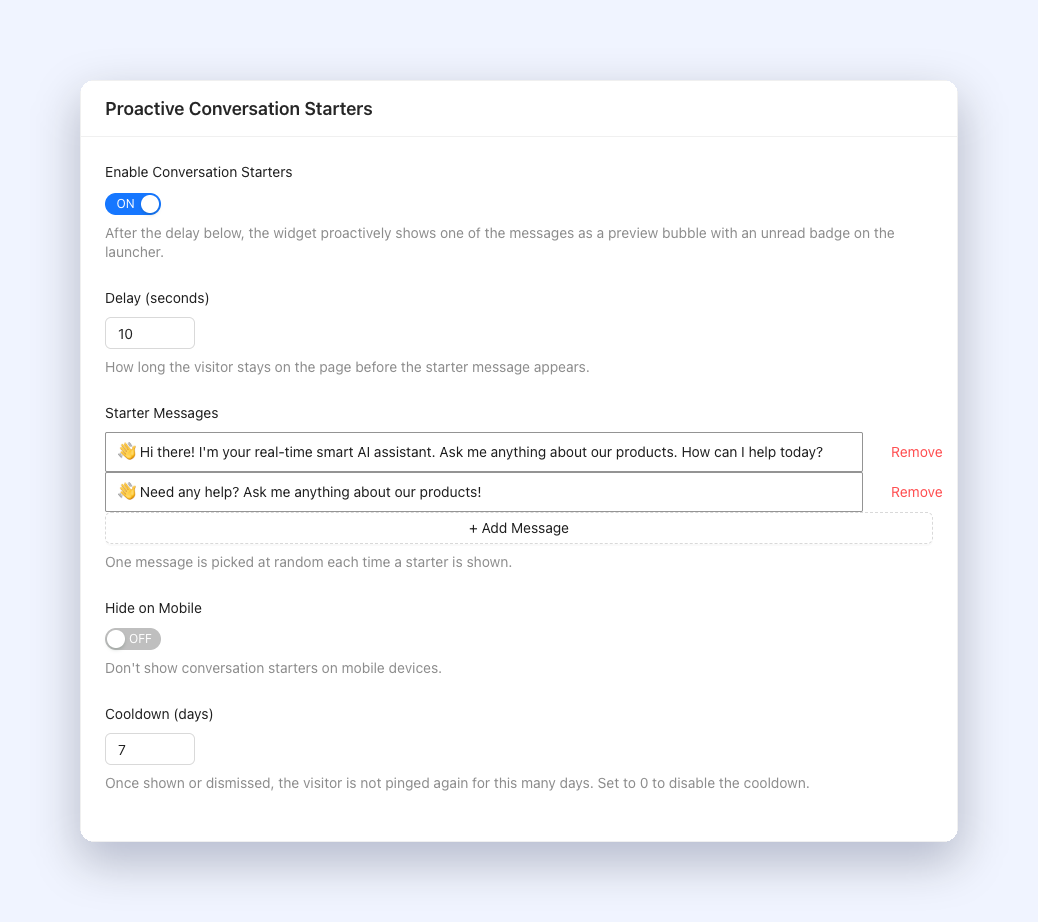
Go to your Chat Widget Settings and open the General tab. Scroll to the card titled Proactive Conversation Starters. Everything for this feature lives in that one card.
You will find five controls there:
- Enable Conversation Starters turns the whole feature on or off. It is off out of the box.
- Delay (seconds) sets how long a visitor stays on the page before the starter appears. Anything from 0 to 3600 seconds, and it defaults to 10.
- Starter Messages is your editable list of messages, up to 10 of them, 300 characters each.
- Hide on Mobile stops starters showing on mobile devices.
- Cooldown (days) sets how long a visitor is left alone after seeing or dismissing one. Range is 0 to 365 days, default 7.
While conversation starters are on, your Greeting Message field is disabled. The starter message becomes the greeting, because the widget seeds it as the first assistant message when the chat opens. Stacking two greetings on top of each other would only add noise.
How To Set Up Your Starter Messages
StoreAgent ships with two starter messages already in the list so you have something to work from:
- “👋 Hi there! I’m your real-time smart AI assistant. Ask me anything about our products. How can I help today?”
- “👋 Need any help? Ask me anything about our products!”
Edit them, delete them, or add your own. Use + Add Message to add a row, and Remove to drop one. The Add button greys out once you hit 10 messages.
A few things that help when writing them:
- Keep them short. The bubble clamps the message to two lines, so anything longer gets cut off visually.
- Ask something answerable. “Need help finding your size?” gives a shopper an obvious reply. “Welcome to our store!” leaves them with nothing to say.
- Write more than one. Because StoreAgent picks a message at random each time, a small set stops repeat visitors seeing the same line over and over.
- Match your voice. A shopper reads this before anything else you say, so write it the way you would greet someone in a shop.
When you are done, save the settings as normal. The live preview inside the settings page simulates the bubble and badge from what you have typed, so you can see the shape of it before it reaches a real visitor.
What Your Visitors Actually See
After the delay you set, the bubble appears just above the chat launcher. It carries your assistant’s avatar acronym, the assistant’s name, your message clamped to two lines, and a small dismiss button. At the same time, a red unread badge lands on the launcher icon itself.
The bubble picks up your existing chat theme, so it takes your brand colours and text styling with nothing extra to configure. It handles all four widget positions, sitting above the launcher for bottom placements and below it for top placements, and it adjusts for tablet and mobile layouts.
It also stays out of the way. The bubble leaves your page layout alone, does not steal focus, and does not block anything behind it. Screen readers announce it through a polite live region, you can operate it from the keyboard, and it respects reduced-motion preferences.
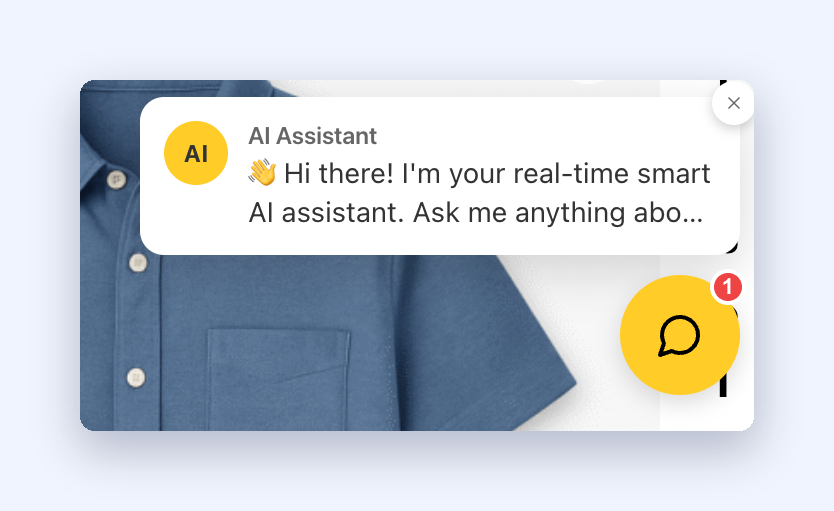
After 30 seconds the bubble tucks itself away, but the badge stays. Someone who looked away, took a call, or scrolled past does not lose the message. The badge sits there until they open the chat or dismiss it, and an unactioned starter comes back on the next page view.
What Happens When Someone Clicks
Clicking the bubble opens the chat. So does clicking the badged launcher. Either way the badge clears, the chat panel opens, your starter message is seeded as the first assistant message in the conversation, and the text input is focused and ready.
The visitor lands mid-conversation rather than staring at an empty box. An empty chat asks a shopper to write an opening line from scratch, which is a bigger ask than it looks. A chat that has already said something only asks them to answer.
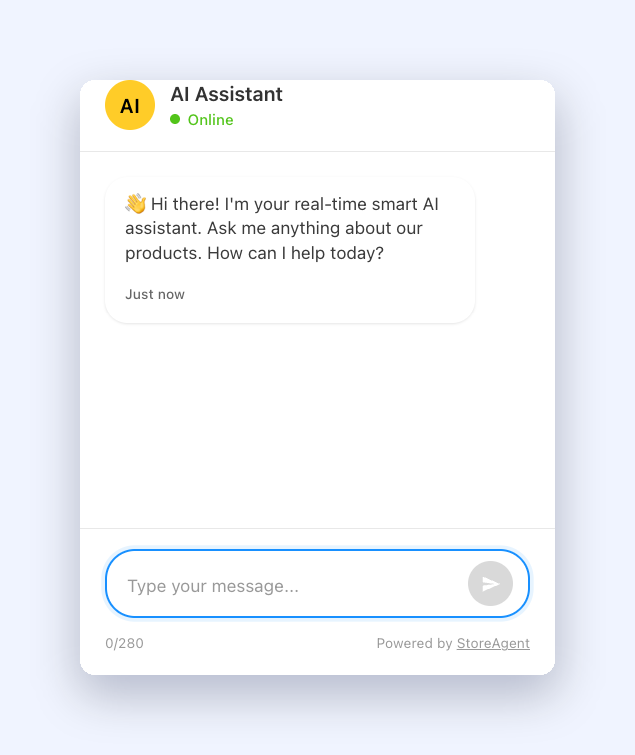
That seeded message sticks. It goes through the widget’s normal history flow, so a visitor who opens the chat, navigates to another page and comes back still sees it in their transcript instead of being shown the bubble again.
Dismissing does what you would expect. The bubble and badge disappear, the chat stays closed, and no message is sent.
How The Cooldown Stops It Getting Annoying
The Cooldown (days) setting is what keeps this from wearing out its welcome. Once a visitor has been shown a starter, dismissed one, or engaged with one, they are not pinged again for the number of days you set. The default is 7 days, and setting it to 0 turns the cooldown off entirely.
The widget records this in the visitor’s browser, and it clears alongside the widget’s existing chat history cleanup. A returning shopper who already had their nudge sees the ordinary quiet launcher.
The cooldown and the mobile toggle give you two dials for how forward you want to be. A store selling a considered purchase might run a 30 second delay and a 14 day cooldown. A store where visitors bounce fast might use 5 seconds and 3 days.
When A Starter Stays Quiet
A starter holds back in several situations. Knowing them saves you chasing a bug that is not there:
- The feature is switched off, or your message list is empty.
- The chat panel is already open.
- The visitor has already sent a message.
- Hide on Mobile is on and the visitor is on a mobile viewport.
- The visitor is inside their cooldown window.
StoreAgent also records when a starter is shown, dismissed, and engaged with, which gives you numbers on the impression to chat-started step instead of a guess. It throttles those events per session, so one curious visitor reloading a page will not skew the figures.
Get Started
Getting a visitor to open the chat at all is the bottleneck in most stores. Everything after it, from questions answered to carts recovered, waits on that first message.
Turn it on in Chat Widget Settings under General, write two or three starters in your own voice, set a delay that matches how your visitors browse, and leave the cooldown at 7 days to begin with. Check back in a fortnight and see whether more conversations are starting. Your widget needs to be live first, which happens once product indexing finishes and your assistant can answer from your catalogue.
Not using StoreAgent yet? Take a look at the plans and see what an AI assistant grounded in your own catalogue can do for your store.
Frequently Asked Questions
Are conversation starters on by default?
No. The feature is off out of the box, and nothing about your chat widget changes until you enable it in Chat Widget Settings under General.
Does the AI write the starter messages?
No. Starter messages are plain settings that you write yourself. StoreAgent picks one of your messages at random each time a starter is shown, and displays it exactly as you typed it.
How many starter messages can I add?
Up to 10, at 300 characters each. The + Add Message button is disabled once you reach the cap.
What happens to my Greeting Message?
While conversation starters are enabled, the Greeting Message field is disabled. The starter message greets the visitor instead, seeded as the first assistant message when the chat opens.
Can I stop starters showing on phones?
Yes. Turn on Hide on Mobile in the same settings card and starters will not fire on mobile viewports.
How often will one visitor see a starter?
That depends on your Cooldown (days) setting. Once a starter has been shown, dismissed or engaged with, the visitor is left alone for that many days. The default is 7. Set it to 0 to remove the cooldown.
Does the bubble stay on screen forever?
No. The bubble hides itself after 30 seconds, but the unread badge on the launcher stays until the visitor opens or dismisses the chat, so the message is not lost.
Does this work on the inline chat?
Conversation starters are built for the popup widget, which has a launcher to badge and a closed state to preview into.