
Not sure which setting changes what your chat widget says or where it shows? This reference lists every StoreAgent AI Chat Bot setting, tab by tab, with its default. Use it when you configure or troubleshoot your chat widget. To open the settings, go to StoreAgent → Settings in your WordPress admin, then click the AI Chat tab. The settings are split across seven sub-tabs, and each tab saves on its own. See Saving your changes below.
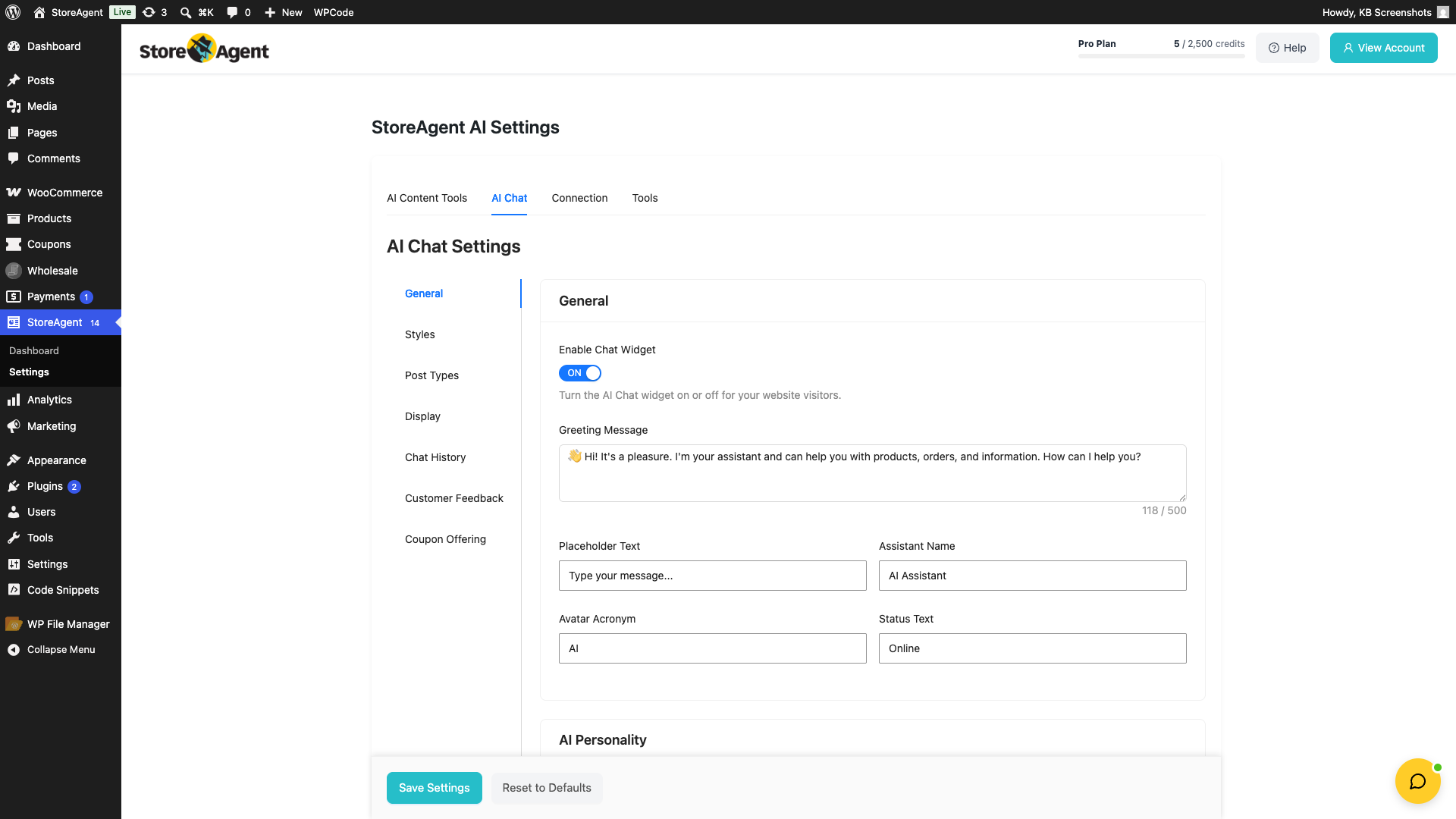
General tab
The General tab controls the core behaviour and identity of your chat widget. It has four sections: General, AI Personality, Competitor Blocklist, and Proactive Conversation Starters.
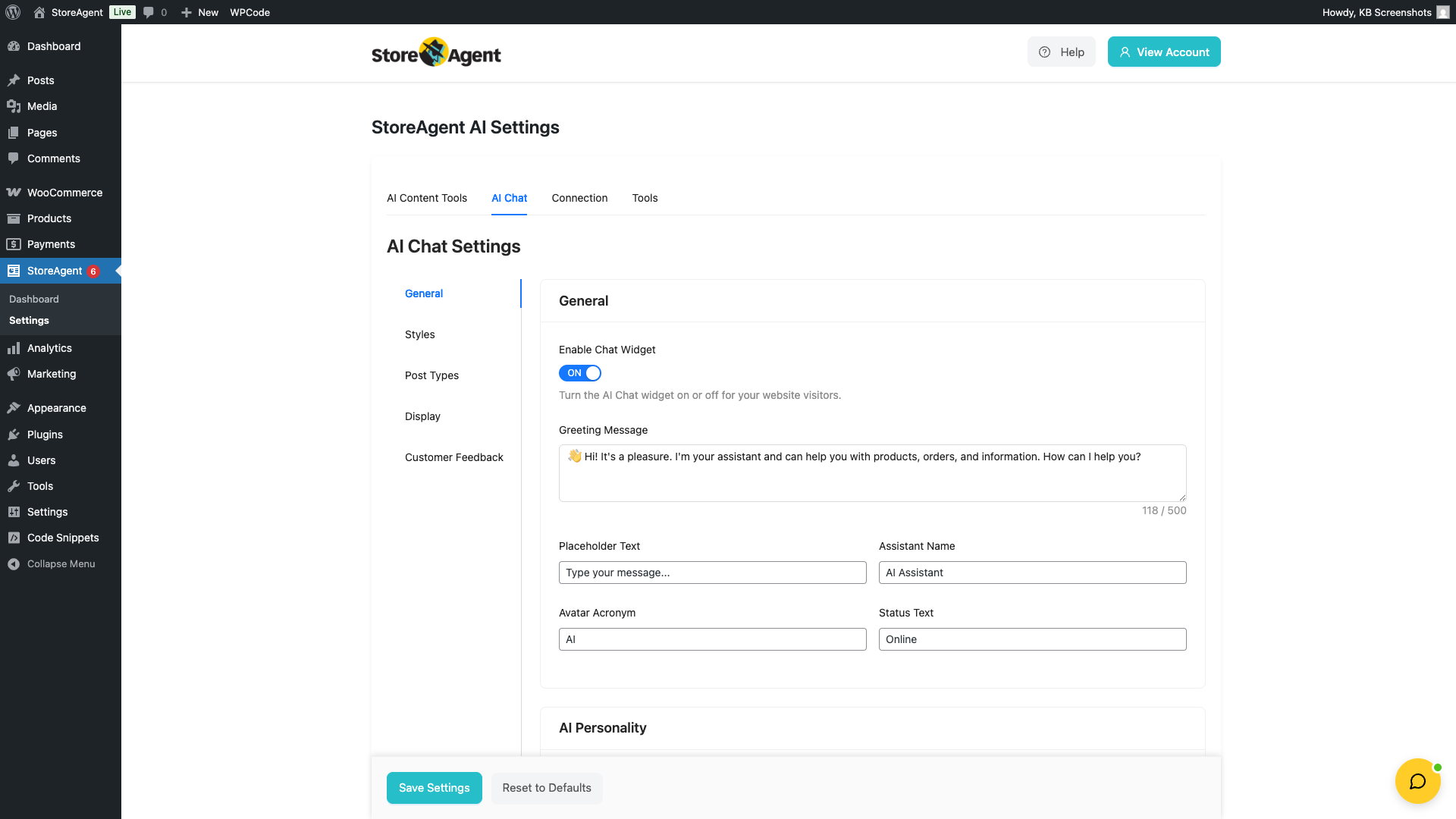
General
| Setting | Description | Default |
|---|---|---|
| Enable Chat Widget | Turn the AI chat widget on or off for all visitors. When off, the widget does not appear anywhere on your site. | ON |
| Greeting Message | The first message customers see when they open the chat. Maximum 500 characters. This field is locked while Enable Conversation Starters is ON, because the starter message greets the visitor instead. | “👋 Hi there! I’m your real-time smart AI assistant. Ask me anything about our products. How can I help today?” |
| Placeholder Text | The hint text shown inside the chat input field before a customer starts typing. | “Type your message…” |
| Assistant Name | The display name shown in the chat widget header. | “AI Assistant” |
| Avatar Acronym | Up to 3 characters shown as the assistant’s avatar. Used when no avatar image is set. | “AI” |
| Status Text | The status label shown beneath the assistant name in the widget header (e.g. “Online”, “Here to help”). | “Online” |
| Show Response Citations | Shows a small “Sources” note under AI answers that lists the pages, products, or documents the answer came from. This helps customers trust the answer and helps you find pages with outdated information. | ON |
AI personality
| Setting | Description | Default |
|---|---|---|
| Communication Tones | Choose up to 3 tones that shape how the AI responds. These influence the personality and style of every AI response. Available tones: Relaxed, Friendly, Happy, Professional, Conversational, Playful, Luxurious, Informative, Emotional, Urgent, Nostalgic, Bold, Sophisticated, Enthusiastic, Sincere, Quirky, Inspiring, Confident, Trustworthy, Innovative, Sensational, Whimsical, Timeless, Practical, Trendy, Captivating, Intimate, Thoughtful, Exhilarating, Vibrant. | None selected |
Competitor blocklist
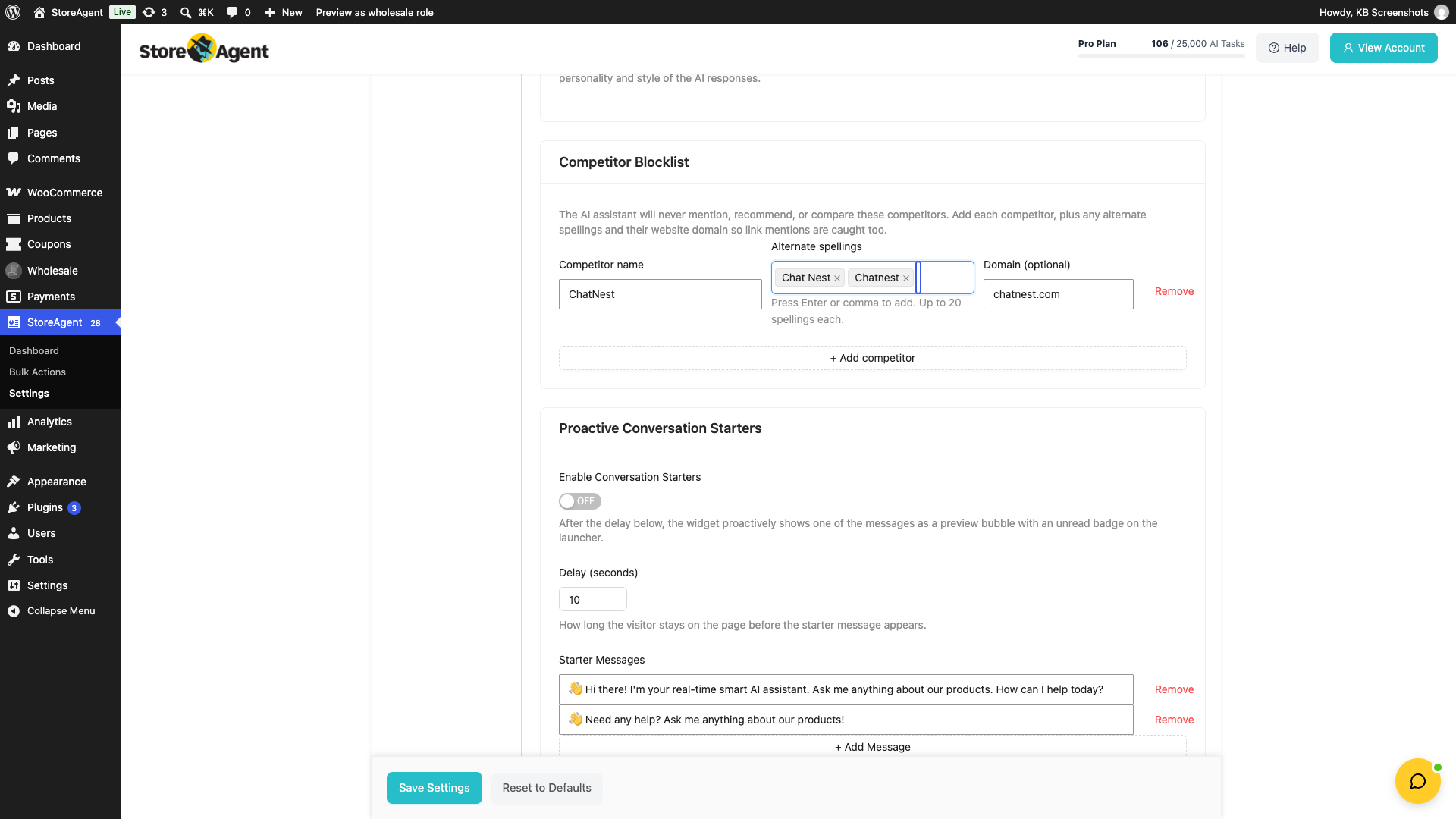
The Competitor Blocklist lets you name competitors the AI Chat Bot should never mention, recommend, or compare. Add each competitor, along with any alternate spellings and their website domain, so link mentions are caught too. The list is sent to the AI with every chat request, so changes apply to the next chat message. This section requires plugin version 1.1.7 or later.
| Setting | Description | Default |
|---|---|---|
| Competitor name | The competitor you want to block. Required. Up to 128 characters. | Empty |
| Alternate spellings | Other ways the competitor is written. Press Enter or comma to add each one, up to 20 per competitor. | Empty |
| Domain (optional) | The competitor’s website domain, such as example.com, so link mentions are caught too. Up to 128 characters. | Empty |
You can add up to 100 competitors. By default the list is empty, so no competitors are blocked. Click + Add competitor to add a row, then save the General tab.
Proactive conversation starters
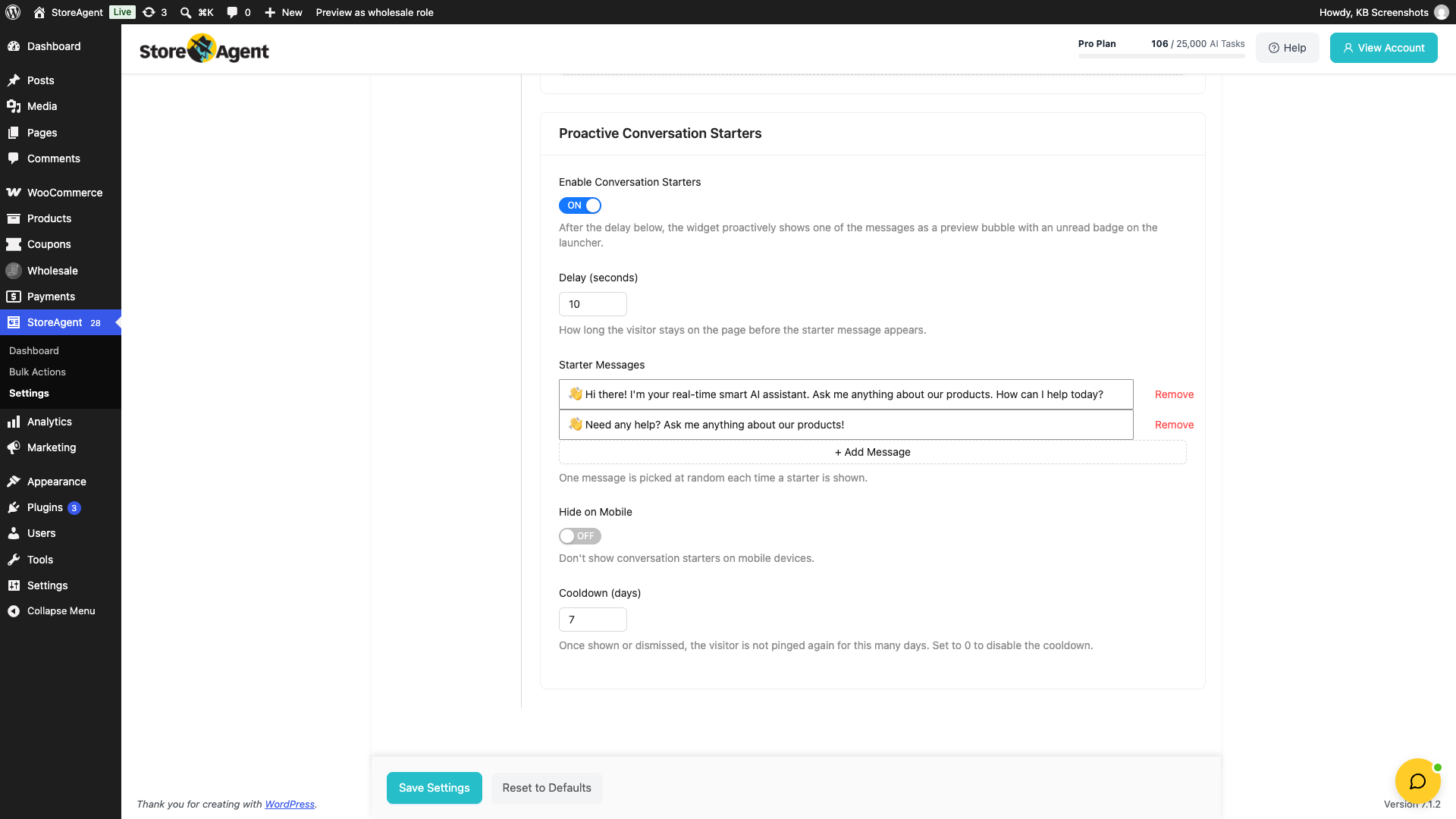
Conversation starters let the AI Chat Bot speak first. After a delay you set, the widget shows one of your starter messages as a preview bubble, with an unread badge on the chat launcher. This section requires plugin version 1.1.9 or later.
| Setting | Description | Default |
|---|---|---|
| Enable Conversation Starters | Turns conversation starters on or off. When ON, the Greeting Message field is locked and the starter message greets the visitor instead. | OFF |
| Delay (seconds) | How long a visitor stays on the page before the starter message appears. Enter a whole number from 0 to 3600. | 10 |
| Starter Messages | The messages the widget can show. Click + Add Message to add a row, up to 10 messages of 300 characters each. One message is picked at random each time a starter is shown. | “👋 Hi there! I’m your real-time smart AI assistant. Ask me anything about our products. How can I help today?” and “👋 Need any help? Ask me anything about our products!” |
| Hide on Mobile | When ON, conversation starters do not show on mobile devices. The chat widget itself still shows. | OFF |
| Cooldown (days) | After a visitor sees or dismisses a starter, the widget waits this many days before it shows one to that visitor again. Enter 0 to turn off the cooldown. Maximum 365. | 7 |
Save the General tab with Save Settings after you change these settings.
Styles tab
The Styles tab controls where the widget appears on screen and how it looks. It has two sections: Positioning and Colors.
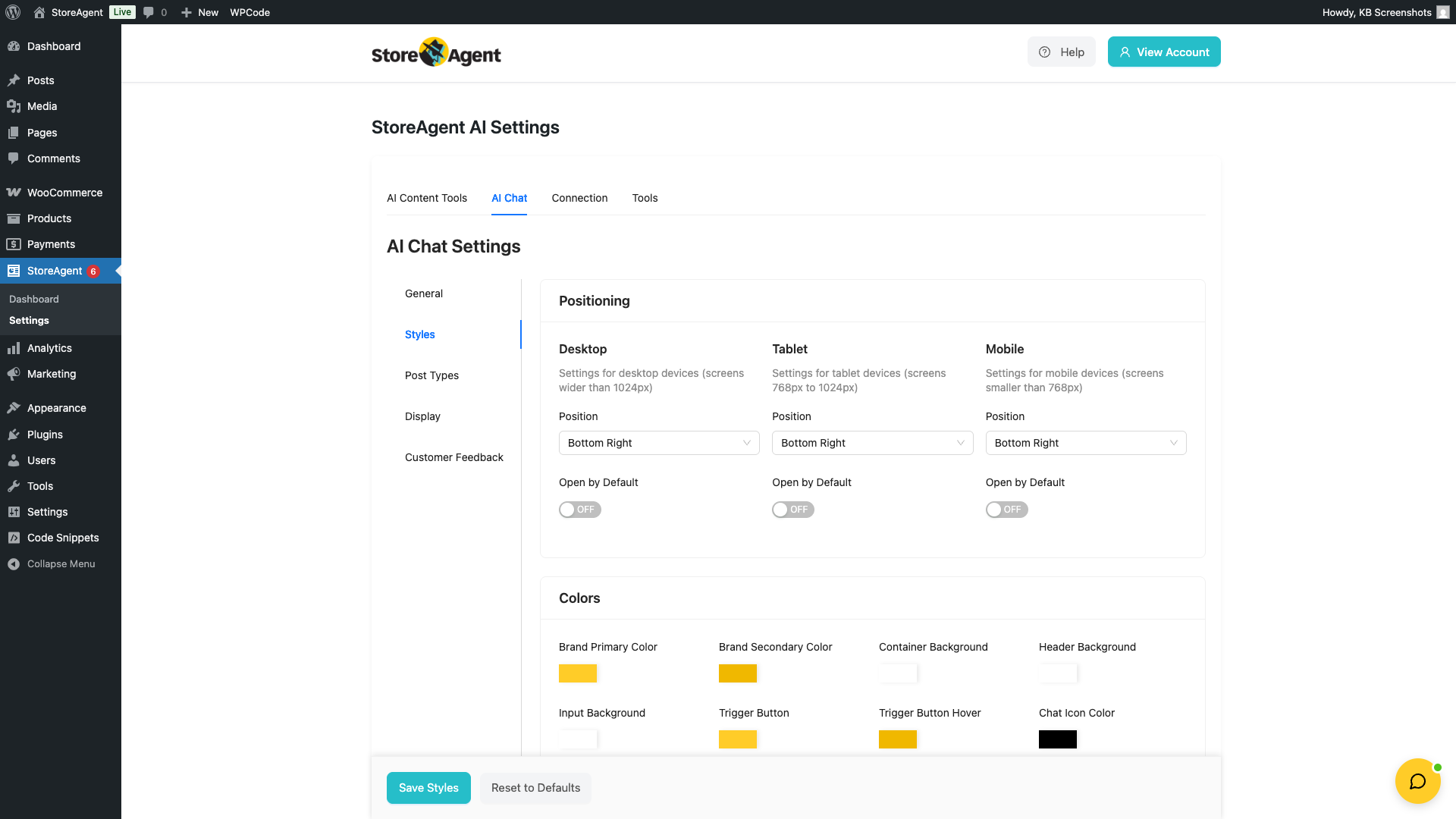
Positioning
Position and open-by-default settings are configured separately for three device sizes.
| Device | Setting | Description | Default |
|---|---|---|---|
| Desktop (wider than 1024px) | Position | Where the widget button appears. Options: Bottom Right, Bottom Left, Top Right, Top Left. | Bottom Right |
| Desktop | Open by Default | When ON, the chat window opens automatically when a visitor loads the page on desktop. | OFF |
| Tablet (768px–1024px) | Position | Position of the widget button on tablet-sized screens. | Bottom Right |
| Tablet | Open by Default | When ON, the chat opens automatically on tablet screens. | OFF |
| Mobile (smaller than 768px) | Position | Position of the widget button on mobile screens. | Bottom Right |
| Mobile | Open by Default | When ON, the chat opens automatically on mobile screens. | OFF |
Colors
| Setting | What it controls | Default |
|---|---|---|
| Brand Primary Color | The main brand colour used throughout the widget (e.g. header accents). | #ffcc28 |
| Brand Secondary Color | A secondary brand colour for hover states and accents. | #f0b800 |
| Container Background | Background colour of the main chat message area. | #ffffff |
| Header Background | Background colour of the widget header bar. | #ffffff |
| Input Background | Background colour of the message input field. | #ffffff |
| Trigger Button | Background colour of the floating button that opens the chat. | #ffcc28 |
| Trigger Button Hover | Background colour of the trigger button on hover. | #f0b800 |
| Chat Icon Color | Colour of the chat icon inside the trigger button. | #000000 |
| Send Button | Background colour of the send message button. | #1890ff |
| Send Button Hover | Background colour of the send button on hover. | #40a9ff |
| User Message Background | Background colour of the customer’s message bubbles. | #1890ff |
| AI Message Background | Background colour of the AI’s message bubbles. | #ffffff |
| Primary Text Color | Main text colour used in the chat messages and labels. | #333333 |
| Secondary Text Color | Colour used for secondary text such as timestamps and hints. | #666666 |
| Input Border | Border colour of the message input field. | #e8e8e8 |
| Input Focus Border | Border colour when the input field is focused. | #1890ff |
| Error Background | Background colour for error messages shown in the chat. | #fef2f2 |
| Error Text | Text colour for error messages. | #dc2626 |
| Online Indicator | Colour of the dot that shows the assistant is online. | #52c41a |
Post types tab
The Post Types tab controls which content the AI chat has access to. Each post type that StoreAgent supports appears as a collapsible panel. Enable a post type to let the AI use its content when answering questions.
For more on how AI Memory indexes your content, see How StoreAgent AI Memory Works.
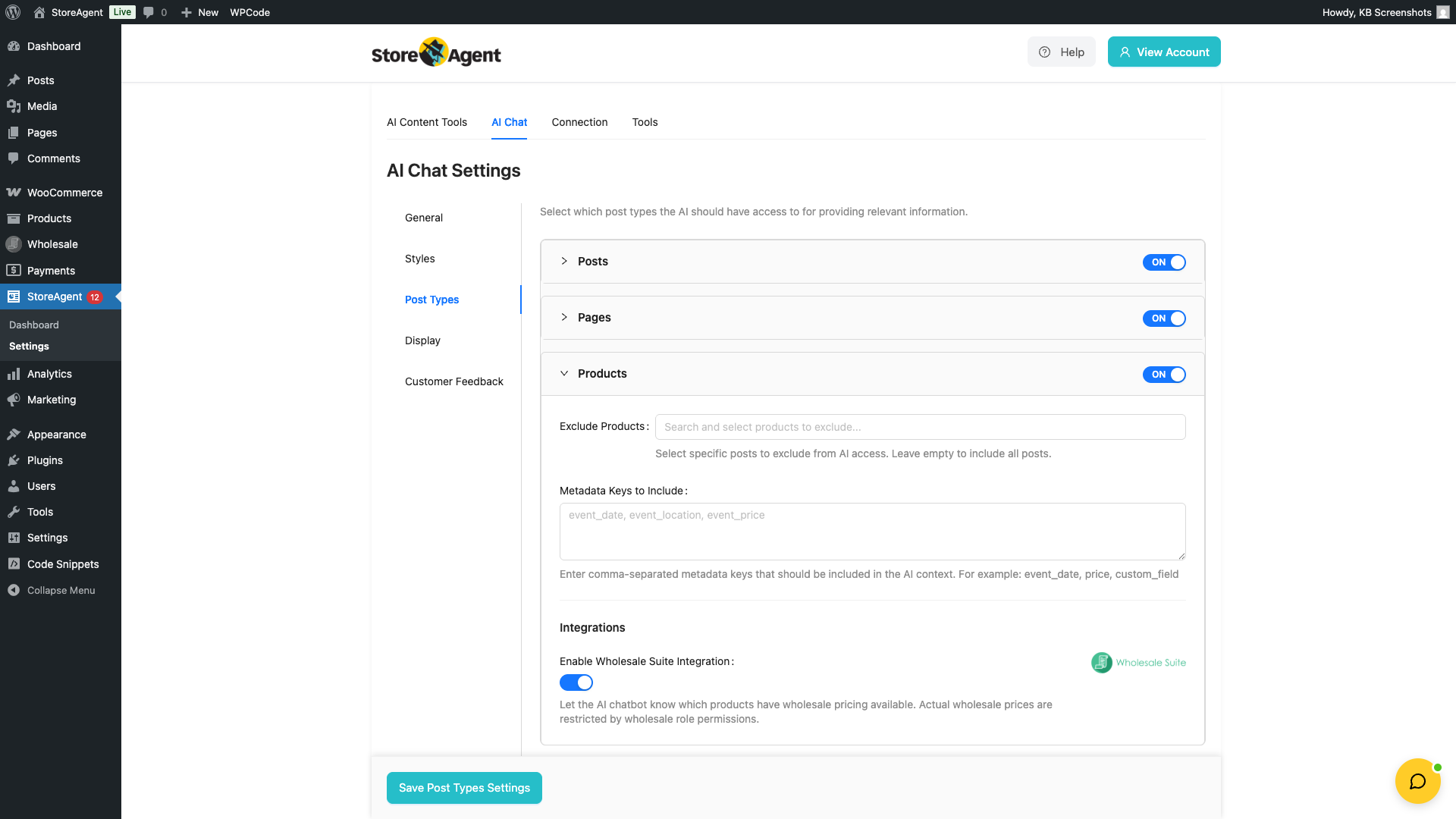
Per-post-type settings
Each post type panel has its own toggle and the following settings (visible when the post type is enabled):
| Setting | Description | Default |
|---|---|---|
| Enable toggle | Turn AI Memory on or off for this post type. When enabled, StoreAgent indexes the posts and makes them available to the chat. | OFF (except Products) |
| Exclude [Post Type] | Search and select individual posts to exclude from AI access. Leave empty to include all published posts of this type. | None excluded |
| Metadata Keys to Include | Enter comma-separated custom field (meta) keys that should be passed to the AI along with the post content. For example: event_date, event_location, event_price. Leave empty if no custom fields are needed. | Empty |
Wholesale Suite integration (Products only)
This setting is in the Integrations area of the Products panel.
| Setting | Description | Default |
|---|---|---|
| Enable Wholesale Suite Integration | When enabled, the AI chat knows which products have wholesale pricing available. Actual wholesale prices shown to customers are still governed by their wholesale role permissions. This setting only informs the AI that wholesale pricing exists. Requires the WooCommerce Wholesale Prices plugin to be active. | OFF |
Display tab
The Display tab controls which pages on your site show the chat widget. It has three sections: Display on Post Types, Display Timing, and Exclude Specific Pages.
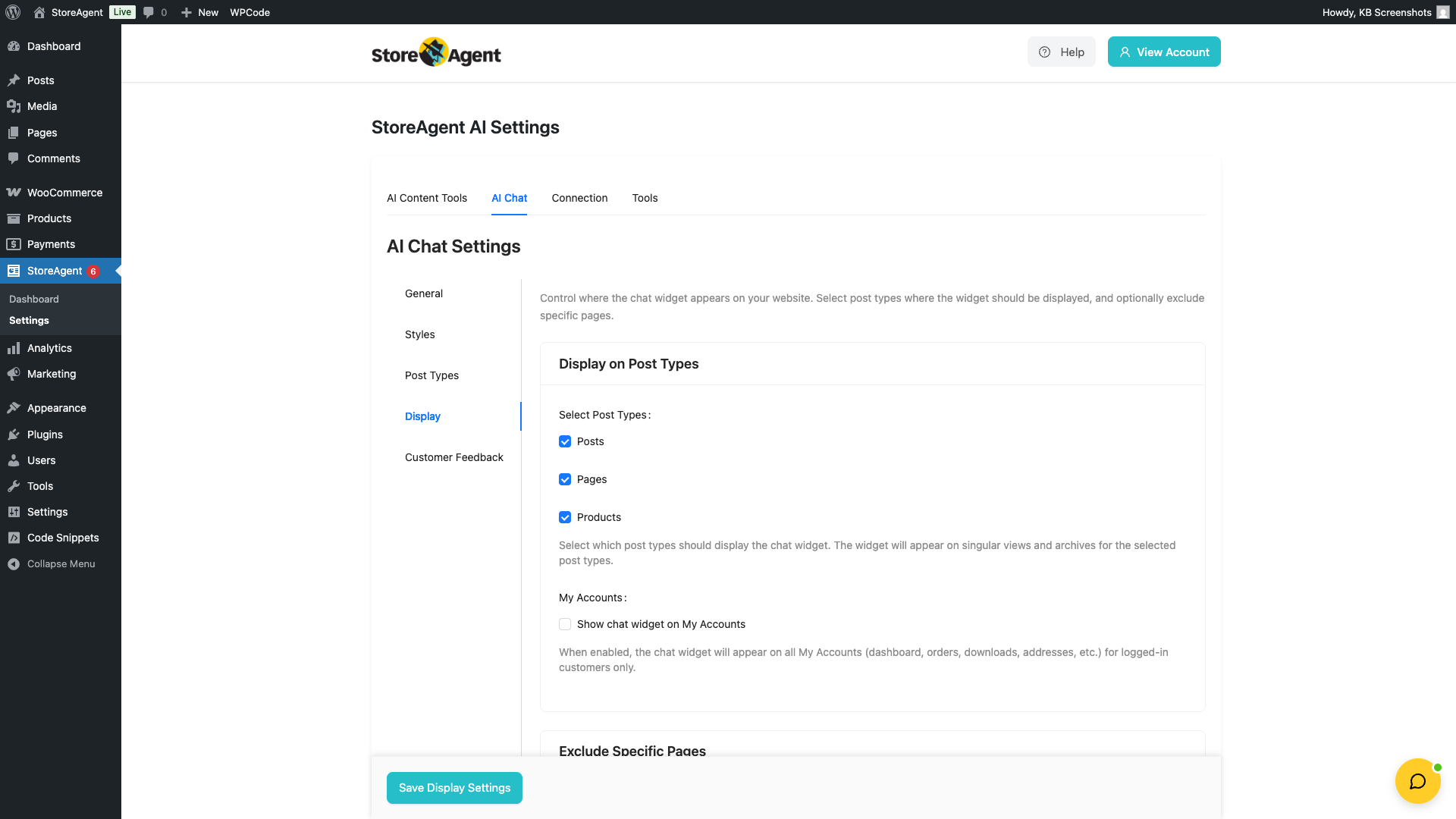
Display on post types
| Setting | Description | Default |
|---|---|---|
| Select Post Types | Check the boxes for each post type where the widget should appear. The widget shows on both singular views and archives for the selected types. Available options include Products, Posts, Pages, and any custom post types registered on your site. | Products only |
| My Accounts | When checked, the widget also appears on all WooCommerce My Account pages (dashboard, orders, downloads, addresses, and more). This is only visible to logged-in customers. | Unchecked |
Display timing
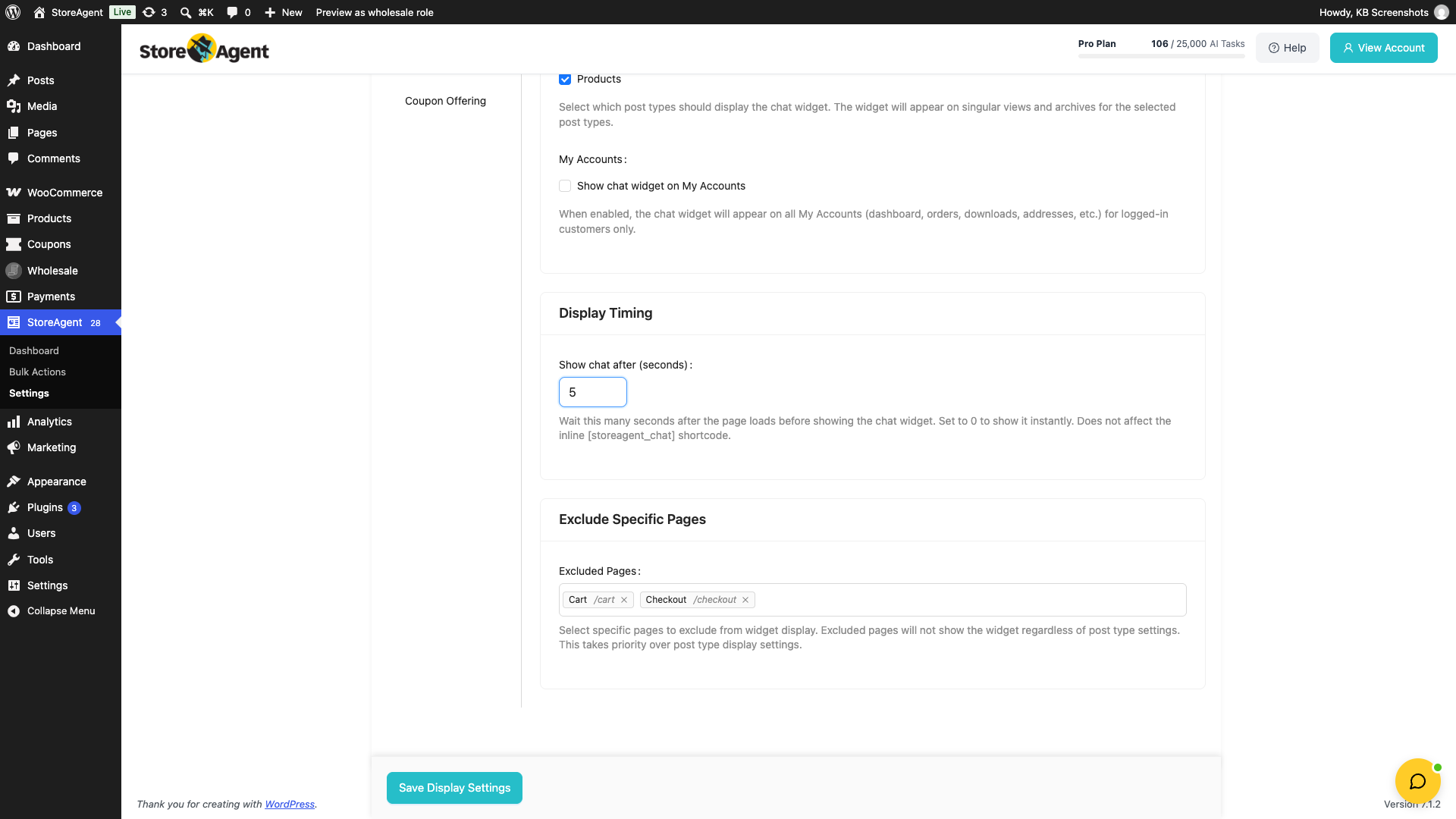
| Setting | Description | Default |
|---|---|---|
| Show chat after (seconds) | How many seconds to wait after the page loads before the chat widget appears. Enter 0 to show it straight away. Maximum 3600. This setting does not change the inline [storeagent_chat] shortcode. | 0 |
Exclude specific pages
| Setting | Description | Default |
|---|---|---|
| Excluded Pages | Search and select individual pages to hide the widget on. Each search result shows the page title with its slug underneath, so you can tell duplicate titles apart at a glance. This setting takes priority over the post type settings above. A page listed here will never show the widget, even if its post type is selected. By default, the WooCommerce Cart and Checkout pages are excluded. | Cart and Checkout pages |
Chat History tab
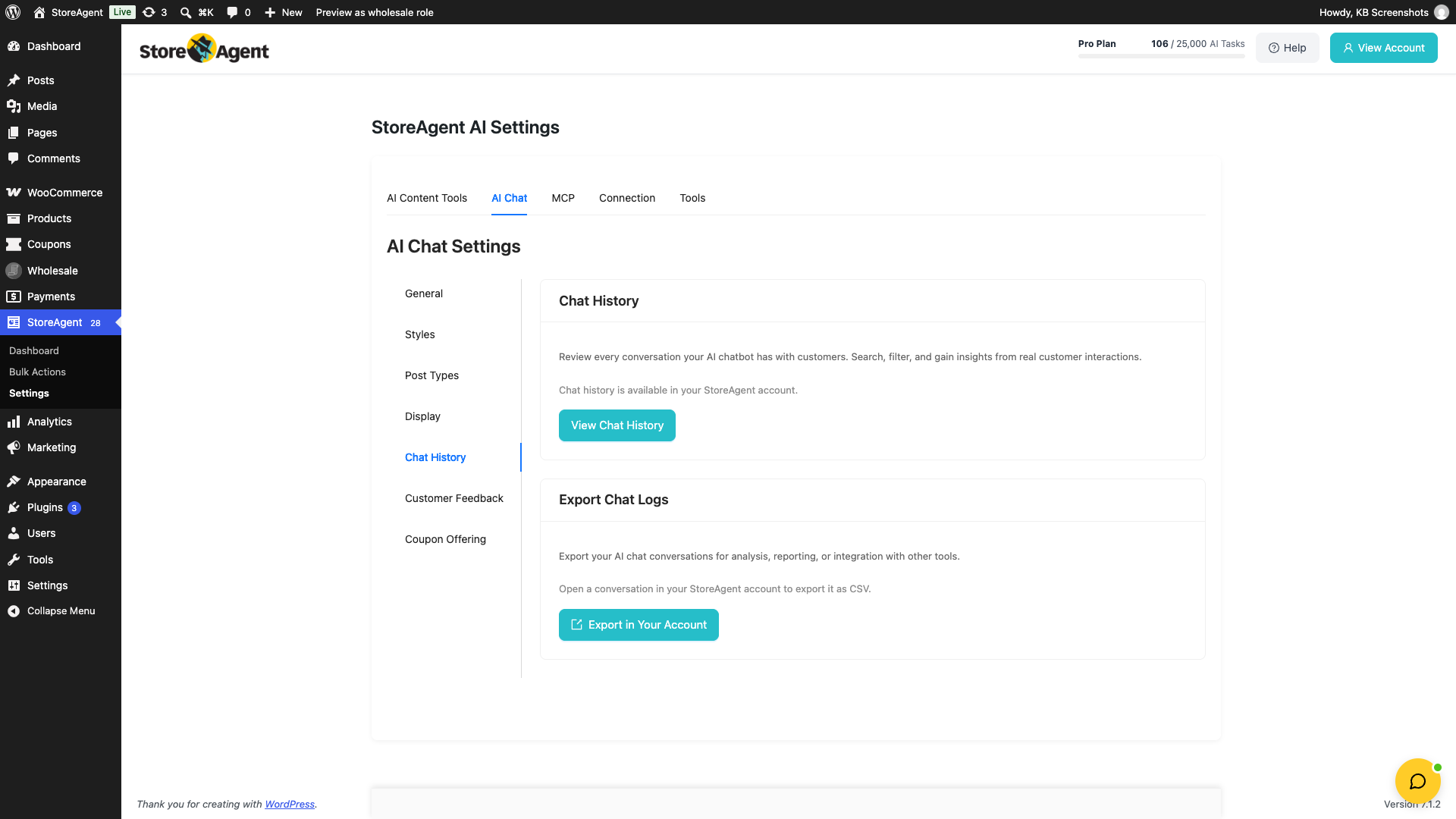
The Chat History tab links you to your chat conversations. Your chat history is available in your StoreAgent account. This tab has two sections: Chat History and Export Chat Logs.
On the Pro plan or higher, click View Chat History to open your conversations in your StoreAgent account. To export, click Export in Your Account, then open a conversation in your account to export it as a CSV file.
On the Lite and Growth plans, the tab shows Unlock Chat History and Export Chat Logs buttons. These buttons open an upgrade prompt for the Pro plan.
Customer Feedback tab
The Customer Feedback tab holds two sections: Customer Feedback and Support Escalation. Use it to let customers rate AI responses and, on paid plans, request human support. For a full walkthrough, see How to Set Up Chat Feedback and Escalation in StoreAgent.
Customer feedback
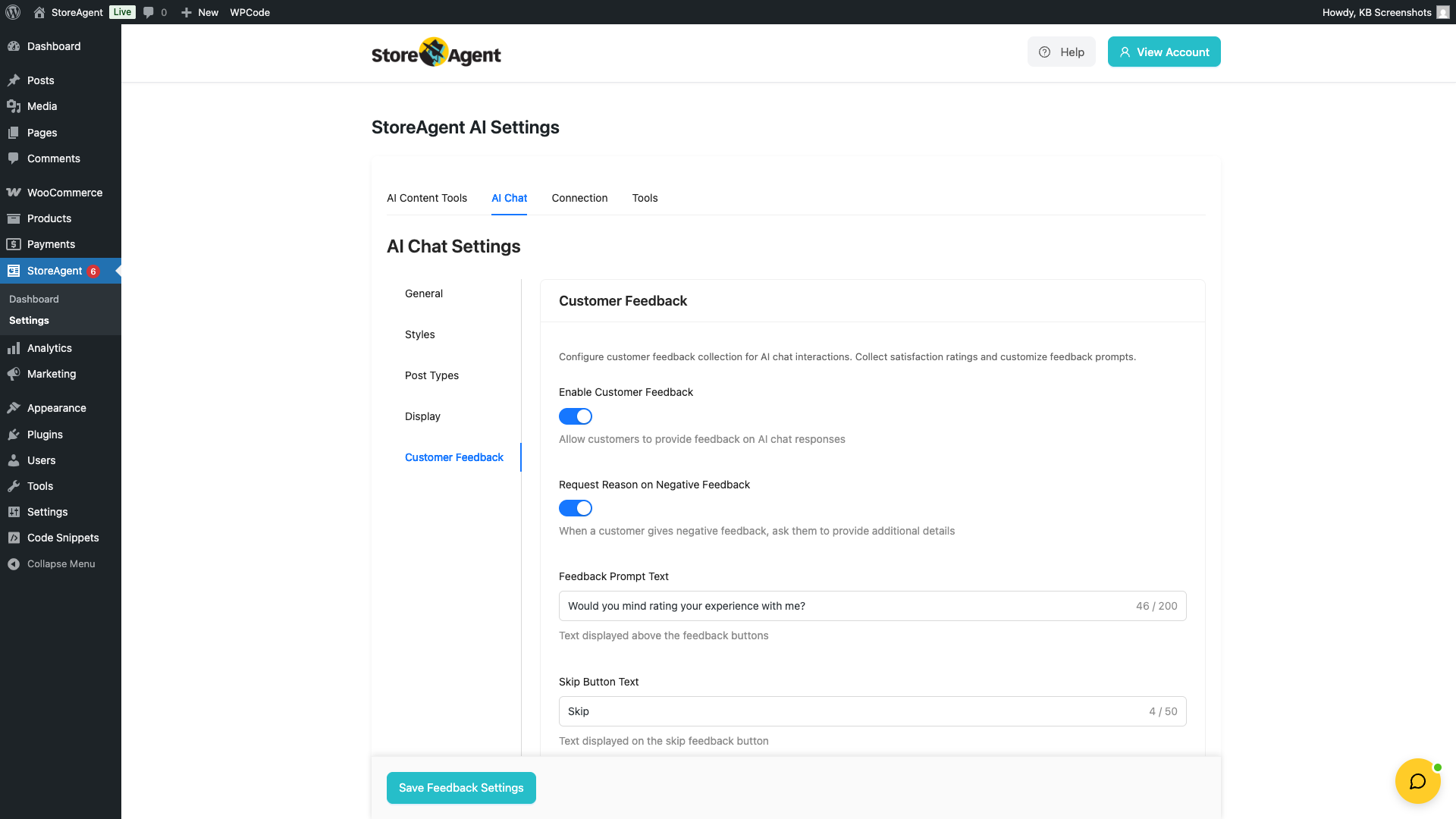
The Customer Feedback section lets customers rate AI responses with a thumbs up or thumbs down. You can also customise the prompt text and collect reasons for negative ratings. For a full walkthrough, see How to Set Up Chat Feedback and Escalation in StoreAgent.
| Setting | Description | Default |
|---|---|---|
| Enable Customer Feedback | Turns on the thumbs up / thumbs down feedback buttons shown after AI responses. When off, no other feedback settings appear. | OFF |
| Request Reason on Negative Feedback | When ON, customers who give a thumbs down are asked to provide more details. Only visible when feedback is enabled. | ON |
| Feedback Prompt Text | The text shown above the thumbs up / thumbs down buttons. Maximum 200 characters. Only visible when feedback is enabled. | “Would you mind rating your experience with me?” |
| Skip Button Text | The label on the button that lets customers dismiss the feedback prompt without rating. Maximum 50 characters. Only visible when feedback is enabled. | “Skip” |
Support escalation
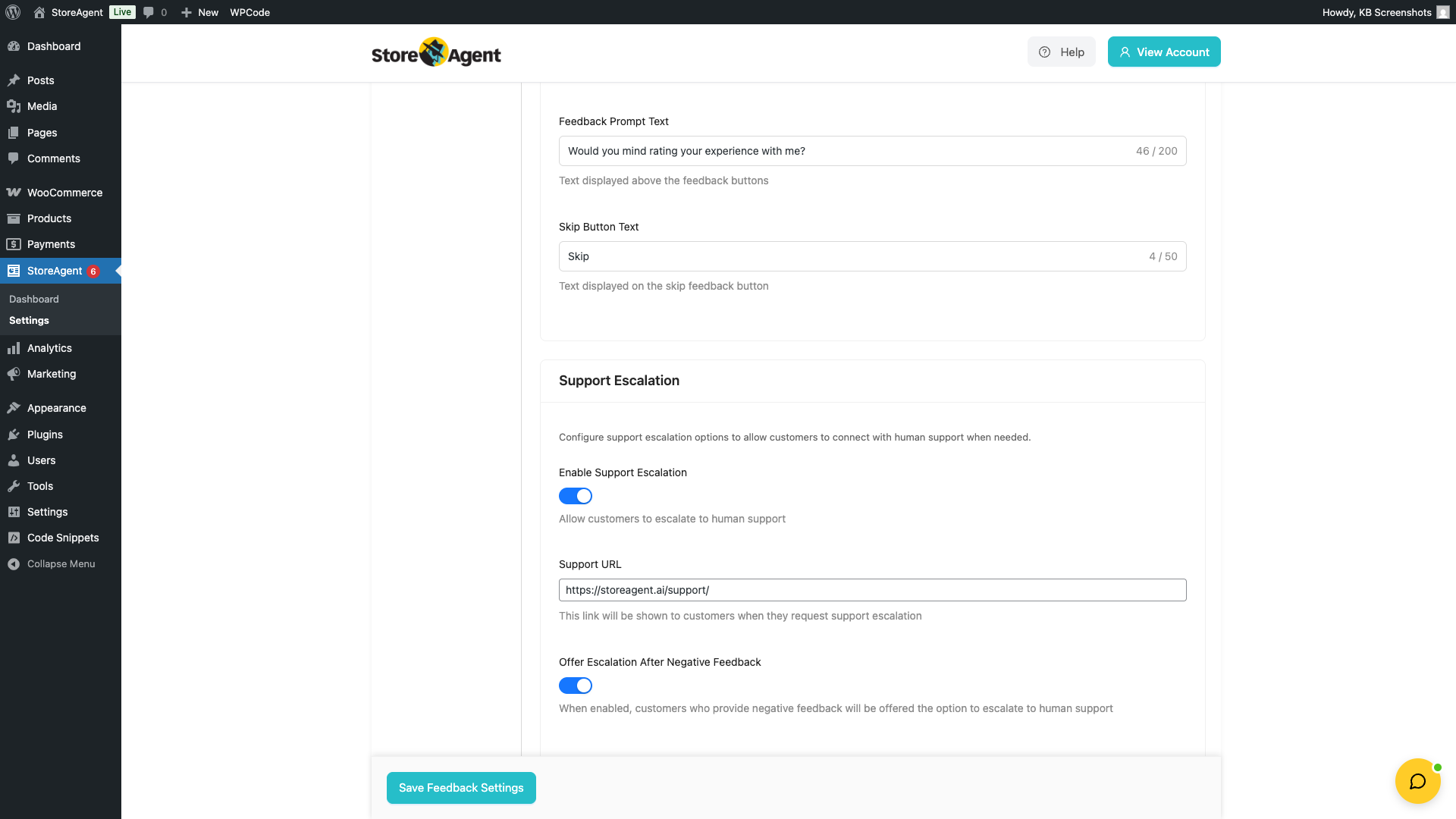
The Support Escalation section lets customers request human support directly from the chat widget. This feature is available on paid plans only. For a full walkthrough, see How to Set Up Chat Feedback and Escalation in StoreAgent.
| Setting | Description | Available on | Default |
|---|---|---|---|
| Enable Support Escalation | Turns on the escalation feature. When enabled, customers can request to connect with human support from within the chat widget. | Paid plans only | OFF |
| Support URL | The link shown to customers when they escalate. This should point to your support contact page, ticket system, or live chat tool. | Paid plans only | Empty |
| Offer Escalation After Negative Feedback | When ON, customers who leave a thumbs down rating are offered the option to escalate to human support. Only visible when both Escalation and Feedback are enabled. | Paid plans only | ON |
| Send Email on Escalation | When ON, StoreAgent emails a summary of the conversation when a customer asks for human support. | Paid plans only | OFF |
| Recipient Email | The email address that gets escalation emails. Leave it empty to use the site admin email. Only visible when Send Email on Escalation is ON. | Paid plans only | Empty (uses the site admin email) |
| Email Intro Message | Text shown at the top of the escalation email, before the conversation summary. Only visible when Send Email on Escalation is ON. | Paid plans only | “A customer has requested support escalation from the AI chat.” |
Coupon Offering tab
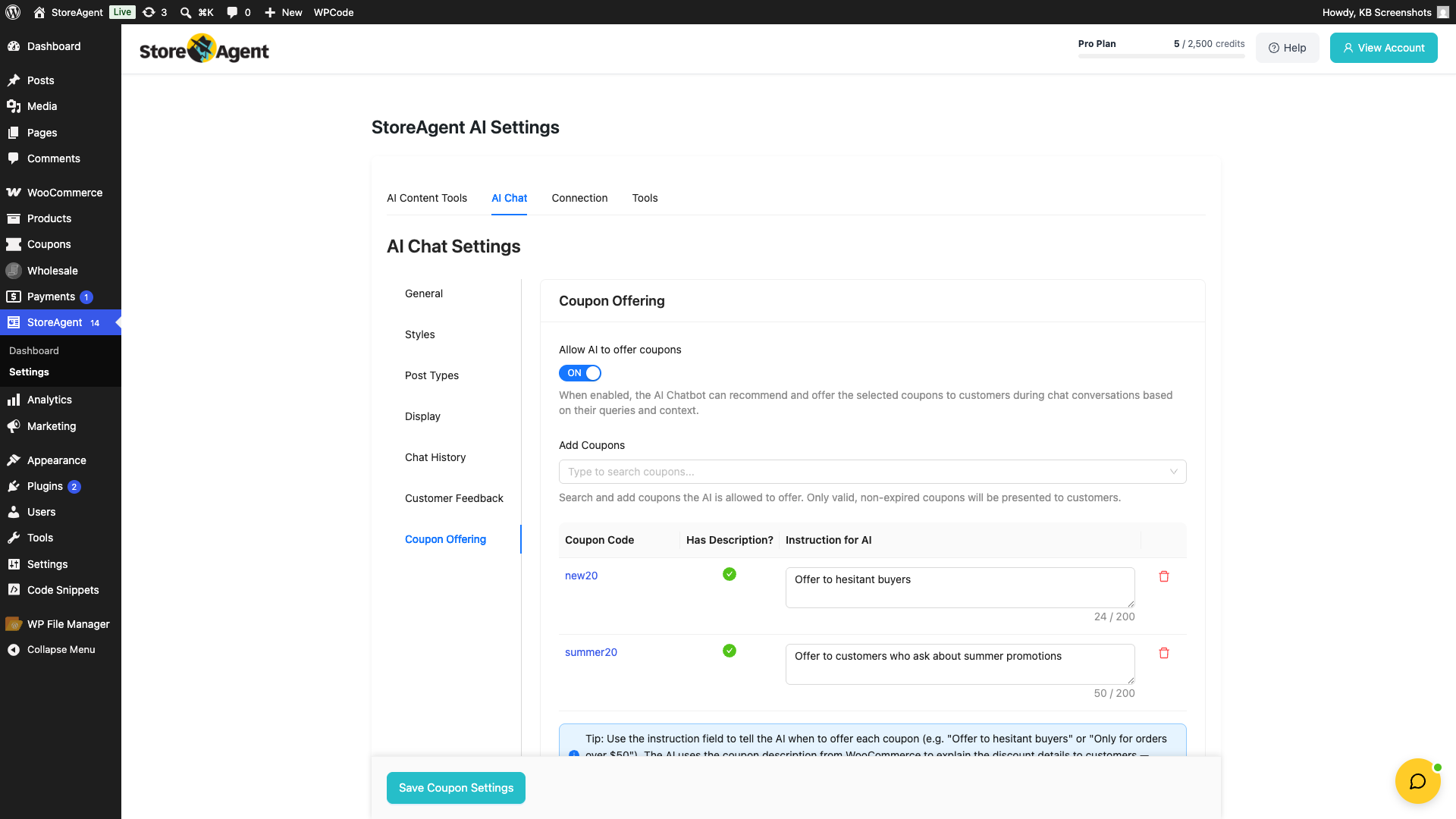
The Coupon Offering tab lets the AI Chat Bot offer discount coupons to customers during a conversation. You choose exactly which coupons it can offer. For how coupon offering works end to end, see AI Chat Coupon Offering: How It Works.
| Setting | Description | Default |
|---|---|---|
| Allow AI to offer coupons | When ON, the AI Chat Bot can offer coupons from the list below during conversations. When OFF, it never offers coupons. | OFF |
| Add Coupons | Search and select which existing coupons the AI is allowed to offer. Type at least 2 characters to search by code. Only the coupons you add here can be offered. | None added |
| Instruction for AI | Optional note for each coupon you add, up to 200 characters, that tells the AI when to offer it (for example, first-time buyers who ask about discounts). Added coupons appear in a table with the columns Coupon Code, Has Description? and Instruction for AI. The AI uses the WooCommerce coupon description to explain the discount, so Has Description? shows which coupons have one. | Empty |
Saving your changes
Each tab saves independently. There is no single button that saves every tab at once. After you change settings on a tab, click that tab’s own save button before switching tabs, or your changes are lost. The Chat History tab has no settings to save.
| Tab | Save button |
|---|---|
| General | Save Settings |
| Styles | Save Styles |
| Post Types | Save Post Types Settings |
| Display | Save Display Settings |
| Customer Feedback | Save Feedback Settings |
| Coupon Offering | Save Coupon Settings |
Frequently asked questions
Do I need to save after changing each tab?
Yes. Each tab has its own save button. For example, Save Settings on the General tab, Save Styles on the Styles tab, and Save Feedback Settings on the Customer Feedback tab. There is no single button that saves every tab, so save each tab before you switch to another, or you will lose your changes.
Can I disable the widget on mobile only?
Not directly. There is no per-device enable or disable toggle. You can use the Position setting on the Styles tab to move the widget to a less prominent spot on mobile screens.
How do I stop the chat from opening automatically?
Go to the Styles tab, open the Positioning section, and set Open by Default to OFF for Desktop, Tablet, and Mobile. Each device is controlled separately, so all three need to be off. If a message bubble still appears, with an unread badge on the chat button, that is a conversation starter. To stop it, go to the General tab and set Enable Conversation Starters to OFF, or turn on Hide on Mobile to stop it on phones only.
What is the difference between “Show chat after (seconds)” and the conversation starter delay?
Show chat after (seconds) on the Display tab controls when the chat widget itself appears on the page. Delay (seconds) in the Proactive Conversation Starters section controls when the starter message bubble appears.
Why can’t I change the escalation settings?
Support escalation is only available on paid plans. On the Lite plan, the Support Escalation section inside the Customer Feedback tab is visible but its settings can’t be changed. Upgrade your plan to unlock it.
What happens if I exclude a page that is also a selected post type?
The Excluded Pages setting takes priority. If a page appears in the Excluded Pages field, the widget will not show on that page, even if its post type is checked in the Display tab.
What’s next
- Getting Started with StoreAgent Chat
- How StoreAgent AI Memory Works
- How to Set Up Chat Feedback and Escalation in StoreAgent
Need help?
If you have a question or run into any issues, we’re here to help.
- Premium users: Open a support ticket
- Free users: Visit our community forum

