
You already use ChatGPT or Claude every day. Wouldn’t it be easier if it could look things up in your own store, instead of you copying product details back and forth? StoreAgent includes a WooCommerce MCP server that does exactly that. This article walks you through turning it on, connecting your assistant, and approving the connection from your own WordPress admin. It also lists the StoreAgent abilities your assistant can use.
MCP is included on every StoreAgent plan, including the free one.
What you need
- StoreAgent installed and activated on your store
- A connected StoreAgent account. The MCP tab shows only a connect prompt until your account is connected
- An administrator or shop manager account on your store, because only a store manager can approve a connection
- A Claude plan (Free, Pro, Max, Team, or Enterprise) or a paid ChatGPT plan (Plus, Pro, Business, or Enterprise). Claude Free allows only one custom connector.
Step 1: Turn on MCP for your store
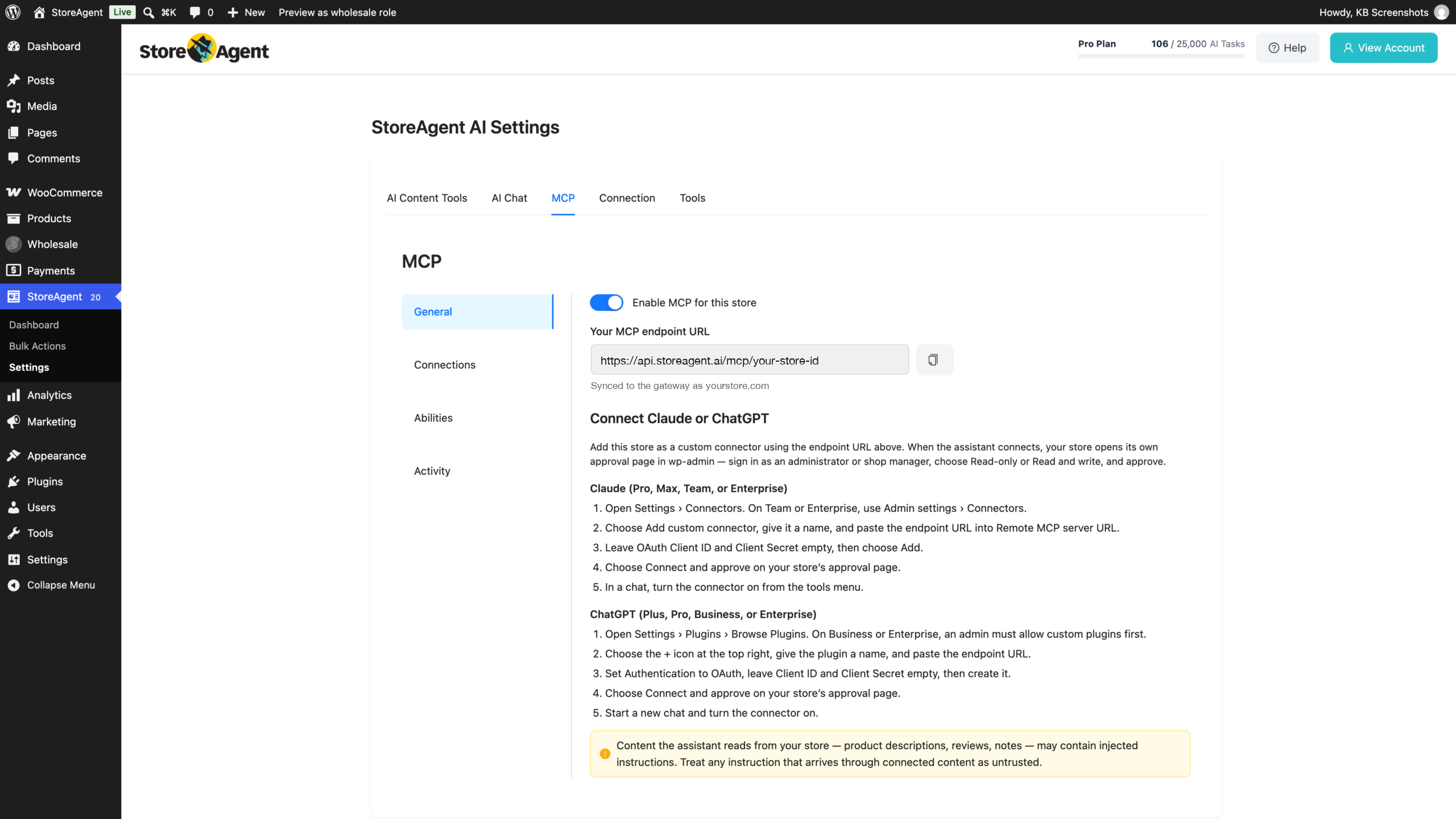
- Go to StoreAgent > Settings > MCP in your WordPress admin.
- Open the General sub-tab.
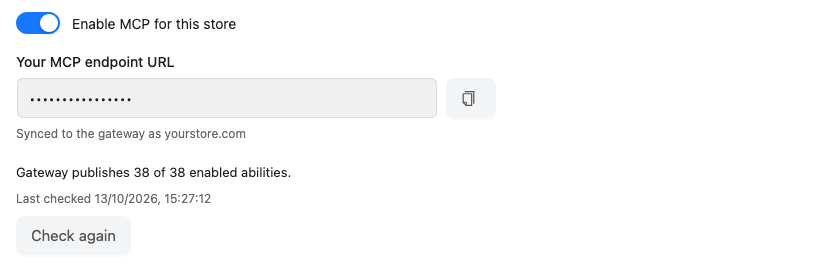
- Switch on Enable MCP for this store.
The MCP tab has four sub-tabs: General, Connections, Abilities, and Activity. You only need General to get connected.
Step 2: Copy your endpoint URL
Your store has its own MCP address. Your assistant needs it to find your store.
- Still on the General sub-tab, find Your MCP endpoint URL.
- Click the copy icon beside the field. Its tooltip reads Copy endpoint URL.
Keep this handy. You paste it into Claude or ChatGPT in the next step.

Step 3: Add your store as a custom connector
The steps differ depending on which assistant you use, so follow the one that matches.
Connect from Claude
- Go to Customize > Connectors.
- Click + Add, then Add custom connector.
- Enter a name, paste your endpoint URL as the server URL, then click Continue.
- Review the authentication settings Claude detects, then click Continue.
- Keep the recommended options. Under Authentication, do not choose No sign in. Under OAuth client, leave Use Claude’s published identity (Recommended) selected, then click Add.
- Click Connect. Your store’s approval page opens.
- After you approve, open a new chat.
- Click the + button at the lower left, choose Connectors, and switch your store’s connector on.
On Team or Enterprise, an Owner or Primary Owner adds the connector for the organization. Go to Organization settings > Connectors, click Add, hover over Custom, and select Web. Enter the name and your endpoint URL, keep the recommended authentication options, and click Add. Each member then goes to Customize > Connectors, finds the connector labeled Custom, and clicks Connect.
Connect from ChatGPT
- Go to ChatGPT Plugins. Your workspace policies decide if you can add a custom MCP server. On Business or Enterprise, ask your admin if the option is missing.
- Select the + button, then Add custom MCP server.
- Enter a name and description. Under Connection, paste your endpoint URL.
- Configure authentication so ChatGPT signs in through your store, review the risk warning, and select I understand and want to continue.
- Select Create as a plugin.
- Install the plugin and sign in when ChatGPT asks. Your store’s approval page opens.
- Start a new chat, type @, and select the plugin.
Step 4: Approve the connection in your store
This is the part people miss. Approval does not happen inside Claude or ChatGPT. Your store opens its own approval page in wp-admin, headed with the name of the assistant that asked, followed by wants to connect to your store. Nothing works until you answer it there.
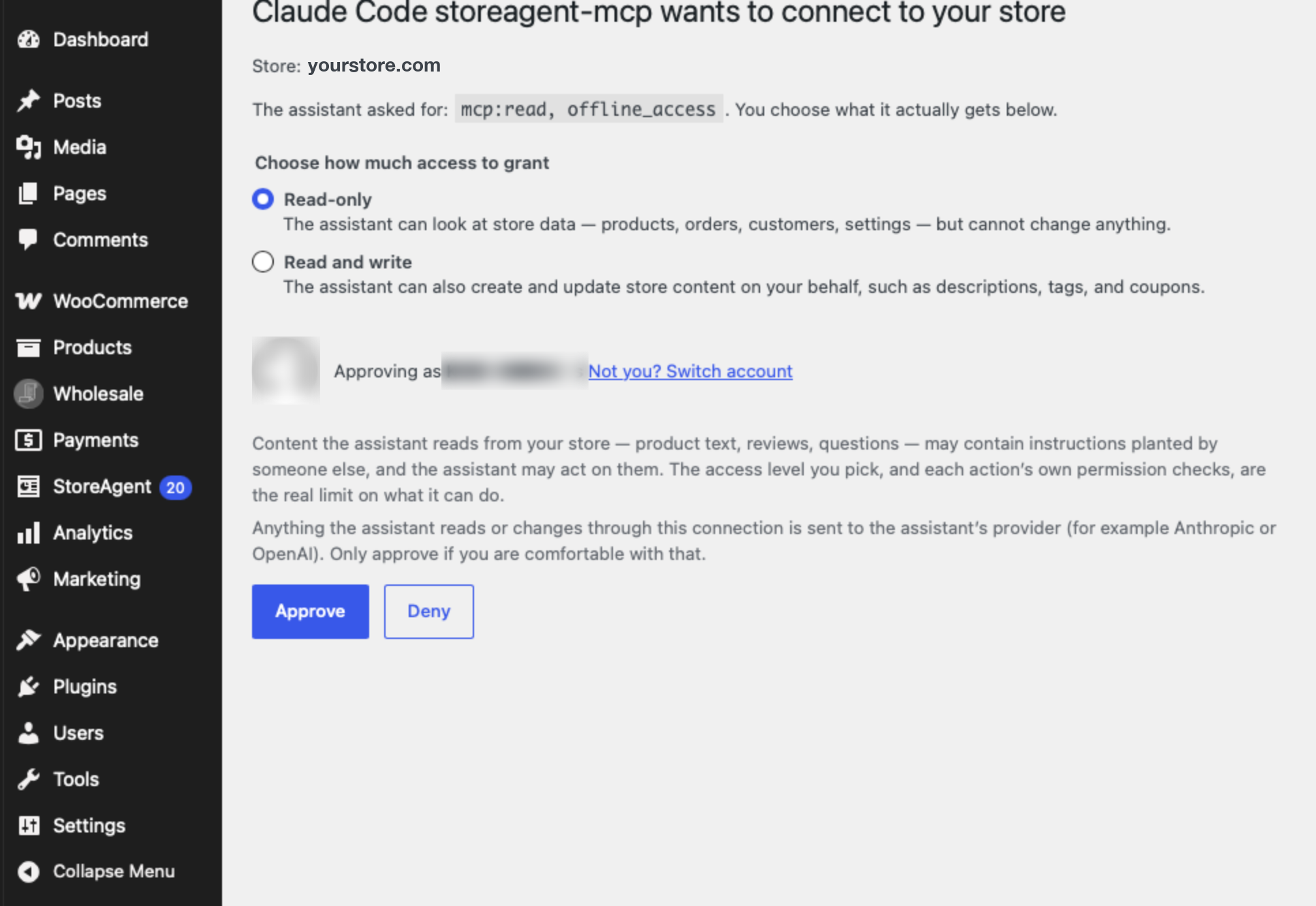
- Sign in to your store as an administrator or shop manager if you are not already.
- Under Choose how much access to grant, pick Read-only or Read and write.
- Choose Approve.
Pick Read-only the first time. You can always connect again with broader access once you have seen what the assistant does. Choose Deny if you did not start this request.
One thing to keep in mind as you choose. Your assistant reads real content from your store, including product descriptions, reviews and notes, and any of that text can contain instructions someone else wrote. Treat an instruction that arrives through your store content as untrusted, the same way you would treat an email from a stranger. This matters most with Read and write, where a planted instruction could ask the assistant to change something. StoreAgent shows the same warning on the MCP screen.
Check the connection
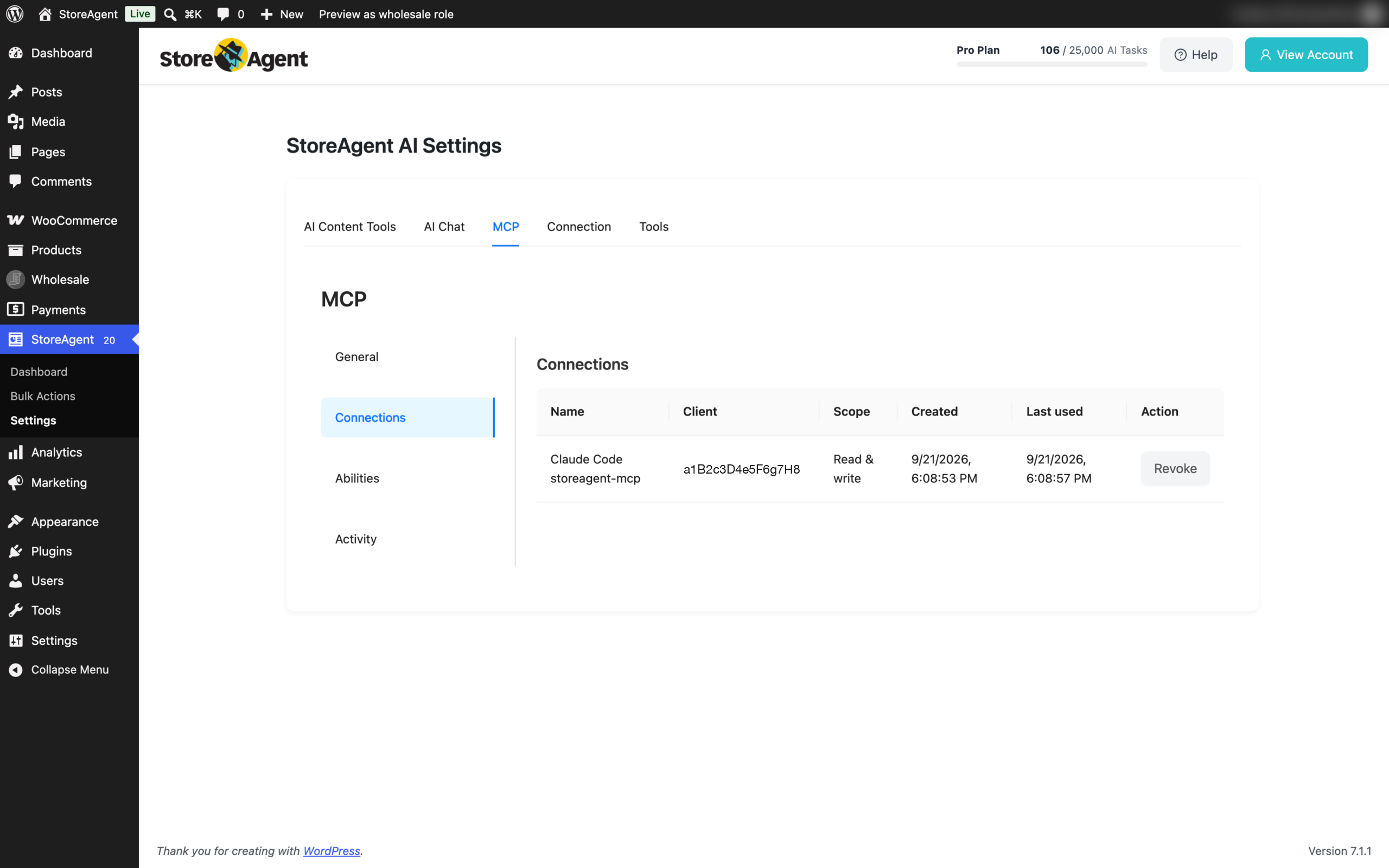
Open the Connections sub-tab to see what is connected. Each row shows Name, Client, Scope, Created, Last used, and Action. Scope reads Read only or Read & write, matching what you approved.
To cut off an assistant’s access, choose Revoke on its row. If nothing is listed yet, you see No connections yet, which means the approval has not gone through.
Connected? Give it a real job next. The MCP Recipes directory has copy-paste prompts for common store tasks, and each one shows whether it only reads or also makes changes.
What your assistant is allowed to do
Two controls decide this, and the one you already used matters most.
The access level you picked on the approval page is the main gate. A connection approved as Read-only can look at store data and nothing more. A connection approved as Read and write can also let StoreAgent create and update content, such as product descriptions, tags and coupons. The Scope column on the Connections sub-tab shows which one is in force, and the way to change it is to revoke the connection and approve it again.
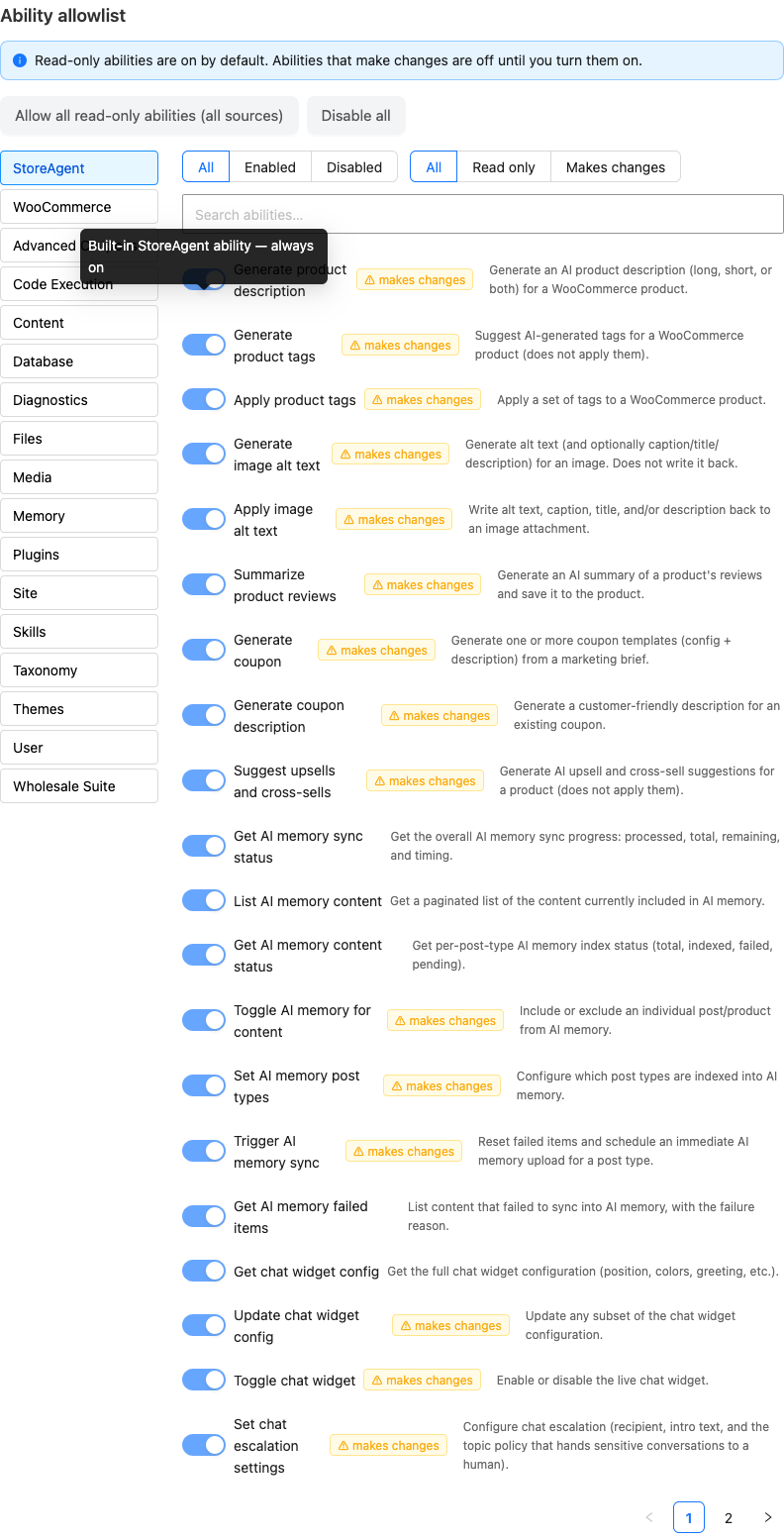
The Abilities sub-tab is the second control, and it covers abilities that come from somewhere other than StoreAgent. The panel is called Ability allowlist and it groups abilities by source, such as StoreAgent, WooCommerce, Site and User. Each group filters by Enabled or Disabled, and by Read only or Makes changes. Read-only abilities from these sources are switched on by default, so an assistant can look things up straight away. An ability that makes changes stays off until you switch it on here.
When you open the tab, it starts on the first source with switches you can change. It starts on StoreAgent only when StoreAgent is the only source. A source with more than 20 abilities splits them into pages, with page controls below the list.
The notice at the top of that panel describes those sources. StoreAgent’s own abilities work differently. Each one shows a switch that is always on and that you cannot change. Hover over the switch, or move to it with your keyboard, to see a tooltip that says it is a built-in StoreAgent ability and is always on. The access level you approved governs these abilities. If you want to stop StoreAgent making changes, revoke the connection and approve it again as Read-only.
Each time you save a change on the MCP screen, such as switching an ability on or off, StoreAgent checks what the gateway offers your assistant. The gateway is the StoreAgent service that connects your assistant to your store. To see the result, open the General sub-tab and look below your endpoint URL. A line such as Gateway publishes 5 of 5 enabled abilities shows the count, with a Last checked time below it. Choose Check again to run the check again.
The count covers abilities from other sources only, because StoreAgent’s own abilities are always on. If your store has no abilities from other sources switched on, the count line does not show. Read-only abilities from other sources are on by default, so most stores see it. If the numbers do not match, a warning lists the abilities involved. See the troubleshooting entry about stale or missing abilities below.
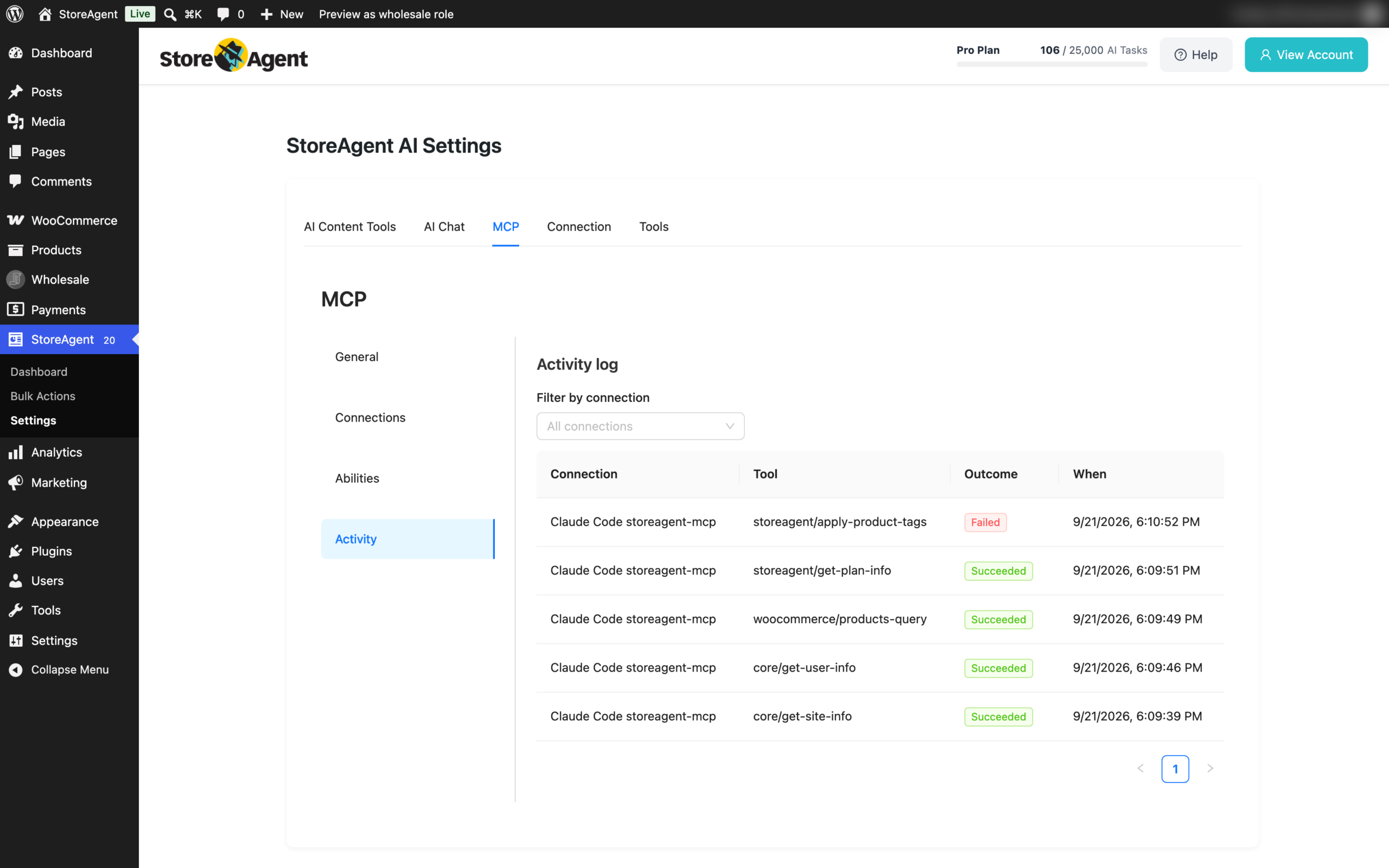
The Activity sub-tab records what a connected assistant actually did, and keeps 30 days of history. Each row shows the connection, the tool it called, whether the call succeeded, and when. It is worth a look after the first few days.
What StoreAgent’s abilities can do
Abilities are the actions StoreAgent lets a connected assistant take in your store. StoreAgent adds 30 of them, in five areas. The Read only abilities show up for every connection. The ones marked Makes changes only show up when you approved the connection as Read and write.
| Area | Ability | Type |
|---|---|---|
| Product content | Generate product description | Makes changes |
| Product content | Generate product tags | Makes changes |
| Product content | Apply product tags | Makes changes |
| Product content | Generate image alt text | Makes changes |
| Product content | Apply image alt text | Makes changes |
| Product content | Summarize product reviews | Makes changes |
| Product content | Generate coupon | Makes changes |
| Product content | Generate coupon description | Makes changes |
| Product content | Suggest upsells and cross-sells | Makes changes |
| AI Memory | Get AI memory sync status | Read only |
| AI Memory | List AI memory content | Read only |
| AI Memory | Get AI memory content status | Read only |
| AI Memory | Toggle AI memory for content | Makes changes |
| AI Memory | Set AI memory post types | Makes changes |
| AI Memory | Trigger AI memory sync | Makes changes |
| AI Memory | Get AI memory failed items | Read only |
| AI Chat | Get chat widget config | Read only |
| AI Chat | Update chat widget config | Makes changes |
| AI Chat | Toggle chat widget | Makes changes |
| AI Chat | Set chat escalation settings | Makes changes |
| AI Chat | List chat conversations | Read only |
| AI Chat | Get chat conversation | Read only |
| AI Chat | Get chat feedback summary | Read only |
| AI Chat | Export chat conversations | Makes changes |
| Notifications | Get notifications | Read only |
| Notifications | Get notification detail | Read only |
| Notifications | Dismiss notification | Makes changes |
| Notifications | Act on notification | Makes changes |
| Account | Get usage summary | Read only |
| Account | Get plan info | Read only |
Generate product tags, Generate image alt text and Suggest upsells and cross-sells only return suggestions. They do not change your products until you apply them. Summarize product reviews is different: it saves the summary to the product.
Each ability your assistant runs uses 1 AI Task from your plan, including abilities from WooCommerce and other sources. The Generate, Summarize and Suggest abilities use the AI Task of their generation instead. Get usage summary and Get plan info use no AI Tasks. When your plan runs out of AI Tasks or AI chat replies, your assistant gets a usage limit error until you upgrade or your monthly plan renews. AI Tasks and AI chat replies on the free plan do not renew. See how StoreAgent calculates your usage.
Export chat conversations is marked Makes changes, but it does not change anything in your store. It is marked that way because it sends chat transcripts out of your store, so it only shows up on a Read and write connection.
Get chat feedback summary counts the thumbs up and thumbs down ratings on your chat conversations. It only covers conversations still in your chat history, which is about the last 30 days.
The Notifications abilities work with the notifications on your StoreAgent dashboard. Dismiss notification archives one. Act on notification accepts or rejects a pending decision. If accepting a decision would run an AI generation, such as writing a short description, your assistant can only reject it. Accept it from the StoreAgent dashboard instead.
Your assistant may show these abilities by their technical names, such as storeagent_generate_product_description.
Who can run them
Every StoreAgent ability needs an administrator or shop manager account, including the Read only ones. Those read abilities still show private store data, such as chat transcripts, AI Memory content, and your plan and usage details.
Troubleshooting
The MCP tab only shows a connect prompt
Connect your StoreAgent account first. MCP is gated on it, and the tab calls no MCP endpoint until the account is connected.
The approval page says only a store manager can approve
Sign in as an administrator or shop manager, then open the approval link again. A customer or subscriber account cannot approve a connection.
The approval page says this request is for a different store
The endpoint URL you pasted belongs to another site. Go back to StoreAgent > Settings > MCP > General, copy the endpoint URL again, and recreate the connector with the correct address.
The assistant connected but cannot see anything in my store
Check that the connector is switched on for the chat you are in. In Claude, click the + button at the lower left of the chat, choose Connectors, and switch it on. In ChatGPT, start a new chat, type @, and select the plugin. A connector that is approved but not enabled in the conversation does nothing.
The connection fails with a store unreachable error
Check that your store is online and reachable from the public internet. This error means StoreAgent could not reach your store, or your store answered with a server error. An IP allowlist or a firewall that blocks outside visitors is the usual cause. If your store is publicly reachable and it still fails, the problem is between StoreAgent and your store rather than in your settings, so open a support ticket.
If your firewall or security plugin drops connections from bots it does not recognize, it can block StoreAgent too. See “A firewall or security plugin blocks the connection” below.
The connection fails with “The store’s approval surface is not available”
Work through these checks, then try to connect again:
- Go to Settings > Permalinks, choose any option except Plain, and click Save Changes.
- Make sure StoreAgent is active on the store.
- Check that no security plugin or hosting rule blocks the WordPress REST API (addresses that start with
/wp-json/). - If you use Cloudflare, another firewall with bot protection, or a coming soon or maintenance plugin, let requests to
/wp-json/storeagent/v1/mcp/approvethrough. See “A firewall or security plugin blocks the connection” below for the User-Agent to allow. - Remove password protection from the site. A staging site behind a password always fails this check.
- Make sure your store’s address does not redirect to a different domain.
Before the approval page opens, StoreAgent checks your store at /wp-json/storeagent/v1/mcp/approve. You see this error, with the code approval_surface_unavailable, when that check gets a “not found” reply, a login or security page, or a redirect instead of StoreAgent’s answer.
If your store passes all of these and it still fails, open a support ticket.
A firewall or security plugin blocks the connection
Some host firewalls, Cloudflare rules and security plugins block requests from bots they don’t recognize. If yours does, add an allow rule for StoreAgent.
Every request StoreAgent sends to your store carries a User-Agent (the name a visitor sends to say who it is) that starts with StoreAgent-Gateway/. The full value looks like this:
StoreAgent-Gateway/1.1.9 (+https://storeagent.ai/kb/how-to-connect-chatgpt-or-claude-to-your-store-with-mcp/)The number after the slash is the version of the StoreAgent gateway, not your plugin version. It changes when the gateway updates. Match on values that start with StoreAgent-Gateway/, not on the full value, so the rule keeps working after an update.
Keep the rule narrow:
- Allow it only for requests to addresses that start with
/wp-json/storeagent/v1/mcp/. - Skip only the rule that blocked StoreAgent, usually a rule against missing or unknown User-Agents.
- Don’t allow this User-Agent across your whole site.
If you use Cloudflare’s free Bot Fight Mode, an allow rule does not help, because Cloudflare does not let custom rules skip it. Turn Bot Fight Mode off, or use Super Bot Fight Mode on a paid plan and add a skip rule for these addresses.
A User-Agent only says who a request claims to be, and anyone can copy it. That’s why the rule should stay on the MCP addresses. Those addresses stay protected without your firewall. Your store only runs a request to /mcp/list or /mcp/call when it carries a valid signature made with your store’s own secret. The /mcp/approve address only sends visitors on to the approval page, and only a logged-in store manager can approve a connection there.
The assistant reports stale or missing abilities
Open the General sub-tab and read the messages below your endpoint URL. Changes can take up to a minute to reach the gateway, so wait a minute, then choose Check again.
- If a warning still lists abilities the gateway is not publishing, or abilities you turned off, switch one ability off and on again on the Abilities sub-tab. This sends your settings to the gateway again.
- If a warning says the gateway last synced under a different host than your endpoint URL uses, reconnect your StoreAgent account.
- If MCP is off but a warning says assistants may still reach your store, turn MCP on and off again to send your settings.
The Check again button only checks abilities from other sources. StoreAgent’s own abilities are always on.
The assistant cannot generate descriptions, tags or coupons
Choose Revoke on the assistant’s row on the Connections sub-tab, then approve the connection again as Read and write. A connection approved as Read-only only sees the Read only abilities, so the Generate abilities never appear in your assistant’s list.
The assistant says the plan’s usage limit has been reached
Check your AI Tasks and AI chat replies usage under My Account > Plan Details in your StoreAgent account. This error means your plan has used all of its AI Tasks or all of its AI chat replies, so StoreAgent refuses each ability that uses AI Tasks. Upgrade your plan to continue right away, or wait for your monthly plan to renew. AI Tasks and AI chat replies on the free plan do not renew, so upgrade to keep using these abilities. Get usage summary and Get plan info still work, so your assistant can show your usage. See how StoreAgent calculates your usage.
Frequently asked questions
Does MCP cost extra?
No. MCP is included on every StoreAgent plan, including the free one. Each ability your assistant runs uses AI Tasks from your plan.
Can I connect both Claude and ChatGPT?
Yes. Each one is its own connector and its own row on the Connections sub-tab, so you can approve them separately and revoke either on its own.
Can the assistant change my store without asking?
Only if you let it. A Read-only connection cannot change anything. With Read and write, StoreAgent’s own abilities that make changes are available straight away. Abilities from WooCommerce and other sources that make changes stay off until you switch them on in the Ability allowlist.
How do I stop an assistant from having access?
Choose Revoke on its row on the Connections sub-tab. That ends its access immediately.
Can I use a free Claude or ChatGPT plan?
Claude Free works, but it allows only one custom connector. For ChatGPT, you need one of the paid plans listed under What you need. Anthropic and OpenAI decide which plans can add custom connectors, not StoreAgent.
Can I turn off StoreAgent’s abilities?
Yes, but it takes a small code change, so ask your developer. Setting the SAAI_DISABLE_ABILITIES constant to true, or returning true from the saai_disable_abilities filter, stops StoreAgent from registering any of its abilities. A connected assistant then has none of StoreAgent’s abilities to use.
Need help?
If you have a question or run into any issues, we’re here to help.
- Premium users: Open a support ticket
- Free users: Visit our community forum

