
If your AI Chat Bot settings don’t take effect, the widget won’t show, or shoppers get no reply, this guide covers the most common chat widget problems and the fix for each. Jump to the section that matches what you see.
Settings save but the widget doesn’t change on the storefront
Symptom: You update the greeting message, position, or colour, click Save Settings, and see the success message. But the chat widget on your storefront keeps showing the old values.
Cause: Page caches (server, CDN, or browser) are serving a cached version of the widget bundle that includes the old settings.
Fix:
- Clear your site cache. The path depends on your host or caching plugin. Common ones:
- WP Rocket: Settings → Clear Cache
- SiteGround: Speed Optimizer → Caching → Purge SG Cache
- Cloudflare: Caching → Purge Everything
- Hard-refresh the storefront in your browser (Cmd+Shift+R on macOS, Ctrl+F5 on Windows).
- Open the storefront in a private/incognito window to confirm the fresh load shows the new settings.
The chat widget isn’t showing up on the storefront at all
Symptom: The chat widget is enabled in StoreAgent settings, settings appear to save fine, but no chat bubble appears on any storefront page.
Fix: check each in order.
- Confirm Enable Chat Widget is on under StoreAgent → Settings → AI Chat → General.
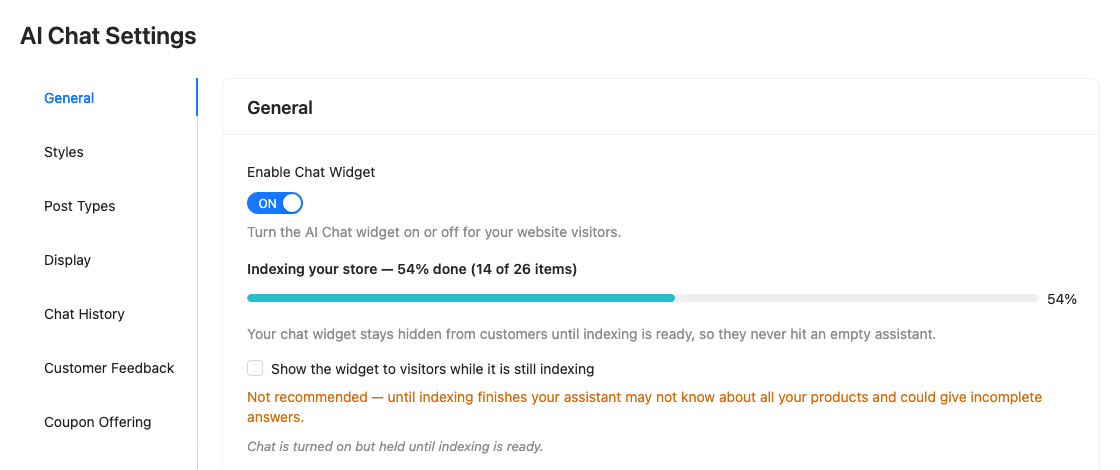
- On the same General tab, look for the note “Chat is turned on but held until indexing is ready.” If you see it, the widget stays hidden until AI Memory finishes indexing your store.
- The progress bar shows how far indexing has got.
- If it shows Indexing needs attention, click Resume indexing.
- To show the widget anyway, tick Show the widget to visitors while it is still indexing. This is not recommended, because answers can be incomplete until indexing finishes.
- Confirm your StoreAgent.ai account is connected under StoreAgent → Settings → Connection. A disconnected account silently disables the widget.
- On the same Connection tab, check the Chat Messages row. When your plan’s chat replies are used up, the widget is hidden from the storefront until the allowance resets or you upgrade. On the free Lite plan, chat replies are a one-time allowance. On paid subscription plans, they reset at each renewal payment. One-time plans do not reset. After you upgrade, the widget comes back when StoreAgent refreshes your plan data once a day, or right away if you click Re-fetch account connection data on the Connection tab.
- Check StoreAgent → Settings → AI Chat → Display.
- The widget only shows on post types ticked under Display on Post Types.
- Pages listed under Excluded Pages are skipped.
- If Show chat after (seconds) under Display Timing is above 0, the bubble appears only after that many seconds. The default is 0.
- Open the page in a private browser window with DevTools open and check the Console tab. Errors from
storeagent-ai-for-woocommerceusually point to the cause (account-connection failure, asset load error, plugin conflict). - Turn off any optimization plugin that defers or combines JavaScript, such as Autoptimize, Asset CleanUp, or WP Rocket’s “Combine JS”, then reload.
- If the widget appears, the optimizer is the cause. Add the StoreAgent script to the optimizer’s exclusion list.
The chat widget appears but the bot doesn’t reply
Symptom: The chat bubble shows up on the storefront, customers can type a message, but no reply comes back. It either spins without end or shows a generic error.
Fix: check each in order.
- Check your chat reply usage in the Chat Messages row under StoreAgent → Settings → Connection. A chat that is already open when the allowance runs out stops getting replies until the allowance resets or you upgrade.
- Verify your store’s products are indexed in AI Memory. The chat bot relies on indexed content. If 0 products are indexed, the bot has nothing to answer from.
- Confirm the bot can reach the StoreAgent.ai service. If your host blocks outbound HTTPS, the chat request times out silently. Test by visiting
app.storeagent.aifrom a browser on your server (or ask your host to confirm outbound HTTPS toapp.storeagent.aiisn’t blocked). - If the bot replies in chat but the answers are inaccurate, see How to improve StoreAgent Chat answer accuracy.
“Cookie check failed” (403) when a shopper sends a message
Symptom: The chat bubble opens, but messages from logged-out shoppers fail. In your browser’s DevTools, the Network or Console tab shows a 403 response with “Cookie check failed”. Logged-in users are usually not affected.
Cause: StoreAgent versions before 1.1.8 added a WordPress security token to the page HTML. A full-page cache kept serving that old token after it expired, and WordPress rejected the chat request.
Fix:
- Update StoreAgent to 1.1.8 or later under Plugins → Installed Plugins.
- Purge your page cache on your host, caching plugin, and CDN. Cached pages keep the old token until they regenerate.
- Test the chat in a private window while logged out.
The widget looks wrong on mobile
Symptom: Widget is positioned, sized, or styled differently on mobile than what you set in StoreAgent → Settings → AI Chat → Styles.
Cause: The Styles tab has separate Positioning values for Desktop, Tablet, and Mobile, which are easy to miss on a first pass. After you save, check the storefront on a phone to confirm the mobile position.
Fix:
- Go to StoreAgent → Settings → AI Chat → Styles.
- Scroll to the Positioning section and set the mobile values.
- Click Save Styles.
- Clear your site cache, then hard-refresh the page on your phone.
Frequently asked questions
Can I connect the AI Chat Bot to WhatsApp, SMS, or social media?
No. The AI Chat Bot runs on your WooCommerce site only. Use Display on Post Types and Excluded Pages on the Display tab to choose where the floating widget appears.
Can I show the chat inside a page instead of as a floating bubble?
Yes. Add the [storeagent_chat] shortcode to the page where you want the chat to appear. See How to display the StoreAgent AI Chat Bot using shortcodes.
Need help?
If you have a question or run into any issues, we’re here to help.
- Premium users: Open a support ticket
- Free users: Visit our community forum

