
If you run a multi-vendor marketplace with WC Vendors, checking every vendor product by hand takes a lot of time. The WC Vendors Product Moderator AI agent checks each new submission for you. It gives the product a verdict, a risk score, and a suggested message for the vendor. This article shows you how to turn the agent on, connect your vendor policy page, and read the AI review before you approve a product.
Prerequisites
- StoreAgent AI for WooCommerce installed, activated, and connected to your StoreAgent.ai account.
- WC Vendors (Free or Pro) installed and activated. The agent’s card only appears in StoreAgent’s AI Content Tools settings when WC Vendors is active.
- Recommended: a WordPress page that describes your vendor policy, for example allowed product types, banned items, and photo rules. The AI already checks for common problems, and this page adds your own rules.
Step 1: Enable WC Vendors Product Moderator AI
- Go to StoreAgent → Settings → AI Content Tools in your WordPress admin.
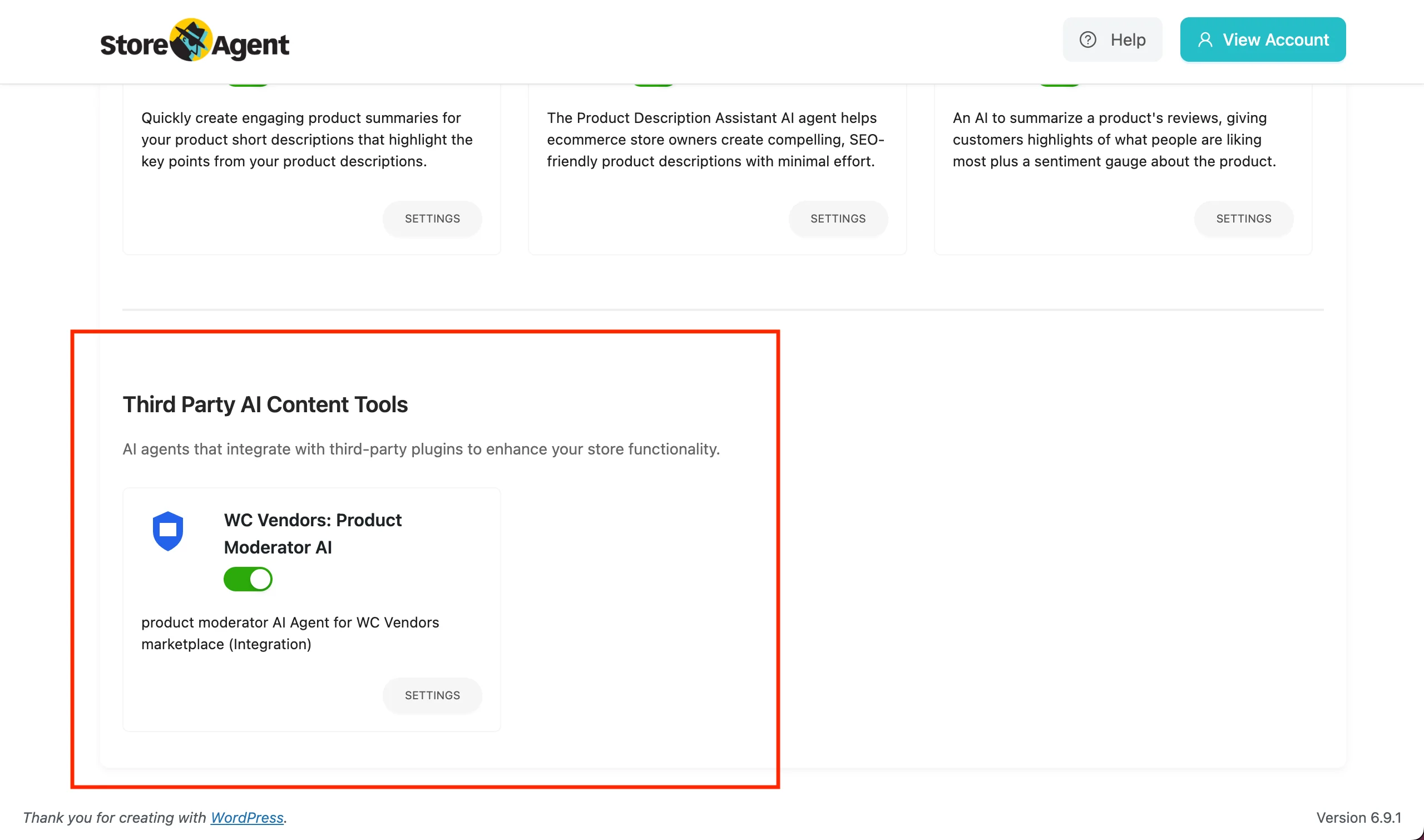
- Scroll to the Third Party AI Content Tools section and find the WC Vendors: Product Moderator AI card.
- Switch the card’s toggle on.
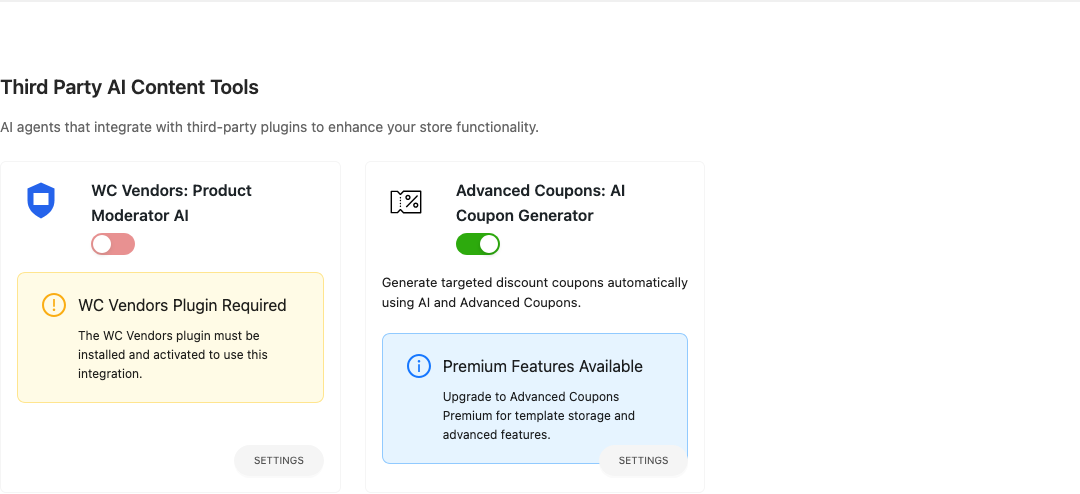
If WC Vendors isn’t active, the card shows a WC Vendors Plugin Required notice and you can’t use the toggle. Install and activate WC Vendors first, then reload the page.
Step 2: Turn on AI Product Moderation in WC Vendors
The agent checks a vendor product when it goes into pending status. This WC Vendors setting makes sure every vendor submission goes to pending first.
- Go to WC Vendors → Settings → Capabilities.
- On the General sub-tab, find the Products section.
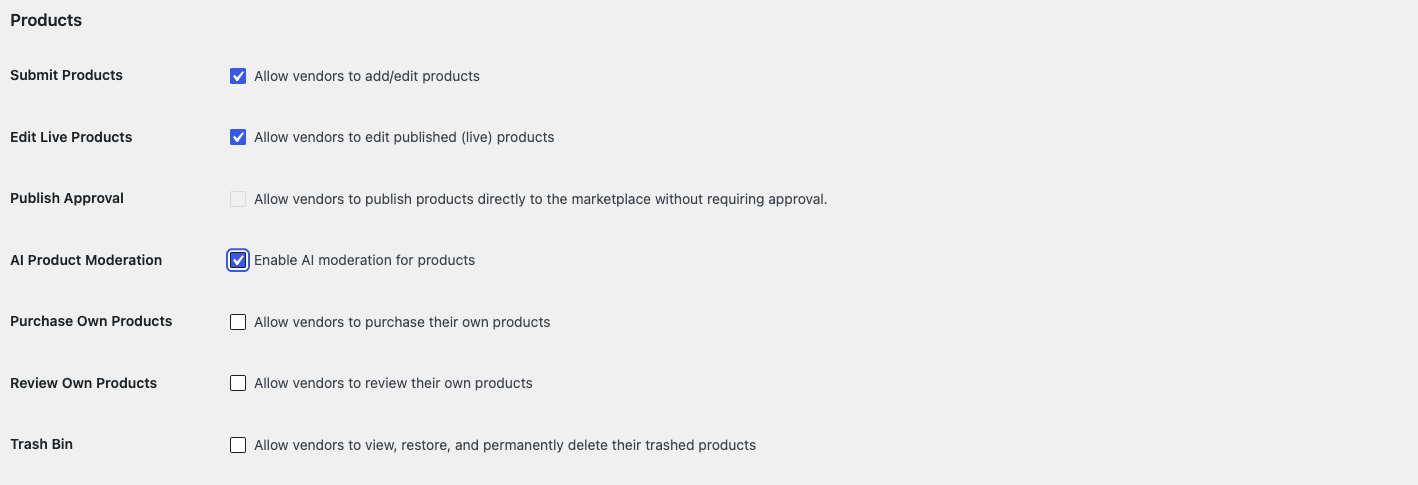
- Tick AI Product Moderation (“Enable AI moderation for products”). It’s off by default.
- Click Save changes.
Two things to know about this checkbox:
- It turns off Publish Approval. When you tick AI Product Moderation, the Publish Approval permission is cleared, so vendors can no longer publish products directly. Every submission goes to pending first, which gives the agent something to check.
- It won’t stay on until StoreAgent is ready. If the StoreAgent plugin is missing, deactivated, or not connected to your StoreAgent.ai account, WC Vendors turns the checkbox back off when you save. The setting description tells you which of the three is missing.
Step 3: Point the agent at your vendor policy page
- On the WC Vendors Product Moderator AI card, click SETTINGS.
- Click the Settings tab.
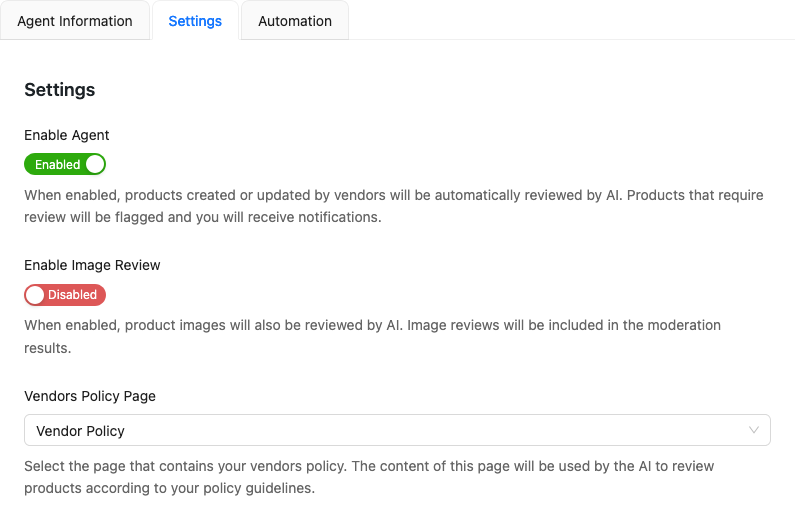
- Make sure Enable Agent is on. The other two settings stay greyed out until it is.
- From the Vendors Policy Page dropdown, select the page that describes what vendors can and can’t list.
Each change saves as soon as you make it, and a “Settings saved successfully.” message appears. There’s no separate save button.
The agent reads the policy page each time it checks a product, so you can edit the page text any time. You don’t need to change the agent settings again.
Step 4: Enable image review (optional)
The standard check reads the product’s text, price, and categories. It doesn’t look at the images themselves. To also check the main image and gallery images, toggle Enable Image Review on in the same Settings tab.
Image review sends each new image to an AI model that can see pictures. Each product check uses 1 credit, and each new image uses 1 more credit. If most problems you see are about wording, you can leave image review off.
Step 5: Review moderation results
Go to WC Vendors → Products and open the Pending Products tab. Any product the agent has checked gets a View AI Review button in the Actions column, next to Approve and Request Change. Click it to open the AI Review panel with the verdict, the risk score, and the reasons. The table has no verdict column, so you can’t sort by verdict.
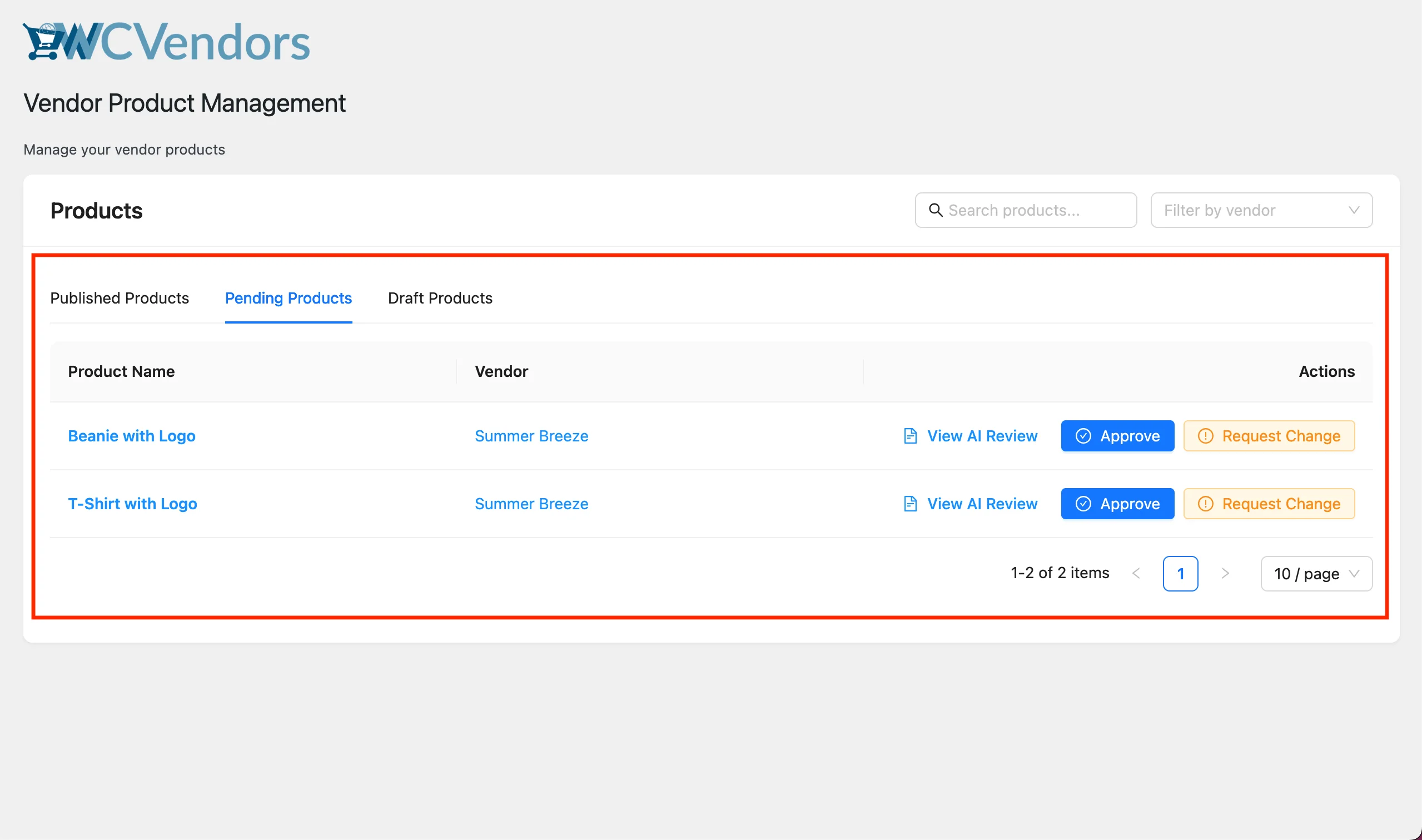
After you read the review, choose one of these actions:
- Approve: publishes the product.
- Request Change: opens a message box that already holds the AI’s feedback for the vendor. Edit it if you like. Tick Include AI review suggestions in email to send the AI’s fix suggestions too. Click Send to email the vendor and move the product back to draft.
How moderation works
When a vendor saves a product and it moves into pending status, StoreAgent queues a background check with Action Scheduler. The AI reads the product name, description, short description, price, SKU, stock, categories, tags, and vendor details. It checks them against its built-in rules (for example contact details in the description, odd pricing, or wrong categories) and against your vendor policy page, if you selected one.
The AI Review panel shows one of three verdicts:
- Approved: the product meets the standards.
- Revision Required: the product has problems the vendor can fix. The review lists the problems and a suggested fix for each one.
- Rejected: the product has serious problems.
Each review also has a risk score from 0 to 100, and a Pass, Warning, or Fail result for content safety, pricing, and images. When image review is on, the panel also shows an Approved, Revision Required, or Rejected result for each image.
The agent never publishes, rejects, or deletes a product, and it never contacts the vendor. Every product stays in pending until you click Approve or Request Change.
Troubleshooting
The WC Vendors Product Moderator AI card is missing from AI Content Tools
Check that WC Vendors is installed and activated under Plugins → Installed Plugins, then reload the AI Content Tools page. If the card is still missing, update StoreAgent to v1.1.3 or later. The agent first shipped in v1.1.3.
No AI review appears on submitted products
Wait a few minutes, then reload the Pending Products tab. The check runs in the background, usually within a minute, but it can take longer on busy sites.
If there’s still no review, check these points:
- Enable Agent is on in the agent’s Settings tab.
- The product went into pending after you turned the agent on. The agent only checks a product when it moves into pending, so products that were already pending aren’t checked.
- Under Tools → Scheduled Actions, search for
saai_vendors_product_moderation(orsaai_vendors_product_image_moderationwhen image review is on) and look for failed actions.
The AI approves products that break your rules
The AI can only enforce rules that it can read. Select a Vendors Policy Page if you haven’t yet, and make the page specific. For example, list the product types you don’t allow and give clear examples. The next check uses the new text.
Frequently asked questions
Does it work with WC Vendors Pro?
Yes. Pro vendors submit products through the same WC Vendors product form, so their submissions are checked too.
Does each moderation call cost credits?
Yes. Each product check uses 1 credit from your StoreAgent.ai plan. With Enable Image Review on, each new product image uses 1 more credit. Images that were already checked aren’t checked again.
Can the agent reject products outright?
No. The agent never changes a product’s status and never messages the vendor. It only adds a verdict and suggestions that you can read. You decide whether to approve the product or request changes.
Need help?
If you have a question or run into any issues, we’re here to help.
- Premium users: Open a support ticket
- Free users: Visit our community forum

