
When the chat stops referencing your products, a setup notice keeps coming back, or AI Memory looks out of sync, the Tools tab in StoreAgent settings has two fixes. This guide explains what each tool does, when to use it, and what to watch out for. Clear Post Data Hashes can hide the chat widget while your content uploads again, so read each section before you click.
Opening the Tools page
Go to StoreAgent → Settings → Tools in your WordPress admin. The page is one of five tabs on the StoreAgent settings screen, alongside AI Content Tools, AI Chat, MCP, and Connection. To learn about the MCP tab, see How to connect ChatGPT or Claude to your store with MCP.
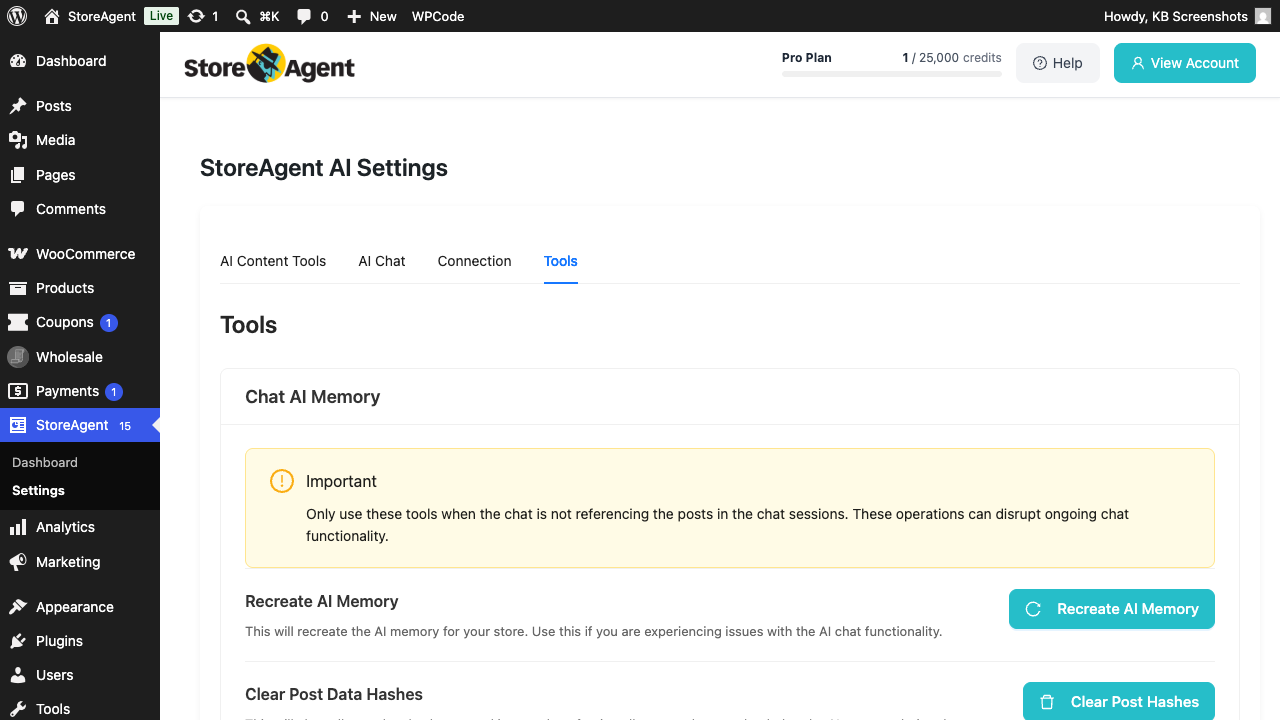
At the top of the Tools page is a yellow Important callout: “Only use these tools when the chat is not referencing the posts in the chat sessions. These operations can disrupt ongoing chat functionality.” Treat that warning seriously. After Clear Post Data Hashes, the chat widget can stay hidden until indexing is ready again, so avoid running it during peak chat hours. Each tool can run once an hour.
Recreate AI Memory
What it does
Registers your store’s AI Memory with StoreAgent.ai again, clears a stuck setup or paused state, and queues a normal sync for every enabled post type. It does not delete your AI Memory index, and it does not re-send items that haven’t changed. To send every item again, use Clear Post Data Hashes instead.
When to use it
- The AI Memory setup notice keeps coming back after you’ve completed setup. Recreate AI Memory clears it.
- Syncing is paused and you want it to start again without waiting for the daily plan check.
- StoreAgent support asks you to run it.
How to use it
- Click Recreate AI Memory.
- In the confirmation modal, click Yes, Recreate. The button changes to Recreating… while the request is processed.
- Wait for the success message: “AI Memory recreated successfully. Post data will be uploaded automatically.” Watch progress on the AI Memory column on the products list and the indexing fraction in Settings → AI Chat → Post Types.
You can run this tool once an hour. A second click within the hour shows “This action can only be performed once every hour.”
Because unchanged items are skipped, the sync after Recreate AI Memory is usually quick. The chat keeps working while it runs.
Clear Post Data Hashes
What it does
Clears the per-post hash that StoreAgent stores in WordPress meta to detect “has this product changed since the last sync?” Clearing the hashes forces every product to be re-uploaded on the next sync, regardless of whether the content actually changed.
When to use it
- You suspect the existing hashes are corrupted, for example after a plugin migration that went wrong.
- You want the next sync to re-upload everything, for example after a domain change or a large content migration.
This tool doesn’t delete the StoreAgent.ai-side index. It forces a full re-upload to refresh it. While everything uploads again, the chat widget can stay hidden until indexing is ready, because the indexed count starts again from zero.
How to use it
- Click Clear Post Hashes.
- Confirm in the modal by clicking Yes, Clear Hashes.
- The hashes are wiped immediately and StoreAgent schedules an upload. All posts are treated as changed and re-uploaded.
You can run this tool once an hour. A second click within the hour shows “This action can only be performed once every hour.”
You can also follow this with a manual sync from Settings → AI Chat → Post Types (the sync icon on each post type) to start the re-upload immediately instead of waiting for the scheduler.
Which one should I use?
For stale or missing answers, start with Sync Now on Settings → AI Chat → Post Types. It retries failed items and uploads changed ones, and the chat keeps working.
Use Clear Post Data Hashes when you need every item sent again. Run it outside peak chat hours, because the chat widget can stay hidden until indexing is ready.
Reach for Recreate AI Memory only when:
- The setup notice keeps coming back after you’ve completed setup.
- Syncing is paused and you want to start it again now.
- StoreAgent support asks you to run it.
Recreate AI Memory does not rebuild your index, so it won’t fix answers that come from outdated content. Use Sync Now or Clear Post Data Hashes for that.
Troubleshooting
Recreate AI Memory shows an error
The message shows the reason. If it says “Your plan does not support AI Chat functionality.”, your StoreAgent plan must include AI Chat before this tool can run. If it says “Failed to create AI memory for store.” or “Failed to recreate AI memory.”, go to StoreAgent → Settings → Connection and confirm it says You are connected to StoreAgent. Check that the Account row shows the email of the StoreAgent account you expect. The Recreate tool calls the StoreAgent.ai service, so it can’t run if the connection is broken or linked to a different account. If the connection looks right and the error persists, open a support ticket and include the entry from your WordPress error log.
“Failed to clear post hashes” error
This message means the request to your site did not go through, for example because your login expired or a server error stopped it. Reload the page and try again. If it keeps happening, check that a security or firewall plugin is not blocking WordPress REST requests, then check your server’s error log.
The setup notice keeps reappearing
Click Recreate AI Memory. This clears the notice. If the chat is also answering from outdated content, first click Clear Post Hashes, then Recreate AI Memory, because clearing the hashes alone turns the notice back on until everything has uploaded again. If either tool shows “This action can only be performed once every hour”, wait the number of minutes it shows and try again.
Need help?
If you have a question or run into any issues, we’re here to help.
- Premium users: Open a support ticket
- Free users: Visit our community forum

