
Most WooCommerce stores leave the upsell and cross-sell fields blank on most products — picking related items by hand for a few hundred SKUs is just too slow. The Product Upsells AI agent scans your catalog on a schedule you set, picks complementary products for each one, and writes those product IDs to the standard WooCommerce upsell and cross-sell fields. This article walks through enabling the agent, choosing what kind of recommendations to generate, and reviewing what it picks.
Prerequisites
- StoreAgent AI for WooCommerce installed, activated, and connected to your StoreAgent.ai account.
- WooCommerce with at least a handful of published products. With under ~5 products the AI doesn’t have enough context to suggest meaningful pairings.
Step 1: Enable the Product Upsells AI Task
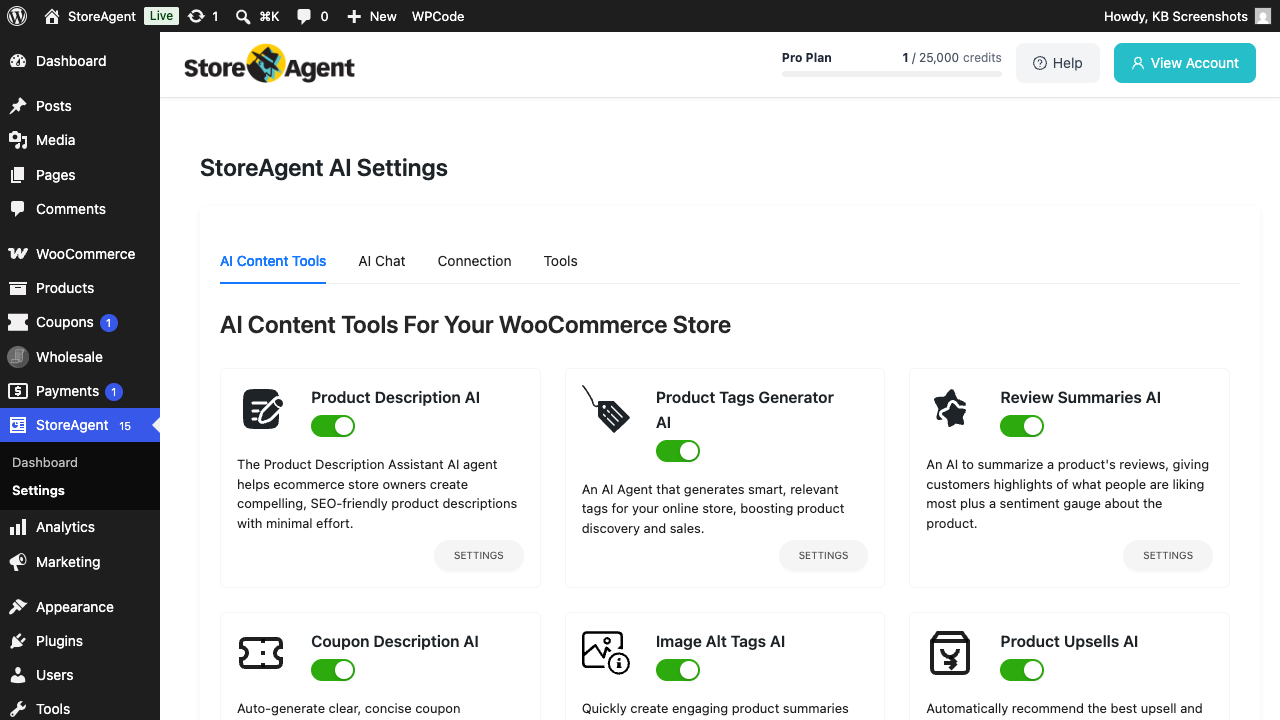
- Go to StoreAgent → Settings → AI Content Tools in your WordPress admin.
- Find the Product Upsells AI card and toggle the switch on.
Step 2: Configure what gets recommended
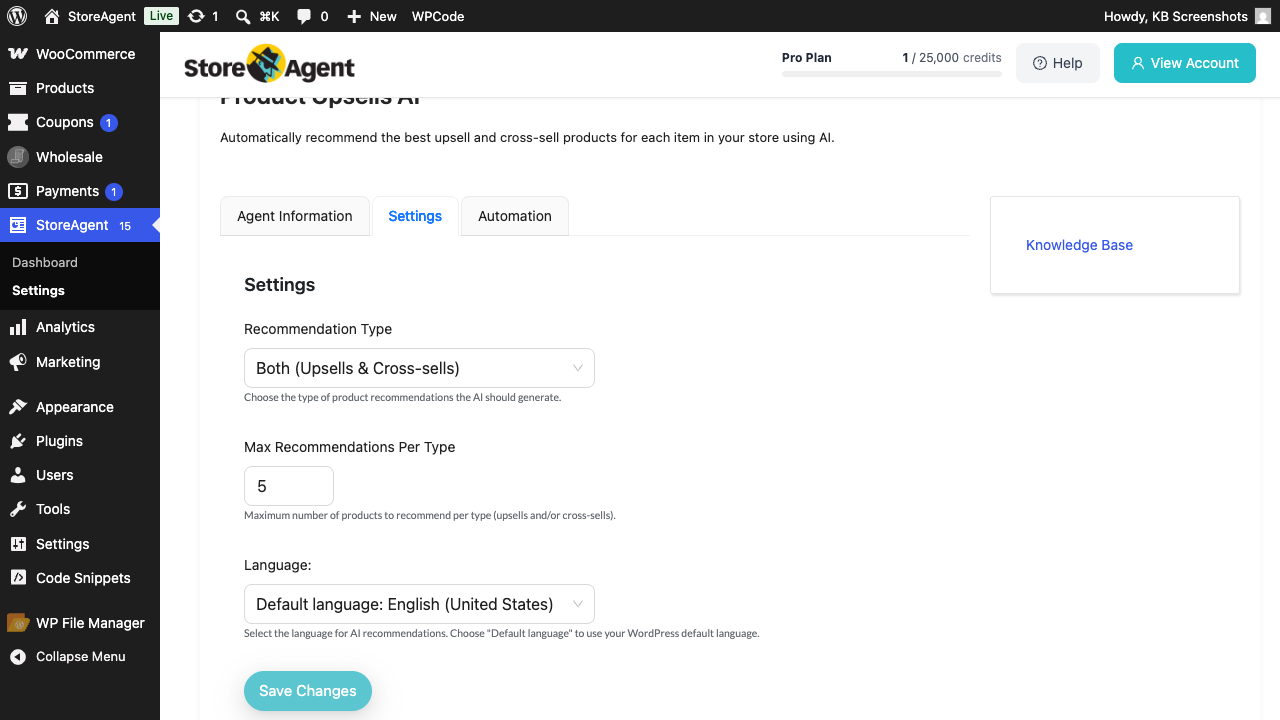
- On the Product Upsells AI card, click SETTINGS.
- Choose your Recommendation Type: Both (Upsells & Cross-sells), Upsells only, or Cross-sells only. Upsells are pricier alternatives shown on the product page; cross-sells are complementary items shown in the cart.
- Set Max Recommendations Per Type (default 5). This is the maximum number of suggested upsells and cross-sells per product — the AI may suggest fewer if it can’t find that many good matches.
- Set the Language: dropdown if you want the AI to bias toward products whose descriptions are in a specific language.
- Click Save Changes.
Step 3: Wait for the catalog scan
Once enabled, the agent scans your catalog on a recurring schedule (default every 24 hours). On each scan, it looks for products with no upsell or cross-sell pairings set and proposes matches for them. You don’t need to trigger anything manually — the scheduler runs in the background via Action Scheduler.
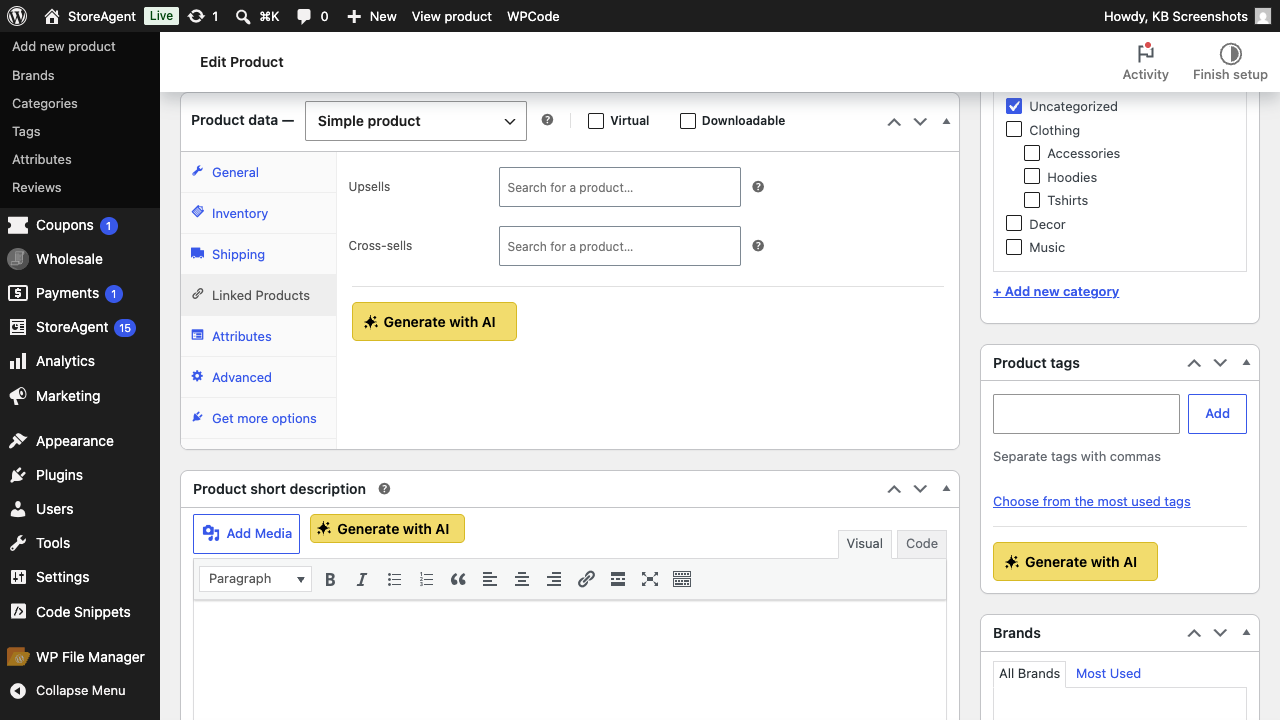
If you’d rather generate picks for a specific product on demand, you can. Open any product in Products → All Products, switch to the Linked Products tab in the Product data box, and click Generate with AI. The agent runs immediately on that one product and writes its picks into the Upsells and Cross-sells fields below the button.
For larger catalogs, the first complete scan may take several runs. The agent prioritises products that have no pairings yet over re-evaluating products that already have them.
Step 4: Review the recommendations
The AI writes its picks straight into the standard WooCommerce upsell and cross-sell fields, so they’re stored where you’d expect.
- Go to Products → All Products and open any product the agent has scanned.
- In the Product data meta box, click the Linked Products tab.
- The Upsells and Cross-sells fields show the AI’s picks. Edit or remove any you disagree with — the changes save when you click Update.
Where customers see the recommendations
Upsells and cross-sells use the same WooCommerce templates as manually-set pairings. Most themes show:
- Upsells on the product page, in a “You may also like” section below the product details.
- Cross-sells on the cart page, in a “You may be interested in” block beside the cart items.
The exact placement depends on your theme — if either section is missing on your storefront, check your theme’s documentation for how to render the standard WooCommerce upsells/cross-sells hooks.
Troubleshooting
No products have been picked yet
The first scan runs on the schedule’s first tick after you enable the agent, not immediately. Wait at least one scheduler cycle (default 24 hours), then re-check a few products. To kick off a scan sooner, run wp action-scheduler run --hooks=saai_product_upsells_scan via WP-CLI.
The agent picked the wrong kinds of products
Bad pairings usually trace back to thin product descriptions — the AI works from the description text and product categories to find similar items. Improve the descriptions (consider running Product Description AI first to bulk-fix them), clear the upsell/cross-sell fields on the affected products, and the agent will re-pick on the next scan.
I want to keep the agent away from a specific product
The agent only fills empty upsell/cross-sell fields — it won’t overwrite manually-set pairings. So setting an upsell or cross-sell yourself on a product (even just to one item) is the simplest way to opt that product out of automatic AI picks.
Frequently asked questions
Does the agent overwrite existing upsells/cross-sells?
No. The agent only writes to products whose upsell or cross-sell field is empty (for the chosen recommendation type). Manually-set pairings are preserved.
Does each recommendation cost credits?
Yes — each product the agent scans costs credits from your StoreAgent.ai plan. The cost is per product scanned, not per recommendation.
Can I bulk-run it across my whole catalog?
Yes. See How to bulk run StoreAgent AI Tasks in WooCommerce for the bulk-actions flow. Bulk-running is the fastest way to populate a fresh catalog without waiting for the scheduled scan to work through it.
Need help?
If you have a question or run into any issues, we’re here to help.
- Premium users: Open a support ticket
- Free users: Visit our community forum

