
If you run a wholesale or B2B store on WooCommerce, the chat bot answering retail prices to wholesale customers is a credibility problem — the customer sees $19.99 in chat but $14.99 in their cart, and the chat bot looks broken. StoreAgent’s WooCommerce Wholesale Suite integration fixes this by including wholesale pricing data in the chat bot’s product memory, so the AI Chat Bot returns the right price for each customer’s role. This article walks through enabling the integration and confirming wholesale pricing is reaching the chat.
Prerequisites
- StoreAgent AI for WooCommerce v1.2.0 or later, installed, activated, and connected to your StoreAgent.ai account.
- WooCommerce Wholesale Prices (WWP, Free or Premium) installed and activated. Without it, this integration has nothing to read from.
- At least one wholesale role configured in WWP, with wholesale prices set on at least a handful of products.
- The StoreAgent AI Chat Bot set up and indexing your products into AI Memory.
How the integration works
When the StoreAgent Wholesale Suite integration is active, every product upload to AI Memory includes the wholesale price tier values alongside the regular price. The chat bot then resolves the right price for the shopper based on the wholesale role they’re logged in as — so a wholesale-role customer hears wholesale pricing, and a regular shopper hears retail pricing, from the same chat session.
The integration loads automatically when both StoreAgent and the WooCommerce Wholesale Prices plugin are active. There’s no separate “Wholesale Suite” toggle to flip on — it’s wired in by class detection (the plugin checks for WooCommerceWholeSalePrices or WWP_Wholesale_Prices at runtime).
Step 1: Enable wholesale data in chat settings
The integration is loaded automatically, but it only pushes wholesale pricing into the memory upload when you’ve opted in on the chat’s product settings.
- Go to StoreAgent → Settings → AI Chat → Post Types in your WordPress admin.
- Expand the Products panel.
- Toggle Enable Wholesale Suite Integration on. (This option only appears when WooCommerce Wholesale Prices is active.)
- Click Save Post Types Settings.
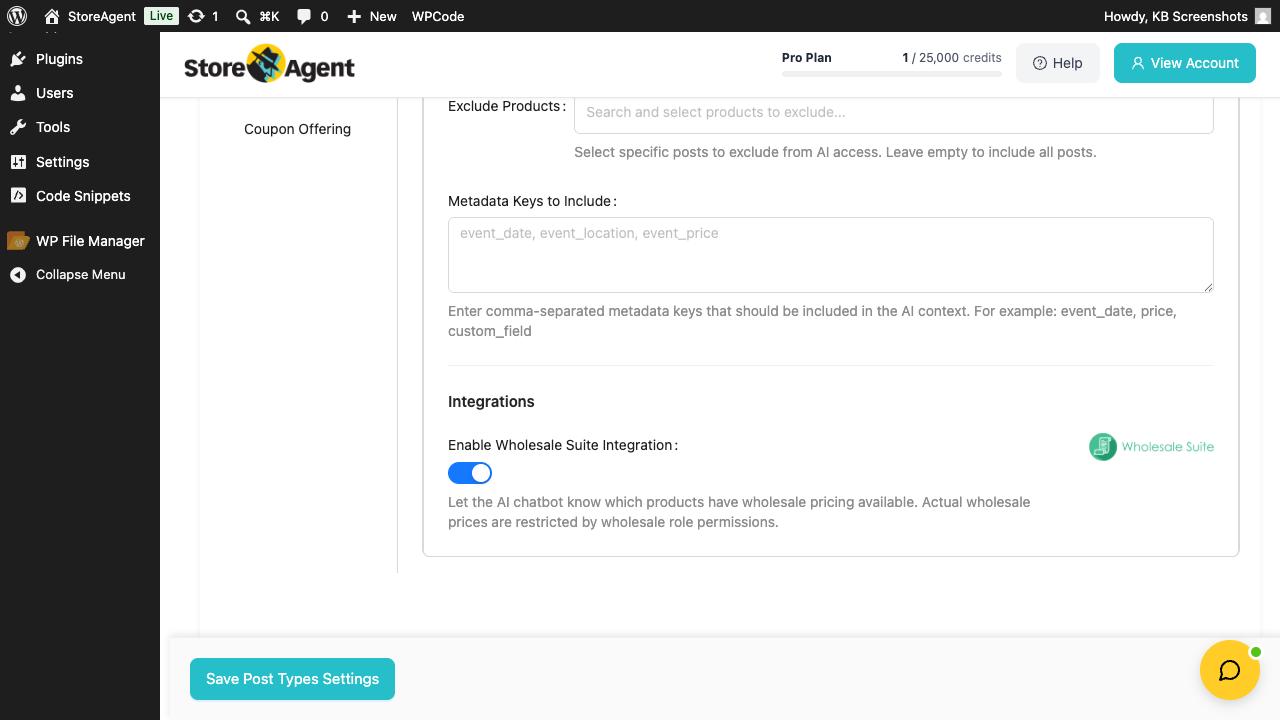
Step 2: Re-sync your products
StoreAgent reads the Enable Wholesale Suite Integration toggle during product uploads to AI Memory. Products already in memory don’t include wholesale data until they’re re-uploaded — that happens automatically on the next save, but to do it now:
- Go to WooCommerce → Products.
- Tick the products you’ve set wholesale prices on (or use the “Select all” checkbox to do the whole catalog).
- From Bulk actions, choose Add to AI Memory, then click Apply.
The bulk action queues a re-upload via Action Scheduler. Progress is visible on StoreAgent → Dashboard.
Step 3: Verify the chat shows the right price
Once the products are re-uploaded, test the integration end-to-end:
- Open your storefront in a private browser window and log in as a wholesale customer.
- Open the chat widget and ask about a product you’ve set a wholesale price on — for example, “How much is the ?”
- Confirm the bot replies with the wholesale price for that customer’s role, not the retail price.
- Log out and reload the chat as a guest or retail customer. Ask the same question — the bot should now reply with the retail price.
Which Wholesale Suite plugins are supported
- WooCommerce Wholesale Prices (WWP) — the free base plugin. The integration reads its wholesale price meta and includes it in the AI Memory metadata.
- WooCommerce Wholesale Prices Premium (WWPP) — premium pricing tiers, role-based pricing, and quantity discounts. Same integration path; WWPP fields are included automatically when WWP detects them.
The other Wholesale Suite plugins (Wholesale Order Form, Lead Capture) don’t surface pricing data to the chat, so they don’t need this integration. They work alongside StoreAgent without any extra setup.
Troubleshooting
The Include wholesale pricing data toggle is missing
The Enable Wholesale Suite Integration toggle only appears when WooCommerce Wholesale Prices is active. Confirm the plugin is installed and activated under Plugins → Installed Plugins. After activating it, reload the StoreAgent Chat settings page.
The chat still returns the retail price for wholesale customers
Three things to check, in order: confirm Enable Wholesale Suite Integration is on in StoreAgent → Settings → AI Chat → Post Types → Products → Integrations; confirm you re-uploaded the affected products via Bulk Actions (existing memory entries don’t include wholesale data until re-uploaded); and confirm the test user is actually logged in with the wholesale role. View their profile in Users to confirm.
A specific wholesale-role customer gets retail pricing in chat
Check whether the customer has the wholesale role applied at all — sometimes Wholesale Lead Capture creates a pending account that hasn’t been approved yet, in which case WWP doesn’t apply wholesale pricing. Once the role is correctly set, the chat will return the wholesale price on the next conversation (chat memory doesn’t cache per-user state — pricing is resolved per request).
Frequently asked questions
Does the integration cost extra credits?
No — including wholesale data in the memory upload doesn’t increase per-product cost. The cost remains “one upload per product per change,” same as for non-wholesale stores.
Does the AI Chat Bot respect wholesale-role restrictions on products?
Yes. If a product is hidden from a customer’s role via WWPP (e.g. wholesale-only or retail-only visibility), the chat bot won’t surface that product in conversations with users who can’t see it.
What about cart discounts and quantity tiers?
The chat returns the base wholesale price for the customer’s role. Quantity discounts and dynamic cart rules are applied at checkout by WWPP itself — they don’t surface in chat answers. If a shopper asks “what’s the price at 50 units?” the chat returns the base wholesale price with a note that further discounts may apply at checkout.
Need help?
If you have a question or run into any issues, we’re here to help.
- Premium users: Open a support ticket
- Free users: Visit our community forum

