
If you run a Hebrew, Arabic, or other right-to-left (RTL) language store, you may be wondering whether the StoreAgent chat widget supports RTL layouts. Here’s how RTL languages work with the chat widget today, what works out of the box, and how to get the best experience in the meantime.
How the StoreAgent chat widget handles RTL languages
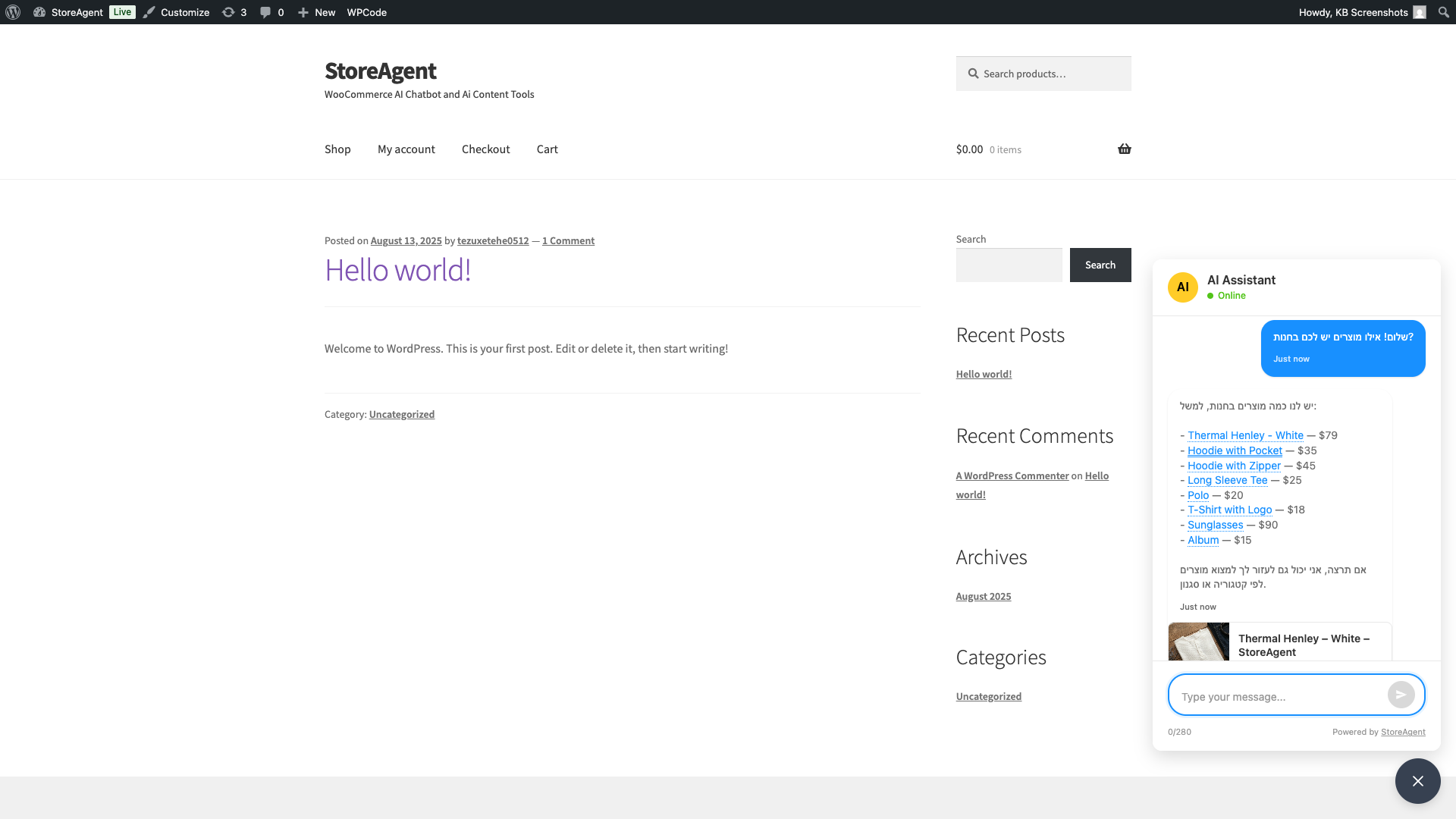
The StoreAgent AI is powered by a large language model that understands and responds fluently in many languages, including Hebrew and Arabic. When a shopper types a question in Hebrew or Arabic, the AI reads it correctly and replies in the same language.
However, the chat widget’s visual layout — the panel, header, input field, and buttons — is currently designed for left-to-right (LTR) languages. The widget interface does not automatically mirror or flip its layout when it detects an RTL language.
Here’s what that means in practice:
- AI conversations: The AI can understand and respond in Hebrew and Arabic naturally.
- Text input: Browsers handle bidirectional text automatically. Hebrew and Arabic characters you type in the chat input will render with the correct right-to-left direction.
- Widget layout: The overall panel layout remains LTR — the close button, header, and message alignment follow a left-to-right visual structure.
Positioning the widget for RTL sites
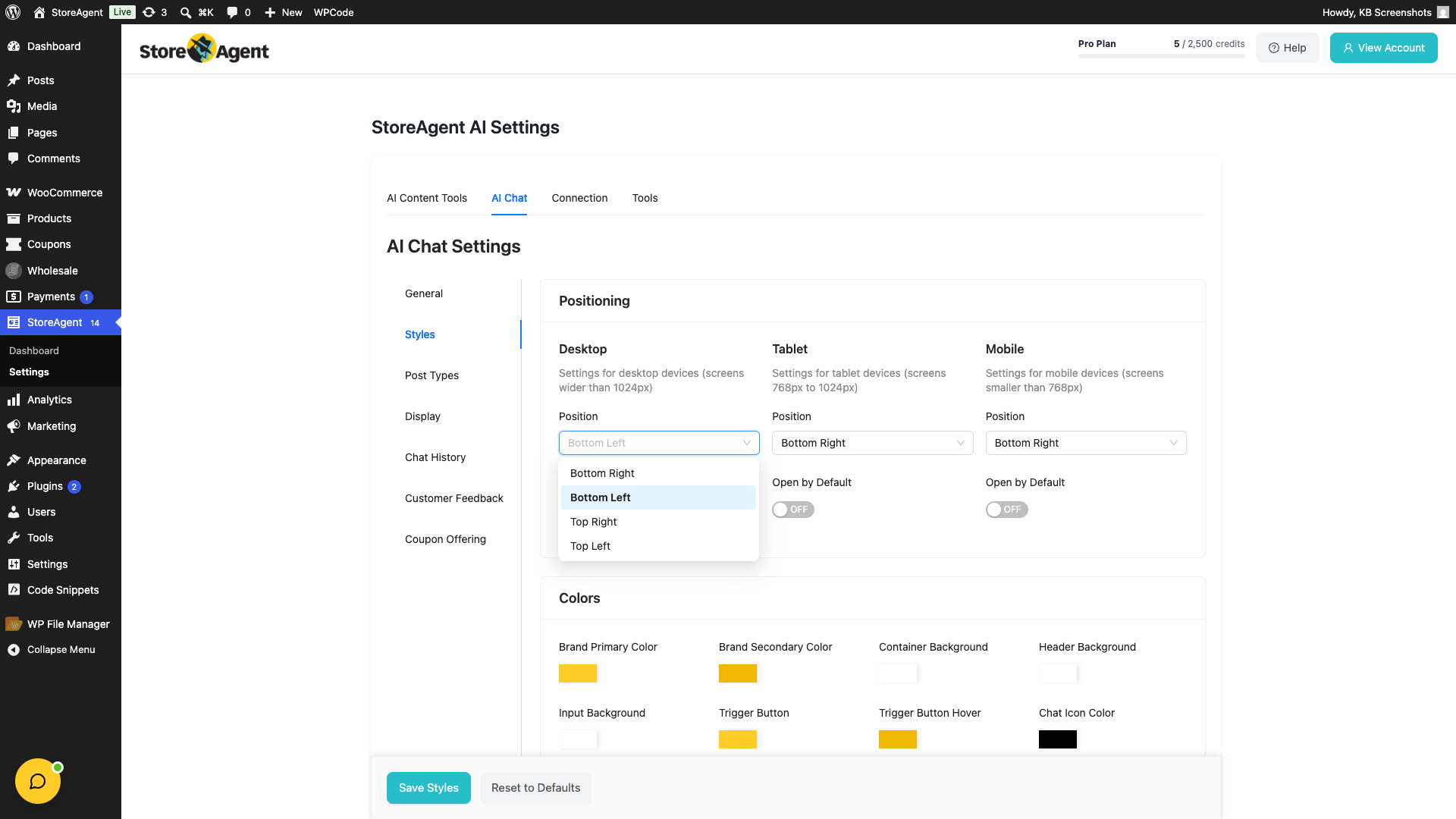
One practical adjustment for RTL sites is moving the widget to the bottom-left corner of the screen. On RTL pages, the bottom-left is the visually natural location for floating elements — the equivalent of bottom-right on LTR sites.
To change the widget position:
- Go to StoreAgent → Settings in your WordPress admin, then click the AI Chat tab.
- Click the Styles sub-tab.
- Under Positioning, change Position to Bottom Left for Desktop, Tablet, and Mobile as needed.
- Click Save Styles.
What to do if RTL support is critical for your store
Full RTL layout support — where the widget chrome mirrors for Hebrew or Arabic sites — is not currently built into the plugin. If your store primarily serves RTL-language customers and a fully mirrored widget is important to you, the best next step is to contact support and share your use case. Your feedback directly influences the product roadmap.
Frequently asked questions
Can the AI respond in Hebrew or Arabic?
Yes. The AI understands and responds naturally in Hebrew, Arabic, and many other languages. Type your question in whichever language you prefer and the AI replies in kind.
Will typing Hebrew or Arabic in the chat input look correct?
Yes. Modern browsers handle bidirectional text natively. When you type Hebrew or Arabic, the characters display and align in the correct right-to-left direction within the input field.
Does the widget automatically detect that my site is RTL?
Not currently. The widget layout is fixed as LTR regardless of the language direction set on your page. Moving the widget to bottom-left is the main available adjustment today.
What’s next
Need help?
If you have a question or run into any issues, we’re here to help.
- Premium users: Open a support ticket
- Free users: Visit our community forum

