
The Category Description AI Task generates compelling, SEO-ready descriptions for your WooCommerce product categories. (New to it? See the category description generator for WooCommerce overview first.) Instead of writing from scratch, you answer a few questions about your category’s tone, audience, and keywords — and StoreAgent produces a description you can use immediately or edit before saving. This article walks you through enabling the AI Task, configuring its default settings, and generating your first category description.
Prerequisites
- StoreAgent AI for WooCommerce is installed and connected to your StoreAgent account
- WooCommerce is installed with at least one product category set up
Step 1: Enable the AI Task
Before generating descriptions, confirm the Category Description AI Task is active.
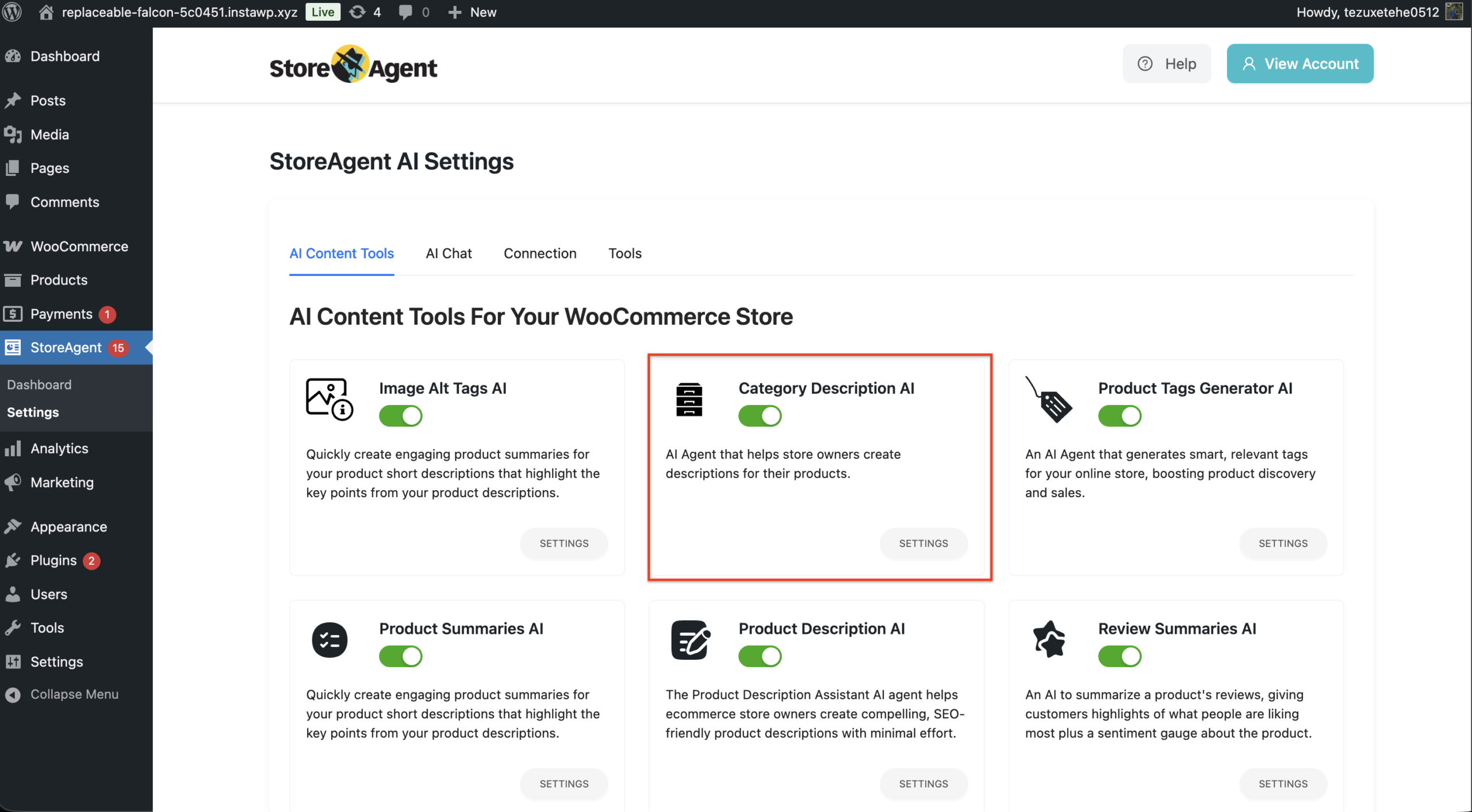
- Go to StoreAgent AI > AI Tasks in your WordPress admin.
- Locate the Category Description AI agent card.
- Click the toggle next to the AI Task name to set its status to Active.
Step 2: Configure default settings (optional)
The AI Task’s settings screen lets you define defaults that pre-populate the generation form every time you use it. Setting these once saves time across all your categories.
- Go to StoreAgent AI > AI Tasks.
- Click Category Description AI to open the AI Task page.
- Select the Settings tab.
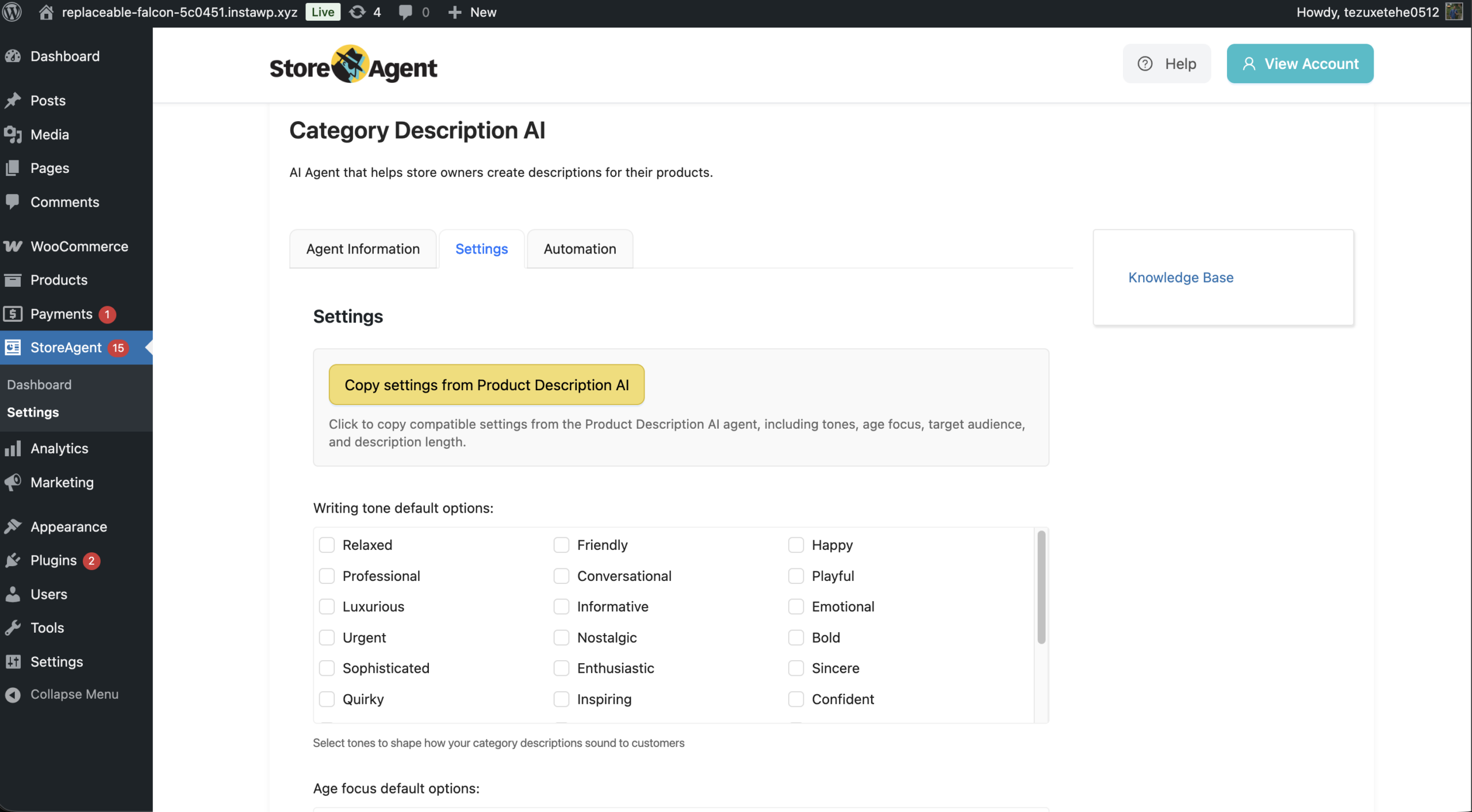
| Setting | Description | Default |
| Writing tone default options | Tones pre-selected each time you open the form. Choose tones that match your brand voice — options include Professional, Friendly, Playful, Luxurious, Inspiring, and 25 others. | None |
| Age focus default options | Age groups pre-selected in the form. Options range from Under 18 through 65 or above, plus No age focus required. | None |
| Target audience default options | Audience segments pre-selected in the form. Includes 30+ options — Men, Women, Parents and Caregivers, Eco-Conscious Consumers, Gift Shoppers, and many more. | None |
| Description length | Length pre-selected in the form. Options: Short (1–2 paragraphs), Medium (3–4 paragraphs), Long (5+ paragraphs). | None |
| Language | Language pre-selected in the form. Pick a specific language or leave it on Default language to follow your WordPress site language. | Default language |
If you already have defaults configured in the Product Description AI Task, click Copy settings from Product Description AI to import those settings here in one click.
Step 3: Generate a category description
You generate descriptions from the product category edit screen — not from the AI Tasks page.
- Go to Products > Categories in your WordPress admin.
- Click the name of a category you want to edit, or click Add New Category to create one.
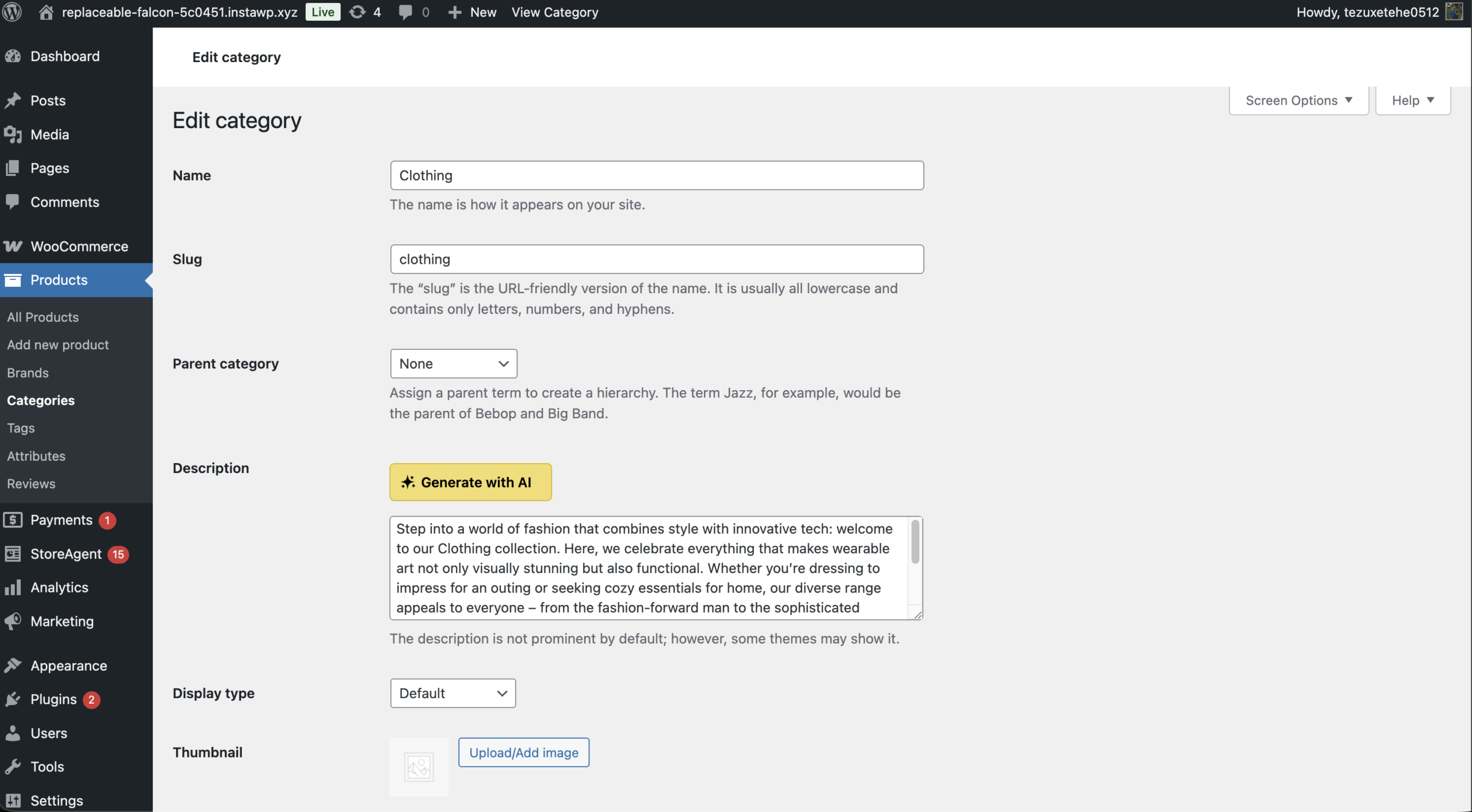
- Scroll down to the Description section. You’ll see a Generate Description with AI button below the description editor.
- Click Generate Description with AI to open the form.
Completing the form
The form walks you through 8 steps. Each step is optional except the category name — you can advance without filling every field, but the more detail you provide, the more targeted the output will be.
Step 1 — Category Name
Confirm your category name. If you don’t have a name yet, select No, I need help generating a category name and the AI will suggest one.
Step 2 — Writing Tone
Select one or more tones for the description. Your agent defaults pre-select these if you’ve configured them in Step 2 above. Available tones include Relaxed, Friendly, Professional, Playful, Luxurious, Inspiring, Nostalgic, Bold, and many more.
Step 3 — Common Characteristics
Type in characteristics that describe the products in this category — for example, “handmade”, “eco-friendly”, “waterproof”, “Australian-made”. Add as many as you like. These help the AI produce copy specific to your range rather than generic category text.
Step 4 — Age Focus
Select the age group(s) your products target: Under 18, 18–24, 25–34, 35–44, 45–54, 55–64, 65 or above, or No age focus required.
Step 5 — Target Audience
Choose the audience segments most relevant to this category — Men, Women, Outdoor Enthusiasts, Parents and Caregivers, Budget-Conscious Shoppers, Gift Shoppers, and 30+ more. Select all that apply.
Step 6 — SEO / Keywords
Enter the search phrases you want woven into the description. These should be keywords you’ve already identified for this category. Add multiple phrases to improve SEO coverage.
Step 7 — Description Length
Select how long the description should be: Short (1–2 paragraphs), Medium (3–4 paragraphs), or Long (5+ paragraphs).
Step 8 — Language
Choose the language for the description, or leave it on Default language to match your WordPress site language.
Click Generate Category Description at the bottom of the form.
Tips for best results
- Choose 2–3 tones that reflect your brand voice. Too many tones can make the output feel inconsistent.
- Be specific with common characteristics. Precise descriptors (“RFID-blocking”, “sustainably sourced timber”) give the AI more to work with than broad terms like “quality” or “great value.”
- Enter keywords you’ve already researched. The SEO/Keywords step works best when you supply terms you know your customers are searching for.
- Review before you publish. The generated description is a strong starting point — a quick read-through ensures it accurately represents the category.
- Set your defaults once. Configuring defaults in the AI Task settings (Step 2) means you don’t re-enter tone, audience, and language preferences every time you generate a description.
Troubleshooting
The Generate Description with AI button doesn’t appear on the category edit screen
The button only loads on the WooCommerce product category screen. Make sure you’re editing a category under Products > Categories — not a post tag or a custom taxonomy. Also confirm the Category Description AI Task is set to Active in StoreAgent AI > AI Tasks.
Clicking Generate Category Description does nothing
Check that your StoreAgent account is still connected. Go to StoreAgent AI > Settings and confirm you see a connected status. If the connection has lapsed, reconnect and try again.
The generated description feels too generic
Add more detail in the Common Characteristics step. The more specific your descriptors, the more differentiated the output. Also try adding your target keywords in the SEO/Keywords step — this anchors the copy to your actual product range.

