
Writing a short description for every product takes time, and many products end up without one. Product Summaries AI writes a short, easy-to-scan summary from your product details and can list the key features below it. The summary goes into the product short description, which most themes show near the price. This guide shows you how to turn it on, choose its settings, and generate a summary.
Prerequisites
- StoreAgent installed, activated, and connected to your StoreAgent.ai account. See Getting started with StoreAgent.
- Products with a full product description. The AI Task builds the summary from the description, so products without one are skipped.
Step 1: Turn on Product Summaries AI
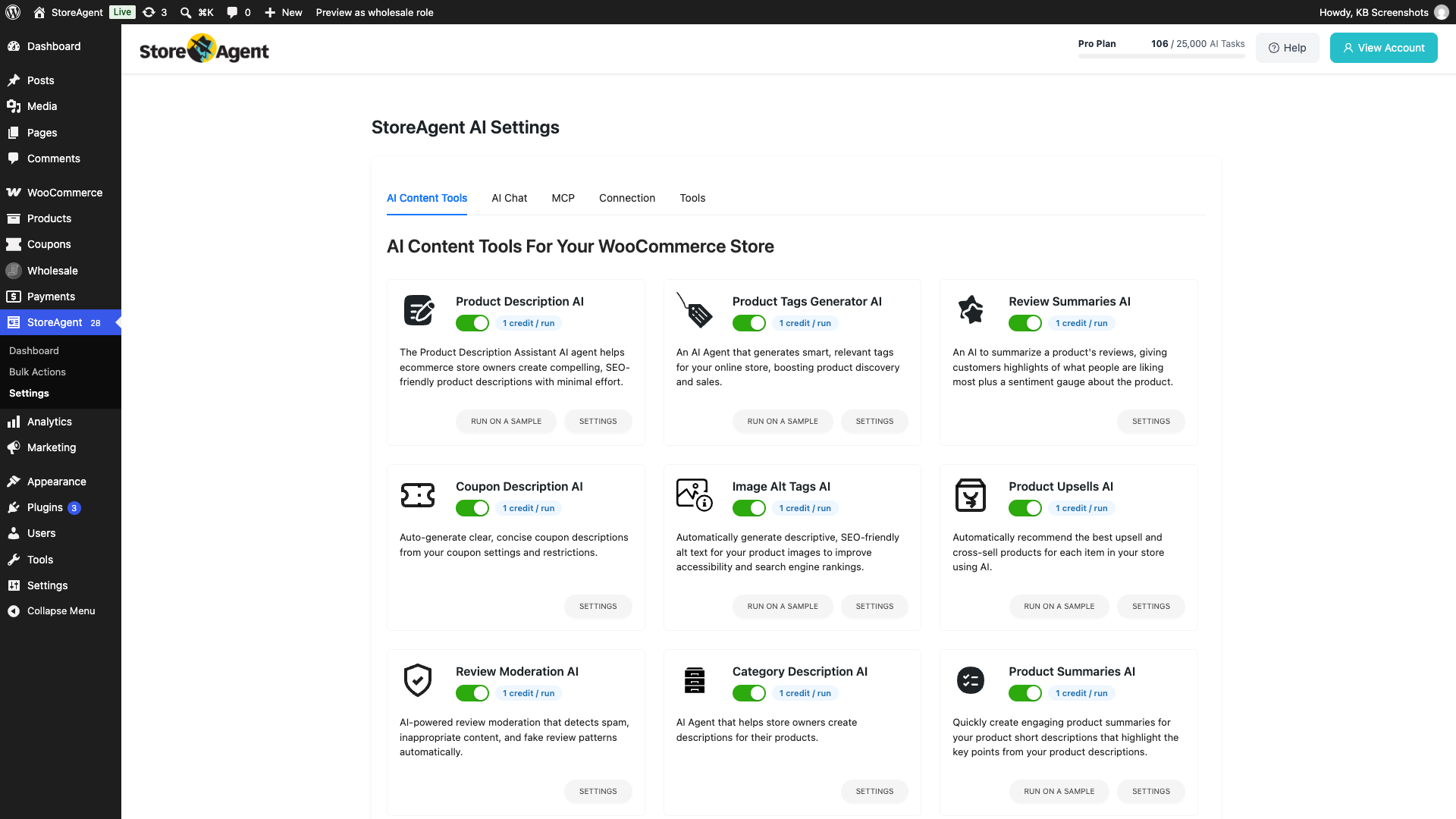
- Go to StoreAgent → Settings → AI Content Tools in your WordPress admin.
- Find the Product Summaries AI card.
- Turn on the switch next to the title.
Step 2: Configure the settings
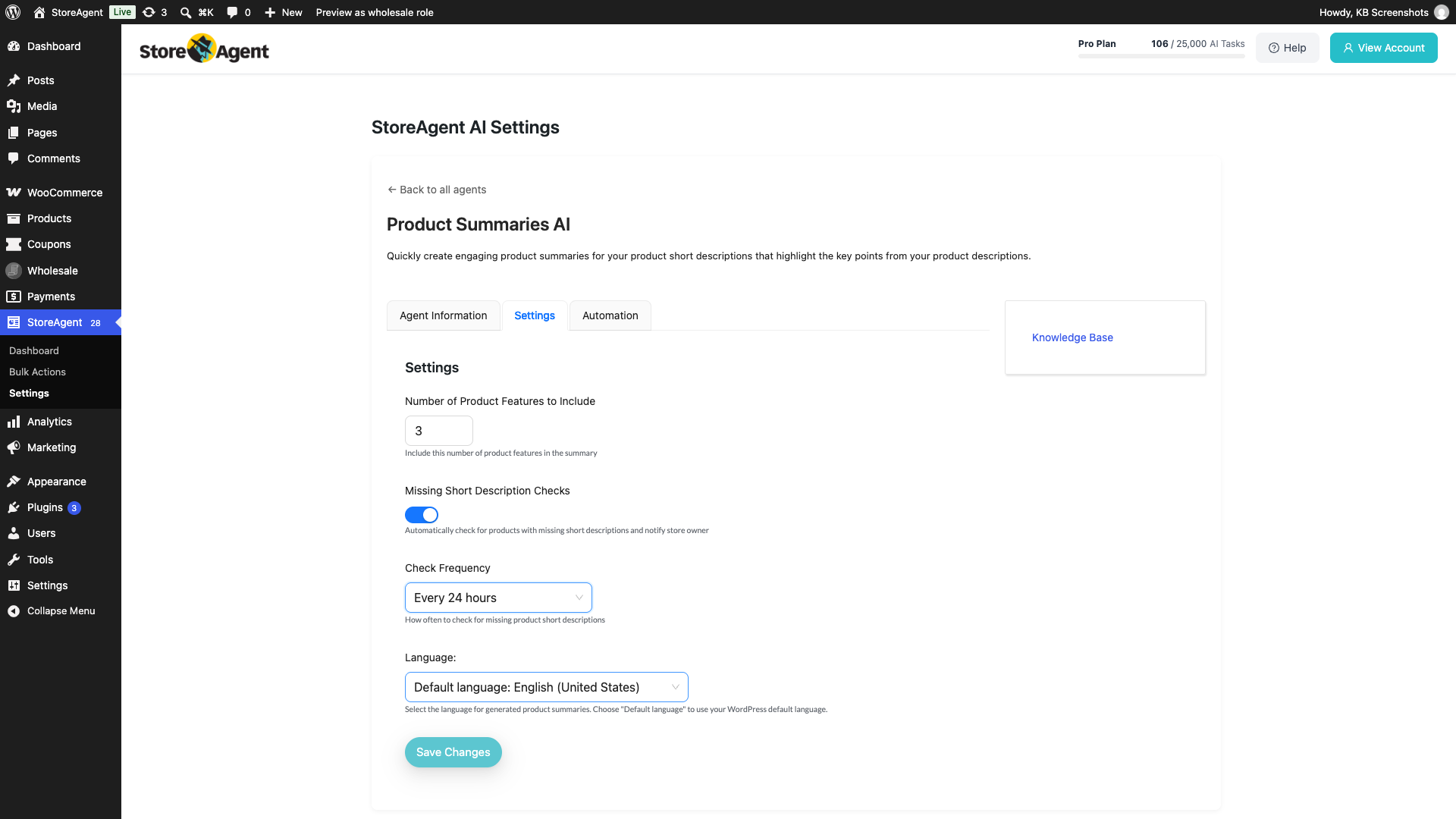
- On the Product Summaries AI card, click SETTINGS.
- Open the Settings tab.
- Set Number of Product Features to Include.
- Enter a number from 0 to 5. The default is 3.
- The summary lists this many key features below the summary text.
- Enter 0 to leave the feature list out.
- Leave Missing Short Description Checks on if you want StoreAgent to look for products with no short description. It’s on by default.
- Choose a Check Frequency: Every 6 hours, Every 12 hours, Every 24 hours, Every 2 days, or Every 3 days. The default is every 12 hours.
- This field only shows when Missing Short Description Checks is on.
- (Optional) Choose a Language: for the summaries. The default option, Default language: [your site language], uses your WordPress site language, for example Default language: English (United States).
- Click Save Changes.
The Automation tab has the same missing short description options in a Missing Short Description Automation card. Changing them in either tab updates the same settings.
How the missing short description check works
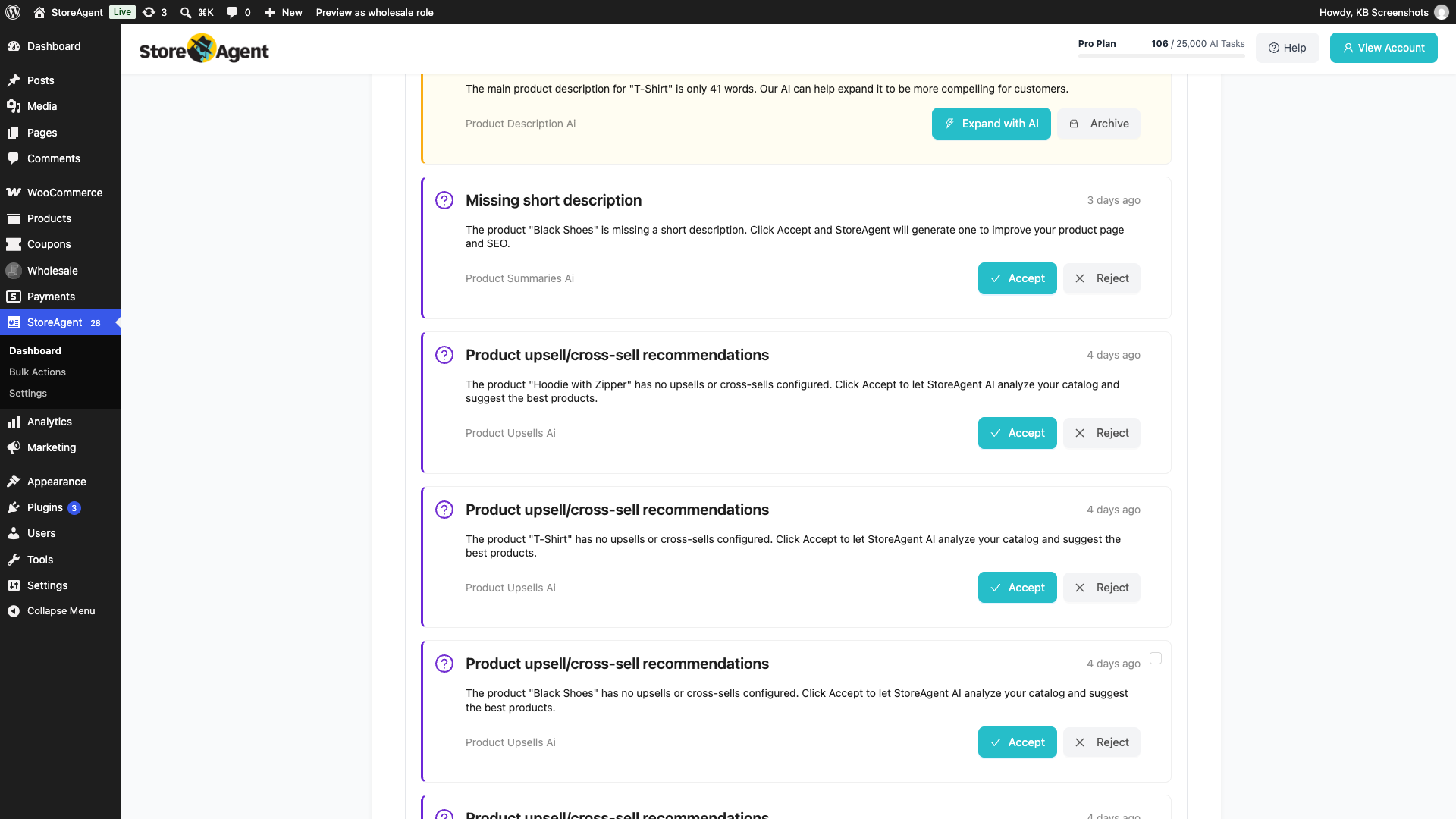
At each interval, StoreAgent checks a random batch of up to 50 published products. For each product that has a description but no short description, it adds a Missing short description notification in the Pending decisions & updates section of the StoreAgent dashboard. It adds up to 5 per check. Click Accept to have StoreAgent write the short description, or Reject to dismiss it.
Step 3: Generate a product summary
- Go to Products → All Products and open the product you want to summarize.
- Scroll to the Product short description box.
- Click Generate with AI above the editor.
- If the short description already has text, confirm that you want to overwrite it.
- Review the summary and edit it if you like.
- Click Update to save the product.
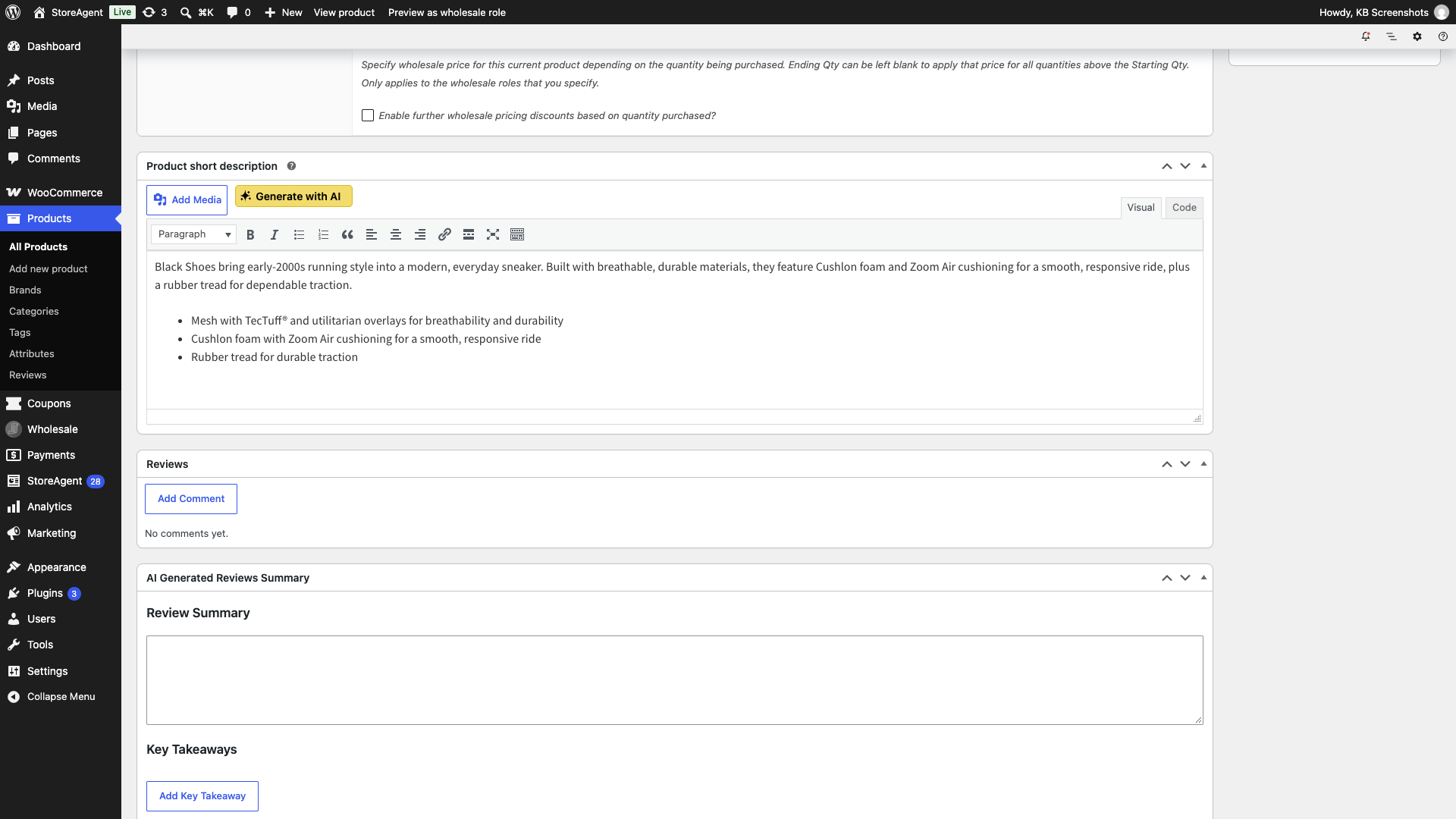
If you change the product details later, click Generate with AI again for a fresh summary.
Troubleshooting
Check Frequency shows a number such as “24” instead of “Every 24 hours”
Update StoreAgent to 1.1.8 or later. Earlier versions showed the saved value as a plain number after the page reloaded. Your saved frequency was still used. Only the display was affected.
I get a message that the product “is skipped”
Add a product description, then try again. The AI Task needs the full description to write a summary.
I don’t see the Generate with AI button
Check that the Product Summaries AI switch is on under StoreAgent → Settings → AI Content Tools. The button only appears on the product edit screen, above the Product short description editor.
I’m not getting missing short description notifications
Check that Missing Short Description Checks is on. The check only flags published products that have a description but no short description, and it adds up to 5 at a time.
Frequently asked questions
Can I generate a summary for a draft product?
Yes. StoreAgent sends the product details with the request, so it works for draft products as well as published ones. The product needs a description first.
Can I write summaries in another language?
Yes. Choose a Language: in the Settings tab. See How to select the language for StoreAgent AI Tasks.
Can I generate summaries for many products at once?
Yes. Use the bulk run tools. See How to bulk run StoreAgent AI Tasks in WooCommerce.
Need help?
If you have a question or run into any issues, we’re here to help.
- Premium users: Open a support ticket
- Free users: Visit our community forum

