
When you connect StoreAgent to your store, it starts adding your products and pages to your AI Chat Bot’s memory so the bot can answer questions about them. You can watch this happen as a count in your WordPress dashboard. Sometimes that count stays at 0, or it starts and then stops partway. This guide explains why that happens and how to get it moving again.
It helps to know how the sync works first. StoreAgent reads your published products and pages from WordPress and sends them to StoreAgent in small batches in the background. It does not visit or crawl your website the way a search engine does. So a stuck count is almost never about your sitemap, whether your pages are public, or your page cache. The cause is usually on the sending side: your plan, your connection, or the background tasks that do the sending.
Where to check the sync progress
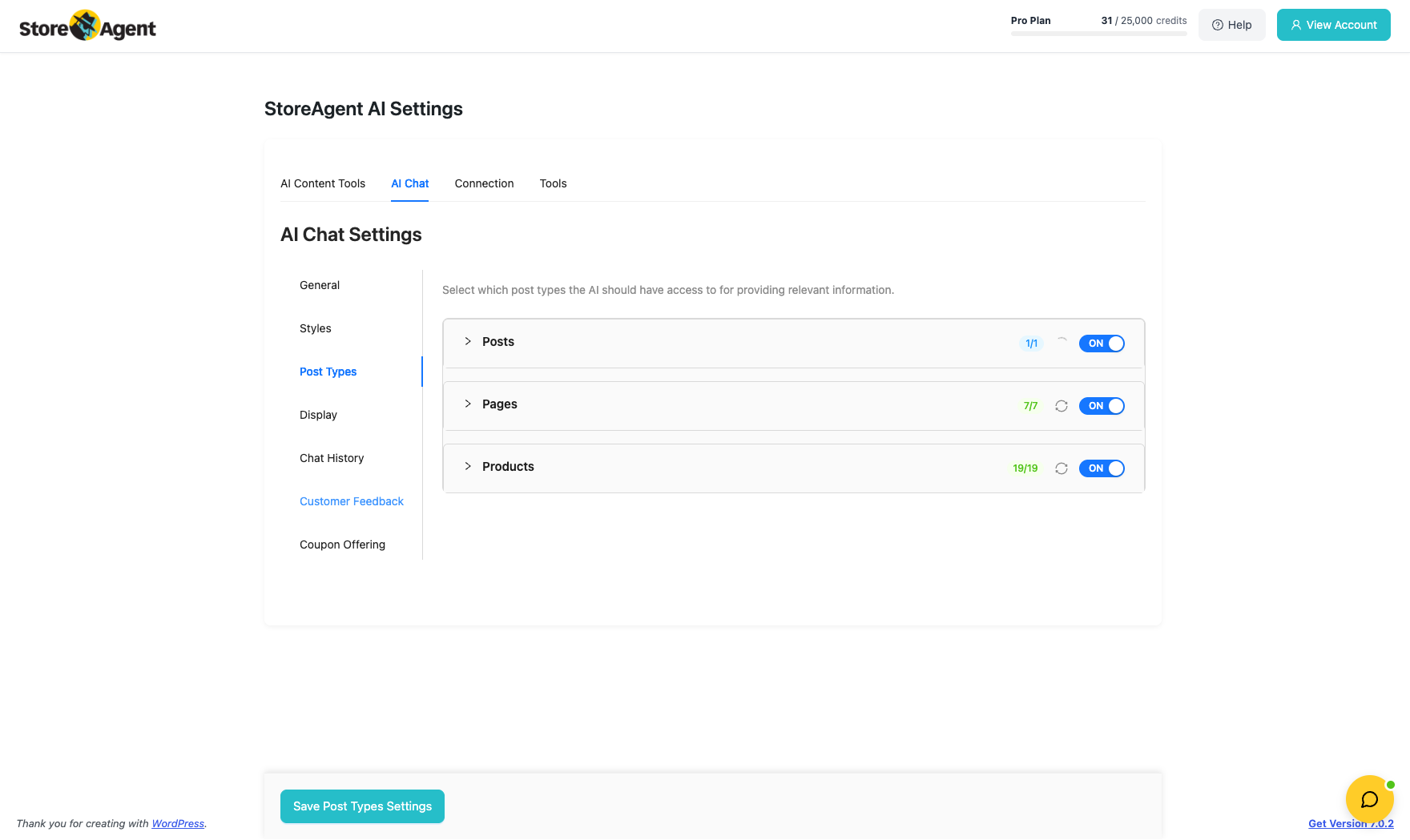
You’ll find the sync status on the AI Chat Bot settings page, under the Post Types tab. Each post type, such as Products and Pages, shows how many items are indexed, how many are pending, and how many failed.
Why the count can stay at 0
Work through these in order. The first three cover the most common reasons.
1. Check your plan has room to add items
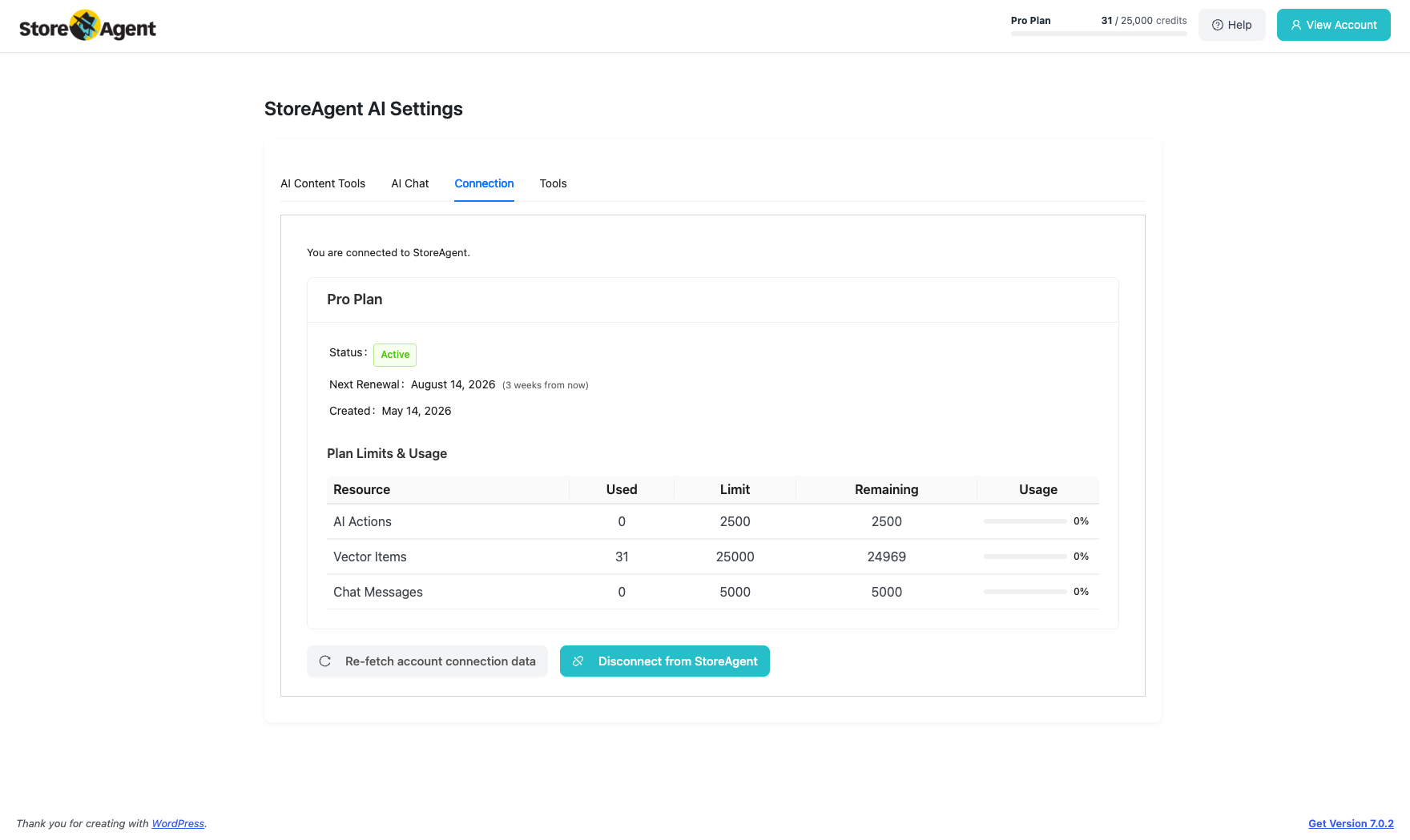
Adding products and pages to memory uses your plan’s vector items. If your account has no active plan, or you have reached your plan’s limit, StoreAgent stops adding new items and the count stays put. Open the Connect page in the plugin, use the option to re-fetch your account data, then check your current plan and usage. If you are at your limit, upgrade your plan or free up items before the sync can continue.
2. Make sure your store is still connected
The sync only works while your store is connected to your StoreAgent account. If the connection has dropped or the credentials are no longer valid, uploads fail quietly and the count does not move. Go to the Connect page, reconnect (re-authorise) your store, then use the re-fetch account data option to confirm it is linked.
3. Turn on at least one post type for AI memory
If no post types are enabled for AI memory, there is nothing for StoreAgent to add, so the count stays at 0. On the AI Chat Bot settings page, open the Post Types tab and switch on the content you want the bot to know about, for example Products and Pages.
4. Check your scheduled tasks are running
The sync runs through WordPress’s background task system (WP-Cron and Action Scheduler). On some hosts these can stall, which pauses the upload. If the count is stuck, open the Post Types tab and use Sync Now, or use Resume indexing if you see that option. This restarts the queue. StoreAgent also nudges the sync along while you are active in the WordPress admin, so keeping an admin tab open for a few minutes can help it catch up.
5. Check your server is not blocking outbound connections
Because StoreAgent sends your content out to its service, your store needs to be able to make outbound connections to StoreAgent. A server-level firewall, or a security plugin that blocks outgoing requests, can stop the upload before it leaves your site. If you use a security plugin, or your host runs an outbound (egress) firewall, make sure outbound requests to StoreAgent are allowed.
6. Force a fresh sync
If everything above checks out but the count still looks wrong, trigger a fresh sync. On the Post Types tab, use Sync Now for the affected post type, or Resume indexing to re-arm the whole queue. This clears the internal retry timers and schedules the upload again straight away.
Chat answers or the connection failing after setup? Check inbound access
This is a different problem from the sync count, but it often shows up at the same time. Your AI Chat Bot’s answers, your account connection, and your usage totals rely on StoreAgent being able to reach a few endpoints on your site under /wp-json/storeagent-ai/ and /wp-json/storeagent/. If a firewall, a security plugin, or a Cloudflare rule blocks those paths, you may see errors such as a 403 on requests to /wp-json/storeagent-ai/ in your access log, and the bot may fail to answer even though your products synced fine. To fix it, allow (whitelist) the /wp-json/storeagent-ai/ and /wp-json/storeagent/ paths in your firewall, security plugin, or Cloudflare rules.
Still stuck? Contact support
If you have worked through all of the above and the count still will not move, get in touch and we will take a look. It helps to tell us your store URL, your plan, and what you see on the Post Types tab (the indexed, pending, and failed counts).
Related: How StoreAgent AI Memory works and How StoreAgent Chat accesses your product data.
Need help?
If you have a question or run into any issues, we’re here to help.
- Paid users: Open a support ticket
- Free users: Visit our community forum

