
When StoreAgent’s AI Memory stalls, the chat can’t find your products, AI Tasks fail with a plan limit error, or your site throws server errors, the cause is usually one of a few fixable problems. This guide walks you through each symptom, why it happens, and how to fix it, including what to do after you move your store to a new domain. StoreAgent uploads your store’s data to its AI Memory in the background, and most performance problems trace back to that upload being blocked.
AI Memory is stuck or won’t finish building
This is the most common issue. The setup status sits at 0%, 2%, or 24% for a long time, the progress bar freezes or disappears after you reconnect, or you see a Failed to create AI memory for store. popup. StoreAgent uploads your posts and products to AI Memory in small batches in the background, so when that process can’t run, ingestion stalls. Work through the causes below in order.
You’ve reached your plan’s AI Memory limit
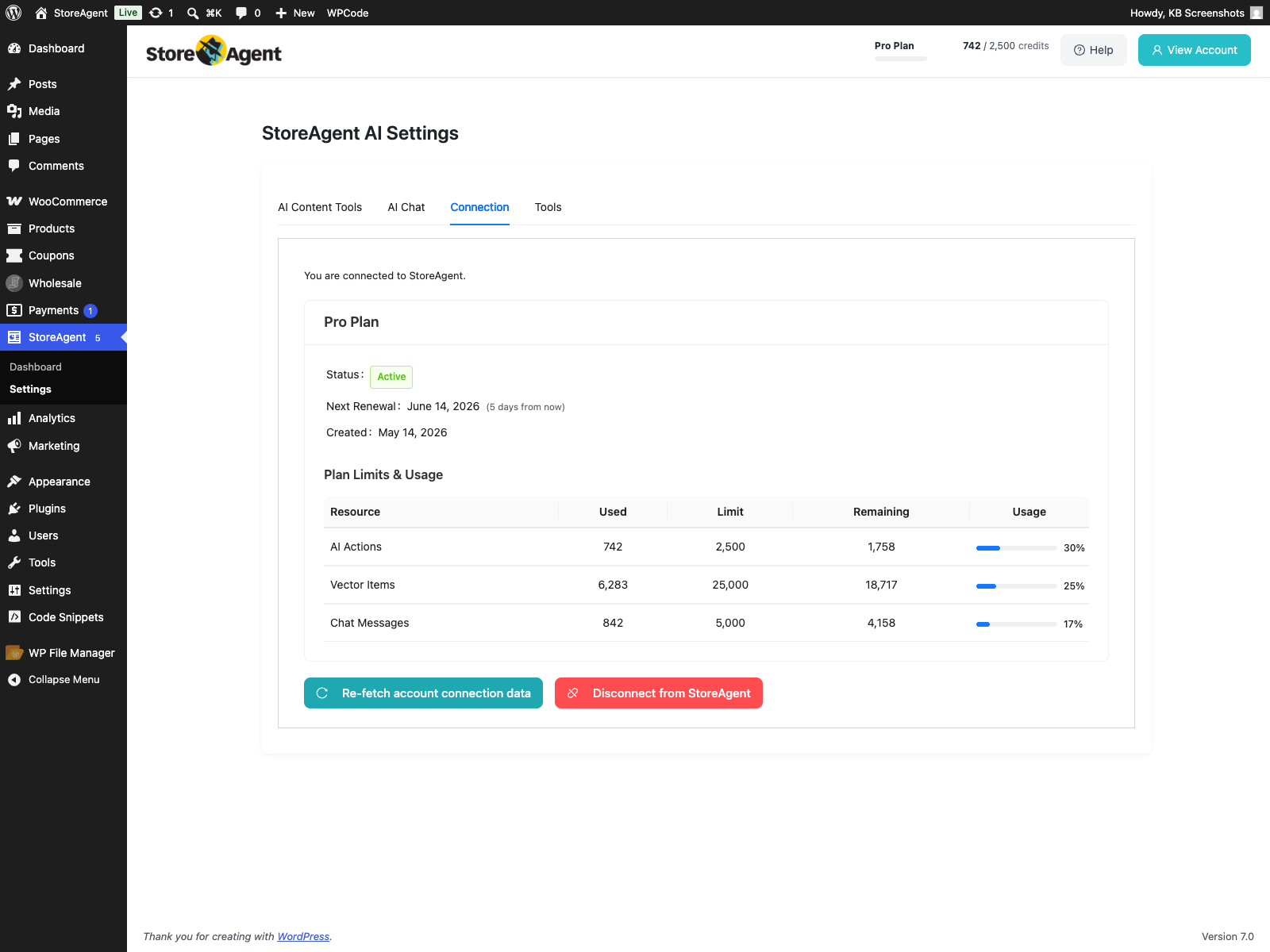
Check your usage first. Open StoreAgent → Settings → Connection to see the Plan Limits & Usage table, including your Vector Items used against the plan limit (also visible in your account at app.storeagent.ai/my-account). If you’ve hit your plan’s limit, ingestion stops until you upgrade or request a higher limit. For how usage is measured, see How StoreAgent calculates your usage.
A background upload has stalled
If the StoreAgent: AI Memory Syncing Paused notice appears in your WordPress admin, your plan limit or store credentials stopped the upload. Fix the plan or reconnect the store as described in that notice. Syncing resumes on its own after the next plan check. To restart it straight away, go to StoreAgent → Settings → AI Chat, open the Post Types tab, and click the sync icon next to each enabled content type. Its tooltip says Sync Now.
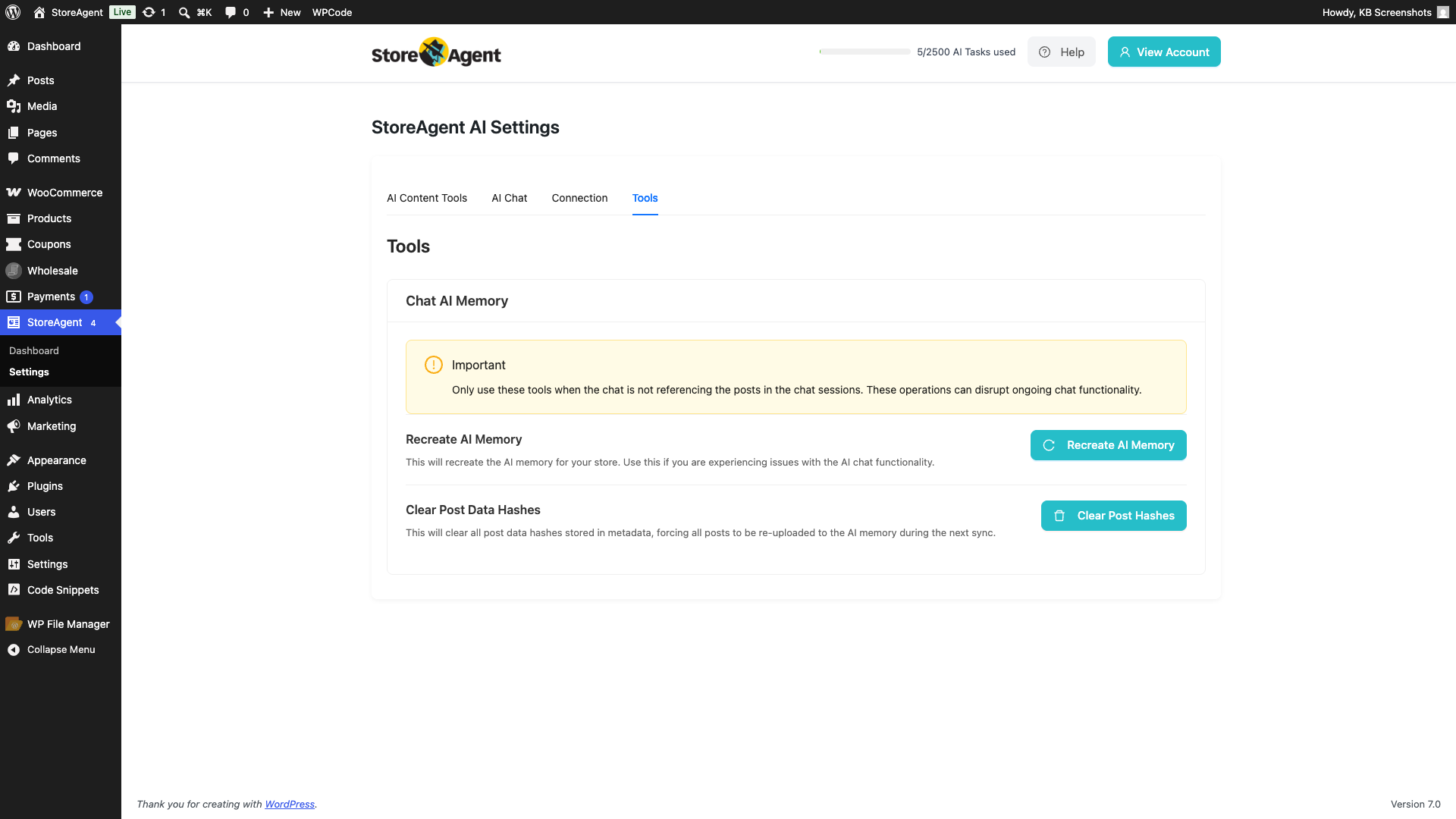
If syncing still does not restart, send everything again: go to StoreAgent → Settings → Tools, and under Clear Post Data Hashes click Clear Post Hashes, then Yes, Clear Hashes. Recreate AI Memory does not re-send items that are already uploaded.
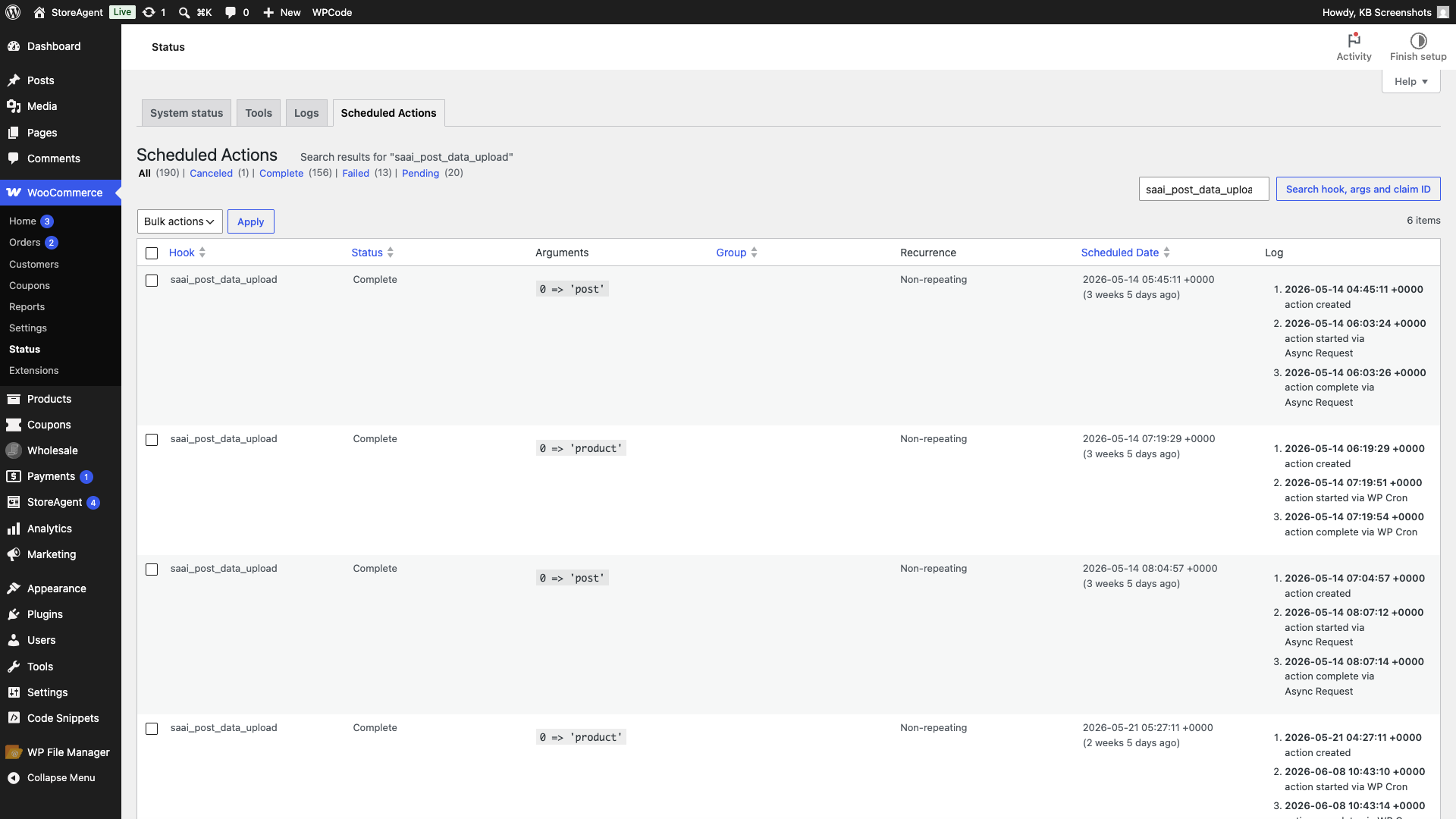
Under the hood, StoreAgent uploads your posts in small batches (25 per batch during the first sync, 10 after that) and schedules the next batch through WooCommerce’s background task system (Action Scheduler). On some servers that chain stops after the first batch. To confirm, go to WooCommerce → Status → Scheduled Actions and search for saai_post_data_upload. If it’s stuck pending or failed, click Clear Post Hashes on the Tools tab to send everything again.
On low-traffic sites the batches can also stall because they rely on WordPress’s built-in cron (WP-Cron), which only runs when someone visits the site. If saai_post_data_upload actions sit at Pending with a scheduled time in the future and never run, visit any page on your site to nudge the queue, or ask your host to set up a real server cron so the upload finishes on its own.
Your site runs on LiteSpeed or OpenLiteSpeed
Update StoreAgent first. If you can’t reach wp-admin after activating StoreAgent on a LiteSpeed server, update to StoreAgent 1.1.4 or later. A LiteSpeed admin-access bug was fixed in that release. If ingestion still fails afterwards, turn off your LiteSpeed cache and restart the server, then re-run the upload.
Your server is running out of resources
Raise your server limits. 504 errors, timeouts, or out-of-memory errors during upload usually mean the process is exhausting memory or hitting a time limit, most often on large catalogs. Increase your PHP memory limit and max_execution_time, or move to a higher-resource hosting plan. Large catalogs upload in batches, so allow extra time before assuming it’s stuck.
Your PHP version isn’t supported
Run a current PHP version. StoreAgent requires PHP 7.4 or later, but 7.4 no longer gets security updates. Use a PHP version that still gets security updates, such as 8.2 or newer. Your host can switch the PHP version from your hosting dashboard.
Another plugin is interfering
Run a basic debug to find the conflict. See How to conduct a basic debug for StoreAgent. A few plugins are known to interfere: notice-hiding plugins such as “Disable Admin Notices Individually” can hide the upload prompt, security plugins such as Wordfence can block StoreAgent’s API calls, and aggressive caching can stop the background upload from running.
Products have empty descriptions
Add a description first. Bulk AI Tasks can’t generate content for a product that has no description to work from, so those products are skipped. Add a short description, then re-run the upload or the AI Task.
The chat replies “I can’t find that” or “no information”
This almost always means the AI Memory is empty or only partly built, so your store’s AI chat can only answer from data that has finished uploading. Get ingestion to complete using the steps above, then test the chat again. To understand what gets stored and when, see How StoreAgent AI Memory works.
AI Memory after you move your store to a new domain
If only the protocol changed (for example http to https) and the domain stayed the same, your AI Memory keeps working. If your domain changed, reconnect StoreAgent from StoreAgent → Settings → Connection. AI Memory built for the old domain is not used on the new domain. After you reconnect, StoreAgent does not upload your content again on its own. It only re-uploads items that changed, and reconnecting does not count as a change. To send everything to AI Memory for the new domain:
- Go to StoreAgent → Settings and open the Tools tab.
- Under Clear Post Data Hashes, click Clear Post Hashes.
- Click Yes, Clear Hashes to confirm.
Every item in AI Memory then uploads again during the next sync. While it uploads, the chat widget can stay hidden until indexing is ready. You can run this tool once an hour.
Your site must use HTTPS to connect. If the Connect to StoreAgent button is greyed out, switch your site to HTTPS first. See Understanding StoreAgent multisite, hosting, and server requirements.
The chat stops finding orders or won’t hand off to a person in long conversations
Update StoreAgent to 1.1.8 or later. In earlier versions, a chat that stayed open for more than about 30 minutes could lose access to your store’s order lookups and handoff settings. The chat then couldn’t find a shopper’s order, or said no one was available to help, even with escalation set up. From 1.1.8, the chat’s access stays active for as long as the conversation continues.
The shopper sees a reply that says the chat is unable to look up order or subscription details right now, or that a direct support link isn’t available. Update to StoreAgent 1.1.8 or later to fix this.
If you still see this on 1.1.8 or later, go to StoreAgent → Settings → AI Chat, open the General tab, and make sure Allow the chat to look up orders is on. When it is off, the chat tells shoppers it cannot check their orders. Then check your escalation settings. See How to set up chat feedback and escalation in StoreAgent.
AI Tasks fail with “Plan limit reached for ai_actions or no active plan”
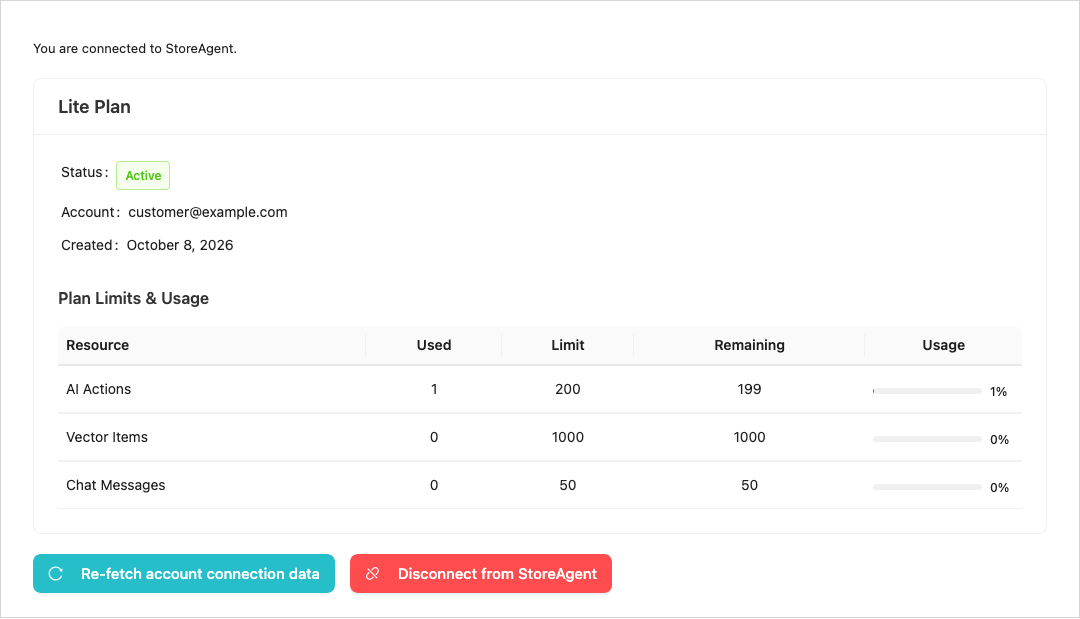
You upgraded your plan, but every AI Task fails with Plan limit reached for ai_actions or no active plan. This usually means your store is connected to a different StoreAgent account than the one that holds your paid plan. For example, the site is still connected to an older account on the Lite plan.
- Go to StoreAgent → Settings → Connection.
- Check the email in the Account row. It must match the account you upgraded.
- If the email matches, click Re-fetch account connection data to load your latest plan details.
- If the email doesn’t match, click Disconnect from StoreAgent.
- Click Connect to StoreAgent and sign in with the account that holds your paid plan.
If the email matches and the error continues after you re-fetch, contact support.
Diagnostic checklist
If you’re not sure which cause applies, work through these checks in order:
- Open StoreAgent → Settings → Connection. Check that the Account email is the account that holds your paid plan, and confirm you haven’t hit your AI Memory limit in the Plan Limits & Usage table (also shown at app.storeagent.ai/my-account).
- Go to WooCommerce → Status → Logs and look for
storeagentor fatal-error entries (for example, “Invalid product ID”). - Go to WooCommerce → Status → Scheduled Actions and check the status of
saai_post_data_upload. - Go to StoreAgent → Settings → Tools, click Clear Post Hashes, then Yes, Clear Hashes.
- Go to StoreAgent → Settings → Connection and disconnect, then reconnect your store.
- Run a basic debug with only WooCommerce, a default theme, and StoreAgent active. See How to conduct a basic debug for StoreAgent.
Still stuck?
If ingestion still won’t complete after these steps, contact support and include what you found in the logs and Scheduled Actions. If you’re setting StoreAgent up for the first time, the How to set up the StoreAgent onboarding wizard walks through getting connected and uploading your data.
Frequently asked questions
Why does setup say it will take hours or even days?
Large catalogs upload in small background batches, so the estimate can be long. That’s normal as long as the count keeps rising. If it’s frozen at the same percentage, check saai_post_data_upload under WooCommerce → Status → Scheduled Actions.
The progress bar disappeared after I reconnected my store. Is that a problem?
Reconnecting can reset the on-screen progress, and it does not upload unchanged items again. To send everything again, go to StoreAgent → Settings → Tools and click Clear Post Hashes under Clear Post Data Hashes, then Yes, Clear Hashes. Then watch the count climb again.
Does Clear Post Data Hashes delete my AI Memory?
No. It clears the records that track which posts are already uploaded, which forces every post to be re-uploaded on the next sync. Your existing memory isn’t wiped.
The notice says syncing is paused. What should I do?
Check the reason in the notice. If it says your plan limit was reached, renew or upgrade your plan. Syncing then resumes after the next plan check, or click the sync icon next to each enabled content type on the Post Types tab to restart it straight away. If it keeps stopping at the same point, check WooCommerce → Status → Logs for storeagent or fatal-error entries and WooCommerce → Status → Scheduled Actions for the state of saai_post_data_upload, then contact support with what you find.
Need help?
If you have a question or run into any issues, we’re here to help.
- Premium users: Open a support ticket
- Free users: Visit our community forum

