
If StoreAgent’s AI memory won’t finish building, the chat can’t find your products, or you’re seeing server errors, this guide helps you find the cause and fix it. StoreAgent uploads your store’s data to its AI memory in the background, and most performance problems trace back to that upload being blocked. Below are the most common symptoms, why they happen, and how to fix each one.
AI memory is stuck or won’t finish building
This is the most common issue. The setup status sits at 0%, 2%, or 24% for a long time, the progress bar freezes or disappears after you reconnect, or you see a Failed to create AI memory for store. popup. StoreAgent uploads your posts and products to AI memory in small batches in the background, so when that process can’t run, ingestion stalls. Work through the causes below in order.
You’ve reached your plan’s AI memory limit
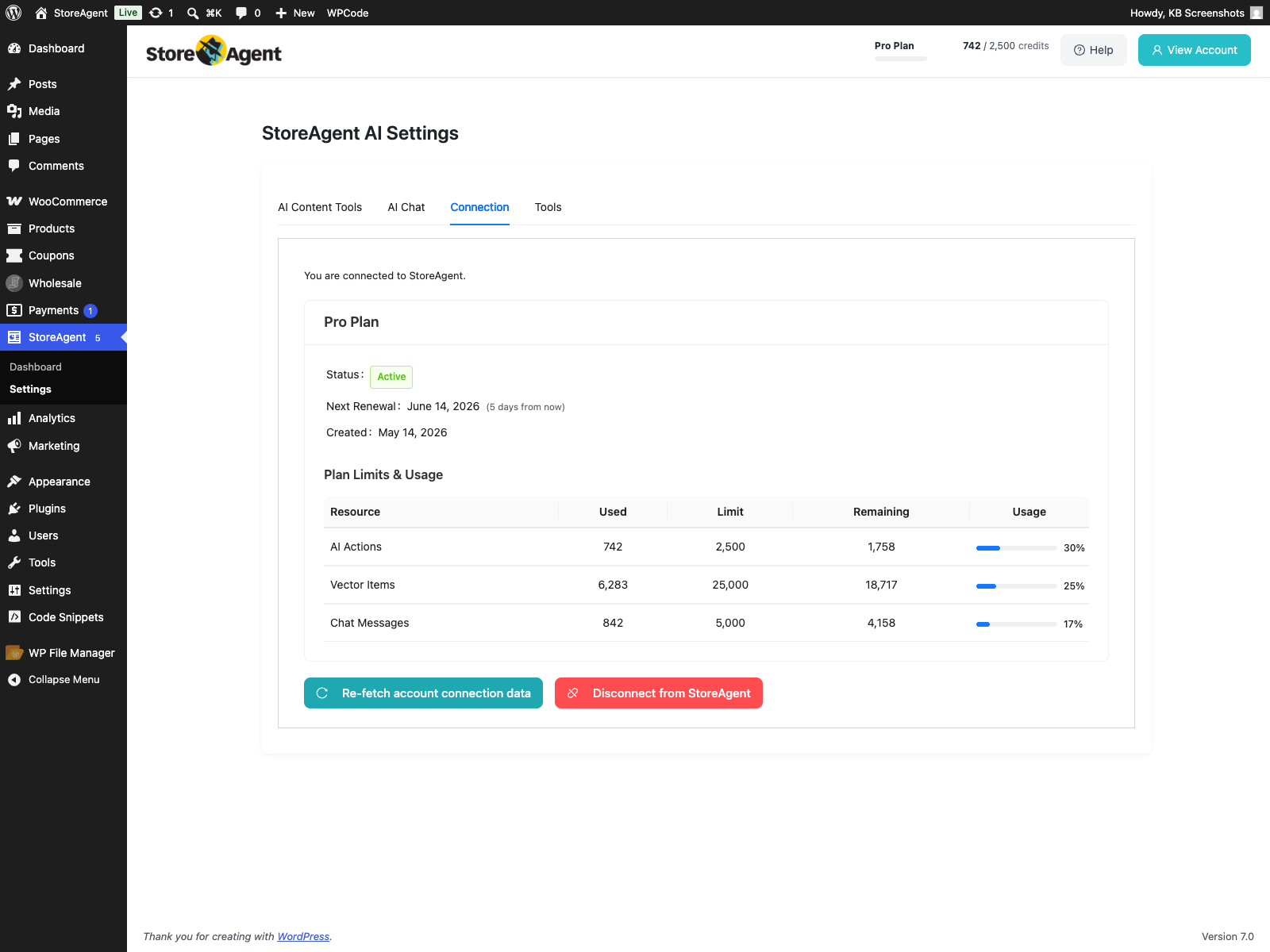
Check your usage first. Open StoreAgent → Settings → Connection to see the Plan Limits & Usage table, including your Vector Items used against the plan limit (also visible in your account at app.storeagent.ai/my-account). If you’ve hit your plan’s limit, ingestion stops until you upgrade or request a higher limit. For how usage is measured, see How StoreAgent calculates your usage.
A background upload has stalled
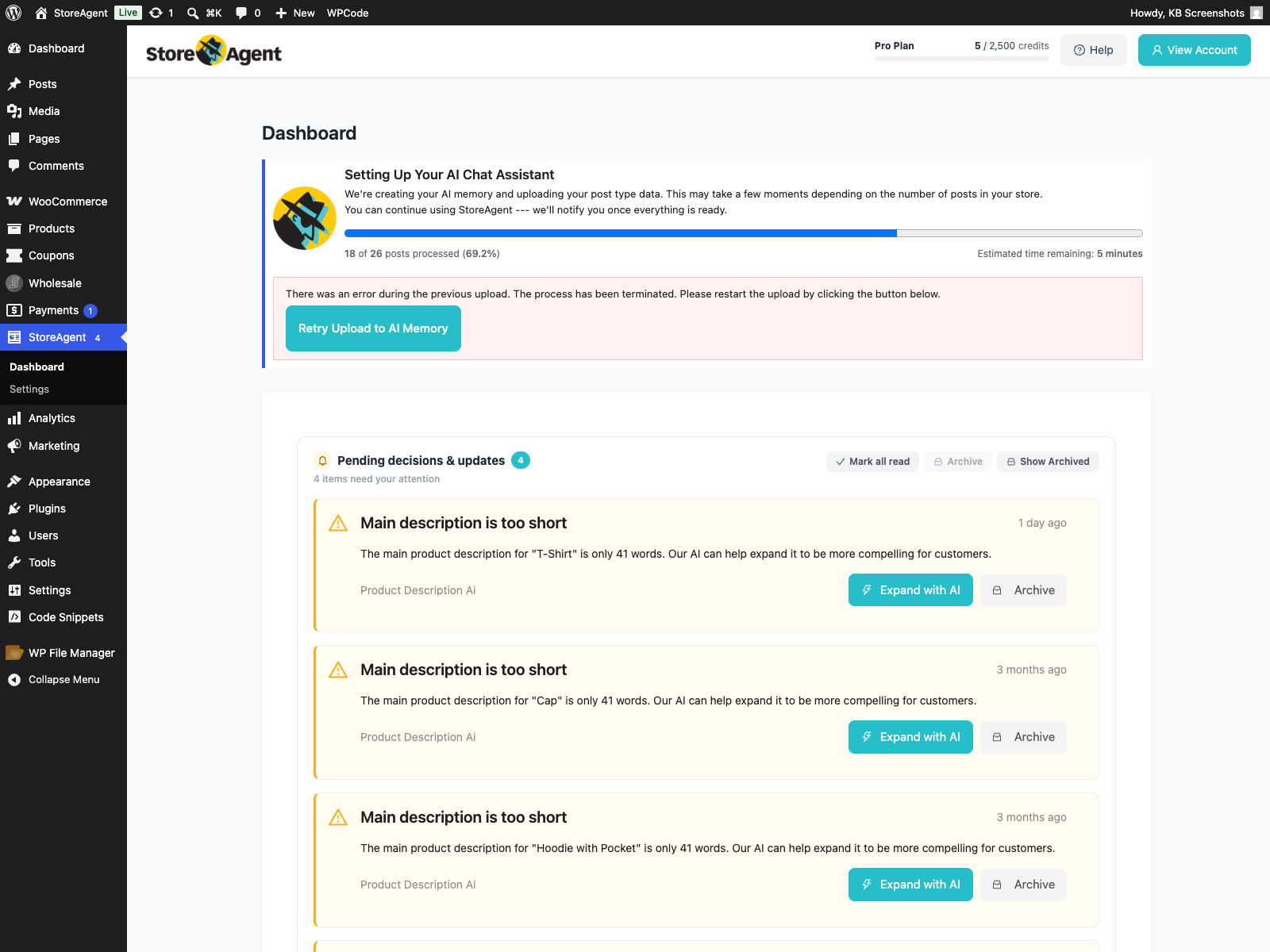
If you see the banner “There was an error during the previous upload. The process has been terminated” on the StoreAgent dashboard, start by clicking Retry Upload to AI Memory in that banner. That resumes the upload and is the quickest fix when a batch has failed partway.
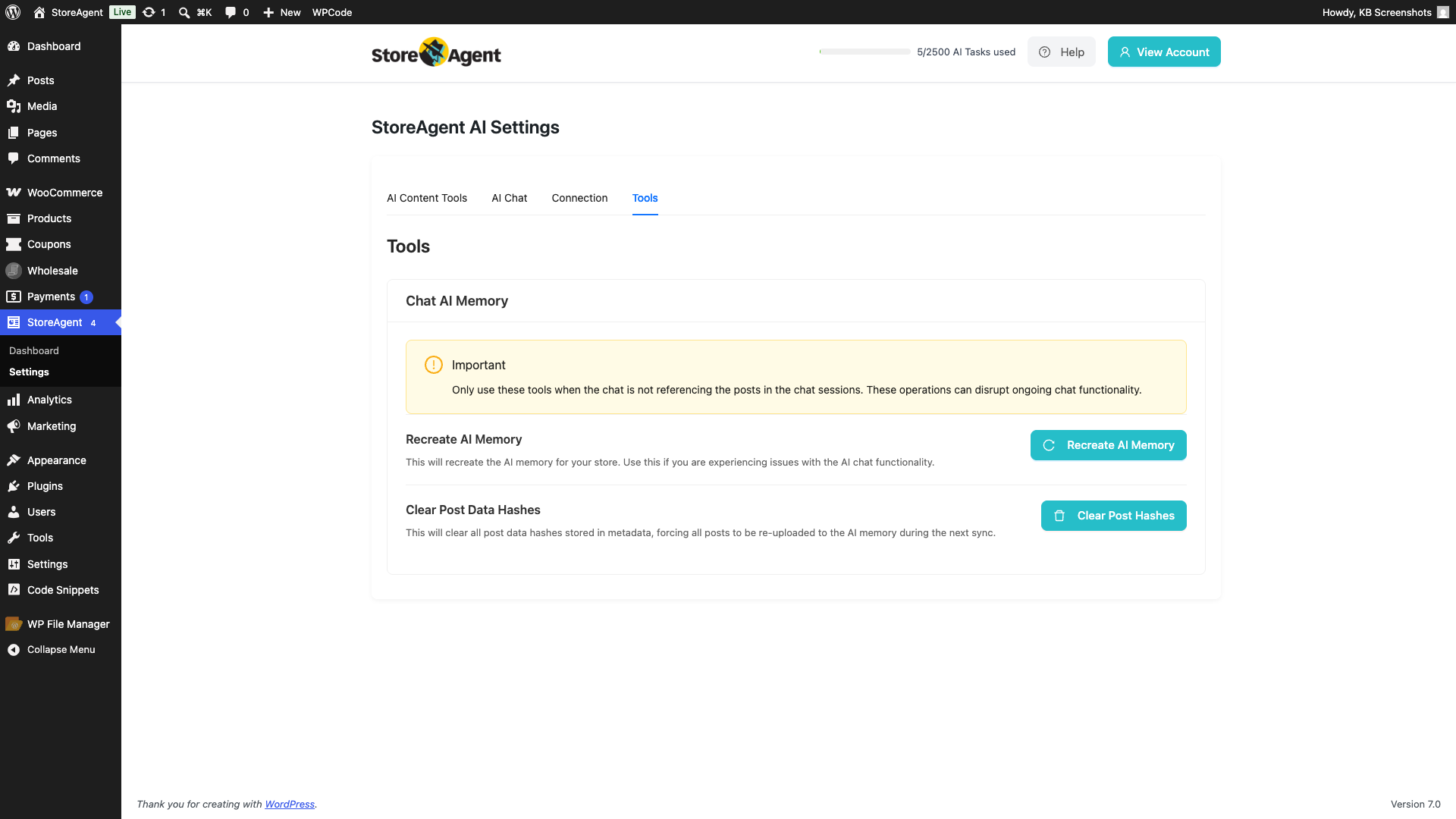
If that button isn’t shown, re-trigger the upload manually. From the products list, select your products and use the Add to AI Memory bulk action; or go to StoreAgent → Settings → Tools, click Clear Post Hashes, then Recreate AI Memory.
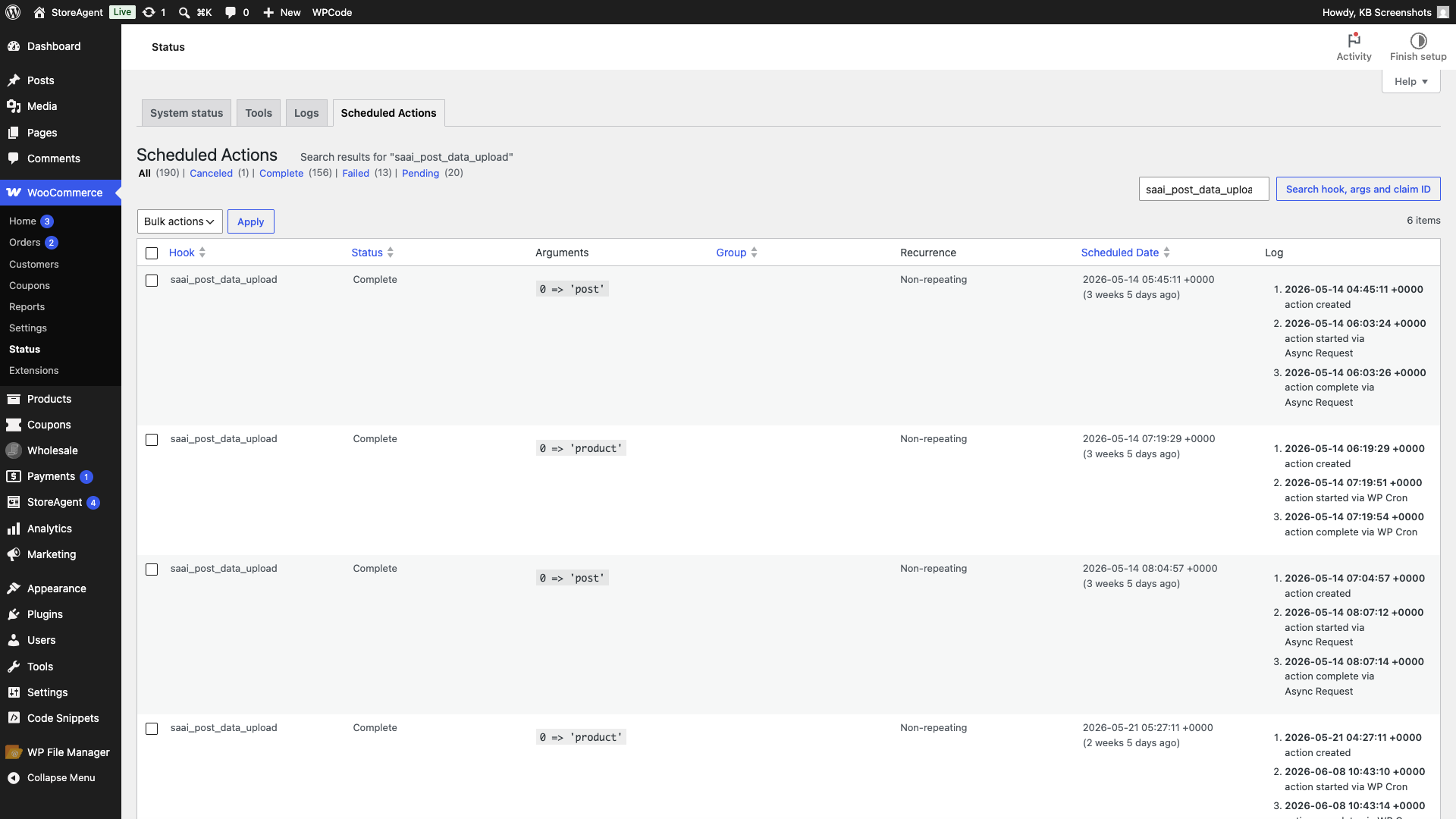
Under the hood, StoreAgent uploads about 10 posts per batch and schedules the next batch through WooCommerce’s background task system (Action Scheduler). On some servers that chain stops after the first batch. To confirm, go to WooCommerce → Status → Scheduled Actions and search for saai_post_data_upload. If it’s stuck pending or failed, re-triggering it from Tools usually clears it.
On low-traffic sites the batches can also stall because they rely on WordPress’s built-in cron (WP-Cron), which only runs when someone visits the site. If saai_post_data_upload actions sit at Pending with a scheduled time in the future and never run, visit any page on your site to nudge the queue, or ask your host to set up a real server cron so the upload finishes on its own.
Your site runs on LiteSpeed or OpenLiteSpeed
Update StoreAgent first. If you can’t reach wp-admin after activating StoreAgent on a LiteSpeed server, update to StoreAgent 1.1.4 or later. A LiteSpeed admin-access bug was fixed in that release. If ingestion still fails afterwards, turn off your LiteSpeed cache and restart the server, then re-run the upload. OpenLiteSpeed isn’t fully supported yet, so expect issues there until that changes.
Your server is running out of resources
Raise your server limits. 504 errors, timeouts, or out-of-memory errors during upload usually mean the process is exhausting memory or hitting a time limit, most often on large catalogs. Increase your PHP memory limit and max_execution_time, or move to a higher-resource hosting plan. Large catalogs upload in batches, so allow extra time before assuming it’s stuck.
Your PHP version isn’t supported
Run a current PHP version. StoreAgent requires PHP 7.4 or later, but 7.4 is now end-of-life, and PHP 8.4 isn’t fully supported yet. We recommend PHP 8.1 to 8.3. Your host can switch the PHP version from your hosting dashboard.
Another plugin is interfering
Run a basic debug to find the conflict. See How to conduct a basic debug for StoreAgent. A few plugins are known to interfere: notice-hiding plugins such as “Disable Admin Notices Individually” can hide the upload prompt, security plugins such as Wordfence can block StoreAgent’s API calls, and aggressive caching can stop the background upload from running.
Products have empty descriptions
Add a description first. Bulk AI Tasks can’t generate content for a product that has no description to work from, so those products are skipped. Add a short description, then re-run the upload or the AI Task.
The chat replies “I can’t find that” or “no information”
This almost always means the AI memory is empty or only partly built, so your store’s AI chat can only answer from data that has finished uploading. Get ingestion to complete using the steps above, then test the chat again. To understand what gets stored and when, see How StoreAgent AI Memory works.
Diagnostic checklist
If you’re not sure which cause applies, work through these checks in order:
- Open StoreAgent → Settings → Connection (or app.storeagent.ai/my-account) and confirm you haven’t hit your AI memory limit in the Plan Limits & Usage table.
- Go to WooCommerce → Status → Logs and look for
storeagentor fatal-error entries (for example, “Invalid product ID: 0”). - Go to WooCommerce → Status → Scheduled Actions and check the status of
saai_post_data_upload. - Go to StoreAgent → Settings → Tools, click Clear Post Hashes, then Recreate AI Memory.
- Go to StoreAgent → Settings → Connection and disconnect, then reconnect your store.
- Run a basic debug with only WooCommerce, a default theme, and StoreAgent active. See How to conduct a basic debug for StoreAgent.
Still stuck?
If ingestion still won’t complete after these steps, contact support and include what you found in the logs and Scheduled Actions. It also helps to grant temporary admin access so the team can look directly. If you’re setting StoreAgent up for the first time, the How to set up the StoreAgent onboarding wizard walks through getting connected and uploading your data.
Frequently asked questions
Why does setup say it will take hours or even days?
Large catalogs upload in small background batches, so the estimate can be long. That’s normal as long as the count keeps rising. If it’s frozen at the same percentage, check saai_post_data_upload under WooCommerce → Status → Scheduled Actions.
The progress bar disappeared after I reconnected my store. Is that a problem?
Reconnecting can reset the on-screen progress. Re-trigger the upload from StoreAgent → Settings → Tools with Recreate AI Memory, then watch the count climb again.
Does Clear Post Data Hashes delete my AI memory?
No. It clears the records that track which posts are already uploaded, which forces every post to be re-uploaded on the next sync. Your existing memory isn’t wiped.
I see “There was an error during the previous upload. The process has been terminated.” What should I do?
Click Retry Upload to AI Memory in that banner to resume the upload. If it keeps stopping at the same point, check WooCommerce → Status → Logs for storeagent or fatal-error entries and WooCommerce → Status → Scheduled Actions for the state of saai_post_data_upload, then contact support with what you find.
Need Help?
If you have a question or run into any issues, we’re here to help.
- Premium users: Open a support ticket
- Free users: Visit our community forum

