
Writing a clear coupon description for every promotion takes time — and most store owners skip it, which leaves the description column blank in admin reports and in third-party tools. The Coupon Description AI agent fills in that description automatically using the coupon’s own settings (discount type, amount, expiry, eligible products and categories, usage limits, etc.). This article walks you through enabling the AI Task, generating a description from any coupon, and adjusting the language for non-English stores.
Note: this is the AI Task that writes copy for an existing coupon. If you want AI to create a new coupon from a plain-English prompt, see How to use the AI Coupon Generator agent. For an AI feature that offers existing coupons to shoppers inside the chat widget, see How to use AI Chat coupon offering. All three agents are independent and have separate toggles in StoreAgent → Settings → AI Content Tools.
Prerequisites
- StoreAgent AI for WooCommerce installed, activated, and connected to your StoreAgent.ai account.
- WooCommerce with at least one saved coupon (the AI Task needs a saved coupon to read settings from).
The AI Task works on any WooCommerce coupon, including coupons created by third-party plugins such as Advanced Coupons — Advanced Coupons enriches the data sent to the AI with its own fields (cart conditions, BOGO rules, scheduling), so generated descriptions reflect those settings too.
Step 1: Enable the Coupon Description AI Task
The AI Task ships disabled. Turn it on once and it stays on until you toggle it back off.
- Go to StoreAgent → Settings → AI Tasks in your WordPress admin.
- Find the Coupon Description AI card and toggle the switch on.
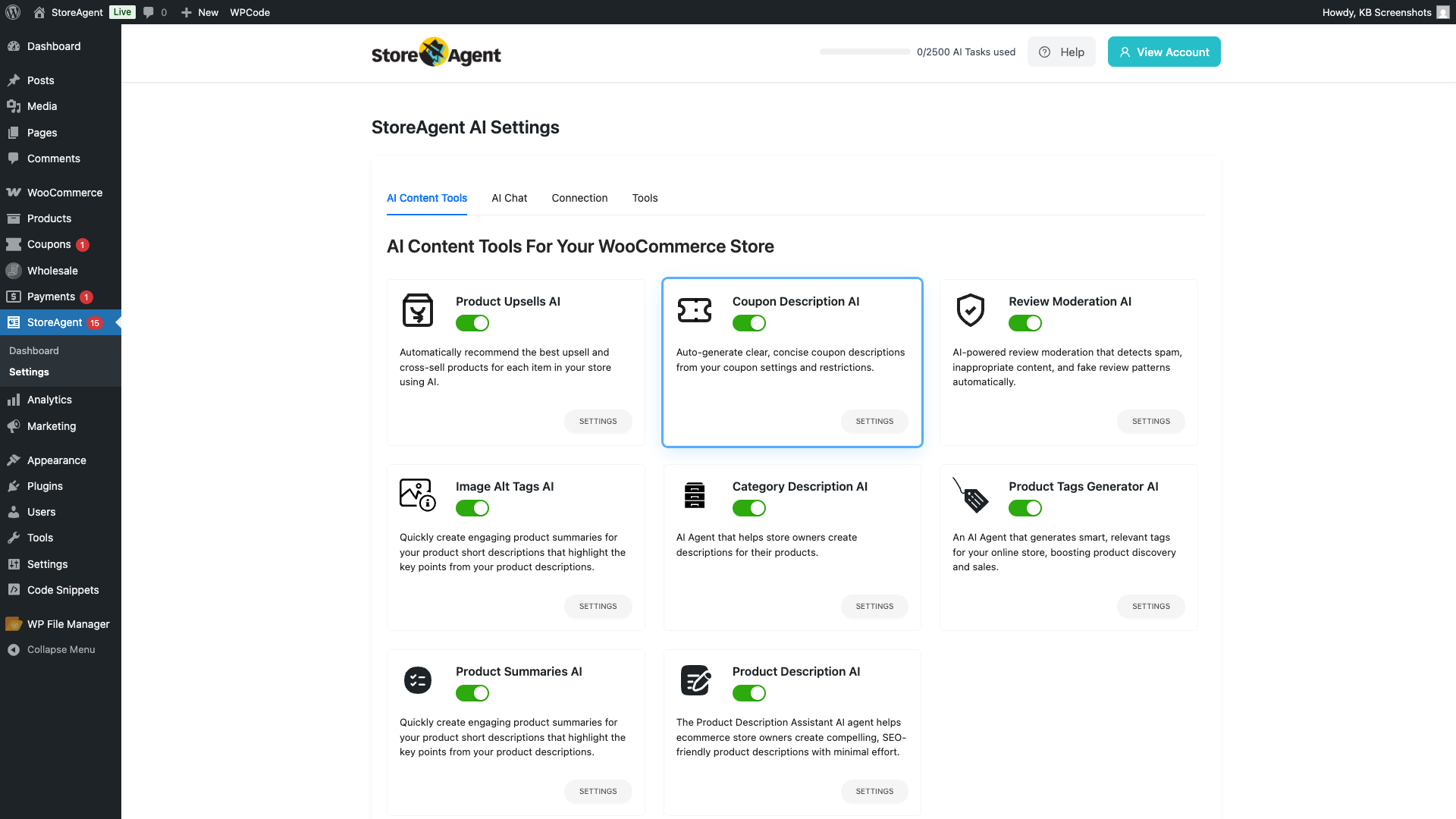
Step 2 (optional): set the language for generated descriptions
By default, descriptions are generated in your WordPress site’s default language. To override that for this AI Task only:
- On the same Coupon Description AI card, click SETTINGS.
- In the Language: dropdown, pick the language you want descriptions written in.
- Click Save Changes.
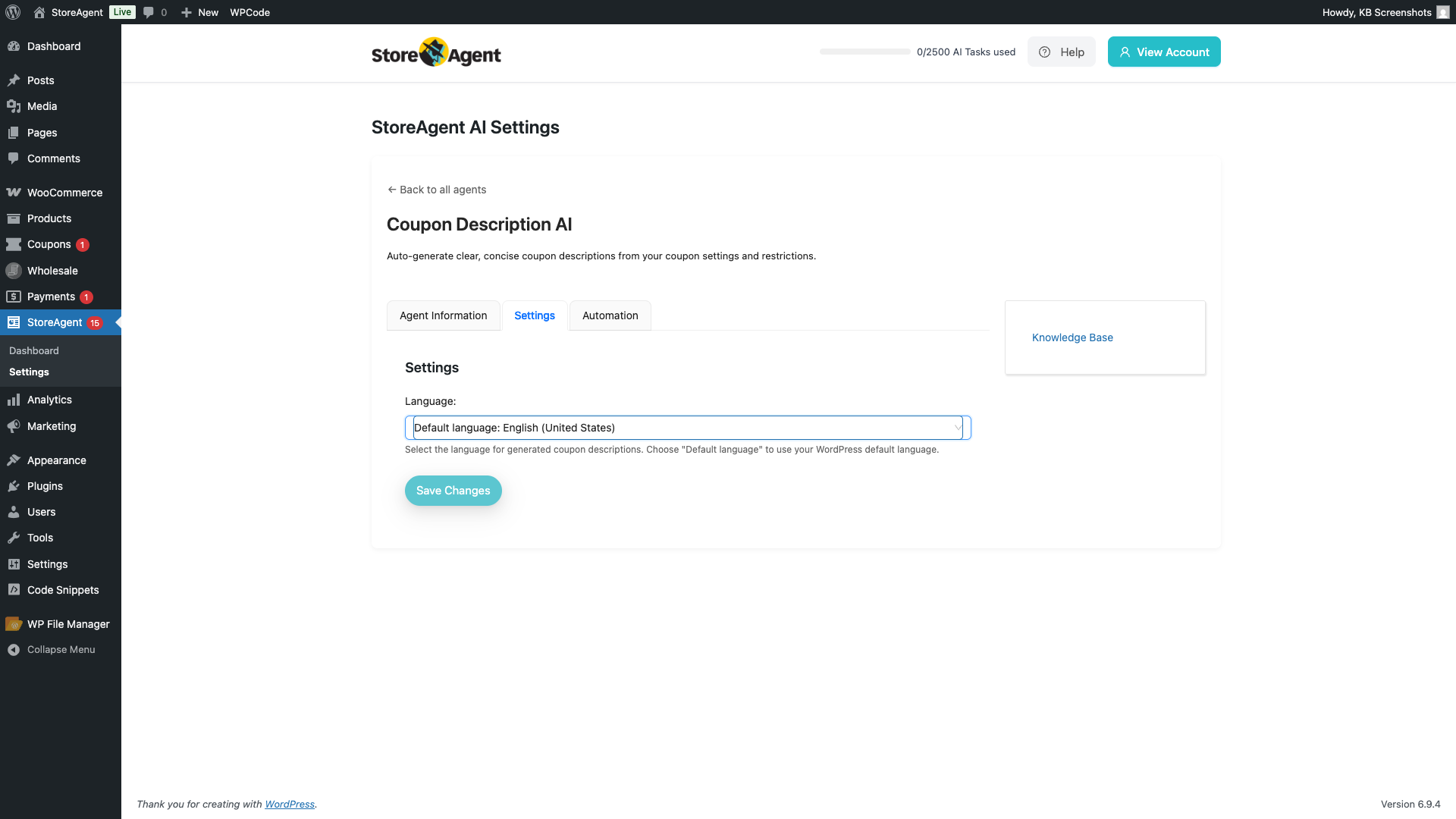
Leave the dropdown on Default language to inherit from your site language. See How to Select the Language for StoreAgent Content for the site-wide language setting.
Step 3: Generate a description from a coupon
- Go to Marketing → Coupons (or Coupons, depending on your Advanced Coupons setup) and open any saved coupon.
- Locate the Generate description with AI button at the top of the coupon edit screen. On WooCommerce-only stores it sits next to the Generate coupon code link; on stores with Advanced Coupons active it appears above the coupon Description field.
- Click Generate description with AI.
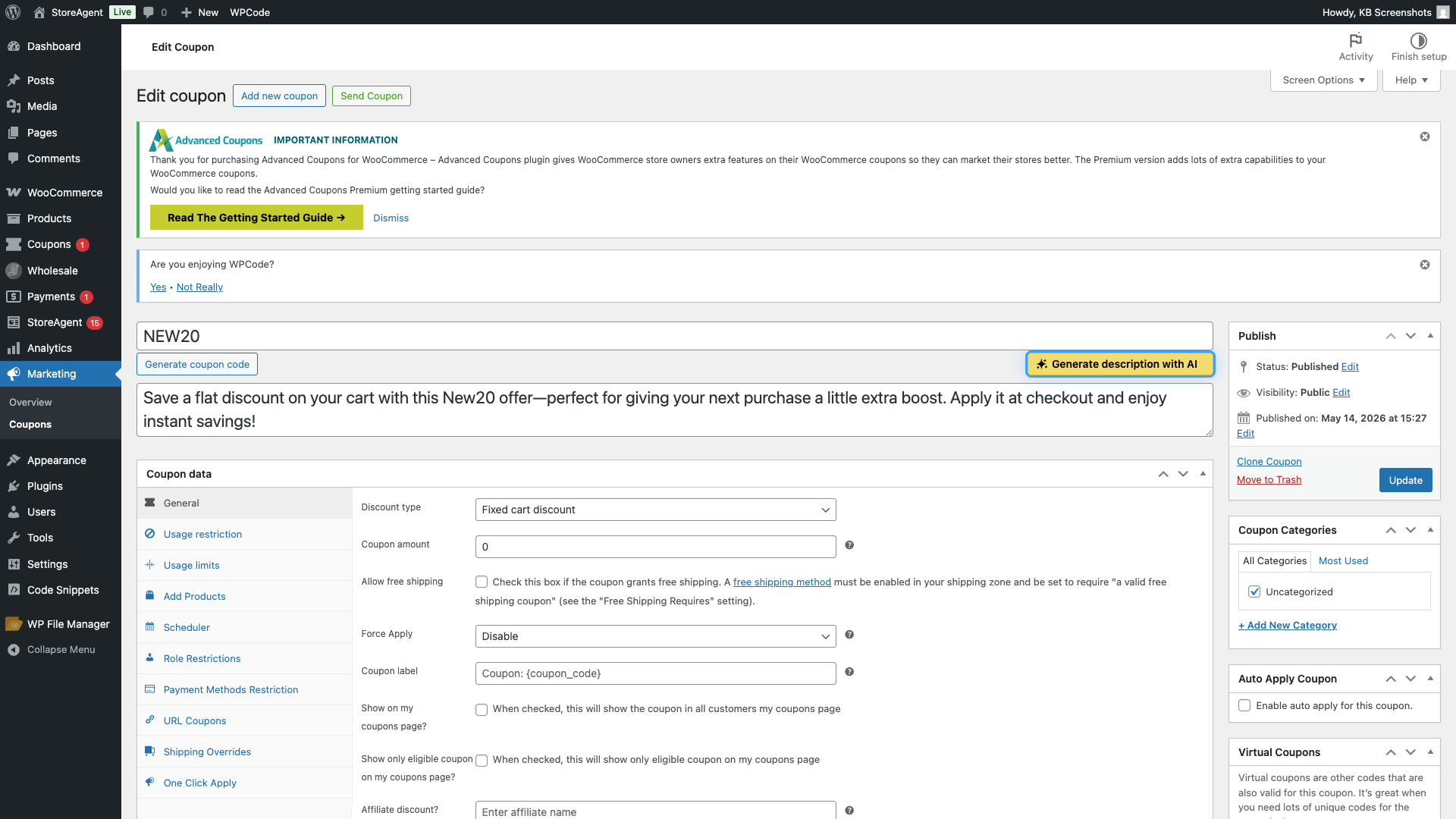
While the AI works, the button changes to Generating description… with a sparkles loader. When it finishes, the generated text is written directly into the coupon’s Description field below.
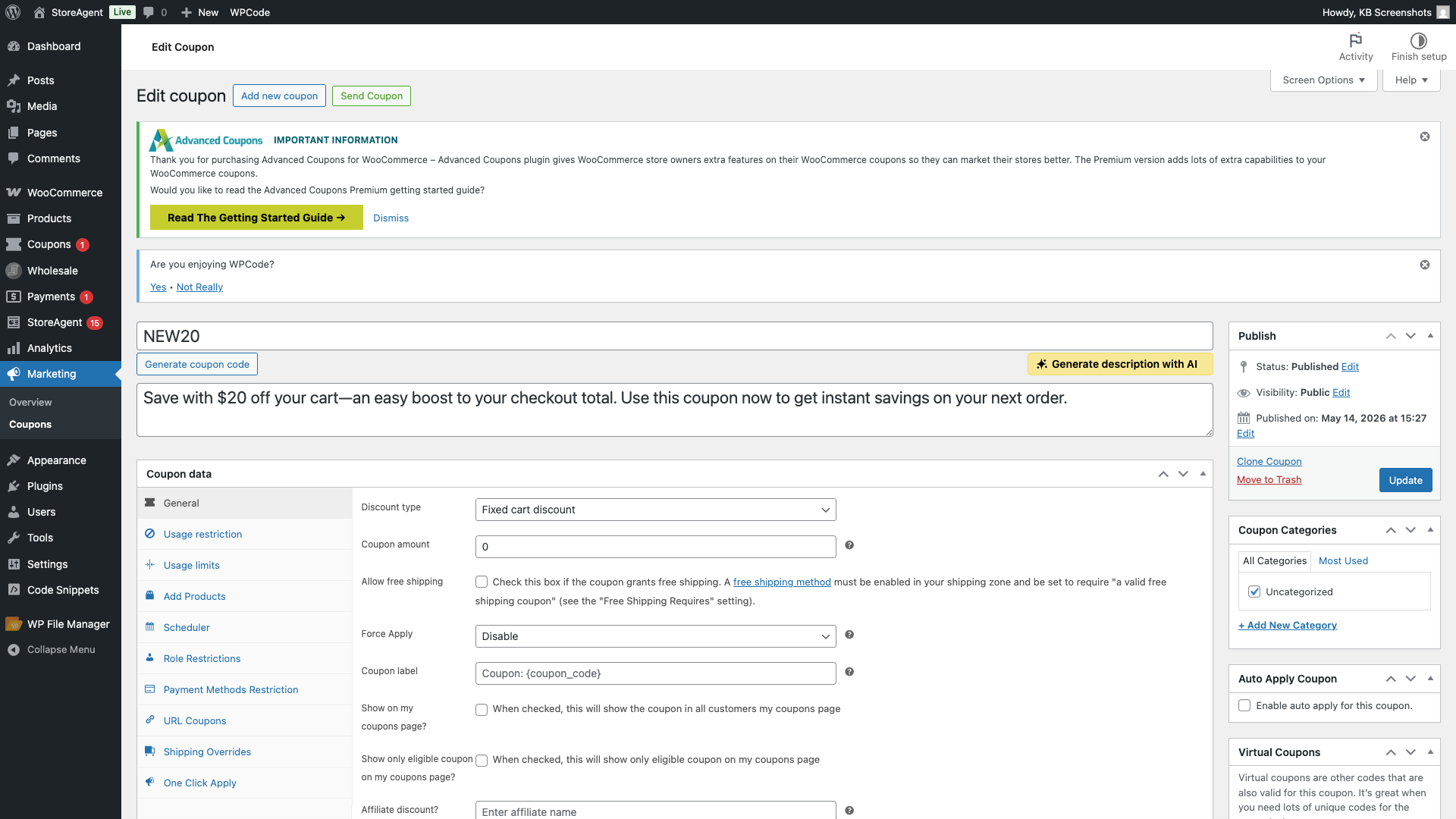
If the coupon already has a description, the AI Task asks before overwriting: “This will overwrite the existing description. Are you sure you want to continue?” Accept the prompt to overwrite, or cancel it to keep the existing description.
What the AI uses to write the description
The AI Task reads the coupon’s saved settings and writes a description that reflects them. Specifically it sends:
- Coupon code and discount type (these are always sent, even if blank).
- Discount amount, free shipping toggle, expiry date.
- Minimum and maximum spend thresholds.
- Eligible products and product categories (and their excluded counterparts), with full names — not just IDs.
- “Exclude sale items” flag.
- Usage limits (per coupon, per user, per item).
- “Individual use only” flag and email restrictions.
- Any additional fields added by third-party plugins (e.g. Advanced Coupons cart conditions and scheduling, via the
saai_coupon_description_datafilter).
Fields with empty, zero, or null values are dropped before sending — so the AI doesn’t see noise from unconfigured options.
Troubleshooting
“please save the coupon first” alert when clicking the button
The button needs a saved coupon to read settings from. Set the discount type and amount (and anything else relevant), click Publish or Update, then click Generate description with AI again.
The “generate description with AI” button doesn’t appear on the coupon edit screen
Confirm two things: (1) the Coupon Description AI Task is enabled on StoreAgent → Settings → AI Tasks (the toggle on the card is on), and (2) you’re on a WooCommerce Coupons edit screen — the button only renders on the shop_coupon post type editor. If both are true and the button is still missing, check the browser console for JavaScript errors and clear any caching plugins.
“an error occurred while generating the coupon description”
Confirm StoreAgent is connected to your StoreAgent.ai account at StoreAgent → Dashboard. If the connection is healthy, the error usually means the AI call timed out or you’re out of credits — see How StoreAgent Calculates Your Usage for plan limits.
Generated description is in the wrong language
The AI Task uses (in order): the per-agent Language setting if set, otherwise the StoreAgent global Content Language, otherwise your WordPress site language. Set the per-agent language on the Coupon Description AI card → SETTINGS for a one-time override, or set the global language for all content agents at once. See How to Select the Language for StoreAgent Content.
Generated description mentions products that aren’t really restricted
The AI describes what it sees in the coupon’s settings. If the description references a product or category the coupon shouldn’t be limited to, check the Usage restriction tab — there’s likely an unintended product or category in Products, Product categories, Exclude products, or Exclude categories. Remove it, save the coupon, then re-run the generation.
Frequently asked questions
Where does the generated description go?
Straight into the standard WooCommerce Description field on the coupon (technically the post’s excerpt). It’s saved with the coupon when you click Update, and shows up wherever WooCommerce displays the coupon description — admin lists, reports, the cart-block coupon picker, and third-party plugins that read coupon descriptions.
Can I edit the description after it’s generated?
Yes. The generated text fills the Description field but isn’t locked — edit it like any other field and click Update to save your changes.
Does this work with BOGO coupons or other Advanced Coupons features?
Yes. Advanced Coupons hooks into the saai_coupon_description_data filter to add its own fields (BOGO rules, cart conditions, scheduling, etc.) to the data sent to the AI. Generated descriptions for Advanced Coupons coupons reflect those features automatically — you don’t need to configure anything extra.
How is this different from the AI coupon generator agent?
The Coupon Description AI agent (this one) writes copy for an existing coupon — you’ve already configured the coupon, it just generates the description text. The AI Coupon Generator agent creates a new coupon from a plain-English prompt — useful when you want the AI to also pick the discount type, amount, and restrictions. They’re configured independently on the AI Tasks page. See How to use the AI Coupon Generator agent.
Does generating a description count against my plan?
Yes — each generation costs credits from your StoreAgent.ai plan. After a successful generation, a small toast appears showing how many credits the action used. See How StoreAgent Calculates Your Usage.
Need help?
If you have a question or run into any issues, we’re here to help.
- Premium users: Open a support ticket
- Free users: Visit our community forum

