
Want your chat widget to offer the right coupon at the right moment — without scripting every reply? AI Chat coupon offering lets the StoreAgent chatbot recommend coupons from a list you approve, using a plain-English instruction you write for each coupon. This article walks you through enabling coupon offering, picking which coupons the AI is allowed to use, writing per-coupon instructions, and what the customer sees in chat.
This is different from the two other coupon-related features in StoreAgent: How to use the Coupon Description AI agent writes copy for an existing coupon’s description field, and How to use the AI Coupon Generator agent creates a new coupon from a plain-English prompt. AI Chat coupon offering, documented here, is about handing a shortlist of already-created coupons to the chat AI so it can offer them to shoppers in conversation.
Prerequisites
- StoreAgent AI for WooCommerce installed, activated, and connected to your StoreAgent.ai account.
- Chat widget enabled and configured — see Getting Started with StoreAgent Chat.
- At least one WooCommerce coupon created. Coupons can be standard WC coupons or coupons created by Advanced Coupons (including BOGO, store credit, and template-generated coupons).
- Each coupon you intend to offer needs a clear Description filled in on the WooCommerce coupon. The AI uses that description to explain the discount to customers — if it’s blank, the AI has nothing to read out. See How to use the Coupon Description AI agent to auto-generate descriptions in bulk.
Step 1: enable coupon offering on the chat settings
- Go to StoreAgent → Settings → AI Chat in your WordPress admin.
- Click the Coupon Offering tab.
- Toggle Allow AI to offer coupons on.
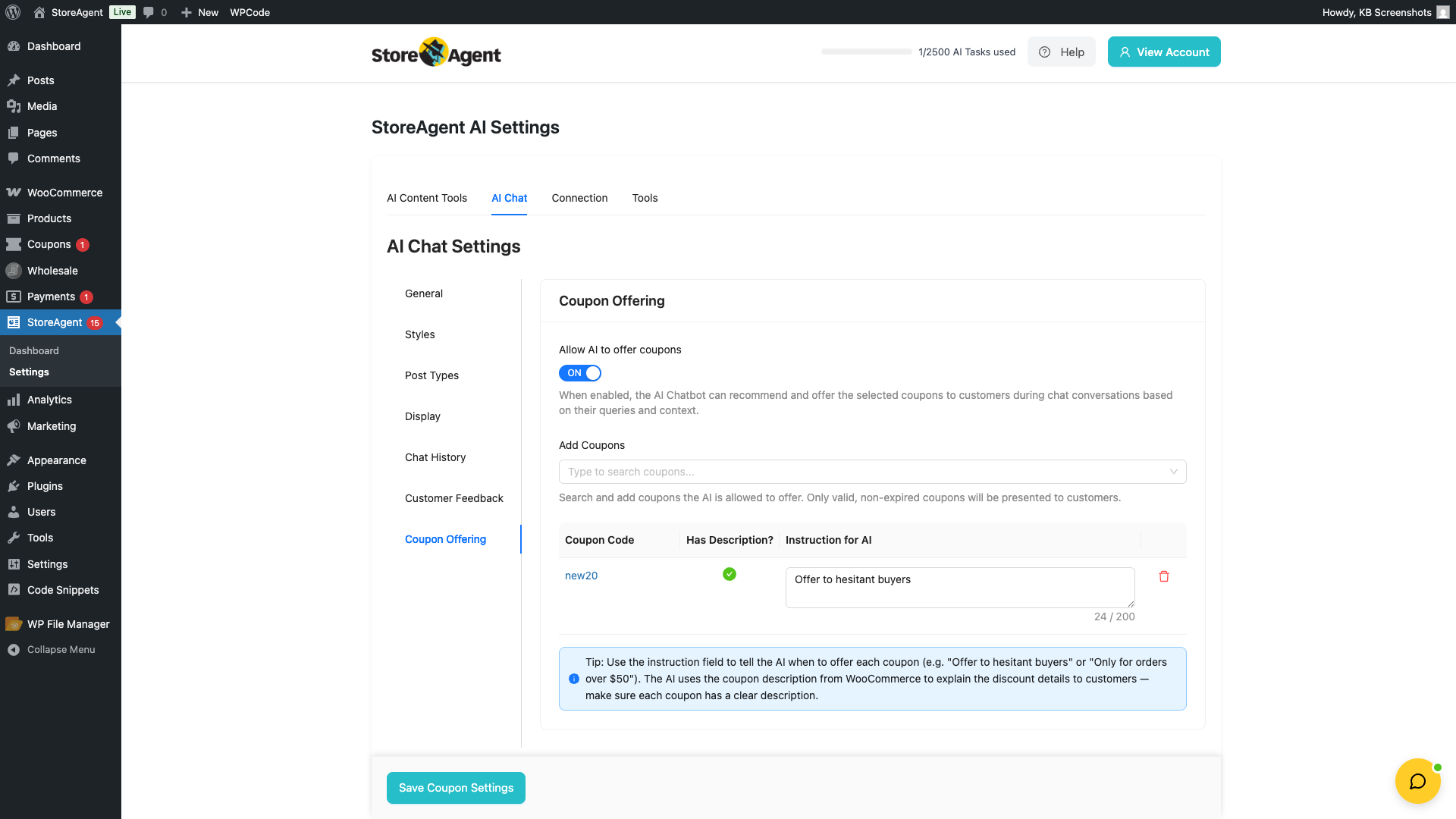
The rest of the form (coupon picker, table, instruction fields) only appears once the toggle is on.
Step 2: add the coupons the AI is allowed to offer
The AI can only offer coupons you explicitly approve. Add each one:
- In the Add Coupons search field, type at least two characters of a coupon code.
- Pick a coupon from the dropdown — it shows the coupon code and description for each match.
- The coupon is added to the table below the search field. Repeat for every coupon you want the AI to be able to offer.
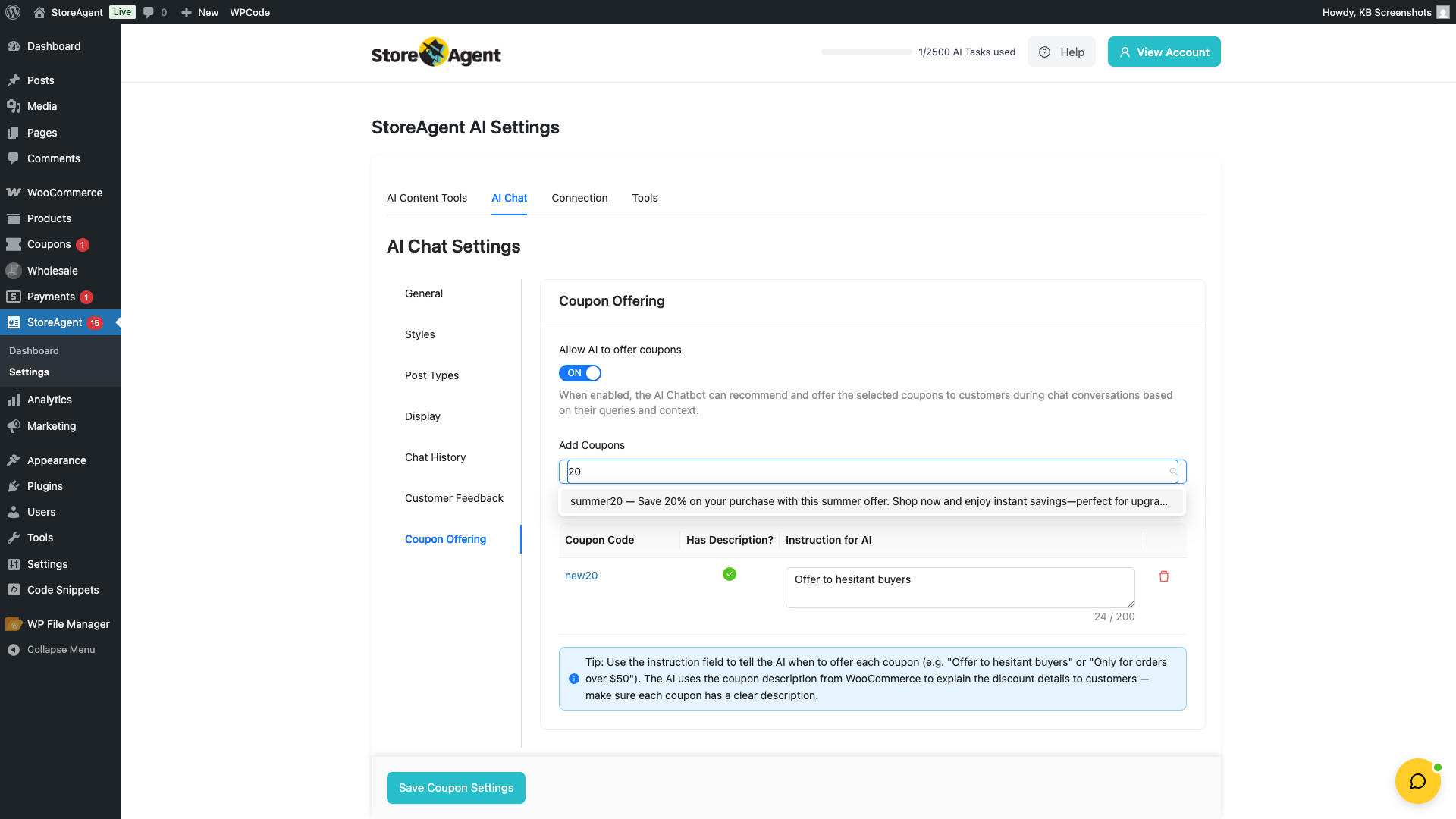
Only valid, non-expired coupons are presented to customers — if a coupon expires later, the AI automatically stops offering it without you having to remove it from this list.
Step 3: write an instruction for each coupon
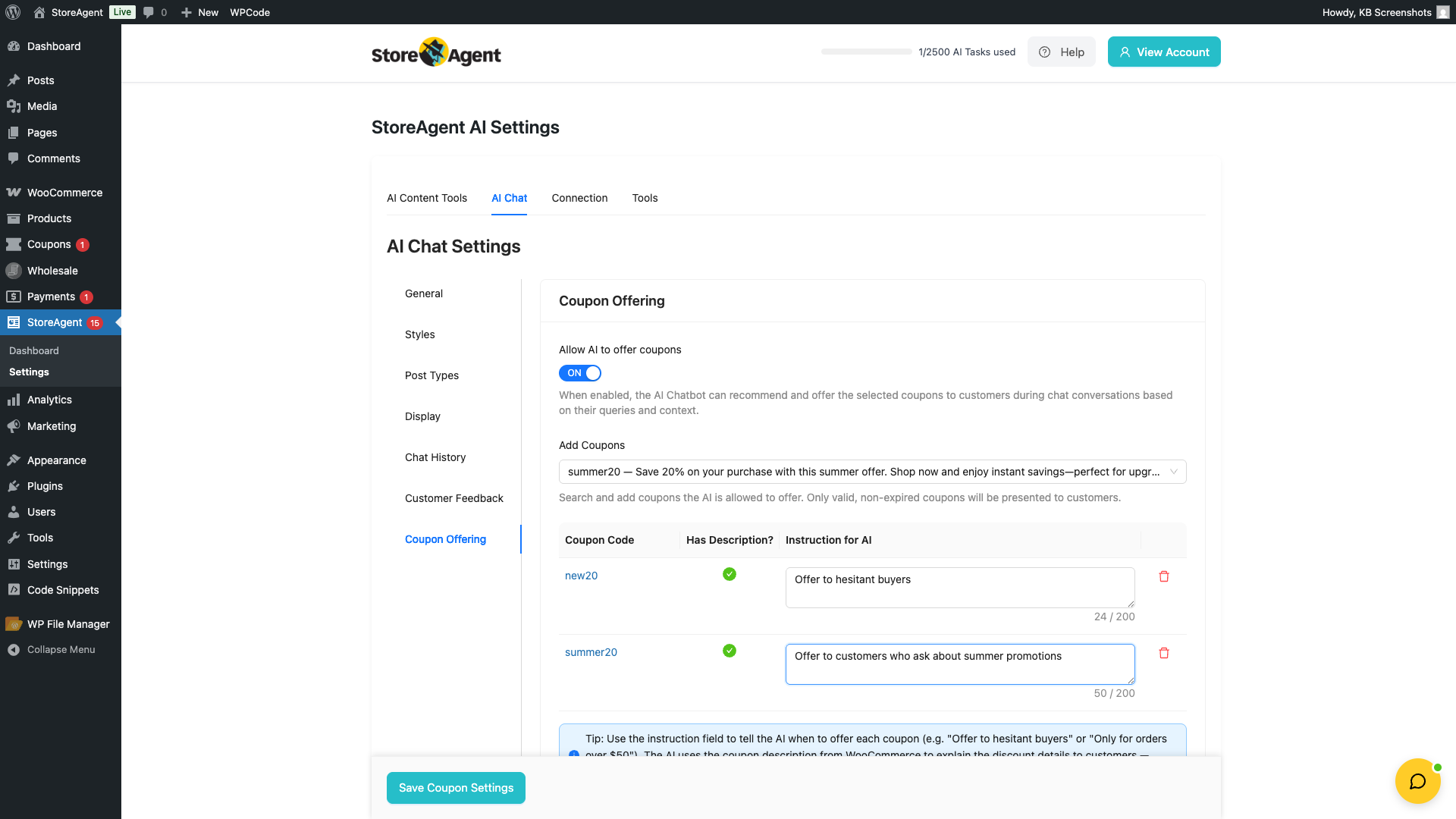
The Instruction for AI column is where you tell the chatbot when to offer each coupon. Think of it as a rule of thumb — short, plain English, addressed to the AI:
- “Offer to first-time buyers who ask about discounts.”
- “Use when a customer mentions abandoning their cart.”
- “Only for orders over $50.”
- “Offer when a hesitant buyer asks about pricing on jewellery.”
Each instruction is limited to 200 characters. The Has Description? column shows a green tick if the coupon has a WooCommerce description, or a red cross if it doesn’t — coupons without descriptions still work, but the AI won’t be able to explain the discount details well.
Step 4: save the coupon offering settings
Click Save Coupon Settings at the bottom of the page. The toggle, coupon list, and per-coupon instructions are all stored together as the chat widget’s coupon offering config — the AI picks them up on the next chat message.
How the AI decides when to offer a coupon
StoreAgent doesn’t run a rules engine on your instructions — it passes the whole list of approved coupons (codes, descriptions, your instructions) to the chat AI along with each customer message. The AI then decides, based on what the customer just said and your instructions, whether any coupon is a good fit and how to offer it.
That means your instruction is a signal, not a strict gate. The AI will usually respect a clear instruction (“Only for orders over $50”) and skip coupons whose instructions don’t match the conversation. But if you write a vague instruction or leave it blank, the AI falls back to the coupon’s WooCommerce description to decide — which is why filling in descriptions matters.
What customers see in chat
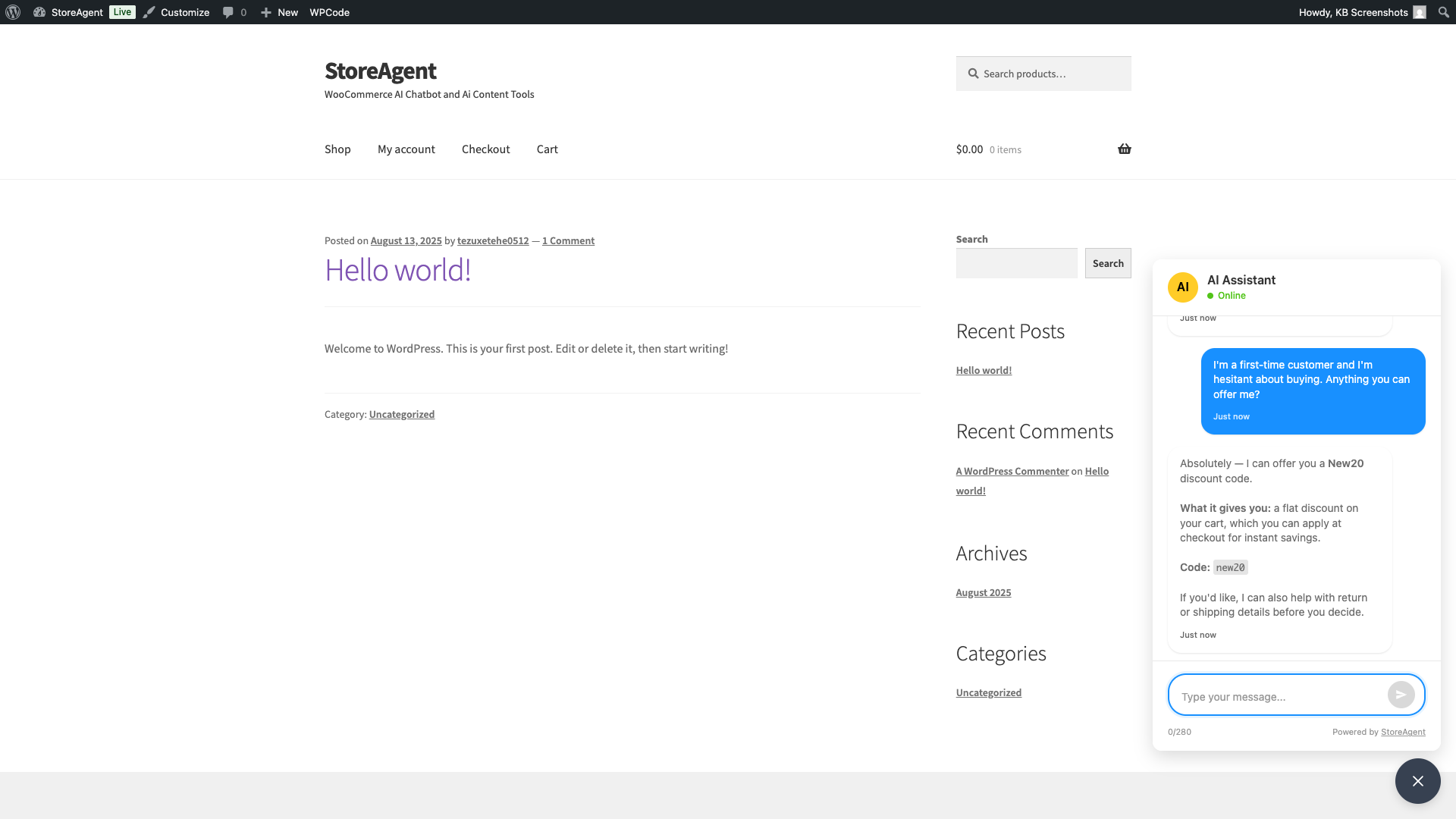
When the AI offers a coupon, it appears as part of the chat reply — the AI mentions the coupon code in plain language (“You can use NEW20 at checkout for 20% off”) and may explain what the coupon does, what it applies to, and any restrictions, based on the WooCommerce description and your instruction. The customer copies or remembers the code and applies it at checkout the same way they’d apply any other coupon — the AI doesn’t auto-apply codes to the cart.
Troubleshooting
The AI never offers any of my coupons
Confirm Allow AI to offer coupons is on, you’ve added at least one coupon to the table, and you’ve clicked Save Coupon Settings. Then check that the coupons are valid in WooCommerce — expired coupons, coupons over their usage limit, or coupons with status Draft won’t be offered. Try the chat again with a question that obviously calls for a discount (“do you have any promotions?”) to test.
The AI offers the wrong coupon
Tighten the instruction for the offending coupon. Vague instructions like “Use when relevant” give the AI too much room — replace with something specific like “Only offer when the customer asks about shipping costs on orders over $100”. The AI uses both the instruction and the coupon’s WooCommerce description, so a vague description can also pull the AI in the wrong direction — tighten that too if needed.
“has description?” shows a red cross on a coupon
Edit the coupon in Marketing → Coupons (or Coupons) and fill in the Description field. Save the coupon and the red cross becomes a green tick. To generate descriptions in bulk, see How to use the Coupon Description AI agent.
The coupon offering tab is missing
Confirm the chat widget is enabled (Coupon Offering only shows when the AI Chat feature is active) and that StoreAgent is connected to your StoreAgent.ai account. If both are true and the tab is still missing, hard-refresh the page to clear any cached admin assets.
Frequently asked questions
Does the AI auto-apply the coupon to the customer’s cart?
No. The AI mentions the coupon code in chat and explains what it does — the customer copies it and applies it at checkout themselves, the same as any other coupon.
Will customers ever see coupons i didn’t approve?
No. The AI only sees the coupons you’ve added to the Coupon Offering table. Coupons not in that list don’t reach the AI.
Can i use coupons created by advanced coupons (bogo, store credit, etc.)?
Yes. Any coupon in your WooCommerce Coupons list is eligible, including coupons created via Advanced Coupons templates, BOGO deals, and store credit codes. The AI uses the coupon’s description, so make sure complex coupons have a description that explains how they work.
What happens when a coupon expires?
StoreAgent filters out invalid coupons (expired, over usage limit, draft status) before sending the list to the AI on each chat request. You don’t need to remove expired coupons from the Coupon Offering table — they’re just skipped automatically.
Does this use chat credits or coupon credits?
Coupon offering happens inside a normal chat reply, so it uses your chat-message budget — not a separate coupon credit. See How StoreAgent Calculates Your Usage for plan limits.
Need help?
If you have a question or run into any issues, we’re here to help.
- Premium users: Open a support ticket
- Free users: Visit our community forum

