Your StoreAgent WooCommerce chatbot answers your shoppers. This is the other direction. You can now point Claude or ChatGPT at your own store and ask it to do the work you were doing by hand in wp-admin.
Ask it to check today’s orders, or to write descriptions for the twelve products you never got around to. Ask it what your last fifty chat conversations were about. It reads and acts on your real store data, inside the assistant you already pay for.
The connection runs on MCP, the Model Context Protocol, which is the standard both Claude and ChatGPT use to talk to outside tools. StoreAgent gives your store its own WooCommerce MCP server endpoint. You approve the connection on your own store, you pick how much access it gets, and you can pull the plug from the settings screen at any time.
In this article, we’ll cover what you can ask for, which parts of your store an assistant can reach, how to connect Claude and ChatGPT, what the approval screen asks you, how to see and stop access, and the safety mechanisms sitting behind all of it. So, let’s get started!
Table of Contents
- What You Can Ask It To Do
- What Your Assistant Can Reach
- How To Connect Claude Or ChatGPT
- The Approval Screen Is Where You Set The Limits
- Seeing And Stopping Access
- The Safety Mechanisms
- Which Plans Get It
- Get Started
- Frequently Asked Questions
What You Can Ask It To Do
Think of it as the jobs you already do in wp-admin, done in a conversation instead.
On the content side, you can hand an assistant a list of thin products and ask it to write descriptions, generate tags, and apply them. You can ask it to write alt text for images that have none. You can ask it to build a coupon from a plain description of the offer you want, or to suggest upsells and cross-sells for a product that never gets added to anything.
On the reporting side, you can ask about orders, ask what your chat conversations have been about lately, or ask how much of your AI usage allowance you have left this month. An assistant reading a batch of chat transcripts and telling you the three questions that keep coming up is a job that has no button anywhere in WooCommerce.
On the housekeeping side, you can ask it to check whether your catalogue has finished indexing into AI memory, find the items that failed, and kick off a fresh sync.
You describe the outcome and the assistant works out which calls to make, instead of clicking through five screens to get there. The MCP Recipes directory has ready-to-paste prompts for jobs like these.
What Your Assistant Can Reach
An MCP connection can reach three different groups of things on your store.
StoreAgent’s own abilities. There are 24 of them, covering product content generation, AI memory management, chat widget configuration, chat transcripts, and your plan and usage figures. Nine are read-only and the other fifteen make changes. These are always available and you do not have to switch them on individually.
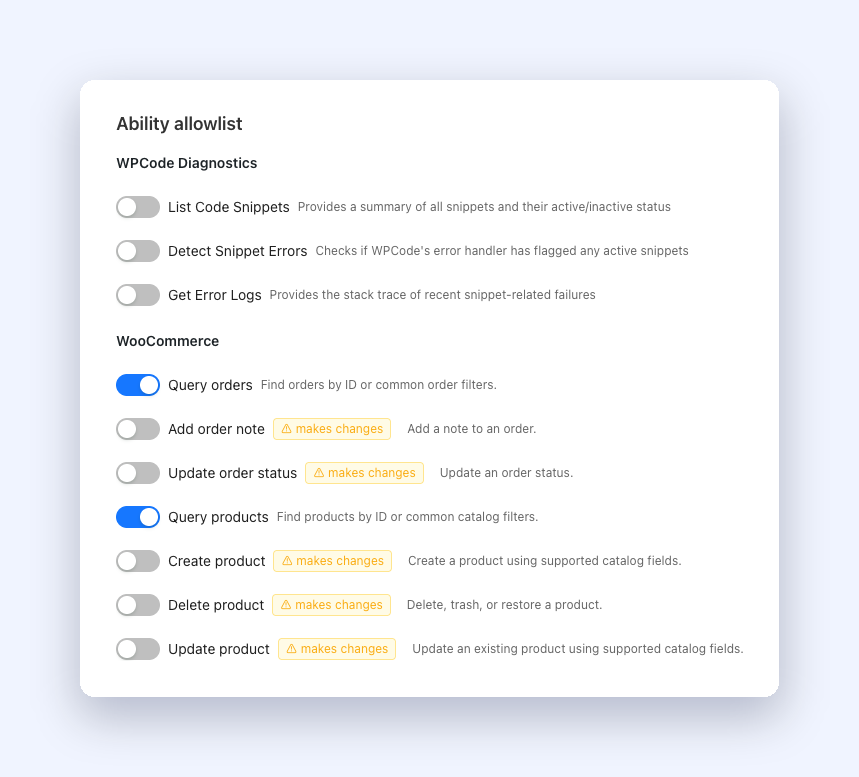
WooCommerce core abilities. Recent WooCommerce versions register their own abilities, including querying orders, adding an order note, updating an order status, querying products, and creating, updating or deleting a product. WordPress core registers a few of its own too, such as site and environment information.
Abilities from your other plugins. Any plugin or theme on your store can register abilities, and a growing number do. Those show up in your allowlist grouped by whichever plugin registered them, and every one of them starts switched off. Nothing outside StoreAgent’s own set gets used until you tick it.
Your assistant recommends and reasons from your real catalogue, so it is worth having product indexing finished before you lean on it hard.
How To Connect Claude Or ChatGPT
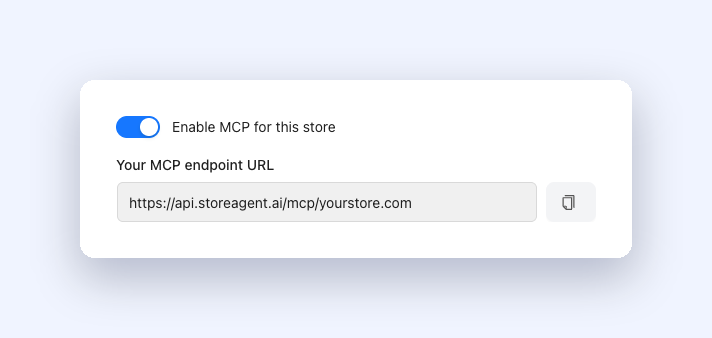
First, switch it on. Go to StoreAgent > Settings > MCP in wp-admin and turn on Enable MCP for this store. Your store needs to be connected to a StoreAgent account first, since that account connection is how the gateway knows which store is which.
Once it is on, the tab shows Your MCP endpoint URL with a copy button next to it. That URL is unique to your store and it is the only thing you paste into the assistant.
For Claude on a Pro, Max, Team or Enterprise plan:
- Open Settings, then Connectors. On Team or Enterprise, use Admin settings, then Connectors.
- Choose Add custom connector, give it a name, and paste the endpoint URL into Remote MCP server URL.
- Leave OAuth Client ID and Client Secret empty, then choose Add.
- Choose Connect. Your store’s approval page opens.
- Back in a chat, turn the connector on from the tools menu.
For ChatGPT on a Plus, Pro, Business or Enterprise plan:
- Open Settings, then Plugins, then Browse Plugins. On Business or Enterprise an admin has to allow custom plugins first.
- Choose the + icon at the top right, give the plugin a name, and paste the endpoint URL.
- Set Authentication to OAuth, leave Client ID and Client Secret empty, then create it.
- Choose Connect. Your store’s approval page opens.
- Start a new chat and turn the connector on.
There is no API key to generate, copy or store anywhere. The whole handshake happens through the approval page on your own store.
The Approval Screen Is Where You Set The Limits
Read this part. It is the one moment where you decide what the assistant gets.
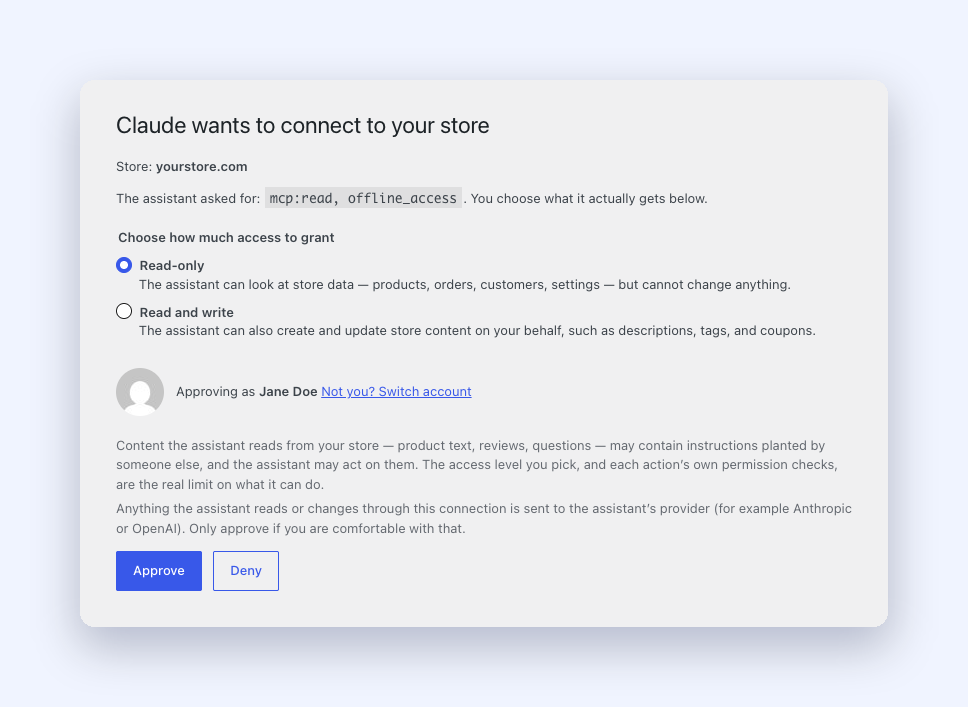
Choosing Connect sends you to an approval page in your own wp-admin. It asks you to sign in if you are not already, and it only accepts an administrator or shop manager. It then tells you which assistant is asking, which store it is asking about, and which account you are approving as.
Then it asks you to choose:
- Read-only. The assistant can look at store data, including products, orders, customers and settings, but cannot change anything.
- Read and write. The assistant can also create and update store content on your behalf, such as descriptions, tags and coupons.
You pick this, not the assistant. If Claude asks for broad access, the request is shown to you as information and nothing more. The level you tick is the level that gets granted, and it cannot be widened later without a fresh approval from you.
The screen carries two notes we put in front of you rather than in a footer. The first is that content the assistant reads from your store, meaning product text, reviews and customer questions, may contain instructions planted by someone else, and the assistant may act on them. The second is that anything read or changed through the connection goes to the assistant’s provider, so Anthropic or OpenAI, and you should only approve if that suits you.
Approve completes the connection. Deny ends it cleanly and nothing is created. You have five minutes on the screen before the request expires and you have to start again.
Seeing And Stopping Access
Back on the MCP tab, the Connections table lists every live connection with its name, which client it is, whether it is read only or read and write, when it was created, and when it was last used. Anything talking to your store shows up here.
Every row has a Revoke button behind a confirmation. Revoking takes effect on the next call, and it kills the connection’s refresh token as well as its current one. Removing the connector on the assistant’s side does not do that, so revoke here instead.
Underneath that sits the Activity log, a rolling 30 day record of every call your connections made. Each row shows the connection, the tool, the outcome, and when. You can filter it by connection, which is what you want when two assistants are connected and you are trying to work out which one touched something. The log records the type and ID of whatever was affected rather than the contents, so it is an audit trail and not a second copy of your customer data.
The Safety Mechanisms
We built the access control to assume the worst. Here is where the real boundaries sit.
Third-party abilities are off until you switch them on. StoreAgent’s own set is available by default because we wrote it and we know what each one does. Everything else needs your tick.
An unlabeled ability is assumed to make changes. Abilities are supposed to declare whether they are read-only. If one from another plugin declares nothing, we treat it as write-capable, which means we hide it from read-only connections.
Every action still runs its own permission check. The access level is the outer boundary, and each individual ability checks capabilities on its own inside that boundary. Read and write is not a master key.
A token only works on one store. Try a token minted for your store against a different store’s endpoint and the gateway refuses it.
Reconnecting your StoreAgent account invalidates every MCP connection. The shared secret rotates when you do that, so you will need to reconnect your assistants. Inconvenient once, and useful the day you want a clean slate.
If your plan lapses, calls stop but the connection survives. We refuse the calls with a message the assistant can relay to you in plain language, and your connections and approvals stay as they were. When the plan is active again, the same connection resumes with no reconnect and no new approval.
We can shut a connection down from our side. If something goes wrong with a specific connection, a specific store, or the whole surface, we can block it centrally without needing to touch your site.
Which Plans Get It
All of them, free included. MCP is not gated behind a paid tier. What it does share is your AI usage allowance: abilities that call our AI, such as generating a product description, draw down the same allowance the rest of StoreAgent uses, so a bulk job through an assistant costs the same as a bulk job through the admin screens.
Get Started
If you already run StoreAgent, this is a five minute job. If you want the overview first, the WooCommerce MCP server page covers what the connection does and why it is safer than self-hosting one. Go to StoreAgent > Settings > MCP, turn it on, copy the endpoint URL, and add it to Claude or ChatGPT as a custom connector. Approve it as read-only for the first week and just ask it questions about your store. Once you trust what it is doing, reconnect it as read and write and start handing it real work.
If you are not using StoreAgent yet, this is a good reason to start. Take a look at the plans and see what your own assistant could do with your store behind it.
Frequently Asked Questions
Do I need a paid StoreAgent plan for MCP?
No. It is available on every plan, free included. Abilities that call our AI draw on your usual AI usage allowance.
Can I stop a connection after I have approved it?
Yes. Use Revoke on the Connections table in StoreAgent > Settings > MCP. It kills the refresh token too, so the connection cannot come back.
What happens if my plan lapses?
Calls are refused with a clear message, and your connections stay in place. When the plan is active again the same connection starts working with no reconnect.
Do I have to keep MCP on?
No. The toggle on the MCP tab turns the whole surface off for your store, and turning it back on does not require anyone to reconnect.