
Running a promotion and don’t want to hand-build the coupon from scratch? The AI Coupon Generator AI Task reads a plain-English prompt — “20% off for first-time customers who spend over $50” — and generates a ready-to-use coupon template in Advanced Coupons. This article shows you how to enable the AI Task, generate a coupon from a prompt, save the template for reuse, and troubleshoot common issues.
This is one of three coupon-related StoreAgent features and they’re easy to mix up:
- AI Coupon Generator AI Task (this article) — creates new coupon templates in Advanced Coupons.
- How to use the Coupon Description AI agent — writes copy for an existing coupon.
- How to use AI Chat coupon offering — offers coupons to shoppers inside the StoreAgent chat widget.
Prerequisites
- StoreAgent AI for WooCommerce installed, activated, and connected to your StoreAgent.ai account.
- Advanced Coupons for WooCommerce (Free or Premium) installed and active — the AI Task auto-disables when Advanced Coupons isn’t present.
- Optional: Advanced Coupons Premium for permanently saving AI-generated templates for reuse.
Step 1: Enable the AI Coupon Generator AI Task
The AI Task enables itself the first time you activate Advanced Coupons alongside StoreAgent. To confirm or re-enable it:
- Go to StoreAgent → Settings → AI Content Tools in your WordPress admin.
- Scroll to the Advanced Coupons: AI Coupon Generator card.
- Toggle the switch on.
[Screenshot: StoreAgent AI Agents page with the “Advanced Coupons: AI Coupon Generator” card highlighted and its toggle in the on position]
If you see Advanced Coupons Plugin Required, install and activate Advanced Coupons (Free is fine), then return to this page. The toggle stays disabled until Advanced Coupons is active.
Step 2: Open the Coupon Templates page
The generator lives inside the Advanced Coupons admin, not StoreAgent’s. From there, the rest of the flow happens in one screen.
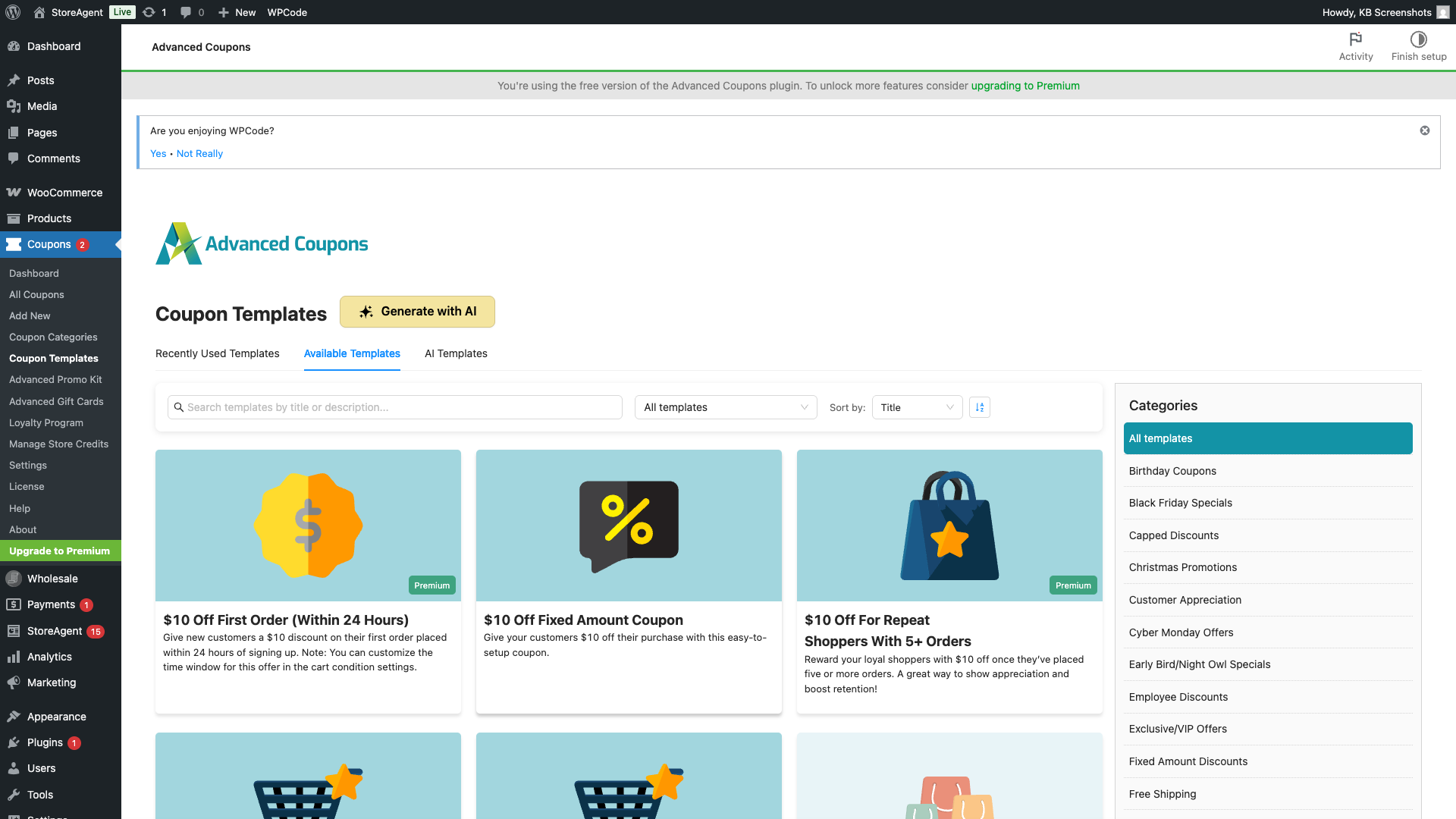
- Go to Coupons → Coupon Templates in your WordPress admin.
- Click the Generate with AI button at the top of the page.
Step 3: Describe the coupon you want
A modal titled Generate Coupon with AI opens. This is where you describe the promotion in plain English.
- In the prompt textarea, type a clear description of the coupon you want. Aim for 10 to 2,000 characters — short prompts get rejected, long ones get truncated.
- Use the Example prompts below the textarea if you need inspiration.
- Click Generate with AI.
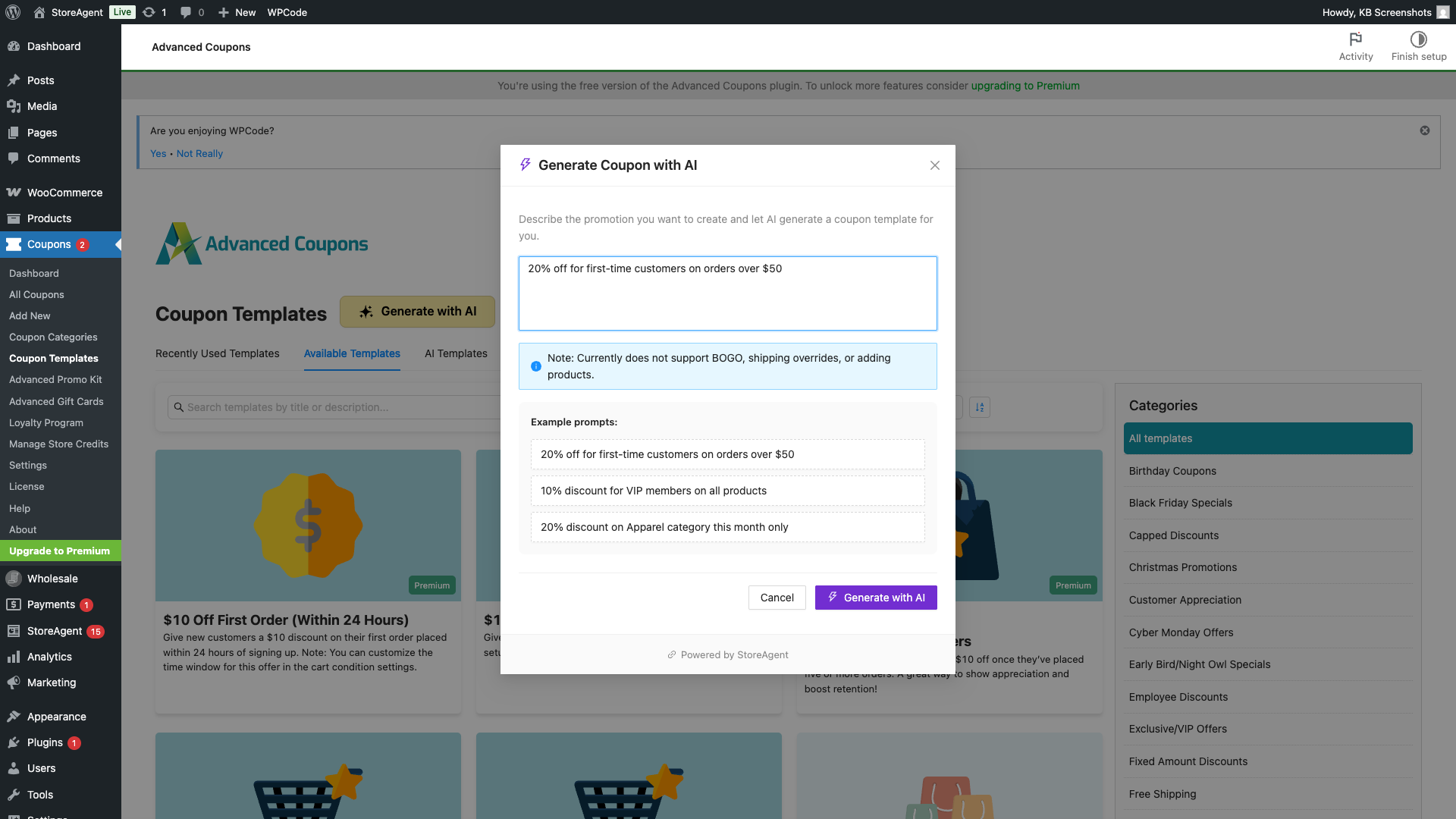
While the AI works, the button changes to Generating… and the modal stays open. When it finishes, the modal closes and a generated template is ready in the editor.
Limitations: The generator currently doesn’t support BOGO rules, shipping fee overrides, or adding free products. Build those manually in the coupon editor after generation if you need them.
Step 4: Review the generated coupon
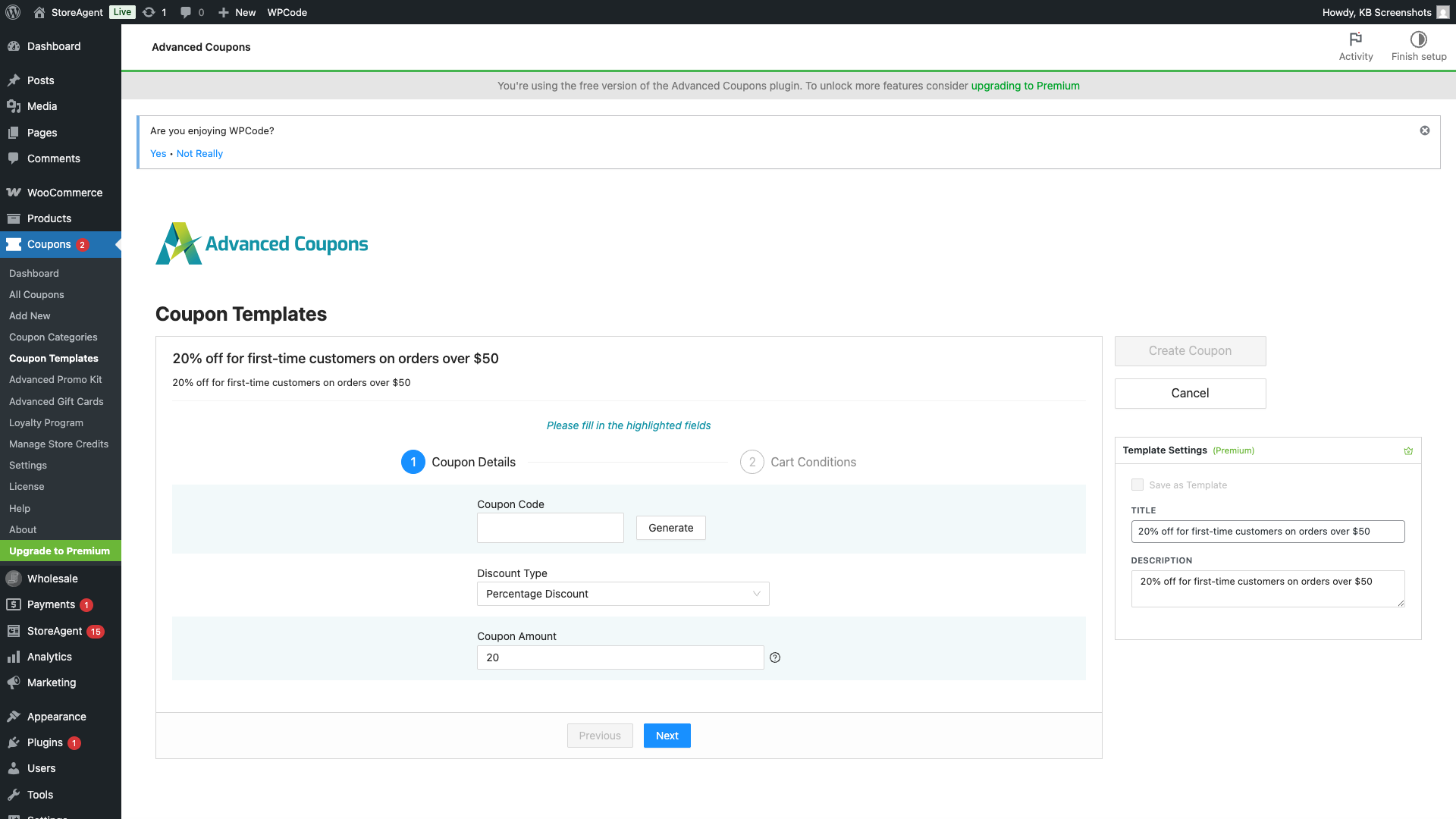
The generated template lands in the standard Advanced Coupons template editor with fields pre-filled — coupon type, discount value, cart conditions, customer-role restrictions, expiry, and so on. Nothing is created yet; you can change any field before saving.
- Walk down the template and adjust anything that doesn’t match what you had in mind.
- Pay particular attention to Cart Conditions and customer-targeting rules — those are the most prompt-dependent fields.
- When the template looks right, click Continue with AI Template to lock it in as your starting point.
Step 5 (optional, Premium): Save the template for reuse
If you want to reuse this template later — for a recurring promotion, or as a starting point for similar coupons — save it to your AI Templates library.
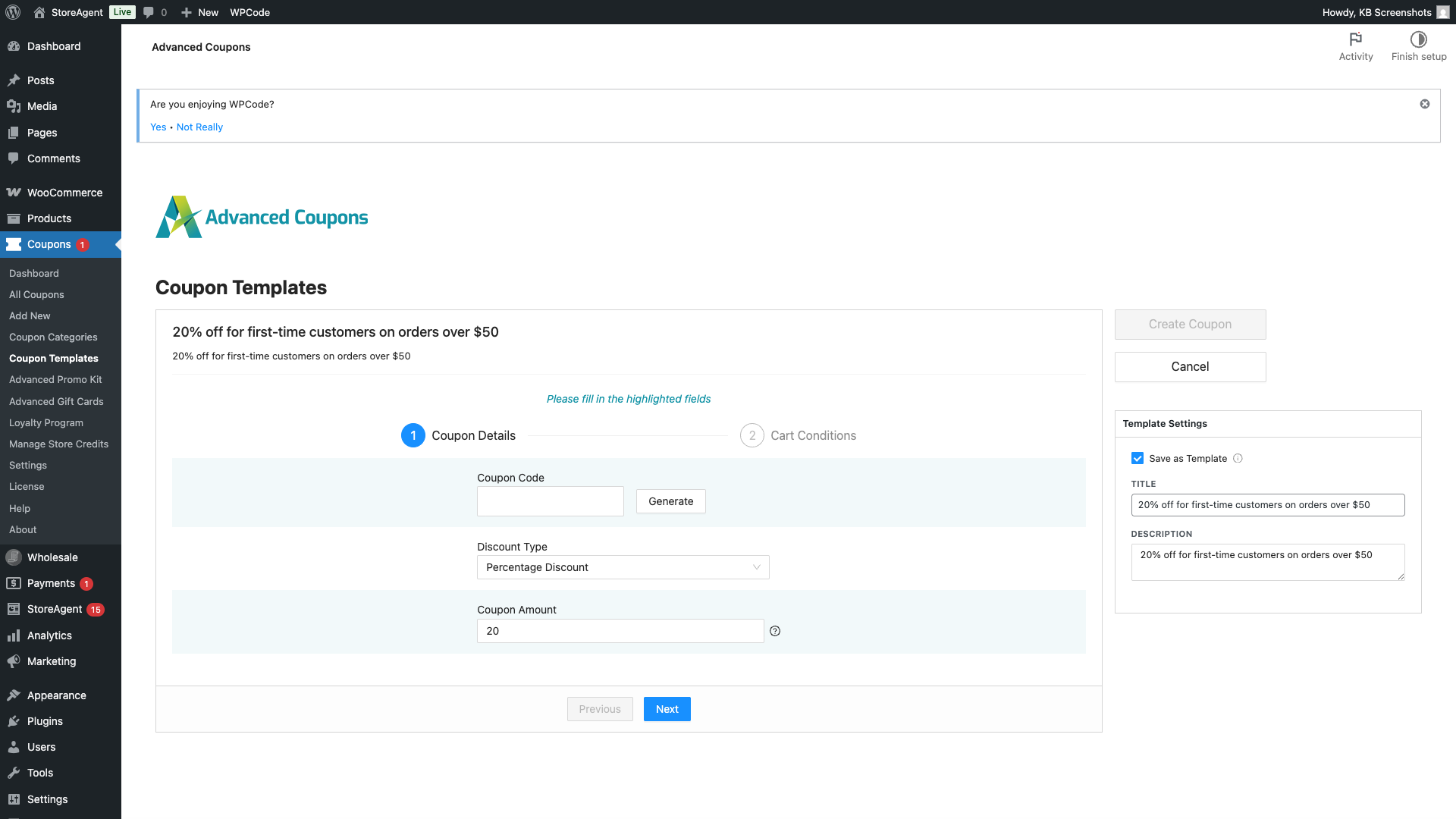
- Click Save as Template on the AI-generated template.
- Enter a Title for the template (for example, “First-time buyer 20% off”).
- Optionally enter a Description to remind future-you what this template is for.
- Click Save.
Saved templates appear on the AI Templates tab of the Coupon Templates page. Each card shows the title, description, the AI Generated badge, a Use Template button to reuse it, and a Delete button.
If you’re on Advanced Coupons Free, Save as Template opens an upsell instead of saving:
Save Your AI Generated Templates — Upgrade to Advanced Coupons Premium to save your AI-generated coupon templates for reuse and easily manage them all in one place.
Free users can still generate coupons every time, but the template only lives in memory for an hour and isn’t saved permanently.
Step 6: Create the coupon
Whether or not you saved the template, the final step is the same. From the template editor:
- Make any last edits.
- Click Create Coupon at the bottom of the template.
The coupon is created in WooCommerce and appears in Coupons → All Coupons, just like any other Advanced Coupons coupon. From here, edit, schedule, restrict, or duplicate it the same way you would a hand-built coupon.
Troubleshooting
The “Advanced Coupons: AI Coupon Generator” card is missing from StoreAgent → Settings → AI Content Tools
Install and activate Advanced Coupons (Free is enough). The integration card only renders when Advanced Coupons is active.
Clicking Generate with AI does nothing, or shows “Failed to generate coupon. Please try again.”
Confirm StoreAgent is connected to your StoreAgent.ai account at StoreAgent → Dashboard. The generate endpoint returns a 400 error if the store isn’t connected. If you’re connected and still see the error, your prompt may have triggered a server-side validation failure — try a different phrasing, or remove unsupported features (BOGO, shipping overrides, product gifts).
“Please provide a more detailed description (at least 10 characters)”
Your prompt is too short. Add more detail — what discount type, who it’s for, any minimum spend or category restriction.
My prompt was too long and got rejected
Prompts are capped at 2,000 characters. Trim it to the essentials — the AI doesn’t need every edge case spelled out.
The Save as Template button shows an upsell instead of saving
Template storage is a Premium feature. Either upgrade to Advanced Coupons Premium, or use the Continue with AI Template flow each time you need the coupon.
A saved template won’t apply correctly when I try to use it
Generated templates can be edited before reuse. Open the saved template, click Use Template, then walk through Cart Conditions and customer restrictions — those are the most likely fields to need a manual tweak.
Frequently asked questions
Is the AI Coupon Generator AI Task the same as the AI Coupon Description Generator?
No. The Coupon Description Generator writes marketing copy for a coupon you already have. The AI Coupon Generator AI Task creates a new coupon template from a prompt. They’re separate AI Tasks, configured independently in StoreAgent → Settings → AI Content Tools.
Does this AI Task work with the StoreAgent chat widget?
The chat widget’s coupon offering feature uses the same underlying AI infrastructure but is a separate feature with its own settings — see How to use AI Chat coupon offering. The Coupon Generator AI Task documented here is invoked from the Advanced Coupons admin, not from chat.
Do I need Advanced Coupons Premium?
No, the Free plugin is enough to generate coupons. Premium adds permanent template storage (the AI Templates tab) and template reuse.
How long does the AI-generated template stick around if I don’t save it?
Roughly one hour. The unsaved template is stored per WordPress user and auto-expires after 3,600 seconds. After that, you’ll need to regenerate from a prompt.
Can multiple admins each have their own pending template?
Yes — pending templates are scoped per WordPress user, so admins don’t overwrite each other’s in-progress generations.
What features can the AI Task NOT generate?
BOGO rules, shipping-fee overrides, and “add a free product” actions are not currently supported by the generator. Build those manually in the coupon editor after the template lands.
Need help?
If you have a question or run into any issues, we’re here to help.
- Premium users: Open a support ticket
- Free users: Visit our community forum

