Your chat assistant talks to more shoppers in a week than you could in a month. Until now, you had no quick way to know how those conversations went. Shoppers could give a reply a thumbs up or a thumbs down, but those ratings sat in the StoreAgent backend and nothing ever read them back.
Now you can ask. Connect Claude or ChatGPT to your store using the WooCommerce MCP and ask how shoppers rated the chat this week. You get the thumbs up and thumbs down counts, how many replies were escalated to a human, and the ten questions shoppers asked most often.
In this article, we’ll cover what the summary tells you, how to ask for it, how date ranges work, how to export the conversations behind the numbers, and what you need switched on first. So, let’s get started!
Table of Contents
- What The Feedback Summary Tells You
- Ask Claude Or ChatGPT In Plain English
- Pick Any Date Range
- Where To Find It In Your Settings
- Export The Conversations Behind The Numbers
- Turn On Customer Feedback First
- Your Shoppers’ Privacy Stays Intact
- Get Started
- Frequently Asked Questions
What The Feedback Summary Tells You
The summary is a new StoreAgent ability called Get chat feedback summary. When your assistant runs it, it gets back five things:
- Positive ratings. How many times shoppers gave a reply a thumbs up.
- Negative ratings. How many times they gave a thumbs down.
- Total ratings. The two added together.
- Escalations. How many AI replies escalated the conversation to a human.
- Top questions. Up to ten of the questions shoppers asked most, with a count for each, most frequent first.
With those numbers you can see whether shoppers like the answers, whether thumbs down ratings are rising, how often the assistant hands a chat to your team, and what people keep asking about.
The last one is often the most useful. If “do you ship to Canada?” sits at the top of the list every week, that belongs on your product pages and in your shipping FAQ, not only in the chat.
Ask Claude Or ChatGPT In Plain English
There is no new report screen to learn. The summary is built for the assistant you already use. Once Claude or ChatGPT is connected to your store through StoreAgent’s MCP connection, you ask in your own words:
- “How did shoppers rate the chat assistant this month?”
- “What were the most common questions in the chat last week?”
- “How many chats escalated to a human since the 1st?”
The assistant picks the right ability, runs it against your store, and reads the numbers back to you. Because it is a normal conversation, you can keep going. Ask it to compare this week to last week, or to draft an FAQ entry for the top three questions.
If you have not connected an assistant yet, our guide to connecting Claude and ChatGPT to your store walks through it.
Pick Any Date Range
By default the summary covers everything in your chat history. You can also give a start date, an end date, or both. Say “last week” or “between 1 and 15 September” and the assistant sends the dates for you.
The counts come from conversations that are still in your chat history. Chat history is cleared after about 30 days without activity, and a rating on a cleared conversation can no longer be tied to your store. So the summary gives you a clear view of roughly the last month. For a longer trend, ask for the summary regularly and keep the numbers.
Where To Find It In Your Settings
Go to StoreAgent > Settings > MCP > Abilities and select StoreAgent in the source list. Search for “chat” and you will see Get chat feedback summary next to the other chat abilities.
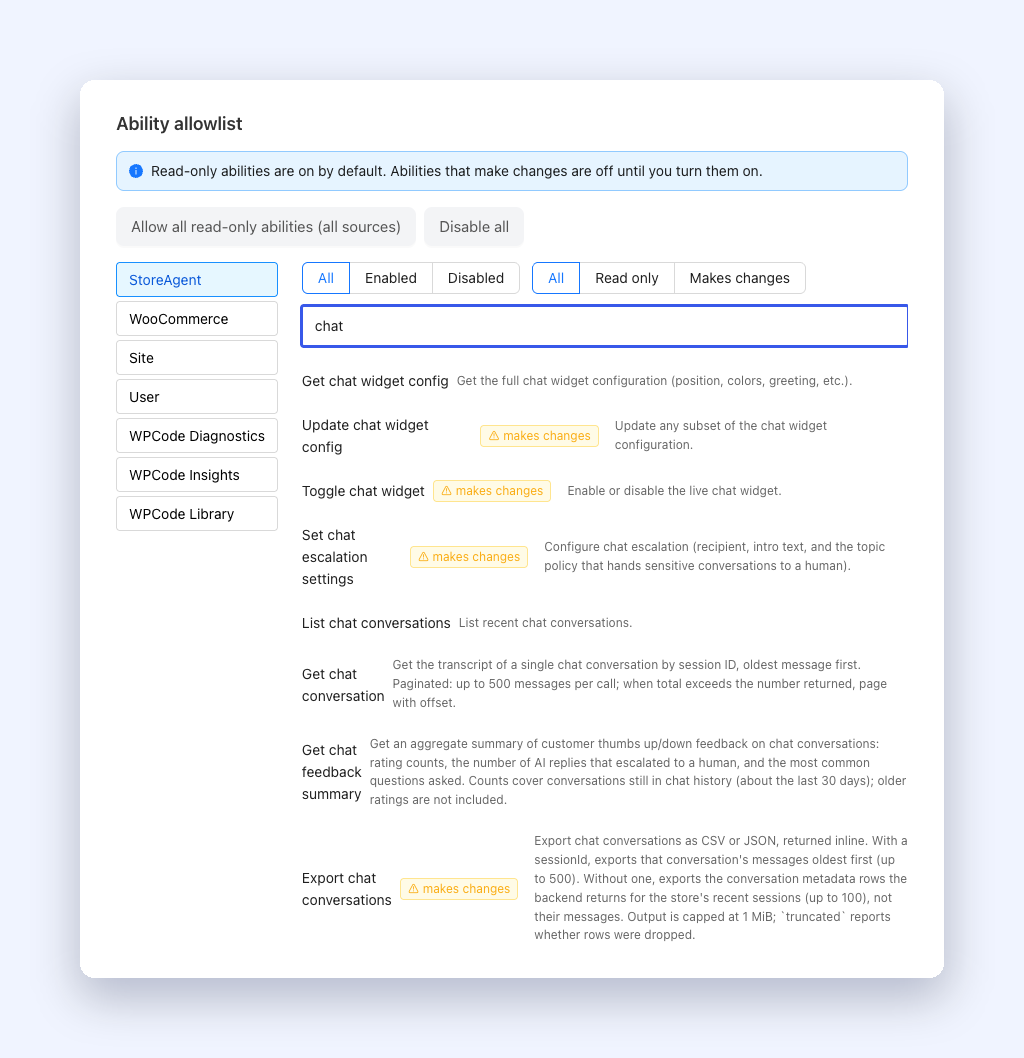
Like every StoreAgent ability, it is on by default. Nothing to switch on. It also works on a read-only connection, which is the setting we recommend for your first week with a connected assistant. For more on the allowlist, see our post on the MCP settings and ability browser.
Export The Conversations Behind The Numbers
The summary tells you what is happening. Sometimes you want to read the actual chats. This release adds a second ability for that: Export chat conversations.
Ask your assistant for an export and it returns the data as CSV or JSON:
- Without a conversation ID, you get the list of recent conversations for your store, up to 100 rows. This is the conversation details, not every message.
- With a conversation ID, you get that one full transcript, oldest message first, up to 500 messages.
Exports are capped at 1 MB. If rows had to be dropped to fit, the export says so. CSV files are made safe to open in Excel or Google Sheets, so a shopper’s message can never run as a spreadsheet formula.
Export is labelled “makes changes” in the ability allowlist, so it needs a connection approved for Read and write. A read-only connection cannot see it or call it.
Turn On Customer Feedback First
The summary can only count ratings that shoppers have given. Rating collection is off by default, so switch it on if you have not already:
- Go to StoreAgent > Settings > AI Chat.
- Open the Customer Feedback tab.
- Turn on Enable Customer Feedback.
- Optionally, turn on Request Reason on Negative Feedback to ask shoppers what went wrong when they give a thumbs down.
- Adjust the Feedback Prompt Text and Skip Button Text if you want your own wording.
- Click Save Feedback Settings.
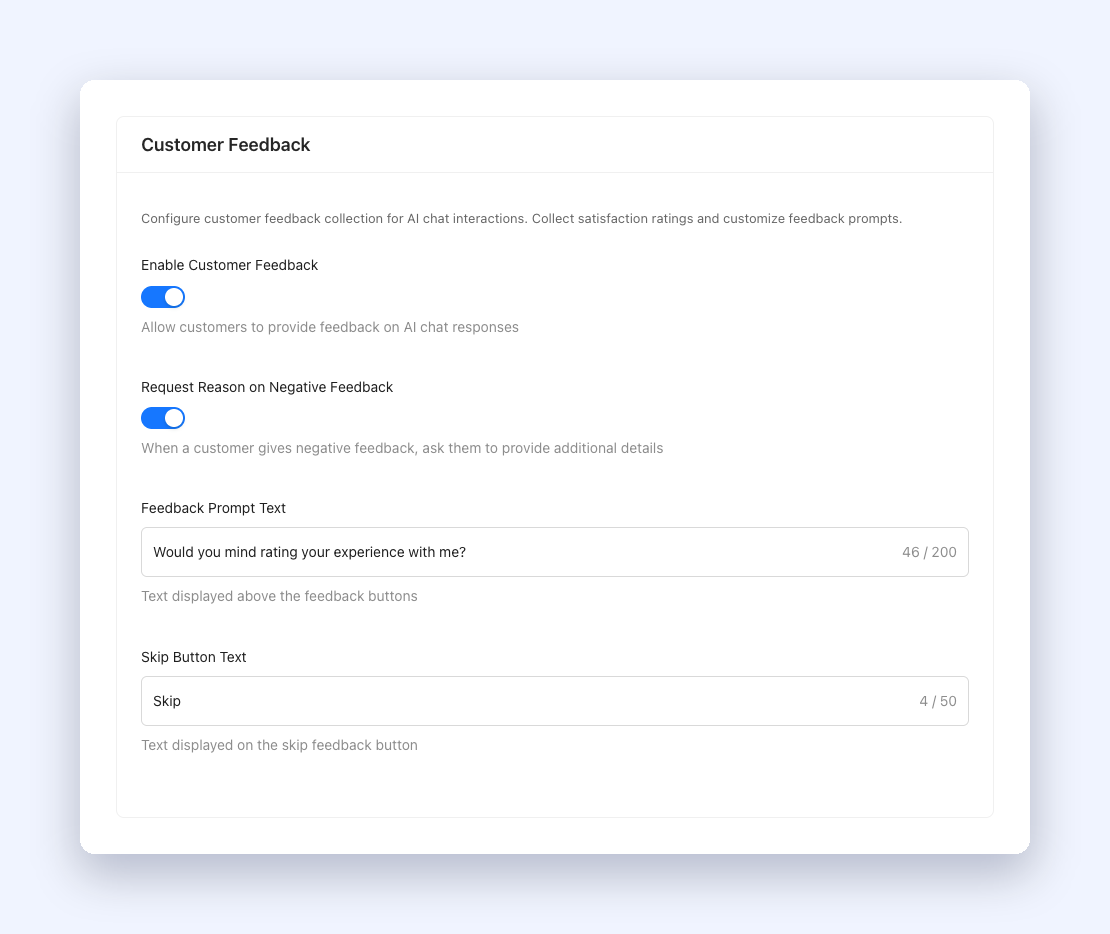
Once feedback is on, the assistant offers the thumbs up and thumbs down buttons when a shopper’s question is fully answered. The escalation count and the top questions do not depend on this setting. They come from the conversations themselves.
Your Shoppers’ Privacy Stays Intact
The summary is scoped to the store that asks for it. It is tied to your store’s own credentials, so one store can never see another store’s ratings, even when several stores share an account.
The top questions list returns the question text and a count, with no names, account details or IP addresses. Questions are grouped so small differences in capitals or spacing count as one question. Any email address a shopper typed is replaced with [email] before the question leaves our servers.
Only administrators and shop managers can run the ability.
Get Started
If your assistant is already connected, you have nothing to set up. Ask it how your chat did this month. If rating collection is off, switch on Enable Customer Feedback today so next month’s summary has real numbers in it.
New to StoreAgent? It adds an AI chat assistant to your WooCommerce store that answers product, order and policy questions around the clock. See the plans and start with the free one.
Frequently Asked Questions
Do I need to connect Claude or ChatGPT to use this?
Yes. The summary is an MCP ability, so an AI assistant runs it for you. There is no separate report page for it in wp-admin.
Why are my counts all zero?
Most likely Enable Customer Feedback is off, or shoppers have not rated any replies yet. The top questions list can still show results, because it is built from the questions themselves.
How far back does the summary go?
About 30 days. It counts conversations that are still in your chat history, and older ratings are not included.
Does running the summary use my AI allowance?
Each call counts as one use against your plan’s AI allowance, the same as other StoreAgent ability calls over MCP.
Can someone else see my store’s feedback?
No. The summary only returns data for the store that asks, and only administrators and shop managers can run it.
Why can’t my assistant see Export chat conversations?
Your connection is probably read-only. Export is labelled “makes changes”, so only a connection approved for Read and write can use it. Reconnect the assistant with that access when you are ready.