A lot of stores keep their most useful product details outside the main description. Care instructions, warranty terms, course dates, sizing notes, delivery lead times. They sit in custom fields, often built with Advanced Custom Fields (ACF), and your theme shows them on the product page.
Your StoreAgent WooCommerce AI chatbot does not read those fields until you tell it which ones to use. When a shopper asks about something that only lives in a custom field, the assistant cannot find it, and it looks like the AI “can’t read” your page.
The fix is one setting: Metadata Keys to Include. This release rewrites its guidance so you can see what the AI reads by default, what you need to add, and how to get it right with ACF.
In this article, we’ll cover what the AI reads out of the box, how to add your custom fields, the ACF detail that trips people up, how to update products already in AI memory, and the current limits. So, let’s get started!
Table of Contents
- What The AI Reads By Default
- Add Your Custom Fields In Two Minutes
- Using ACF? Use The Field Name
- Update Products Already In AI Memory
- See It In The Chat
- Good Fields To Add
- Current Limits
- For Developers
- Get Started
- Frequently Asked Questions
What The AI Reads By Default
For products, StoreAgent sends each product’s name, descriptions, price, image, categories, tags, attributes and variation details to AI memory.
For other post types, such as posts and pages, it sends the title, the content and any post categories.
Custom fields are not on either list. StoreAgent does not add them automatically, which keeps each item’s data focused on what you choose. If a custom field holds something shoppers ask about, you add it yourself.
Add Your Custom Fields In Two Minutes
- Go to StoreAgent > Settings > AI Chat.
- Open the Post Types tab.
- Expand the post type you want, for example Products.
- In Metadata Keys to Include, type the keys of the fields you want the AI to read. Separate multiple keys with commas, for example
care_instructions, warranty_period. - Click Save Post Types Settings.
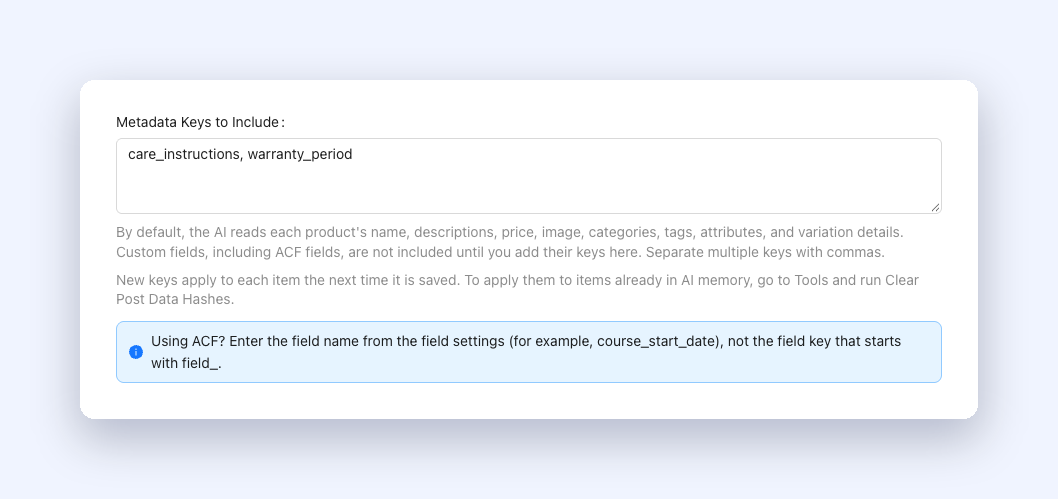
Each post type has its own list. Keys you add under Products apply to products only. Add keys under Posts or Pages if your blog posts or pages use custom fields too.
Using ACF? Use The Field Name
ACF gives every field two identifiers. The field key looks like field_64f1a2b3c4d5e and ACF uses it internally. The field name is the one you typed when you created the field, such as course_start_date.
Enter the field name. StoreAgent reads the value stored under that name on the product or post, and that is the name ACF saves it under. The settings screen now shows this as a tip right under the field, so you do not have to remember it.
Update Products Already In AI Memory
New keys apply to each item the next time it is saved. For a product you edit often, that happens on its own.
For everything else, StoreAgent has a tool:
- Go to StoreAgent > Settings > Tools.
- Find Clear Post Data Hashes.
- Click Clear Post Hashes and confirm.
This clears the record of what StoreAgent last uploaded, so every item goes back to AI memory during the next sync with your new fields included. The Sync Now button on a post type does not do this. It will not pick up new keys for items that are already indexed.
A full re-upload uses AI usage, so add all the keys you need first, then run the tool once.
See It In The Chat
Here is a test product with two custom fields: care_instructions and warranty_period. Neither appears in the product description. After adding both keys and saving the product, a shopper asks how to look after it and what warranty it has.
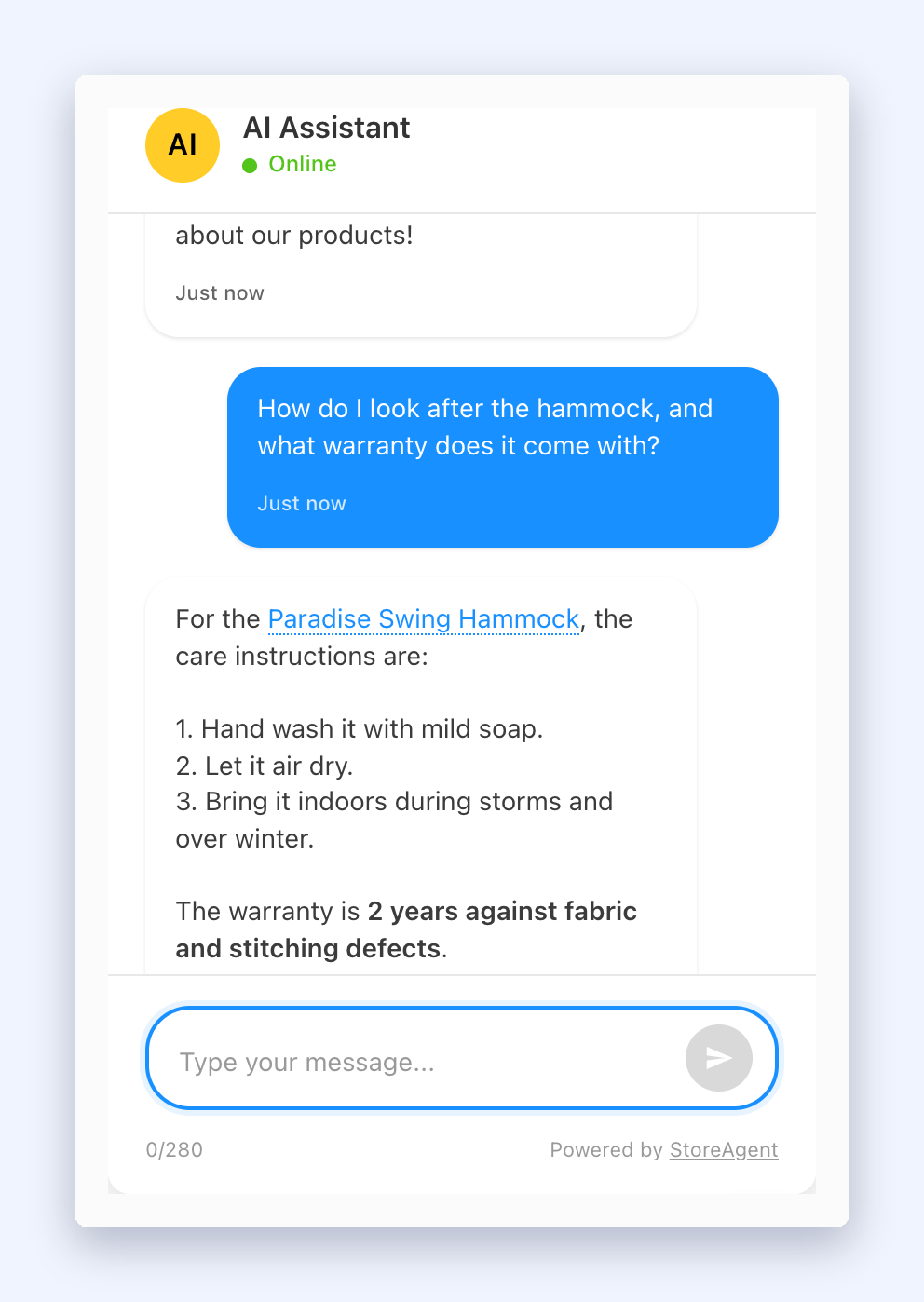
The assistant answers both parts from the custom field values and links back to the product.
Good Fields To Add
Think about the questions shoppers ask that your descriptions do not answer. Common examples:
- Care and use. Washing instructions, assembly notes, storage.
- Warranty and returns. Per-product warranty terms or exceptions.
- Dates and places. Course start dates, event locations, pickup windows.
- Specs. Materials, dimensions, compatibility, certifications.
- Lead times. Made-to-order or shipping estimates stored per product.
Skip fields that only matter to your back office, such as supplier codes or internal notes. Everything you add becomes something the assistant can repeat to shoppers.
Current Limits
- Variation fields. StoreAgent reads the keys you add from the main product. Custom fields stored on individual variations are not read yet.
- Changes without a save. StoreAgent updates an item in AI memory when the item is saved. If an import or another plugin changes a custom field without saving the product, run Clear Post Data Hashes afterwards.
We are working on both, and we will update this post when they ship.
For Developers
If you need more control than a key list, use the saai_prepare_post_data_metadata filter. It passes a metadata array, the post ID and the post type. When your callback returns a non-empty array, StoreAgent sends that array and skips the keys from the settings screen, so add any configured keys you still want.
Get Started
Open StoreAgent > Settings > AI Chat > Post Types, expand Products, and list the custom fields your shoppers ask about. Save, run Clear Post Data Hashes once, and ask your chat a question only a custom field can answer.
New to StoreAgent? It adds an AI chat assistant to your WooCommerce store that answers product, order and policy questions around the clock. See the plans and start with the free one.
Frequently Asked Questions
Does StoreAgent read ACF fields automatically?
No. Add each field’s name under Metadata Keys to Include for the post type that uses it.
Where do I find an ACF field name?
Open the field group in ACF and look at the field’s settings. Use the Field Name, not the key that starts with field_.
I added a key but the chat still does not know the answer. Why?
The product has not been re-uploaded yet. Save the product, or run Clear Post Data Hashes under Tools to re-upload every item.
Can I add custom fields for posts and pages too?
Yes. Each post type in the Post Types tab has its own Metadata Keys to Include field.