
Thin or generic product descriptions are easy for shoppers to scroll past, and writing a good one for every product takes time. The Product Description AI Task in StoreAgent, the WooCommerce AI agent, writes a title and a full, SEO-friendly description from a short set of questions you answer on the product edit screen.
This article shows you how to turn it on, set your defaults, use the description wizard, and get alerts about products with short descriptions.
Prerequisites
- StoreAgent is installed, active, and connected to your account.
- You have at least one WooCommerce product.
- Your plan has AI Tasks left for the month.
Step 1: Turn on the Product Description AI Task
The AI Task needs to be on before the wizard shows up on your products.
- In your WordPress dashboard, go to StoreAgent > Settings.
- Stay on the AI Content Tools tab.
- Find the Product Description AI card.
- Switch the toggle on. It is green when the AI Task is on.
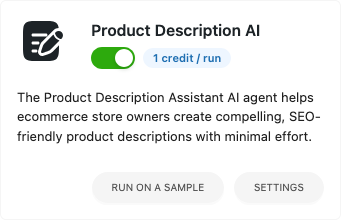
Each time you generate a description, it uses 1 AI Task from your monthly allowance.
Step 2: Set your default writing options
Your defaults pre-fill the wizard on every product, so you do not have to pick the same tone and audience each time. Set them once, then change them per product only when you need to.
- On the Product Description AI card, click Settings.
- Open the Settings tab.
- Fill in the options below.
- Click Save Changes.
- Writing tone default options: Tick the tones that match your brand voice, such as Friendly, Professional, or Luxurious.
- Age focus default options: Tick the age groups your products are made for.
- Target audience default options: Tick the groups you sell to, such as Men, Women, or Outdoor Enthusiasts.
- Refund guarantee information: Add your refund policy or guarantee text so it can be included in descriptions.
- Description length: Choose Short, Medium, or Long.
- Language: Pick the language for generated descriptions. Choose “Default language” to use your WordPress default language.
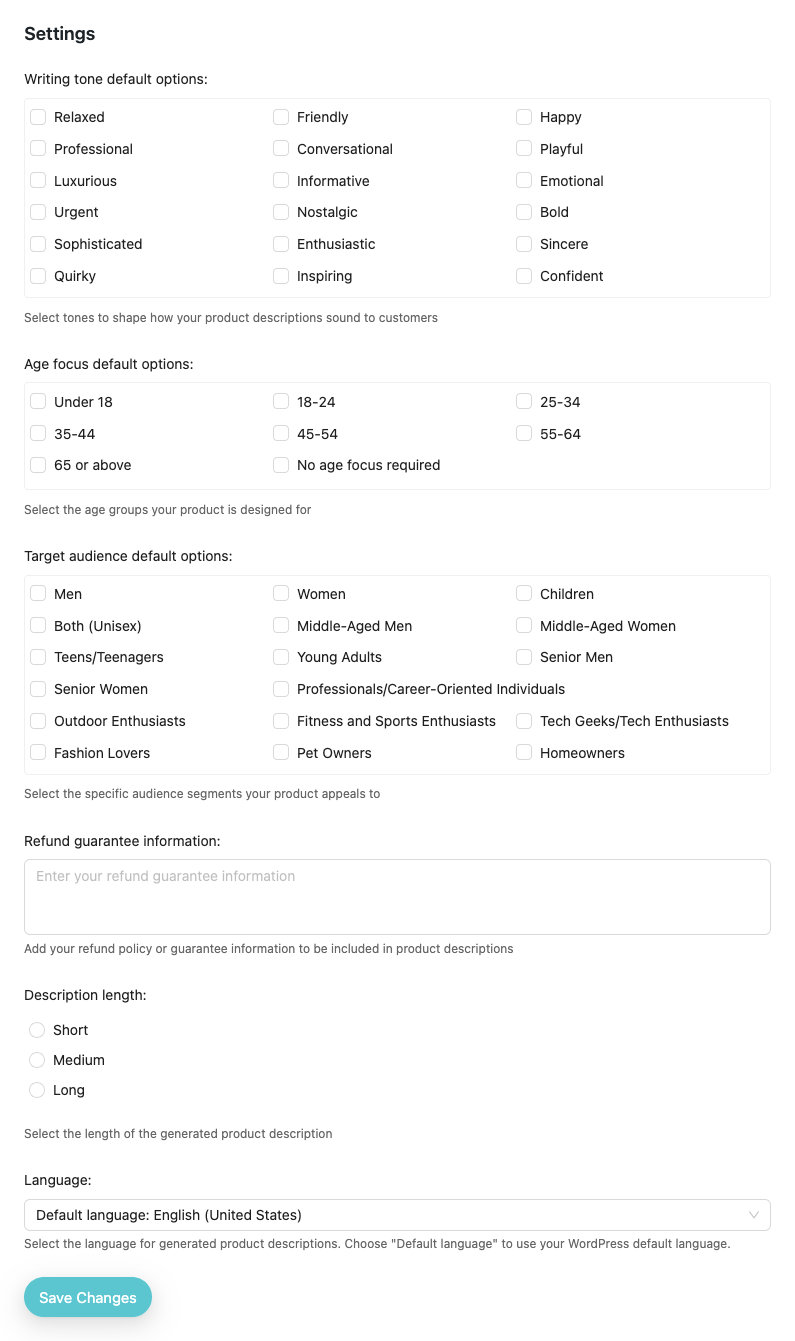
Facts, keywords, sizes, and ingredients are different for every product, so you add them in the wizard instead.
Step 3: Open the description wizard on a product
- Go to WooCommerce > Products.
- Open the product you want to write a description for.
- Find the yellow Generate with AI button under the product title and permalink.
- Click the button. The description wizard opens in a window.

Step 4: Answer the wizard steps
The wizard is a vertical list of 11 steps. The open step shows its questions. The other steps show only their headings. A green dot next to a heading means that step is filled in. A grey dot means it still needs your attention or has not been checked yet.
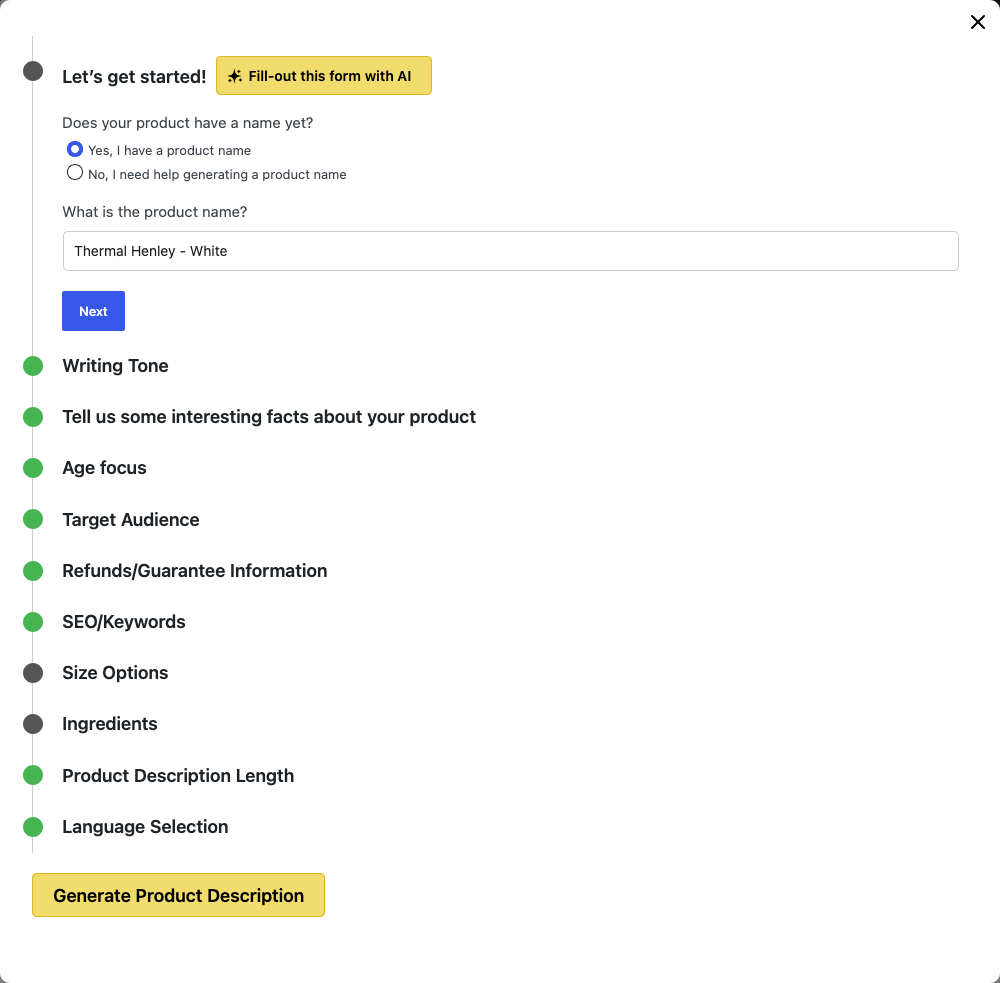
The 11 wizard steps
| Step | Heading | What it asks for | Required |
|---|---|---|---|
| 1 | Let’s get started! | Whether your product has a name yet, and the product name. | Yes |
| 2 | Writing Tone | One or more tones for the copy. | Yes |
| 3 | Tell us some interesting facts about your product | Selling points in your own words. The step says it works best with 3 to 6 facts, and you can add up to 10. Use the plus and minus buttons to add or remove a fact. | Yes, at least one |
| 4 | Age focus | One or more age groups. | Yes |
| 5 | Target Audience | One or more audience groups. | Yes |
| 6 | Refunds/Guarantee Information | A No/Yes switch for “Do you want to include information about a refund/guarantee?”. Choose Yes to show the text box. | No |
| 7 | SEO/Keywords | One or more focus keywords. Type a phrase and press Enter. | Yes, at least one |
| 8 | Size Options | A No/Yes switch for “Does your product have sizes?”. Choose Yes to add sizes. | No |
| 9 | Ingredients | A No/Yes switch for “Does your product have ingredients?”. Choose Yes to add ingredients or materials. | No |
| 10 | Product Description Length | Short, Medium, or Long. | No |
| 11 | Language Selection | The language for the description. | No |
Steps 2, 4, 5, 6, 10, and 11 start with the values from the Settings tab. StoreAgent also remembers the answers you give for each product, so they are there the next time you open the wizard on it.
Move between steps
- Click Next to go forward. The wizard skips steps that are already green and opens the next step that is not.
- Click Back to return to the step before. Step 1 has no Back button, and step 11 has no Next button.
- Click any step heading to jump straight to it.
When you click Next on a required step that is empty, a red message appears under the field. Fill it in to turn the step green.
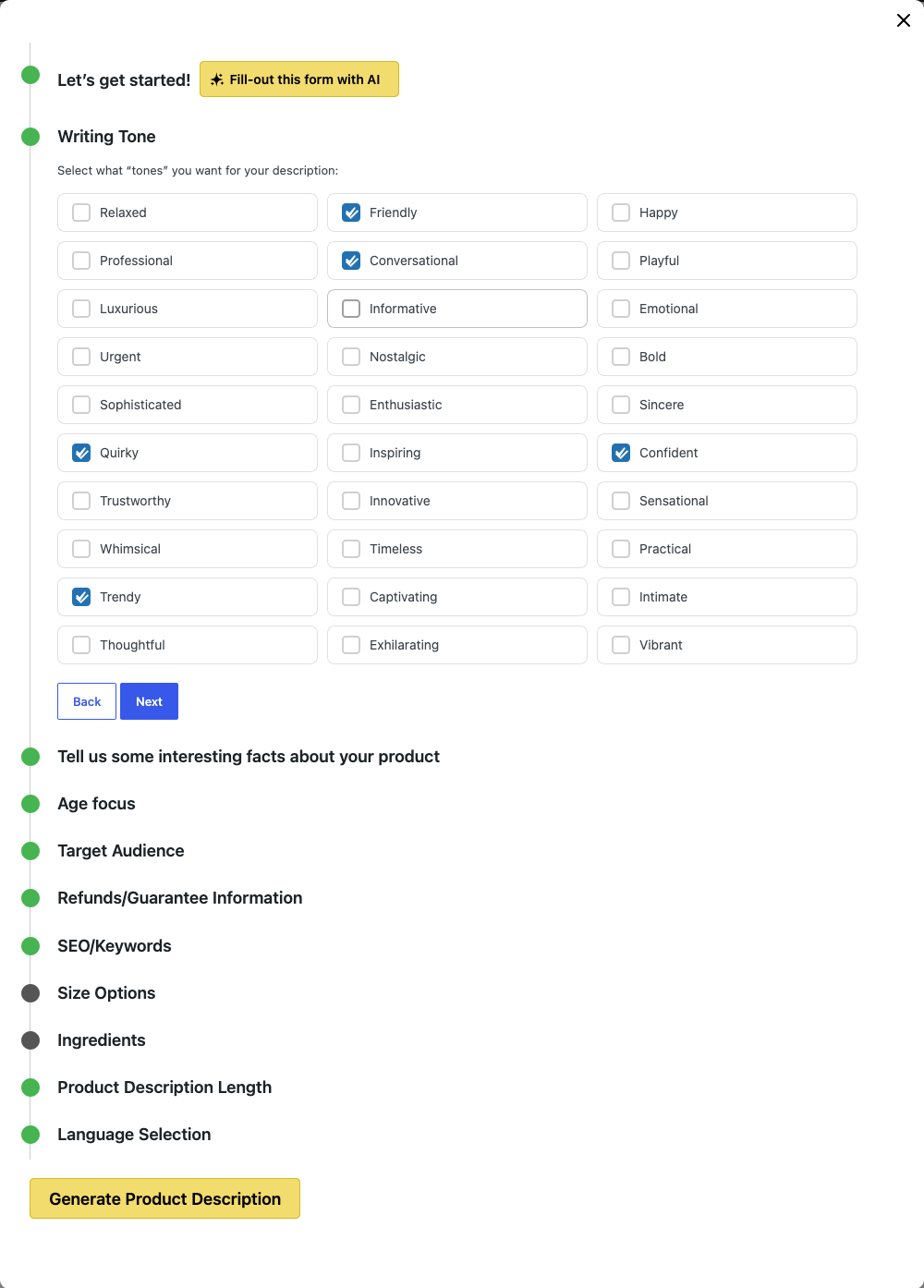
Fill in the product-specific steps with AI
If the product already has description text, you can let the AI read it and answer the product-specific steps for you.
- In step 1, click Fill-out this form with AI.
- Read the confirmation. It says the AI will fill in interesting facts, keywords, size options, and ingredients from the existing description. The other settings come from your Settings tab.
- Click OK. The wizard reloads with the new answers.
- Check the answers and change anything that is wrong.
The button only shows when the product has description text in the editor. The text does not need to be saved yet. StoreAgent runs the same fill-in on its own when you run this AI Task on a product with no saved wizard answers, for example from Bulk Actions.
Step 5: Generate, review, and apply your description
- Click Generate Product Description at the bottom of the wizard. If a required step is empty, the wizard opens that step and shows the red message instead.
- Wait a few seconds while the AI writes. A small message tells you how many AI Tasks you have left this month.
- Read the preview. It shows the new Title and Description.
- Click Apply AI Generated Description to put both into the product editor. Click Go back to change your answers and try again.
- Click Update or Publish on the product to save it.
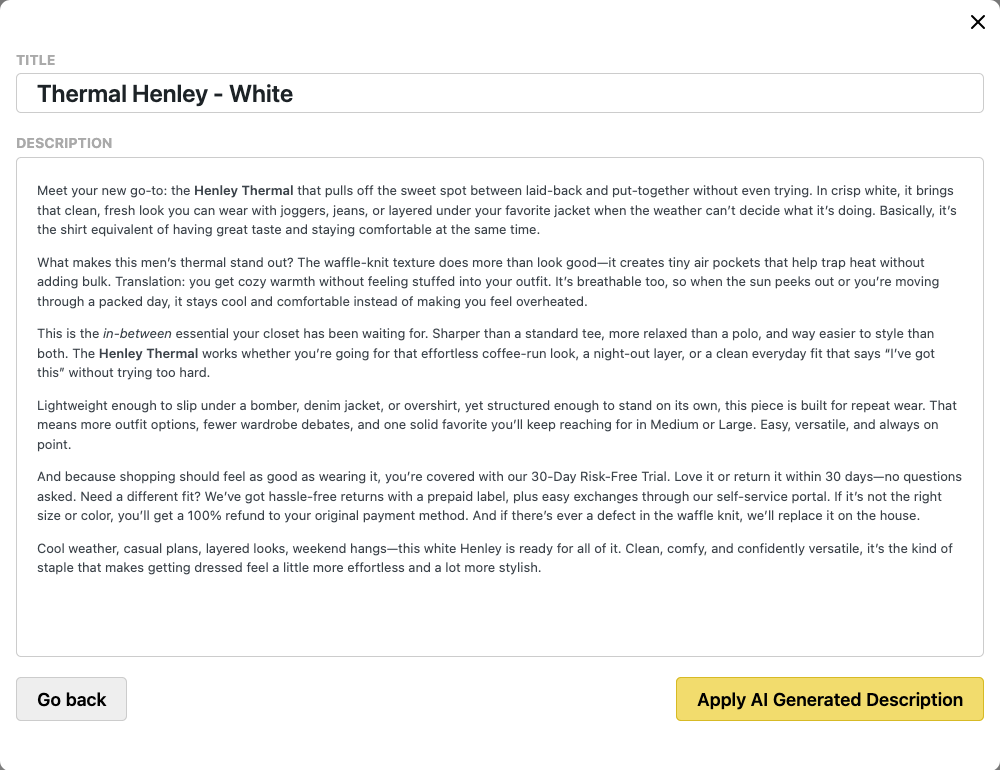
Applying a description does not save the product. Your old text stays live until you click Update.
If the product has no title and no description yet, StoreAgent skips the preview and puts the result straight into the editor.
After you click Go back, a View Preview button appears next to Generate Product Description. Use it to return to the last result without spending another AI Task.
Get alerts for products with short descriptions
StoreAgent can check your catalog on a schedule and tell you which products have a brief main description, so you know where the AI Task will help most.
- Go to StoreAgent > Settings and click Settings on the Product Description AI card.
- Open the Automation tab.
- Use the Main Description Length Automation card to set up the check.
- Click Save Changes.
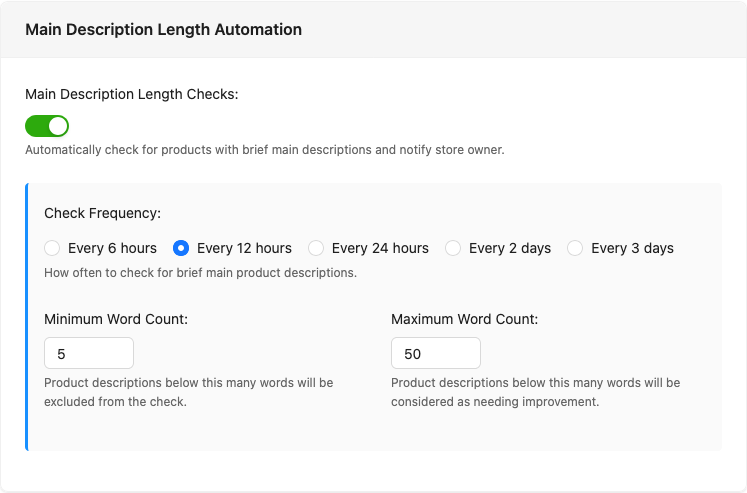
| Setting | Options | Default |
|---|---|---|
| Main Description Length Checks: | On or off | On |
| Check Frequency: | Every 6 hours, Every 12 hours, Every 24 hours, Every 2 days, Every 3 days | Every 12 hours |
| Minimum Word Count: | A number from 0 to 100 | 5 |
| Maximum Word Count: | A number from 1 to 100 | 50 |
The Main Description Length Checks: switch saves as soon as you change it. The other fields only show when the switch is on, and they need Save Changes.
What the check looks at
- It only looks at the main product description, not the short description.
- Each check looks at a random batch of up to 50 published products.
- A product is flagged when its description has at least the minimum number of words and no more than the maximum.
- A product with fewer words than the minimum is skipped. Set the minimum to 0 if you also want to catch products with no description at all.
- A product with more words than the maximum is treated as long enough.
The check does not use any AI Tasks. It runs only while the Product Description AI Task is on.
What you see when a product is flagged
A warning titled Main description is too short appears on StoreAgent > Dashboard, in the Pending decisions & updates section. It names the product and says how many words its description has. Click Expand with AI to open that product in a new tab. The description wizard opens by itself.
Each check adds at most 5 alerts. A product does not get a second alert while its first one is still waiting.
Troubleshooting
The Generate with AI button is missing
Turn the Product Description AI Task on under StoreAgent > Settings > AI Content Tools, then reload the product edit screen. The button only appears on product edit screens.
The Fill-out this form with AI button is missing
Add description text to the product editor, then reload the product edit screen and open the wizard again. The button stays hidden while the product has no description. If you click it with no description, StoreAgent shows a message asking you to add one first.
Generate Product Description opens a step instead of writing
Fill in the step the wizard opened. A red message tells you what is missing. Steps 1, 2, 3, 4, 5, and 7 are required, so each needs an answer before the AI can write.
The description is too generic
Add more detail in the wizard. Give 3 to 6 interesting facts, add focus keywords, and tick the tones that fit your brand. The more specific your answers are, the more specific the copy is.
I applied a description but the product page still shows the old one
Applying only fills the product editor. Click Update on the product to save it.
I see an “AI tasks limit reached” message
You have used all the AI Tasks in your plan for this month. Use the upgrade link in the message to move to a bigger plan, or wait for your allowance to reset.
I am not getting short description alerts
- Check that Main Description Length Checks: is on in the Automation tab and that the Product Description AI Task is on.
- Check that the products are published.
- Check that the word count of each description falls between your minimum and maximum. Set the minimum to 0 to include empty descriptions.
- Remember that each check runs only on a random batch of products, at most 5 alerts are added per check, and the next check runs after your chosen interval.
- Look for an older alert for the same product on the Dashboard. A product does not get a new alert while an earlier one is still waiting.
Need help?
If you have a question or run into any issues, we’re here to help.
- Premium users: Open a support ticket
- Free users: Visit our community forum

