
Worried your AI chat assistant might point shoppers toward a rival tool? StoreAgent lets you build a competitor blocklist so the assistant never mentions, recommends, or compares the brands you name. This article shows you where to add competitors, how the aliases and domain fields work, and what the assistant does once a name is on the list. You will need StoreAgent with the AI Chat widget already set up.
How the competitor blocklist works
The blocklist is part of your AI Chat settings. Each entry is a competitor you want the assistant to stay away from. When a shopper asks something that would normally surface a rival, the assistant will not mention, recommend, or compare any competitor you have listed.
Alongside the competitor name, you can add alternate spellings and a website domain. Alternate spellings catch the different ways people write a brand, and the domain helps catch link mentions to that competitor’s site. The list is sent to the AI whenever it answers a chat, so changes take effect on the next conversation after you save.
By default the blocklist is empty, so no competitors are blocked until you add them.
Before you start
- StoreAgent installed and connected to your store.
- The AI Chat widget set up and enabled. If you have not done this yet, see Getting Started with StoreAgent Chat.
How to add a competitor to the blocklist
Follow these steps in your WordPress admin.
- Go to StoreAgent → Settings.
- Open the AI Chat tab, then the General sub-tab.
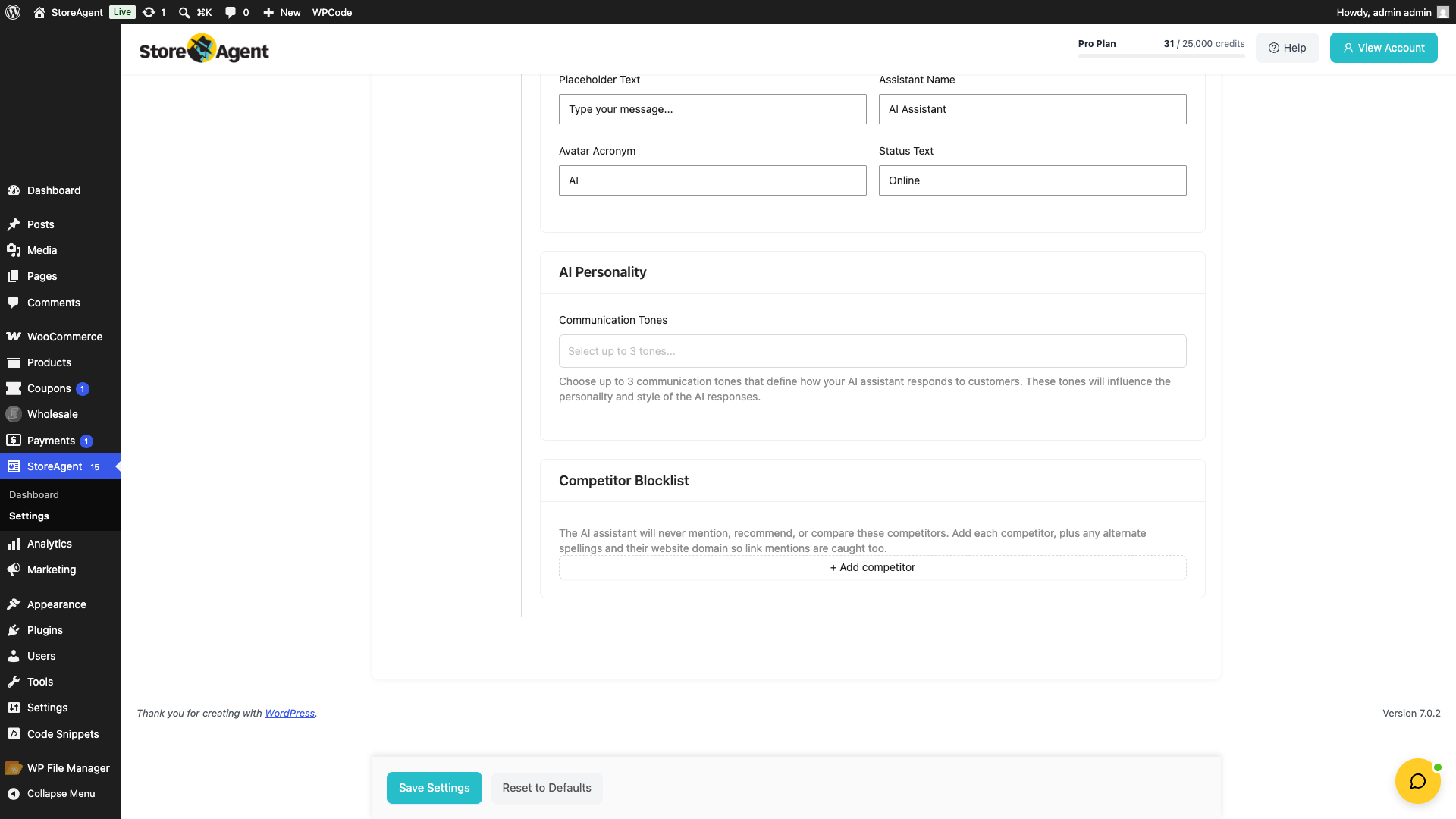
- Scroll to the Competitor Blocklist section.
- Click + Add competitor to create a new row.
- In the Competitor name field, type the competitor’s name, for example Tidio.
- Optional: in Alternate spellings, add any other ways the name is written, such as Tidio Chat or TidioLive. Press Enter after each one.
- Optional: in Domain (optional), add the competitor’s website, for example tidio.com.
- Repeat for any other competitors you want to block.
- Click Save Settings.
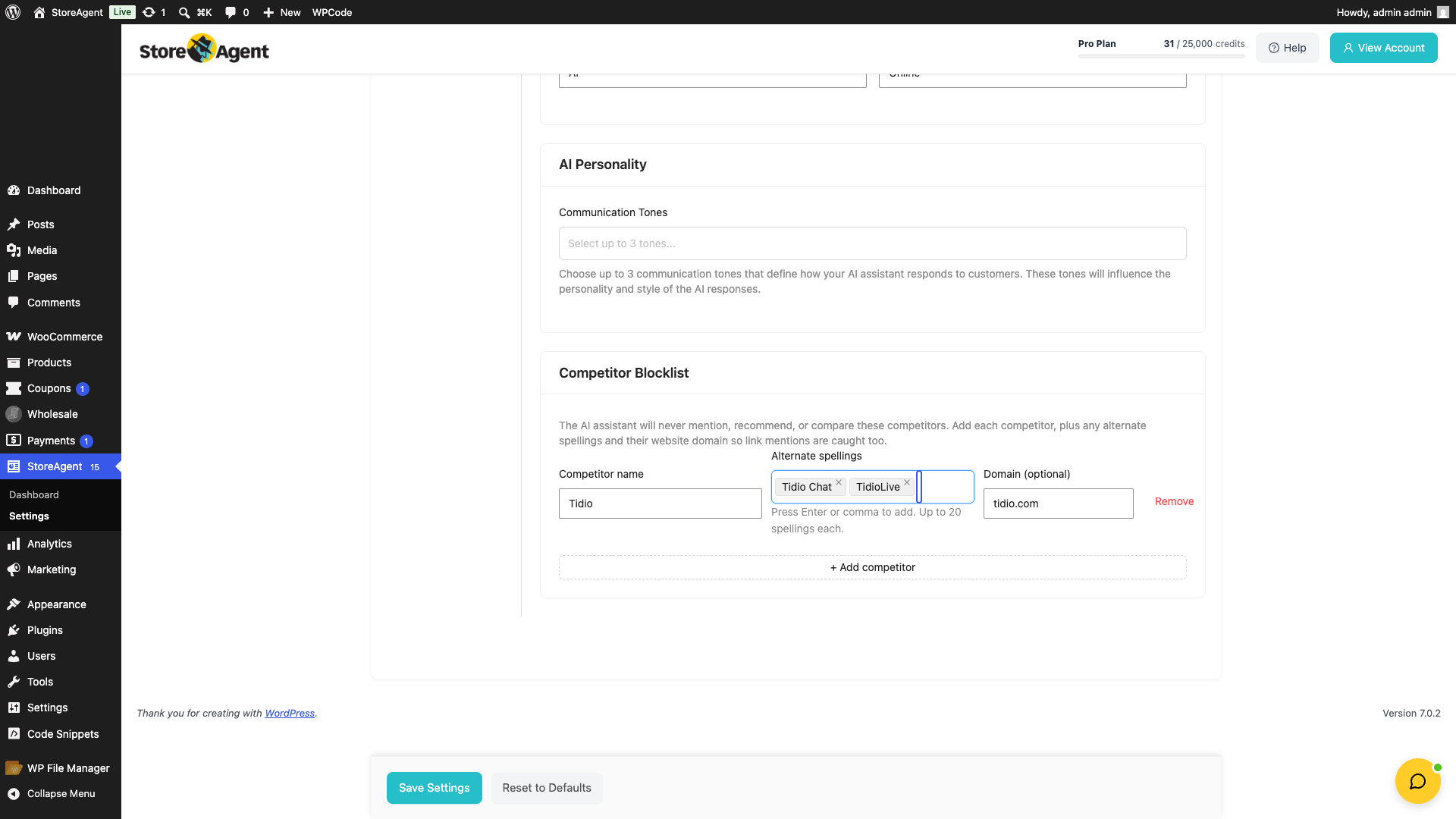
To remove a competitor, click Remove on that row, then click Save Settings again.
Blocklist limits
The blocklist has a few limits so it stays fast to load and send to the AI.
| Limit | Value |
|---|---|
| Competitors per store | 100 |
| Alternate spellings per competitor | 20 |
| Characters per name, spelling, or domain | 128 |
Once you reach 100 competitors, the + Add competitor button is disabled. If you add more than 20 alternate spellings to a single competitor, only the first 20 are kept.
Frequently asked questions
Do I have to fill in the alternate spellings and domain?
No. Only the competitor name is required. The alternate spellings and domain are optional, but they help the assistant catch more ways a competitor might come up, including links to their site.
When do my changes take effect?
After you click Save Settings, the updated list is used the next time the assistant answers a chat.
What does the assistant do if a shopper asks about a blocked competitor?
It will not mention, recommend, or compare that competitor. Instead it keeps the conversation focused on your store and products.
Does this block competitors from appearing anywhere else on my site?
No. The blocklist only controls what the StoreAgent AI Chat assistant says. It does not affect your content, search results, or other plugins.
What’s next
Need help?
If you have a question or run into any issues, we’re here to help.
- Premium users: Open a support ticket
- Free users: Visit our community forum

