Reviewed by
If you have 200 products in your WooCommerce store and each description takes 15 minutes to write, that’s 50 hours of writing — and that’s without a bulk product description generator in your workflow. Just the main product description, written one at a time.
Last month, I bulk-generated descriptions for 150 WooCommerce products in a single session. The whole process (preparation, generation, review, and publishing) took about 3 hours. Writing them manually would have taken two full work weeks. The difference wasn’t just speed. It was having a repeatable process that scales.
This tutorial walks you through the complete workflow for using a bulk product description generator to create WooCommerce descriptions with StoreAgent’s AI product description tool.
By the end, you’ll have a step-by-step process you can run any time your catalog grows.
What You Need Before You Start
Before running your first bulk generation, make sure these pieces are in place:
- StoreAgent plugin installed and activated. If you haven’t set it up yet, the StoreAgent onboarding wizard walks you through everything in about five minutes.
- An active plan with enough content generations. The free Lite plan includes 200 AI Content Tasks, one time. For bulk work on larger catalogs, the Growth plan ($19/month, 500 tasks) or Pro plan ($49/month, 2,500 tasks) will cover most stores. Large operations can opt for the Business plan at $249/month for 10,000 tasks. Check StoreAgent pricing for details.
- Clean product data. Product titles, categories, and at least one image per product. The AI uses this data as input, so the better your product data, the better the output.
One observation from testing: products with detailed titles and complete category assignments consistently produced better AI descriptions than products with vague titles like “Blue Shirt #3.” Spending 10 minutes cleaning up your product titles before a bulk run pays off in output quality. If you use Claude or ChatGPT, StoreAgent’s WooCommerce MCP server can help with that cleanup by reading and updating product titles and categories for you.
Step 1: Audit Your Product Catalog
Identifying products that need descriptions
Start by filtering your WooCommerce product list to find products with missing or thin descriptions. In your WordPress admin, go to Products and sort by those with the shortest descriptions.
Look for products with no description at all, one-sentence placeholders, or manufacturer copy that’s duplicated across multiple products.
Prioritizing your bulk run
Don’t generate everything at once. Prioritize this way:
- Best sellers first. These pages get the most traffic, so better descriptions have the biggest immediate impact.
- Category pages with the most products. Improving descriptions within a category creates a cluster effect that can lift the entire category’s rankings.
- Long-tail products last. These have lower traffic, so they benefit from bulk generation but don’t need to be first in line.
Step 2: Configure StoreAgent Content Settings
Before pointing your bulk product description generator at hundreds of products, dial in your settings on a small test batch. StoreAgent lets you configure tone and length preferences per product. These are stored as individual product settings, not a single global batch configuration.
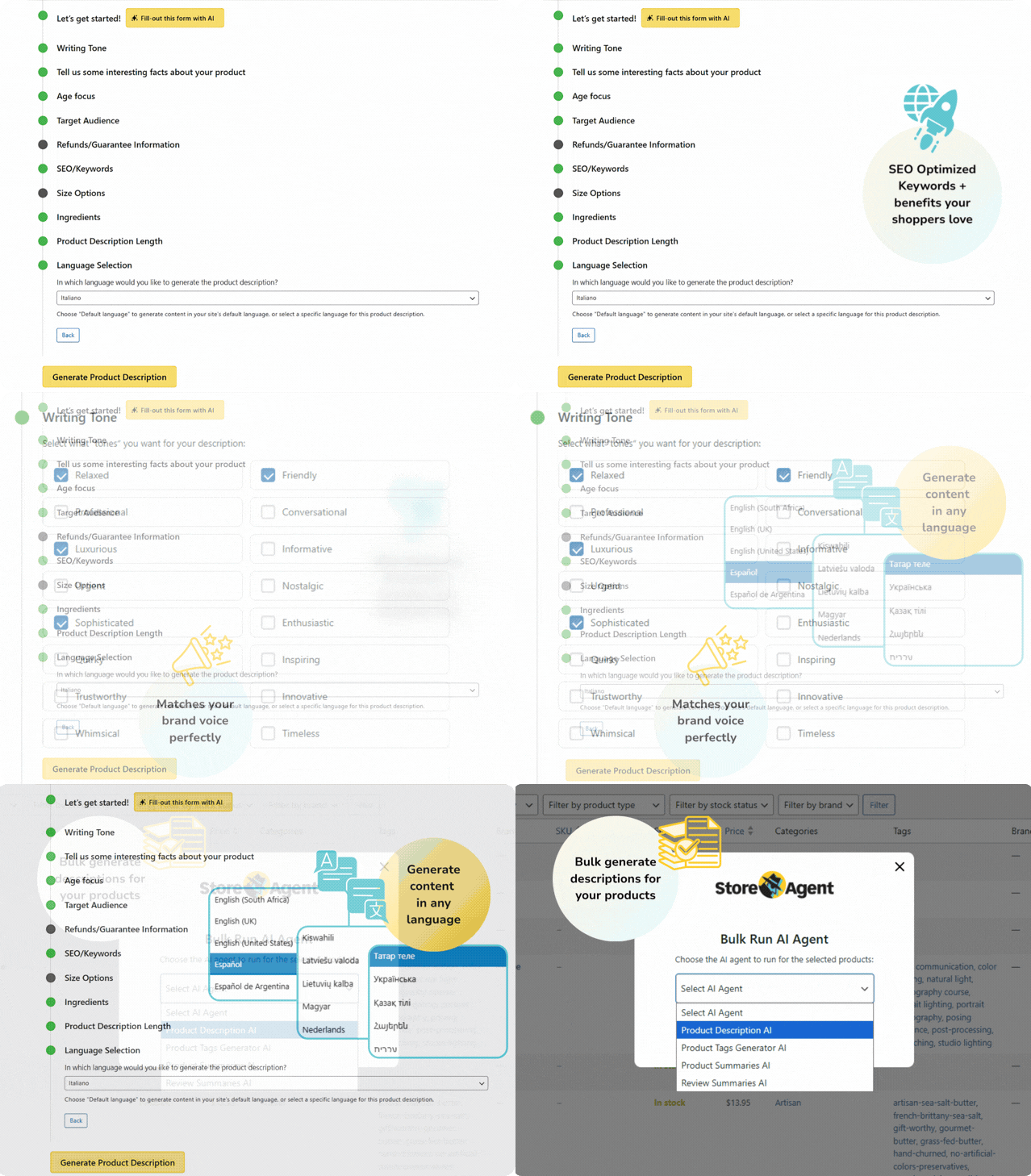
That means each product can carry its own content preferences, but it also means you’ll want to set your defaults carefully before a bulk run to avoid inconsistent output across your catalog.
I recommend testing on 3-5 products first. Pick products from different categories so you can see how the AI handles variety. Review the output, adjust settings if needed, then scale up.
To see everything it writes and start your first bulk run, check out how to generate WooCommerce product descriptions in bulk with StoreAgent.
Step 3: Run Your First Bulk Generation
Selecting products for bulk generation
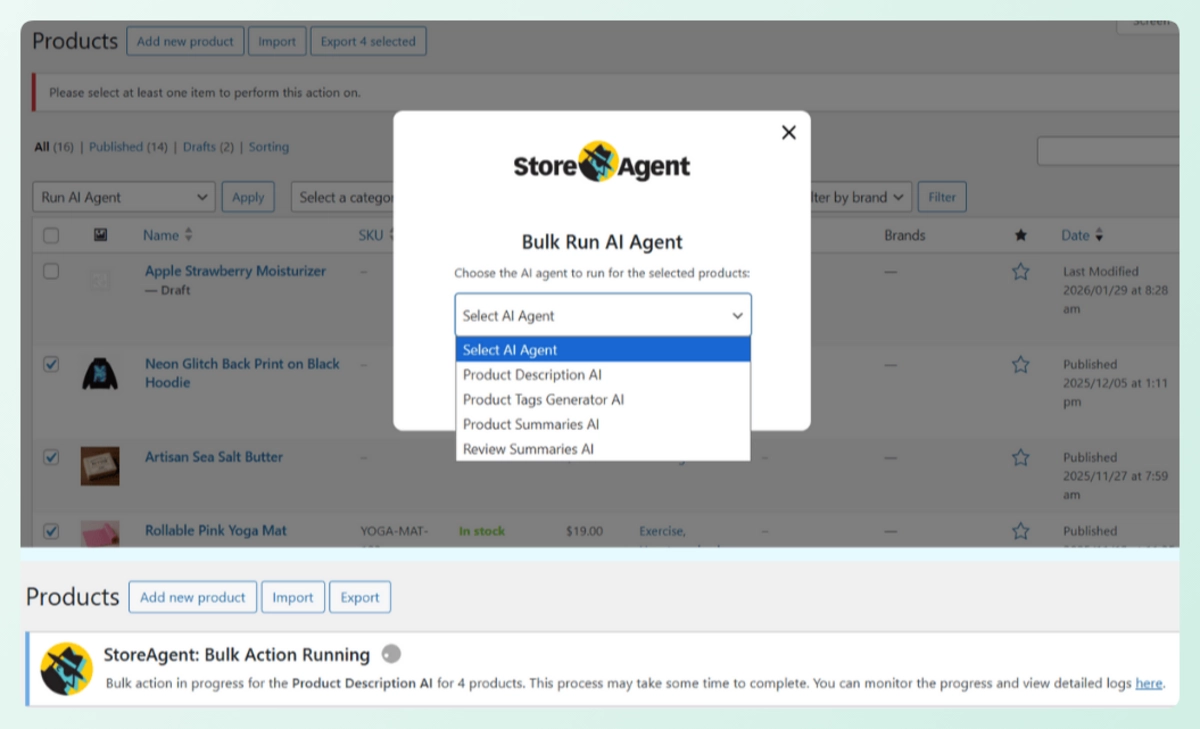
In your WooCommerce product list, select the products you want to include using the checkboxes. StoreAgent adds a bulk action option to the dropdown menu — that’s the bulk product description generator at work, letting you queue up multiple products and generate descriptions for all of them in one batch.
Choosing content types
For this tutorial, focus on product descriptions only. StoreAgent can also generate short descriptions, tags, alt text, and more in the same session, but starting with one content type keeps your first run simple. Once you’re comfortable with the workflow, you can add additional content types to your bulk runs.
Monitoring progress
After starting a bulk generation, StoreAgent shows a progress indicator. Actual processing time varies depending on server load, API response times, and the Action Scheduler queue — the figures below are rough estimates based on typical conditions, not guaranteed benchmarks:
Estimated processing times (actual results will vary):
- 25 products: ~5-8 minutes
- 50 products: ~10-15 minutes
- 100 products: ~20-30 minutes
- 250 products: ~50-75 minutes
- 500 products: ~2-3 hours
You can continue working in other browser tabs while generation runs in the background.
What We’ve Seen: Batches of 50-100 products hit the sweet spot for most stores. Smaller batches let you catch configuration issues early before scaling up, and the processing time stays manageable. Stores that jump straight to 500-product batches often discover a tone or formatting issue on product #400 that requires regenerating the entire batch.
For detailed instructions on using the bulk run feature, see the StoreAgent bulk run guide.
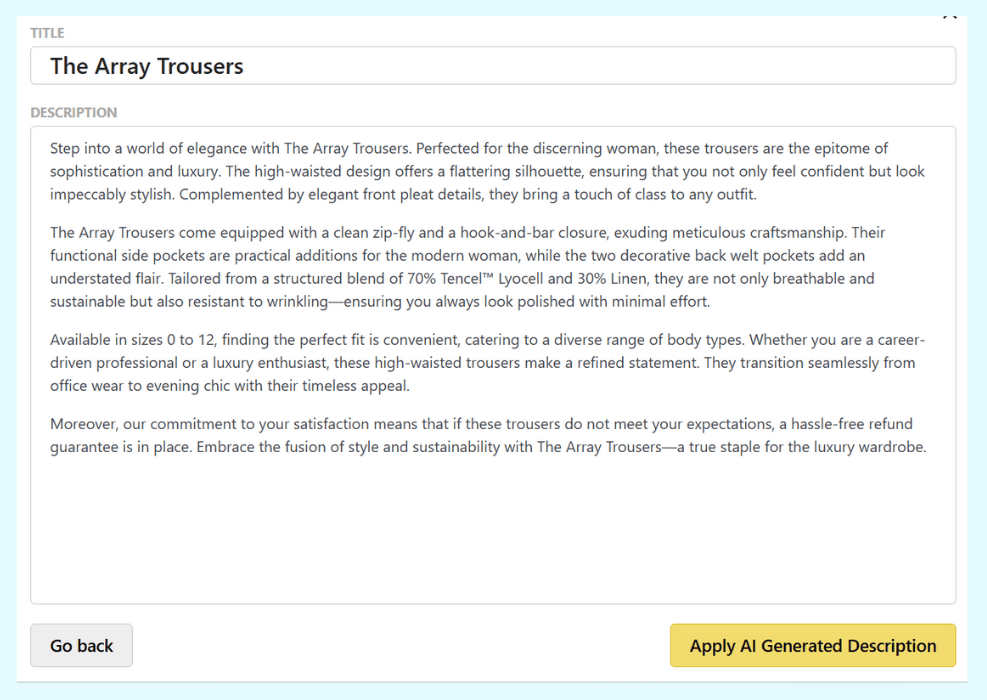
Step 4: Review And Edit AI-Generated Descriptions
The 5-point QA checklist
Every AI-generated description should pass these five checks before publishing:
- Accuracy: Do the facts match the actual product? Check specs, materials, sizes, and any specific claims against your product data.
- Tone: Does it match your brand voice? If your brand is casual and the AI produced formal copy, adjust your tone settings and regenerate.
- Keywords: Are your target search terms included naturally? If the primary keyword for a product page is missing, edit it in manually.
- Uniqueness: Is each description distinct from similar products? AI can sometimes produce similar openings for products in the same category.
- Completeness: Are the key features and benefits covered? If a product has a standout feature that the AI missed, add it.
Common issues and how to fix them
After reviewing hundreds of AI-generated descriptions, here are the patterns I’ve noticed most often:
- Repetitive openings. Products in the same category sometimes start with nearly identical sentences. Fix this by regenerating individual products or manually varying the opening lines.
- Missing product-specific details. The AI works from available product data. If a detail isn’t in your product fields (like “machine washable” or “made in Italy”), it won’t appear in the description. Add important details to product attributes before generating.
- Overly generic benefit statements. Phrases like “perfect for any occasion” add no value. Replace these with specific use cases tied to the actual product.
According to Baymard Institute, 10% of e-commerce sites have product descriptions that are too vague or technical for the average shopper to understand, leading to abandoned purchases. A quick QA pass catches these issues before they reach your customers.
Step 5: Publish And Monitor Results
Publish in batches rather than all at once. This approach lets you monitor the impact of new descriptions and catch any issues early. Start with your highest-traffic products, wait a week, then publish the next batch.
After publishing, monitor these metrics in Google Search Console and your analytics:
- Search impressions: Are product pages showing up for more queries? This typically takes 2-4 weeks to show.
- Click-through rate: Are the new descriptions improving how your pages appear in search results?
- Conversion rate changes: Track product page conversion rates before and after the description update.
According to Salsify’s 2024 Consumer Research, 87% of shoppers consider product content extremely or very important in their purchase decisions. Better descriptions directly support better conversions.
Tips For Stores With 500+ Products
Large catalogs need a different approach than small ones:
- Break into category-based batches. Generate descriptions for one category at a time. This keeps each batch focused and makes QA faster because you’re reviewing similar products together.
- Use the 80/20 rule. Start with the 20% of products that drive 80% of your traffic. These are where better descriptions will have the most visible impact.
- Consider generating multiple content types per session. Once your descriptions are done, add short descriptions and product tags to the same workflow. It’s more efficient to handle all content for a category in one sitting.
- Schedule generation sessions. Block off 2-3 hours per week for content generation instead of trying to do everything in one marathon session.
Start Bulk Generating Today
The math on manual product description writing simply doesn’t work for stores with growing catalogs. A bulk product description generator that plugs directly into your WooCommerce data turns weeks of writing into an afternoon of guided generation and review.
Here’s what to do next:
- Audit your catalog to find products that need descriptions
- Configure and test on a small batch before scaling
- Run your first bulk generation in batches of 50-100
- QA every description with the 5-point checklist
- Publish in waves and monitor the results
Stop writing product descriptions one at a time. Install StoreAgent, use the AI product description generator, and spend your time on the parts of your business that actually need you. Get started with the free plan or explore all available StoreAgent features.
FAQ: Bulk Product Description Generator for WooCommerce
How many product descriptions can StoreAgent generate at once?
StoreAgent’s bulk product description generator can process batches of any size through its bulk run feature. Most stores find batches of 50-100 products work best for balancing speed with quality control.
Will bulk-generated descriptions be unique for each product?
Yes. StoreAgent generates each description individually based on the specific product’s data, including title, category, attributes, and images. Products with more detailed data produce more distinct descriptions.
Can I undo bulk-generated descriptions if I don’t like them?
When StoreAgent generates a description, it replaces the existing product description immediately — there is no separate draft or staging step. Before running a bulk product description generator session, back up your product data using a plugin like WP All Export or WooCommerce’s built-in export tool. That way, you can restore originals if needed.
How long does it take to bulk generate 100 product descriptions?
Approximately 20-30 minutes for the generation itself, though this varies based on server load and API response times. Factor in additional time for configuration (15-20 minutes for your first run) and QA review (varies by thoroughness, but plan for 1-2 hours for 100 descriptions).
Should I review every AI-generated description before publishing?
Yes. AI-generated descriptions are a strong starting point, but they should be treated as drafts. At minimum, spot-check 20-30% of each batch for accuracy, tone, and completeness. For your first few batches, reviewing every description helps you fine-tune your settings and learn what to expect.