When you connect Claude or ChatGPT to your store, every ability it can call arrives with a few labels attached. One says whether the tool only reads. One says whether it can delete things. A third says whether it stays inside your store or talks to services out on the internet.
That third label is called openWorldHint. Until now, StoreAgent dropped whatever an ability said about it, so a plugin author could set it and the assistant would never see their answer.
StoreAgent 1.2.0 fixes that. If an ability sets openWorldHint or idempotentHint in its annotations, StoreAgent forwards that value to the assistant. A tool that sends an email, charges a card or books a courier can now say so in its own words, and ChatGPT and Claude show it with the right label.
In this article, we’ll cover what these hints are, what changed, what it means for you as a store owner, and what plugin developers need to set. So, let’s get started!
Table of Contents
- What Tool Annotations Are
- What Changed
- What This Means For Store Owners
- Where This Shows Up For Store Owners
- What Plugin Developers Need To Set
- What Did Not Change
- Get Started
What Tool Annotations Are
Every ability exposed over MCP comes with a short set of hints. The assistant reads them to learn what kind of tool it is looking at before anyone calls it, and you see them too.
Four hints matter here:
- readOnlyHint says the tool only reads data and changes nothing.
- destructiveHint says the tool can delete or overwrite something.
- openWorldHint says the tool talks to systems outside your store, like an email service, an SMS gateway, a payment processor or a shipping API.
- idempotentHint says calling the tool twice with the same input has the same effect as calling it once.
ChatGPT and Claude use these labels when they show you tools and when they decide how carefully to treat a call. OpenAI’s app review goes further and requires the first three on every tool as explicit true or false values.
What Changed
StoreAgent’s MCP gateway already sends openWorldHint on every tool, because OpenAI requires it. When a store gave it no value, the gateway filled one in:
- StoreAgent’s own abilities, plus every
woocommerce/*andcore/*ability, getfalse. They only act on your store. - Any other third-party ability gets
true. When we cannot tell, we assume the cautious answer.
The gap was on the store side. StoreAgent only sent the readonly and destructive annotations to the gateway. If a plugin author set openWorldHint on their ability, it was dropped before it got there, so the default always won.
That produced two kinds of wrong label. A third-party ability that only ever touched your store data was shown as open-world, because nobody could say otherwise. And idempotentHint never arrived at all, so the gateway’s support for it went unused.
Now the store forwards both hints whenever the ability sets one, and the gateway uses that value in place of its default. If the ability sets nothing, the gateway falls back to the same default as before.
What This Means For Store Owners
You do not need to do anything. There is no new setting and nothing to turn on.
What you get is more honest tool descriptions inside the assistant you already use. When a plugin on your store offers an ability that emails customers or calls a carrier’s API, and its author has labelled it, Claude and ChatGPT will show it as a tool that reaches outside your store. When an ability only reads or edits your own store data and says so, it no longer carries an open-world label it did not earn.
That matters most on plugin-heavy stores. The more abilities you have connected, the more you rely on those labels to tell the harmless lookups apart from the ones that send something out into the world.
Where This Shows Up For Store Owners
The hints travel with whatever abilities you have allowed. You still choose those in StoreAgent → Settings → MCP, on the Abilities sub-tab, grouped by the plugin they came from.
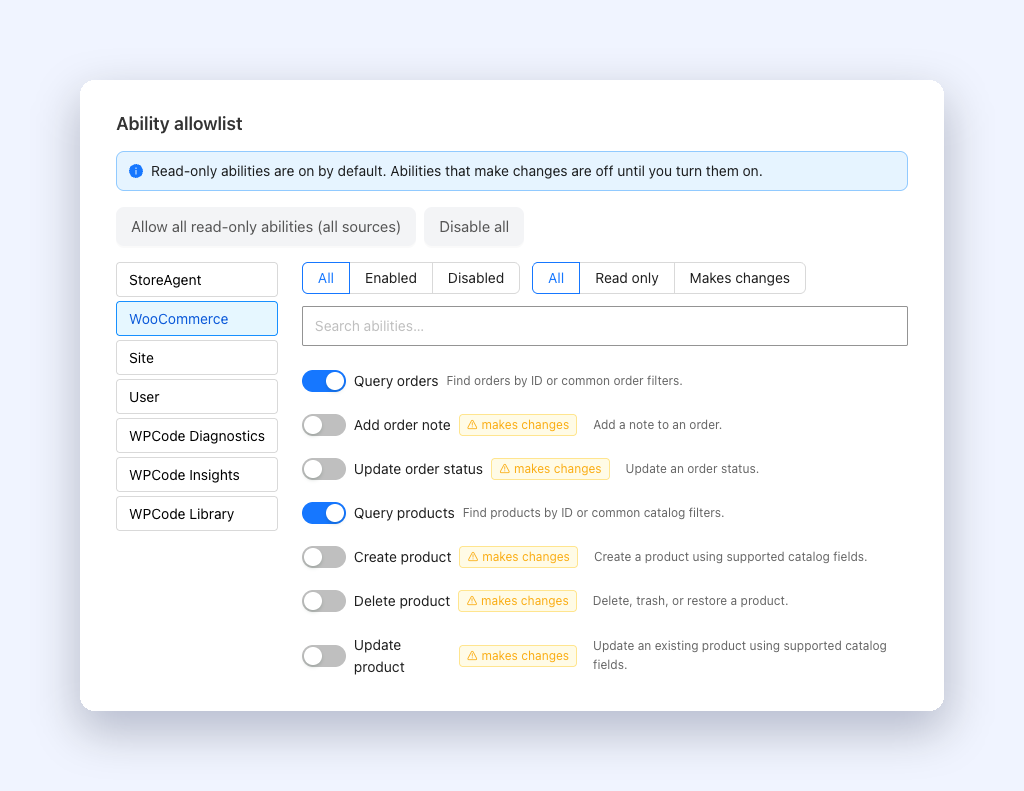
The usual defaults hold. Read-only abilities are on by default, and abilities that make changes stay off until you turn them on. Our MCP settings walkthrough covers that screen in full.
What Plugin Developers Need To Set
If you build a plugin that registers abilities through the WordPress Abilities API, add the hints to your ability’s meta.annotations array. StoreAgent reads them from there.
Here is an ability that sends an SMS through an outside provider:
add_action( 'wp_abilities_api_init', function () {
    wp_register_ability(
        'my-plugin/send-sms',
        array(
            'label'       => 'Send SMS',
            'description' => 'Send a text message to a customer.',
            'category'    => 'my-plugin',
            // input_schema, execute_callback and permission_callback as usual.
            'meta'        => array(
                'annotations' => array(
                    'readonly'       => false,
                    'destructive'    => false,
                    'openWorldHint'  => true,
                    'idempotentHint' => false,
                ),
            ),
        )
    );
} );
A few rules keep this predictable:
- Use real booleans. StoreAgent forwards
openWorldHintandidempotentHintonly when the value istrueorfalse. A string like'true', or the number1, is ignored and the gateway default applies instead. - Leave a key out if you are not sure. A missing hint is not sent, and the gateway supplies its default. For a third-party ability, that default is open-world.
- Use the exact key names. The WordPress
idempotentannotation is not mapped toidempotentHint. SetidempotentHintyourself if you want the assistant to see it. - Your
readonlyanddestructivevalues work the same as before. Nothing about them changed.
StoreAgent passes no other annotation keys, so any extra metadata you keep on your ability stays on your store.
What Did Not Change
StoreAgent’s own built-in abilities send the same annotations they always did. They declare no openWorldHint or idempotentHint, so the gateway keeps labelling them closed-world, which is correct for tools that only work on your store.
The ability allowlist, connection scopes and approval screen stay as they were. Hints only describe tools. Your switches on the Abilities sub-tab and the scope you approved at connection time still decide what an assistant can call.
Get Started
If you already run StoreAgent with MCP switched on, update to 1.2.0 and you are done. The next time Claude or ChatGPT lists your tools, any hints your plugins declare come along with them.
If you are new to MCP, our guide to the WooCommerce MCP server explains how the connection works. Then go to StoreAgent → Settings → MCP, switch on Enable MCP for this store, and follow the Claude or ChatGPT steps on the same screen.
Not using StoreAgent yet? Take a look at our plans and get your store talking to Claude and ChatGPT.