Most store owners plan to write alt text and then skip it. You upload the photos, write the description, set the price, hit Publish, and the images go live with an empty alt field. StoreAgent now fills that gap for you. When you publish or update a product, the Image Alt Tags AI agent writes alt text for any product image that does not have it, in the background, with no button to click.
Until now, the agent only worked when you asked it to. You opened an image in the media modal and clicked Generate with AI, or you ran a bulk job across your catalog. That works well for a one-off clean-up. New products keep arriving, though, and each one needs someone to remember the extra step.
In this article, we’ll cover what the new setting does, which product saves start a run, what it will and will not touch, how it uses your AI actions, and how to turn it on or off. So, let’s get started!
Table of Contents
- What’s New In Image Alt Tags AI
- Why Alt Text Matters For Your Store
- Which Product Saves Start A Run
- What It Will Not Touch
- How It Uses Your AI Actions
- How To Turn It On Or Off
- What This Is Good For
- Get Started
- Frequently Asked Questions
What’s New In Image Alt Tags AI
The Image Alt Tags AI agent has a new setting called Automatically generate alt text for new product images. It sits on the agent’s Settings tab, just below Default Fields to Generate, and it is on by default.
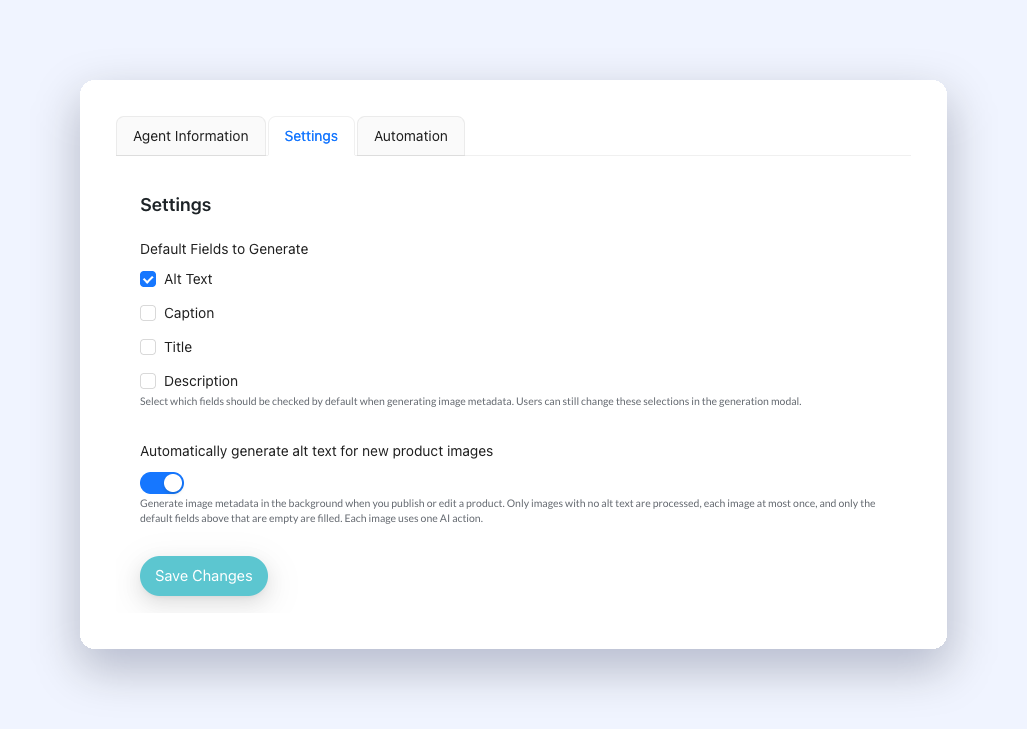
With the switch on, StoreAgent watches for products you publish or edit. If a product has images with no alt text, StoreAgent queues one background task for that product. The task writes alt text for the featured image and the gallery images, then stops. You keep working, and the alt text appears on its own a short time later.
Generate with AI in the media modal and the bulk run still work the way they did. You just no longer need them for every new product.
Why Alt Text Matters For Your Store
Shoppers rarely see alt text, but two groups depend on it.
Screen reader users hear it in place of the image. Without it, a product photo is just “image” or a file name, and they have no idea what the product looks like.
Search engines read it too. Alt text is one of the main ways Google understands what is in a picture, which helps your product images show up in image search and gives the product page more relevant text.
Alt text does not show on the page itself, so it is one of the safest jobs to hand to an AI. The product page your shoppers read stays the same.
Which Product Saves Start A Run
StoreAgent only starts a run on a deliberate, editorial save of a published product. These count:
- Publishing or updating a product on the product edit screen
- Publishing a draft with Quick Edit
- A scheduled product going live at its publish time
- Creating a product through the WooCommerce REST API, or updating one with new images or a new status
- With WC Vendors active, an admin approving a vendor’s product, or a vendor saving a live product from their dashboard
Plenty of everyday activity changes a product without anyone editing it. These do not start a run:
- Bulk edit in the product list, including bulk edit to Published
- The WooCommerce CSV product importer and other bulk importers
- REST API batch requests
- Stock changes and orders that reduce stock
We drew the line there to protect your AI actions. A CSV import of a thousand products could spend a large share of your AI actions in one go, without you asking it to. For imported products, the Bulk Actions page is still the right tool, because there you choose what to run and see the estimate first.
What It Will Not Touch
StoreAgent fills empty fields and leaves the rest of your media alone.
- Images that already have alt text are skipped. If you or your team wrote it, it stays as written.
- It only fills the fields you picked. The run writes the fields ticked in Default Fields to Generate, and only where that field is empty. Out of the box, that is alt text only. If you also tick Caption, Title or Description, the run fills those when they are blank.
- Each image is tried once. After an automatic attempt, StoreAgent marks the image. Updating the product again does not send the same image back to the AI, and a failed image does not retry in a loop.
- It stays within the product’s own images. The run only writes to images the product’s author owns or is allowed to edit. Images that are not attached to a product are left alone.
- One task per product. If you click Update three times in a row, StoreAgent still queues a single task for that product.
How It Uses Your AI Actions
Each image the run processes uses one AI action, the same as running the agent by hand. The agent card on the AI Content Tools tab shows this as 1 credit / run.
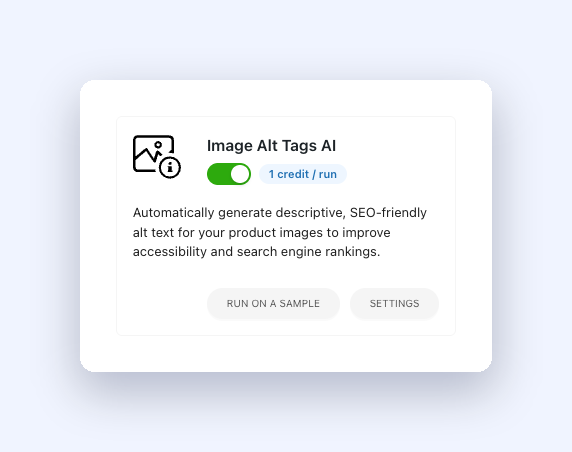
If your plan has no AI actions left, StoreAgent does not queue the task at all. You see the usual plan-limit notice, and nothing fails quietly in the background. Images that were blocked by the plan limit are not marked as tried, so the next time you save that product with actions available, StoreAgent picks them up.
Only editorial saves start a run, so the actions you spend line up with the new images you publish.
How To Turn It On Or Off
The setting is on by default once you update StoreAgent, so most stores do not need to do anything. To check it or change it:
- Go to StoreAgent → Settings.
- Open the AI Content Tools tab.
- Find Image Alt Tags AI and click Settings.
- Open the Settings tab.
- Use the Automatically generate alt text for new product images switch.
- Click Save Changes.
While you are there, check Default Fields to Generate. Whatever you tick there also applies to the automatic run, so leave only Alt Text ticked if alt text is all you want.
If you switch off the Image Alt Tags AI agent itself, the automatic run stops too.
What This Is Good For
Stores that add products every week. Each new product gets alt text the moment it goes live, without a separate task on anyone’s list.
Teams with several people editing products. Whoever publishes the product, the images get covered. Nobody has to remember a step that was never in their routine.
Marketplaces running WC Vendors. Vendor products get alt text when you approve them, or when a vendor saves a live product, so vendor listings get the same treatment as your own.
Store owners who want SEO wins without more work. Image search and accessibility both improve a little with every product you publish, and you never open the media modal to make it happen.
Get Started
Automatic alt text arrives with the latest StoreAgent update and is on from the start. Publish your next product with a few photos. Once the background task has run, open the images in the media library and the alt text will be there.
For the products already in your catalog, run Image Alt Tags AI once from StoreAgent → Bulk Actions. From then on, the automatic run keeps new products covered. If you need more AI actions for a large catalog, compare the plans on the pricing page.
Frequently Asked Questions
Will StoreAgent overwrite alt text I wrote myself?
No. The automatic run skips any image that already has alt text, and it only writes to fields that are empty.
Does it work on products I already have?
It runs when you publish or update a product, so an older product gets covered the next time you edit it. To cover your whole catalog at once, use Image Alt Tags AI from the Bulk Actions page.
Does it run when I import products from a CSV?
No. CSV imports, bulk edits and REST batch requests do not start a run. This stops a large import from spending your AI actions without warning. Use Bulk Actions for imported products.
Which images does it cover?
The product’s featured image and its gallery images, as long as they have no alt text yet.
How many AI actions does it use?
One AI action per image it processes. A product with a featured image and three gallery images that all lack alt text uses four.
What happens if I run out of AI actions?
StoreAgent stops queuing new runs and shows the plan-limit notice. Those images are not marked as tried, so they get processed on a later save once you have actions available.
Can it also write captions, titles and descriptions?
Yes, if you tick them in Default Fields to Generate. The automatic run fills those fields only when they are empty.
Does it work on a local or staging site?
The AI needs to fetch each image from a public URL. On a local or private site it cannot reach the image, so the run logs the problem and stops for that image.
How do I turn it off?
Go to StoreAgent → Settings → AI Content Tools, open the Image Alt Tags AI settings, switch off Automatically generate alt text for new product images, and click Save Changes.