StoreAgent keeps a running list of things it has noticed about your store. A product with no short description. A review that looks like spam. A best seller with a thin product description. Until now, you had to open the StoreAgent dashboard to see that list and deal with each item.
Now the AI assistant you already use can do it with you. If you have connected Claude or ChatGPT to your store, you can ask it what StoreAgent has flagged, have it explain an item, archive the ones you do not care about, and accept or reject the decisions that are waiting on you. Every one of those actions runs through the same checks and permissions as the buttons in your dashboard.
In this article, we’ll cover what your StoreAgent notification queue holds, the four new abilities, what your assistant can and cannot do with them, and how the access rules keep you in charge. So, let’s get started!
Table of Contents
- What Is In Your StoreAgent Notification Queue
- The Four New Abilities
- What You Can Ask Your Assistant To Do
- Reading Does Not Clear Your Unread Badge
- Two Decisions Stay In Your Dashboard
- The Same Checks As Your Dashboard
- Read-Only Connections Stay Read-Only
- Where To Find The New Abilities
- Get Started
- Frequently Asked Questions
What Is In Your StoreAgent Notification Queue
These are StoreAgent’s own notifications. They are separate from WordPress admin notices and WooCommerce order emails. You find them in the Pending decisions & updates panel on StoreAgent > Dashboard.
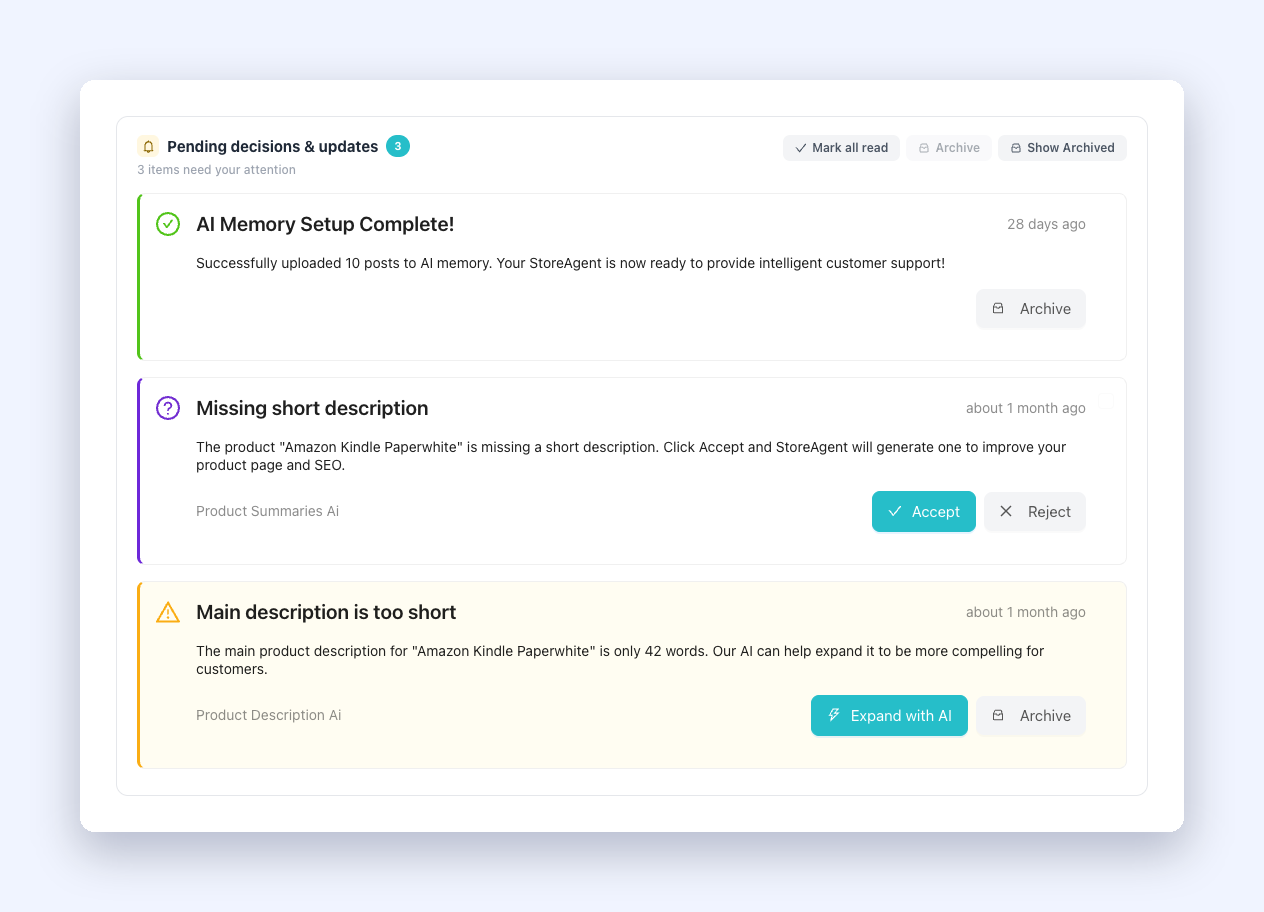
StoreAgent’s AI agents scan your store in the background and add an item when they find something worth your attention. Most of them point at a way to improve your store with AI. Today the queue holds three kinds of item:
- Decisions. StoreAgent has an action ready and needs a yes or no. Accept “Missing short description” and StoreAgent writes one. Accept “Product upsell/cross-sell recommendations” and it picks related products for you. A “Product review flagged for moderation” item approves the review when you accept it and moves it to the trash when you reject it. “New product question awaiting review” works the same way for customer questions.
- Warnings. StoreAgent found a problem you might want to fix. “Main description is too short” tells you when a product description is only a few words long. “Low product rating detected” flags a product with a poor average rating and adds an AI summary of the key issues from its reviews.
- Updates. Confirmations such as “AI Memory Setup Complete!” after StoreAgent finishes loading your content into AI memory.
On a busy store this list grows fast. It is useful work, but it is also the kind of work you put off, which is why handing it to your assistant makes sense.
The Four New Abilities
StoreAgent exposes its features to AI assistants as abilities over MCP, the Model Context Protocol. This release adds four abilities for notifications:
- Get notifications. Lists your notifications, 20 per page by default and up to 100. Your assistant can ask for active or archived items, or filter by status: pending, accepted, rejected or archived. It also gets a total count, so it knows how much is left.
- Get notification detail. Opens one notification by its ID so your assistant can read the full message.
- Dismiss notification. Archives a notification, the same as the Archive button in your dashboard.
- Act on notification. Accepts or rejects a pending decision, the same as the Accept and Reject buttons.
These four complete the set of 30 built-in StoreAgent abilities we planned for MCP.
What You Can Ask Your Assistant To Do
With a connected assistant you can work through the queue in plain language. For example:
- “What has StoreAgent flagged in my store this week?”
- “Show me the pending decisions and tell me which ones look safe to approve.”
- “Read me the low rating warning for the travel mug and summarise what customers are unhappy about.”
- “Archive all the AI memory update notices.”
- “Approve the review StoreAgent flagged yesterday. I know that customer, they are genuine.”
Your assistant can combine these with the other StoreAgent and WooCommerce abilities you have allowed. It can read a warning about a short product description, look at the product, and draft a better one for you to review in the same conversation.
Reading Does Not Clear Your Unread Badge
When you open a notification in the StoreAgent dashboard, StoreAgent marks it as read. The detail ability does not do that. Your assistant can read a notification in full and the item stays unread in your dashboard.
We built it this way on purpose. If your assistant checks the queue before you do, you still see which items are new when you next log in.
Two Decisions Stay In Your Dashboard
Two kinds of decision start a full AI generation when you accept them:
- “Missing short description”, where StoreAgent writes the short description.
- “Product upsell/cross-sell recommendations”, where StoreAgent analyses your catalogue and applies suggested products.
Your assistant can reject either of these. To accept one, go to your StoreAgent dashboard and click Accept there. If your assistant tries to accept one, StoreAgent refuses with a message that tells it to send you to the dashboard. The item stays pending, so nothing is lost.
This rule stops one generation from being charged twice, and it stops a long generation from being cut off halfway through an MCP call. Your assistant can still accept or reject the other decisions, such as flagged reviews and product questions.
The Same Checks As Your Dashboard
Your assistant does not get a shortcut around StoreAgent’s rules. Each ability calls the same code your dashboard buttons call, and it fires the same events. If another plugin or a custom snippet reacts when you archive or accept a notification, it reacts in the same way when your assistant does it.
Before your assistant changes anything, StoreAgent checks the notification:
- A notification ID that does not exist gets a clear error.
- Only a pending decision can be accepted or rejected. If a decision is already accepted or rejected, StoreAgent refuses a second attempt and tells your assistant why.
- If you archive a notification that is already archived, StoreAgent reports success and does nothing more. Your assistant can retry without side effects.
Access follows your WooCommerce permissions. All four abilities need the manage_woocommerce capability, which store owners and shop managers have. A customer account cannot use them.
Read-Only Connections Stay Read-Only
When you approve an AI assistant on your store, you pick one of two access levels: read-only or read and write. That choice applies to notifications too.
- A read-only connection sees only Get notifications and Get notification detail. Your assistant can report on the queue but cannot change it.
- A read and write connection sees all four abilities, so it can also archive items and act on decisions.
If a read-only assistant tries to dismiss or act on a notification, StoreAgent refuses the call. Notification calls also count toward your plan’s AI actions like any other StoreAgent ability. A store that reaches its limit gets a plan limit error in place of a result.
Where To Find The New Abilities
Go to StoreAgent > Settings > MCP and open the Abilities sub-tab. Select the StoreAgent source and type “notification” in the search box to see all four.
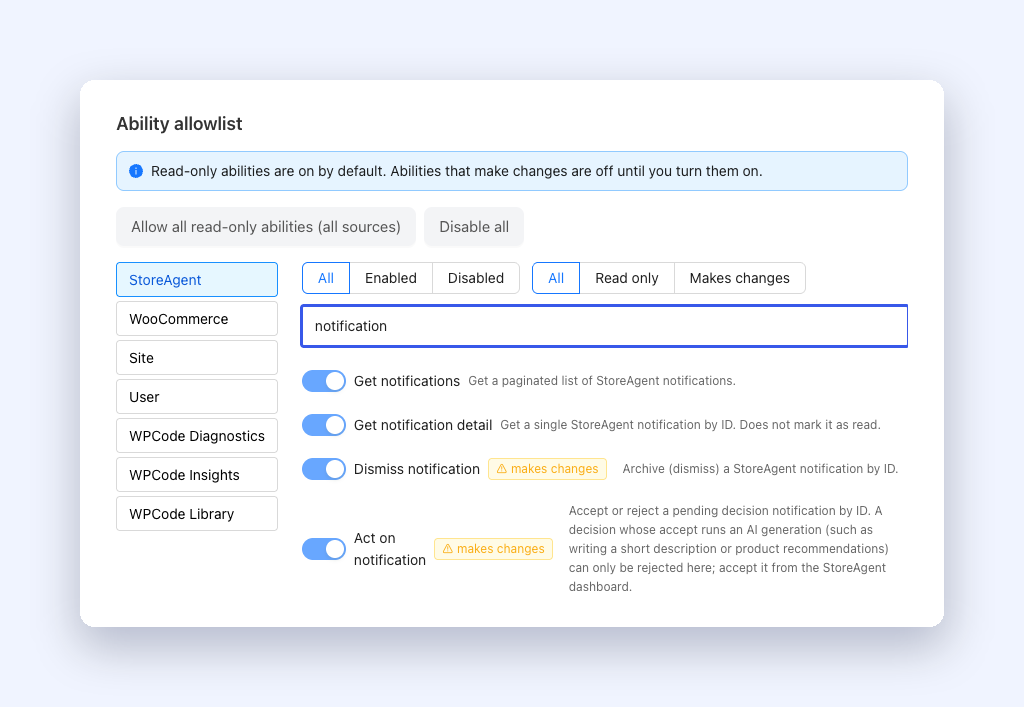
The four abilities are built-in StoreAgent abilities, so each one shows a locked switch that is always on. You control what your assistant can do with them through the access level you choose when you approve the connection.
We also made the ability list easier to scan. It now shows 20 abilities per page, with page controls below the list when a source has more than 20. The filters and search work across the full list, and the page resets to page 1 when you change source or filter. See our guide to the MCP ability browser for the full tour.
Get Started
If your assistant is already connected with read and write access, there is nothing to set up. Update StoreAgent, open a new chat and ask your assistant what StoreAgent has flagged.
If you have not connected an assistant yet, go to StoreAgent > Settings > MCP, turn it on and follow our guide to connect Claude or ChatGPT to your store. Not on StoreAgent yet? See the plans and start with the one that fits your store.
Frequently Asked Questions
Which notifications can my AI assistant see?
It sees StoreAgent’s own notifications, the same items you see in the Pending decisions & updates panel on the StoreAgent dashboard. It can also list archived items and filter by status.
Will my assistant approve things without asking me?
It acts when you ask it to. You decide what to ask, and you choose the access level when you approve the connection. A read-only connection cannot change your notifications at all.
Why can my assistant reject a missing short description but not accept it?
Accepting that decision starts an AI generation. StoreAgent keeps those accepts in the dashboard so one generation is never charged twice or cut off partway. Click Accept in the StoreAgent dashboard to run it.
Does my assistant reading a notification mark it as read?
No. The detail ability leaves the notification unread in your dashboard, so you still see what is new.
Do these calls use my AI actions?
Yes. Notification calls count toward your plan’s AI actions like other StoreAgent abilities.