Connecting ChatGPT or Claude to your store used to start with a scavenger hunt. You opened your StoreAgent settings, found the MCP address that belonged to your store, copied it exactly, and pasted it into your assistant.
Now there is one address for every StoreAgent store:
https://api.storeagent.ai/mcp
Paste that into ChatGPT or Claude. When you sign in, StoreAgent asks which store you are connecting. You type your store domain, approve the connection on your own store, and you are done.
In this article, we will cover what changed, what the new sign-in step looks like, how to connect with the new URL, and how your store stays protected. So, let’s get started!
Table of Contents
- What Changed
- The New Sign-In Step
- How To Connect With The New URL
- Your Store Still Has The Final Say
- What About Existing Connections?
- Running More Than One Store
- Get Connected
- Frequently Asked Questions
What Changed
StoreAgent’s WooCommerce MCP server lets ChatGPT and Claude work with your real store data. Until now, each store had its own connect address with the store’s domain built into it.
That worked, but it put the burden on you. The address was different for every store, so you had to find yours and copy it without a typo. If you helped a client connect their shop, you had to dig up their address too.
The new address is the same for everyone. Because it no longer names your store, the sign-in step asks you for it instead. You tell StoreAgent which store you mean at the moment you connect, and StoreAgent sends you on to that store to approve.
That makes the connect address easy to share and easy to remember. You can put it in a team guide, a support reply or a setup checklist, and it works for every store.
The New Sign-In Step
When you choose Connect in ChatGPT or Claude, a StoreAgent page opens with the heading Connect your store. It has one field, Store domain, and a Continue button.
The page also tells you two things before you type anything:
- Which app is asking. You see the name of the assistant that wants to connect.
- Where you go back to. A line such as “You’ll be returned to chatgpt.com” shows the real website you return to after you approve.
Any app can give itself a friendly name, so check the return address too. If the name says Claude and you do not recognise the return address, close the page.
You can type your domain, such as example.com, or paste your full store address. StoreAgent takes the domain from a pasted address for you. It does not add or remove www., so enter your domain the way your store uses it.
If something is off, the page shows again with the reason. For example, a domain that is not linked to a StoreAgent account gets the message “This store is not connected to a StoreAgent account.” Fix the domain and choose Continue again.
How To Connect With The New URL
Before you start, make sure MCP is on for your store. Go to StoreAgent > Settings > MCP, open the General sub-tab and switch on Enable MCP for this store. Your store needs a connected StoreAgent account, and you need an administrator or shop manager login to approve.
Then:
- In Claude or ChatGPT, add a custom connector and paste
https://api.storeagent.ai/mcpas the server URL. - Choose Connect. The Connect your store page opens.
- Check the app name and the return address.
- Enter your store domain and choose Continue.
- Sign in to your store if asked. Your store’s approval page opens.
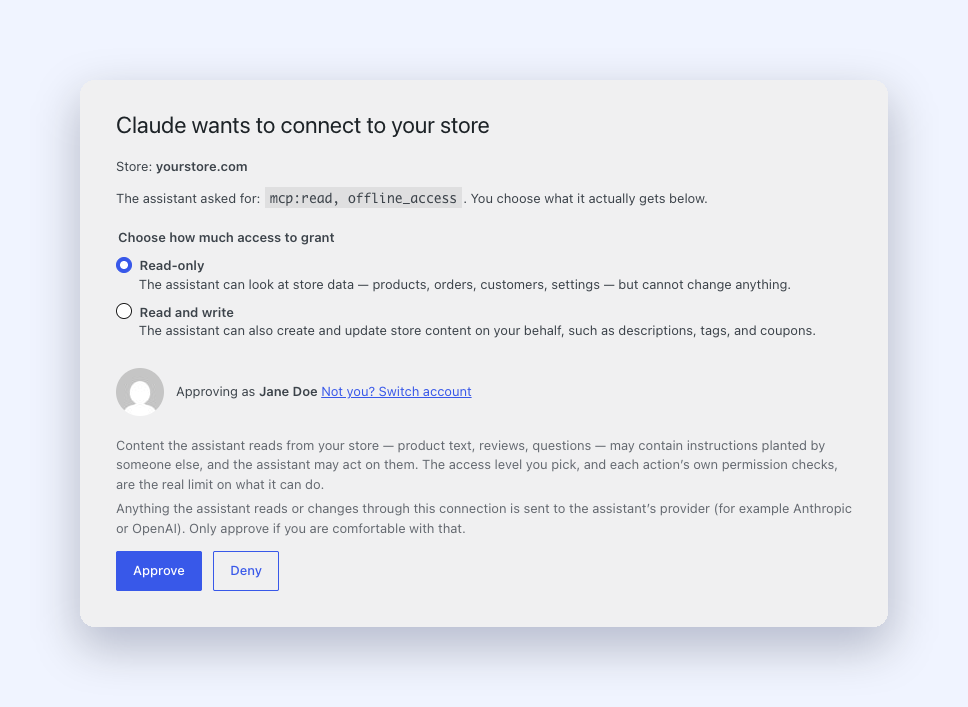
- Pick Read-only or Read and write, then choose Approve.
The exact menus differ a little between ChatGPT and Claude plans. Our guide on how to connect ChatGPT or Claude to your store walks through each one.
The approval page is the same one you know from before. You still choose the access level, and the assistant gets what you pick, not what it asks for.
Your Store Still Has The Final Say
Anyone can type your domain into that box. StoreAgent only uses it to decide where to send them, and three checks run after Continue:
- StoreAgent checks the domain first. It only moves on for a store that is linked to a StoreAgent account. Anything else gets an error on the same page.
- The approval happens on your store. You go to the approval page inside your own WordPress admin. Only an administrator or shop manager of that store can approve.
- The store and the domain must match. Your store signs its approval, and StoreAgent checks that the signed approval comes from the same domain that was typed. If they do not match, no connection is made.
To finish a connection, you still need a login on the store itself, the same as before.
What About Existing Connections?
Your store’s own connect address keeps working next to the new one, and every connection you already made carries on as it is. You do not need to reconnect.
For now, the General sub-tab on your MCP settings still shows your store’s own address. That address still works, so you can use either one. An update that shows the shared address on that screen is planned.
Everything else is unchanged too. The approval page, the access levels, the Connections list and the Revoke button all work the way they did.
Running More Than One Store
Each connection reaches one store. If you run several shops, connect once per store and enter a different domain each time.
The connect address stays the same for all of them. That makes it simple for agencies and anyone who manages client stores, because the instructions are the same for every shop.
Get Connected
Connecting your store to ChatGPT or Claude is now a matter of one address and one domain. Paste https://api.storeagent.ai/mcp, enter your store domain, and approve on your store. If you already connected, you have nothing to do.
MCP comes with every StoreAgent plan, including the free one. If you are not using StoreAgent yet, take a look at the plans and connect your favourite assistant to your store today.
Frequently Asked Questions
What is the new MCP connect URL?
It is https://api.storeagent.ai/mcp. It is the same for every StoreAgent store.
Do I need to reconnect ChatGPT or Claude?
No. Existing connections keep working, and your store’s own address still works too.
What do I type in the Store domain field?
Your store’s domain, such as example.com. You can also paste your full store address. Enter it the way your store uses it, including www. if your store address has it.
Why does it say my store is not connected?
The domain you entered is not linked to a StoreAgent account. Check for a typo or a missing www., and make sure your store is connected to StoreAgent in its settings.
Can someone connect my store by typing my domain?
No. Approval happens in your store’s WordPress admin and needs an administrator or shop manager login. StoreAgent also checks that the approval comes from the domain that was typed.
Can one connection reach all my stores?
No. One connection reaches one store. Connect once for each store, with the same URL each time.