If you run more than one store on the same StoreAgent account, you can now give each of them its own AI custom instructions. A store selector sits above the instructions box, your account-level instructions stay the default for everything, and any store you pick can carry its own set on top.
Custom instructions used to be account-wide. Every store connected to the account shared the same tone, the same policies and the same product vocabulary. An agency running six client sites had no way to separate them, and neither did a group with a premium brand and a discount brand under one roof. Nothing on the page even told you the setting was shared.
In this article, we’ll cover what changed on the Custom Instructions page, how the account default and per-store overrides fit together, how to set instructions for one store, how to undo them, and what happens if you only run one store. So, let’s get started!
Table of Contents
- What Changed On The Custom Instructions Page
- How The Account Default And Store Overrides Fit Together
- How To Set Instructions For One Store
- How To Put A Store Back On The Account Default
- What If You Only Run One Store?
- What This Is Good For
- Get Started
- Frequently Asked Questions
What Changed On The Custom Instructions Page
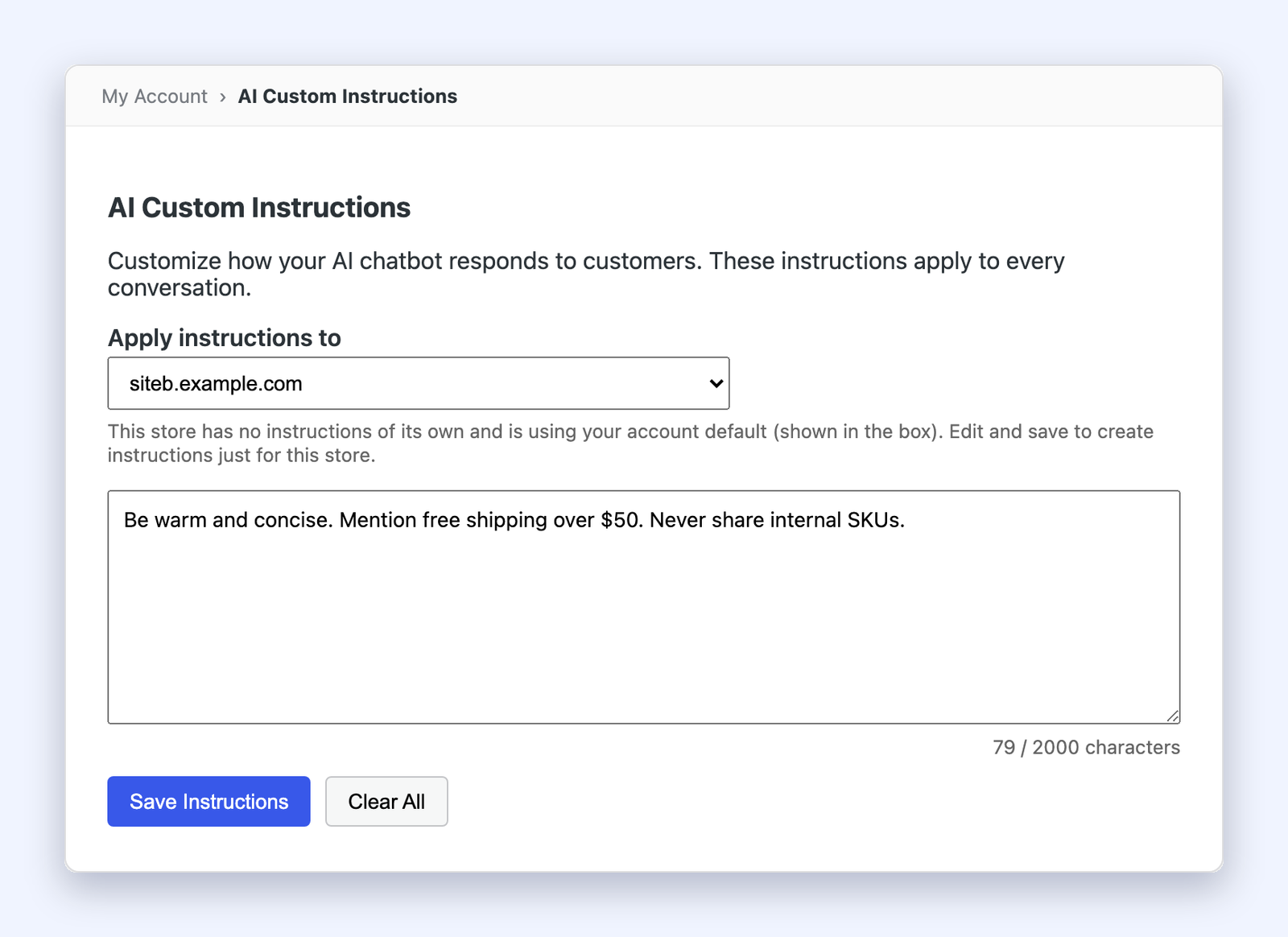
Go to My Account → AI Custom Instructions. If your account has two or more connected stores, there is now an Apply instructions to dropdown above the instructions box.
The first option is All stores (account default). Under it sits one option for each store connected to your account, listed by domain. Pick one and the box below loads that store’s instructions.
Everything else on the page works the way it did. The 2000 character limit, the Save Instructions button, and the Clear All button are all unchanged.
How The Account Default And Store Overrides Fit Together
Your account default applies to every store that has nothing of its own. As soon as a store gets its own instructions, it stops reading the default and reads its own set. Those are the only two layers, and one always wins over the other in the same direction.
Select a store that has never been given instructions and the page tells you as much. The box shows your account default, and a note under the selector reads: “This store has no instructions of its own and is using your account default (shown in the box). Edit and save to create instructions just for this store.”
You can now tell, store by store, whether you are looking at something shared or something written for that store alone. That was invisible before.
How To Set Instructions For One Store
Four steps, all on the same page:
- Open My Account → AI Custom Instructions.
- Choose the store from the Apply instructions to dropdown.
- Edit the text in the box. It starts with your account default, so you can adjust that or replace it.
- Click Save Instructions.
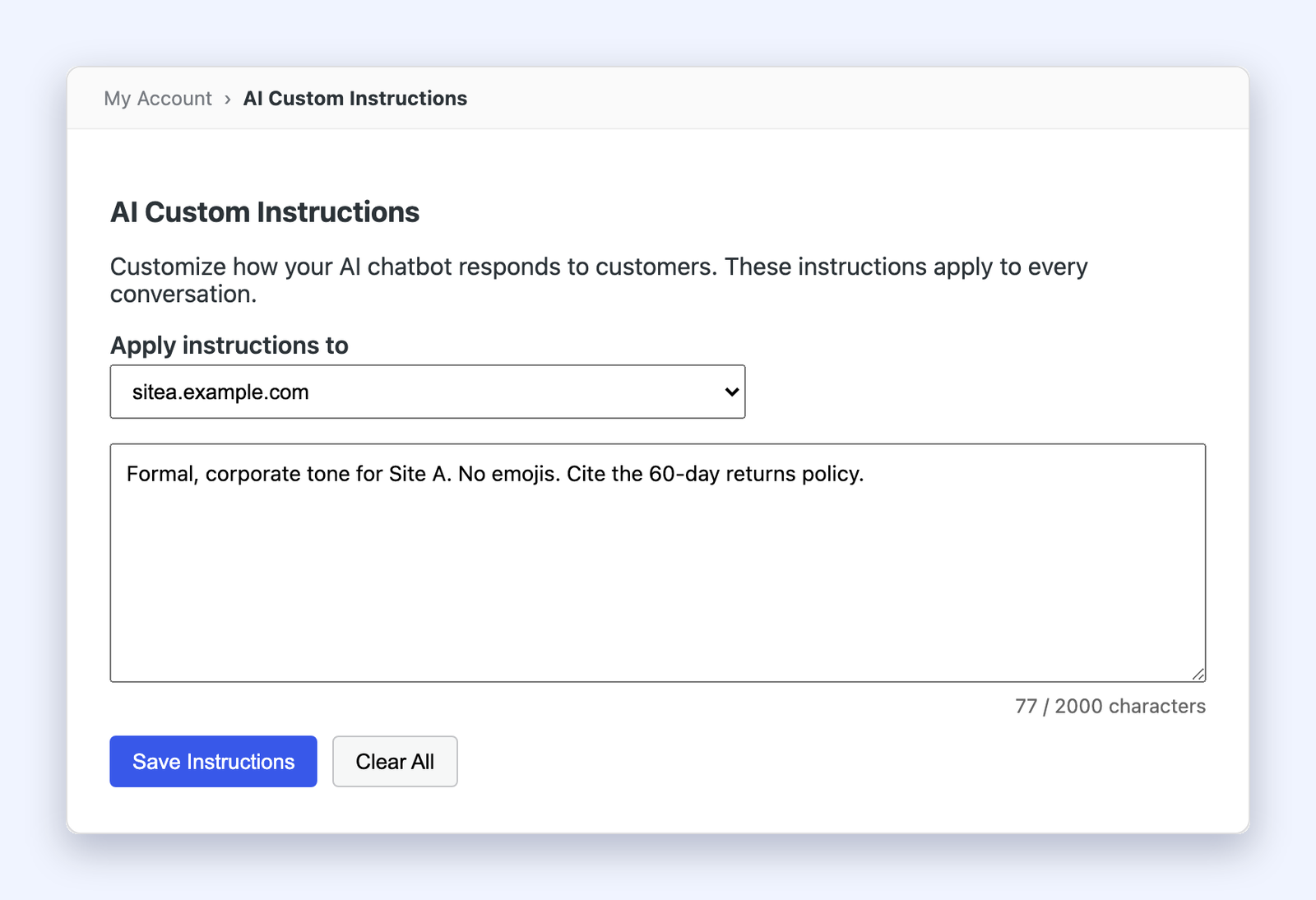
The store now has its own instructions. Your account default is untouched, and every other store carries on using it. Switch between stores in the dropdown and each one shows either its own set or the inherited default.
How To Put A Store Back On The Account Default
Select the store, then click Clear All. The store’s own instructions are removed and it goes back to inheriting the account default. The default itself is untouched, and no other store is affected.
If you want to change the shared instructions instead, choose All stores (account default) in the dropdown first, then edit and save there.
What If You Only Run One Store?
Nothing changes. The dropdown appears only once your account has two or more connected stores. With a single store, the page looks and behaves the way it did before, and your instructions apply to that store the way they always have.
Access is also unchanged. AI Custom Instructions is still a plan feature, and this update changes only where instructions are stored, not who can set them.
What This Is Good For
Two situations make this pay off immediately.
Agencies managing several client stores can hold house rules at the account level and let each client’s store speak in its own voice. Your escalation policy stays shared across all of them, while tone, product vocabulary and the returns window belong to each store.
Multi-brand owners get the same split. A premium label and a value label rarely want the same greeting, the same level of formality, or the same line about discounts, and now they do not have to share one.
Get Started
If your account already has more than one store connected, open My Account → AI Custom Instructions and look for the dropdown. Start with your account default holding the rules every store shares, then override only the stores that genuinely need something different. Keeping most stores on the default means a later change to shared rules takes one edit rather than six.
Your assistant still answers from each store’s own catalogue, which happens once product indexing has read that store into its AI memory. Instructions shape how it talks, and indexing decides what it knows about.
Not using StoreAgent yet? Take a look at the plans and see what a WooCommerce AI assistant can do across your stores.
Frequently Asked Questions
Where do I find the store selector?
On My Account → AI Custom Instructions, above the instructions box. It is labelled Apply instructions to.
Why can I not see the dropdown?
It appears only when your account has two or more connected stores. With a single store, instructions stay account-scoped and the page is unchanged.
Does a store override replace my account default everywhere?
No. Saving instructions with a store selected creates a set for that store only. Your account default and every other store are untouched.
How do I edit the shared instructions?
Choose All stores (account default) in the dropdown, then edit and save. That value applies to every store with no instructions of its own.
How do I remove a store’s own instructions?
Select the store and click Clear All. The store goes back to inheriting the account default.
How long can instructions be?
Up to 2000 characters, per store and for the account default.
Does this change who can use custom instructions?
No. The existing plan requirement is unchanged. This update changes only where the instructions are stored.
What happens to a store I connect later?
A newly connected store starts on your account default, the same as any other store with no instructions of its own. Select it and save to give it its own set.