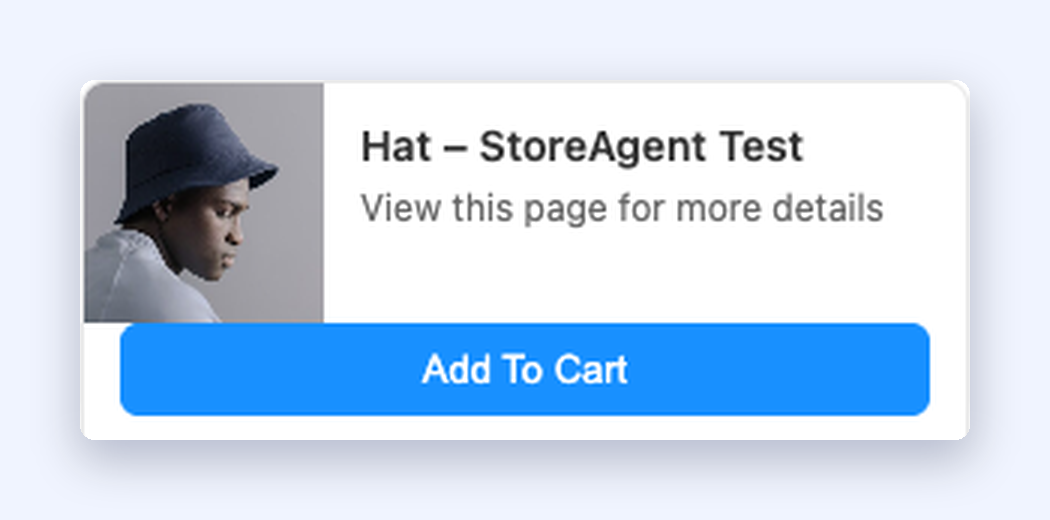
When your AI assistant recommends a product in chat, the preview card it shows now carries an Add To Cart button. Your shopper taps it, the item lands in their cart, and the conversation carries on where it left off. They never leave the chat.
Until now the preview card was a nicer looking link. Useful, but it still sent the shopper away from the conversation to do the one thing you wanted them to do. Plenty of them never came back to finish it.
In this article, we’ll cover what changed on product preview cards, what a shopper sees when they click, which products get a Select Options link instead, what happens with out of stock items, and the one theme quirk worth knowing about. So, let’s get started!
Table of Contents
- What Changed On Product Preview Cards
- What A Shopper Sees When They Click
- Products That Show Select Options Instead
- Items That Get No Button At All
- Do You Need To Turn Anything On?
- The One Theme Quirk Worth Knowing
- Get Started
- Frequently Asked Questions
What Changed On Product Preview Cards
Your chat assistant already turns links in its replies into preview cards. When that link points at a product page, StoreAgent now reads the page and works out what kind of product it is. If it is a simple product and it is in stock, the card gets an Add To Cart button sitting under it.
Everything else about the card stays the same, including the title, the image and the link. The button is the only addition, and it appears only when adding to cart is something the shopper can do in one tap.
It works on both the popup widget and the inline chat, and it works whether the shopper is logged in or browsing as a guest.
What A Shopper Sees When They Click
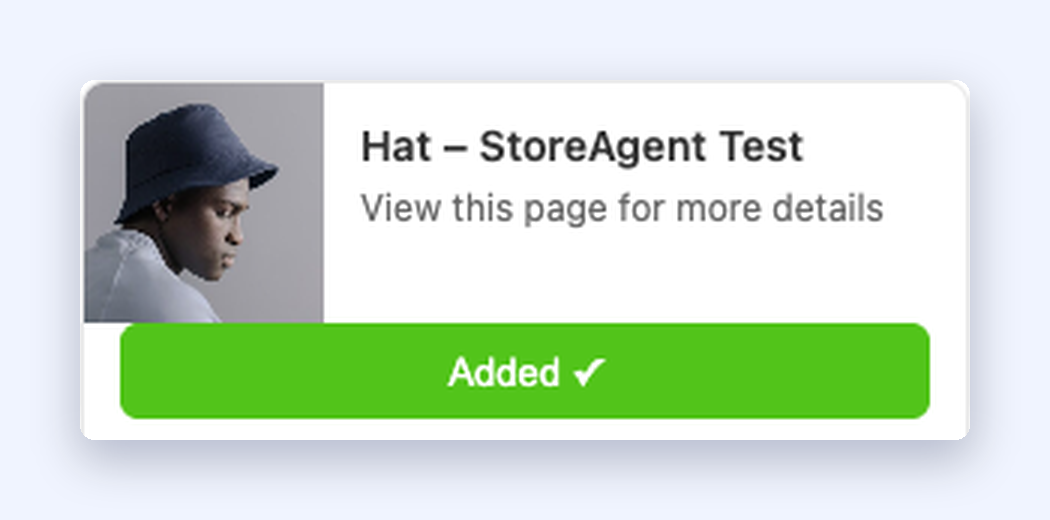
The button changes label as it works, so a shopper always knows where the tap got to:
- Add To Cart is the resting state.
- Adding… appears while the request is in flight.
- Added ✓ confirms the item is in the cart.
- Try Again shows if something went wrong.
Quantity is always 1. The shopper stays in the chat the whole time, and the conversation continues underneath. If they want two, they can change it at the cart.
WooCommerce still applies its own rules. If a product is set to sold individually, or the shopper has already hit a maximum quantity, WooCommerce refuses the add and StoreAgent sends them to the product page so they can read the reason in WooCommerce’s own notice.
Products That Show Select Options Instead
Some products cannot be added to a cart with a single click, because the shopper has to choose something first. Variable products, grouped products and external products all fall into this bucket.
For those, the card shows a Select Options link rather than a button. It opens the product page in a new tab so the shopper can pick a size, a colour, or whichever variations you have set up, then add to cart there. The chat stays open behind it.
Choosing variations inside the chat window is not part of this release. A variable product hands off to the product page, which is where your variation swatches, price changes and stock rules already live.
Items That Get No Button At All
A preview card gets a button only when a shopper can act on it. Two cases leave the card plain.
Out of stock products get no action. There is nothing for a shopper to press, so the card behaves as it did before.
Links that are not products get no action either. If your assistant links to a shipping policy, a blog post, or your contact page, the preview card renders the way it always has.
Do You Need To Turn Anything On?
No. There is no setting for this and nothing to configure. If your chat widget is running, product preview cards pick up the button on their own.
Old conversations behave the same way. StoreAgent rebuilds preview cards every time a transcript loads rather than storing them, so a chat from last week shows the button once the shopper reopens it.
The One Theme Quirk Worth Knowing
On classic WooCommerce themes such as Storefront, the header mini-cart updates the moment the item is added. The count and the total change on the spot, with no page reload.
Block themes work differently. The cart is correct and the item is in it, but the mini-cart block waits until the shopper moves to another page before it refreshes. Worth knowing if you run a block theme and a customer asks why the number in the corner has not moved.
Get Started
A shopper who has just been told an item is right for them is as close to buying as they will get in that conversation. Asking them to load a product page, find the button and decide again loses some of them. One tap does not.
If you already run StoreAgent, there is nothing to do. Ask your own chat about a product you sell and watch the card. Your assistant recommends from your real catalogue once product indexing has read your store into its AI memory.
Not using StoreAgent yet? Take a look at the plans and see what a WooCommerce AI assistant can do with your catalogue behind it.
Frequently Asked Questions
Do I need to enable Add To Cart on chat previews?
No. There is no setting. Product preview cards show the button on their own when the linked product is simple and in stock.
What quantity gets added?
One. The shopper can change the quantity at the cart if they want more.
Why does one of my products show Select Options instead of Add To Cart?
That happens with variable, grouped and external products, where a choice has to be made before an item can go in a cart. Select Options opens the product page in a new tab.
What happens with out of stock products?
The preview card renders without any button, the same way it did before this update.
Does it work for guests as well as logged-in customers?
Yes. The add works in both states.
Does it work on the inline chat as well as the popup?
Yes. Both the popup widget and the inline chat show the button.
Why has my mini-cart not updated?
On classic themes the mini-cart refreshes right away. On block themes the item goes into the cart, but the mini-cart block holds its old number until the shopper moves to another page.
Can shoppers pick a size or colour inside the chat?
Not in this release. Products with variations send the shopper to the product page, where your existing variation options are already set up.