StoreAgent chat replies now show you where the answer came from. A small Sources line sits under each AI message, naming the pages, products, or documents the reply was built on, with each title linked so you can open it. One switch in your settings controls whether shoppers see it.
This fixes a trust problem. An answer used to arrive with nothing behind it. If it was wrong or out of date, you had no way to tell which page to go and fix. Now the reply points you straight at the source.
In this article, we’ll cover what response citations are, where the Sources line appears, how StoreAgent decides what to cite, how to turn the setting on or off, and what happens to the content you already indexed. So, let’s get started!
Table of Contents
- What Are AI Chatbot Citations?
- Where The Sources Line Appears
- How StoreAgent Decides What To Cite
- How To Turn Response Citations On Or Off
- What Happens To Content You Already Indexed
- Get Started
- Frequently Asked Questions
What Are AI Chatbot Citations?
AI chatbot citations are a short Sources line under a chat answer that names the store content the answer drew on. StoreAgent lists up to five sources per reply, formatted as “Sources: Refund and Returns Policy · Merino Wool Beanie”, with each title linked to the page it came from. Uploaded documents show as plain text with the filename, since there is no public URL to send a shopper to.
You have probably seen the same idea in ChatGPT and Gemini. The value for a store owner is different from the value for a chat user. A shopper gets somewhere to click. You get a running audit of which of your pages the assistant leans on, and which ones are feeding it stale information.
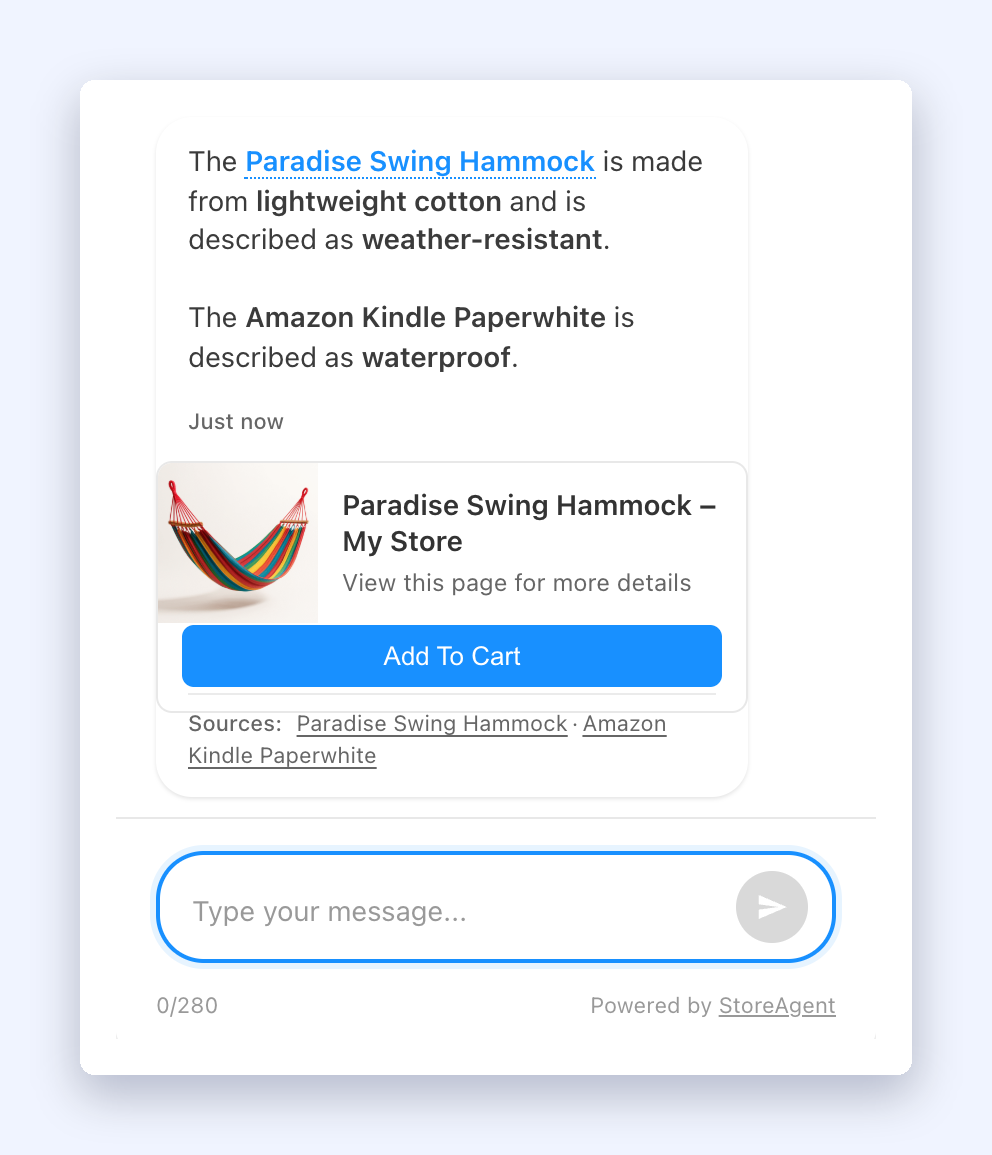
Where The Sources Line Appears
The Sources line renders in three places, and it looks the same in all of them.
- The popup chat widget, under the AI message bubble and below the timestamp
- The inline chat widget, in the same position
- My Account, on the Chat History screen, under each AI message row
Linked titles open in a new tab, so a shopper mid-conversation does not lose the chat when they check a source. The line also survives a page reload. StoreAgent restores citations from the cached conversation and from the chat history endpoint, so a returning shopper sees the same footer they saw before.
It stays off certain messages on purpose. Your own messages never carry it. Neither do error rows, feedback thank-you messages, or replies where the assistant declined an off-topic question. Those replies are not grounded in your store content, so there is nothing honest to cite.
How StoreAgent Decides What To Cite
The citation list is built from the searches the assistant actually ran during that turn, not from anything the model wrote about itself. That distinction matters. A model asked to name its own sources will invent a plausible page title. StoreAgent never asks it.
Here is what makes the cut:
- Knowledge base and page hits. Only strong matches from the content search are cited. Weak near-misses are dropped rather than presented as sources.
- Products. A product is cited only when the final reply actually mentions it by name or links to it. Products the assistant looked at and then ignored do not appear.
- Documents. Files you uploaded are cited by filename.
The list is then tidied before it reaches the widget. A page that matched across several chunks is cited once, not four times. Knowledge base hits are ordered ahead of catalog rows. The whole list is capped at five.
Every citation URL is pinned to your own store domain, so a citation can never point a shopper off your site. StoreAgent also suppresses the Sources line when one of its safety guards has rewritten a reply, such as the competitor filter or the escalation guard. In those cases the answer is no longer the one the retrieved sources produced, so citing them would be misleading.
How To Turn Response Citations On Or Off
The setting lives with the rest of your chat configuration.
- In WordPress admin, go to StoreAgent → Settings.
- Open the AI Chat tab, then the General tab on the left.
- Find Show Response Citations and set the switch to ON or OFF.
- Save your settings.
The switch is ON by default, so citations are already working on your store. Turn it off and new replies stop showing the Sources line.
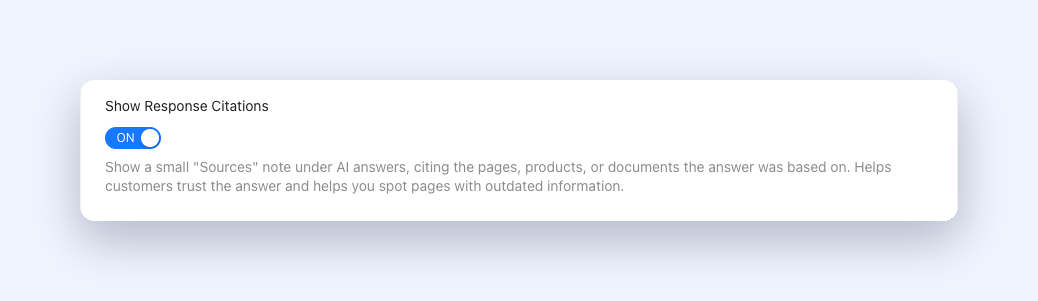
The setting description in the admin sums up the intent: “Show a small ‘Sources’ note under AI answers, citing the pages, products, or documents the answer was based on. Helps customers trust the answer and helps you spot pages with outdated information.”
If you build on StoreAgent and want to control this in code, there is a filter for it. saai_chat_citations_enabled receives the saved setting as a boolean and overrides it, which is useful when you want citations on a staging environment but not on production.
What Happens To Content You Already Indexed
Citations need a page title and permalink stored against every indexed chunk, and content indexed before this release does not have them. Rather than making you wait for citations to turn up page by page as you edit them, StoreAgent handles the backfill for you.
On the next content sync after you update, StoreAgent re-flags every synced post and product for one automatic re-upload. That single pass writes the citation details onto your existing content. You do not have to trigger anything or re-index by hand.
Two things worth knowing about that pass:
- Re-uploads of content StoreAgent already holds do not count against your plan quota, so the backfill does not cost you anything.
- Products whose content has not changed take a cheap metadata refresh instead of a full re-embed.
Your chat widget also stays available while this runs. StoreAgent’s product indexing readiness check counts your content as indexed throughout the re-sync, so the widget does not drop off your storefront mid-backfill.
Get Started
Citations turn your chat log into something you can act on. Watch which pages get cited over a week and you learn which parts of your store are carrying your support load, and which answers are being built on a page you last touched two years ago.
Here’s what we covered:
- The Sources line under AI replies, and what it lists
- Where citations show up: popup widget, inline widget, and My Account Chat History
- How StoreAgent picks sources from real searches rather than model text
- The Show Response Citations switch under StoreAgent → Settings → AI Chat → General
- The one-time re-sync that brings citations to content you already indexed
Open your AI Chat settings, confirm Show Response Citations is on, then ask your own widget a question you know the answer to and see which page it cites. New to StoreAgent? Explore our plans and pricing today and put an AI assistant on your store that shows its working.
Frequently Asked Questions
What are AI chatbot citations in StoreAgent?
AI chatbot citations are a small Sources line under each AI chat reply, listing the pages, products, or documents the answer was based on. Each cited title links to the source so a shopper can open it, and uploaded documents show as plain filenames. StoreAgent lists up to five sources per reply.
How do I turn response citations on or off?
Go to StoreAgent → Settings → AI Chat → General and set the Show Response Citations switch to ON or OFF, then save. The setting ships ON, so citations already appear on your store unless you turn them off. Developers can also override it with the saai_chat_citations_enabled filter.
Can the chatbot cite a page it did not really use?
No. StoreAgent builds the citation list from the searches the assistant ran during that turn, never from text the model writes about itself. Only strong content matches and products the reply actually references are cited, and every URL is pinned to your own store domain.
Do citations appear on content I indexed before the update?
Yes. On your next content sync after updating, StoreAgent re-uploads your synced posts and products once to attach the citation details. The pass does not count against your plan quota, unchanged products skip re-embedding, and your chat widget stays live while it runs.
Where else can I see the sources for an answer?
Besides the popup and inline chat widgets, the same Sources line appears in My Account under Chat History, on every AI message row. Citations also survive a page reload, so a returning shopper still sees them on the conversation they left open.