Reviewed by
StoreAgent, the WooCommerce AI plugin, now has a dedicated AI agent for WC Vendors marketplace owners: the WC Vendors Product Moderator. It screens vendor-submitted products the moment they enter “Pending Review” status, giving you a risk score, review results, and field-level suggestions before you open a single listing. That is WC Vendors AI product moderation in practice.
If you are already running a WooCommerce marketplace with WC Vendors, this integration plugs directly into your existing workflow. The moderation runs in the background and surfaces results inside your WC Vendors admin when you are ready to review.
In this article, I will walk you through what the agent screens, how submissions are processed, and exactly how to set everything up step by step.
What Does The WC Vendors Product Moderator AI Agent Screen?
Each time a vendor product enters “Pending Review,” the WC Vendors AI product moderation agent automatically checks five fields: product title, description, categories, tags, and pricing. The output includes a risk score, feedback signals, and suggestions tied to each specific field.
You also have the option to enable image moderation separately. When that is on, the agent checks product images for inappropriate visuals. That gives you an extra layer of protection without requiring you to manually scan every photo a vendor uploads.
📝 Note: The agent only screens products in “Pending Review” status. It does not run on draft products or already published listings.
How Does The Async Process Work?
Everything runs through Action Scheduler, which means the AI content moderation check happens in the background after the product enters “Pending Review.” Vendors submit products normally, and nothing blocks their upload while the agent runs.
That is worth pointing out because blocked submissions create friction and vendor complaints. With async processing, the experience on their end stays smooth while WC Vendors AI product moderation runs quietly on your side.
How Do You Set Up WC Vendors AI Product Moderation?
Step 1: Enable the agent in StoreAgent
Before anything else, make sure WooCommerce, WC Vendors, and StoreAgent are all installed, active, and up to date. StoreAgent also needs to be connected to your store.
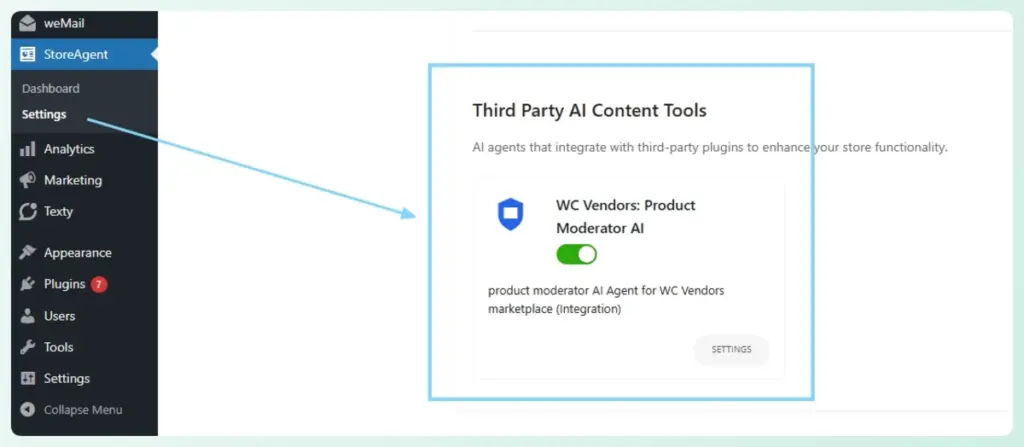
Once that is confirmed, go to: StoreAgent → Settings → AI Content Tools → Third Party AI Content Tools. Find the WC Vendors Product Moderator AI option and turn it on.
Step 2: Enable AI Moderate in WC Vendors
Next, go to: WC Vendors → Settings → Capabilities → General. Look for the AI Moderate option and turn it on.
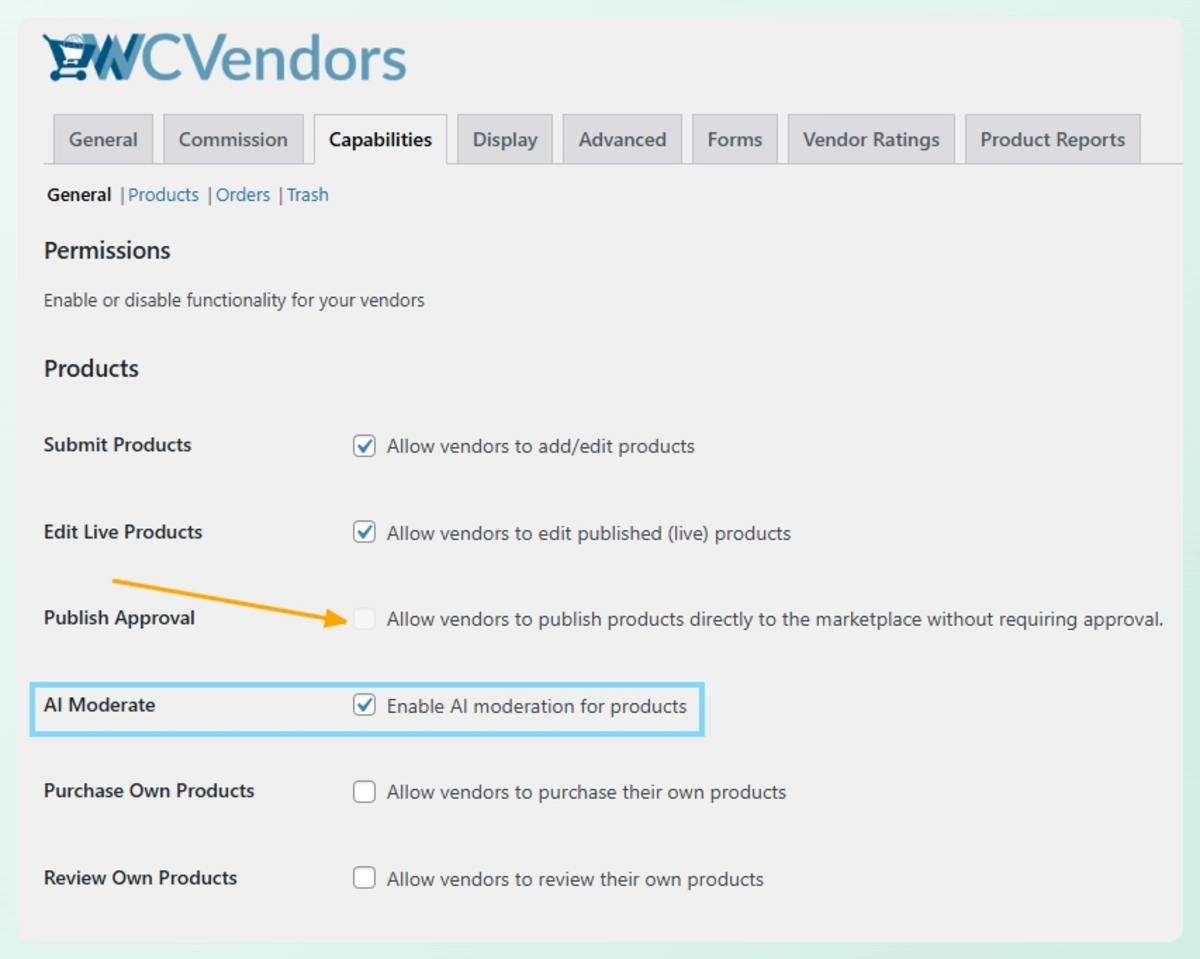
📝 Note: When AI Moderate is enabled, Publish Approval is automatically disabled. This keeps the review flow enforced so no product can skip WC Vendors AI product moderation and go live without your sign-off.
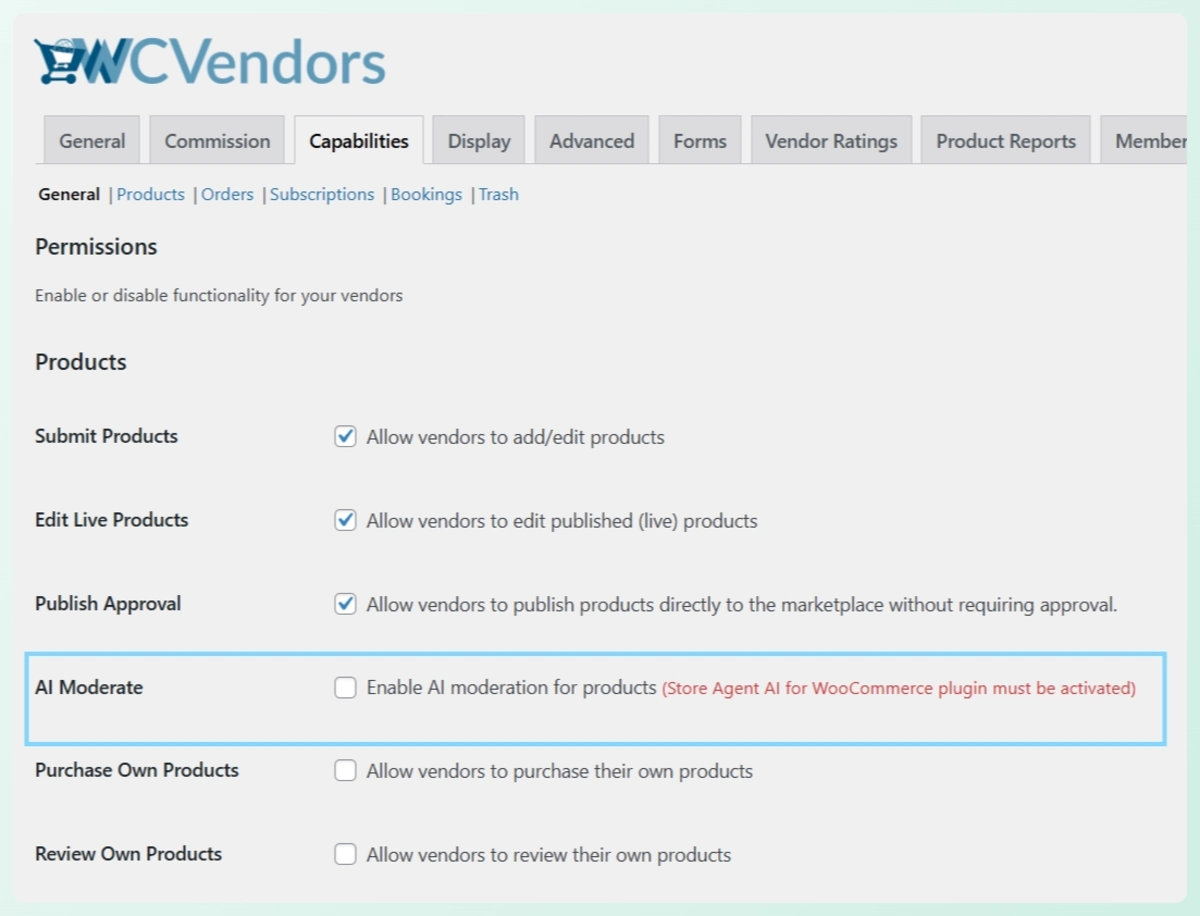
Also, if StoreAgent is not connected yet when you try to flip that switch, WC Vendors will show a requirement message next to the AI Moderate option. Connect StoreAgent first, then come back and enable it.
Step 3: Find your pending products
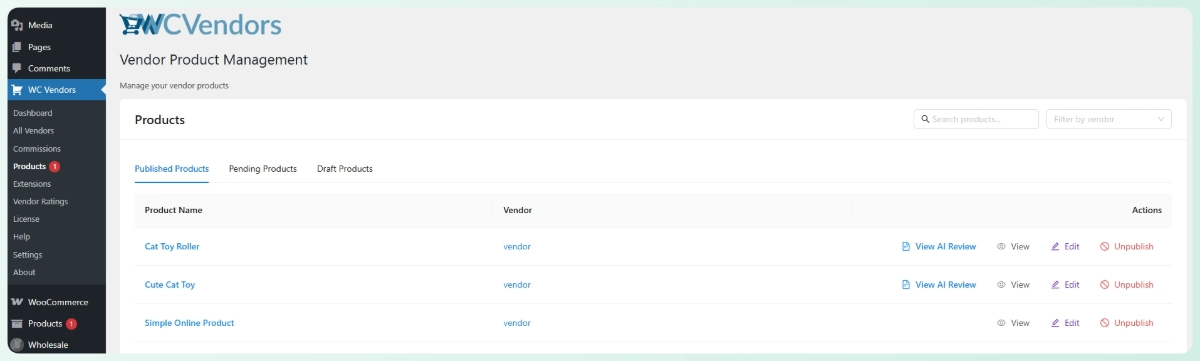
Go to WC Vendors → Products. This is your main moderation hub. You can filter by status, search by vendor, and see a pending count badge so you always know how many listings are waiting for vendor product review.
Step 4: Open the AI review drawer
Click “View AI Review” on any pending product. That opens the review drawer with the review status, risk score, feedback signals, audit-style results, and field-level suggestions. You get a complete picture of the listing before you have read a single line of the product description yourself.

From there, you take one of three actions: Approve, Request Changes, or Unpublish.
Step 5: Send AI suggestions with your change request
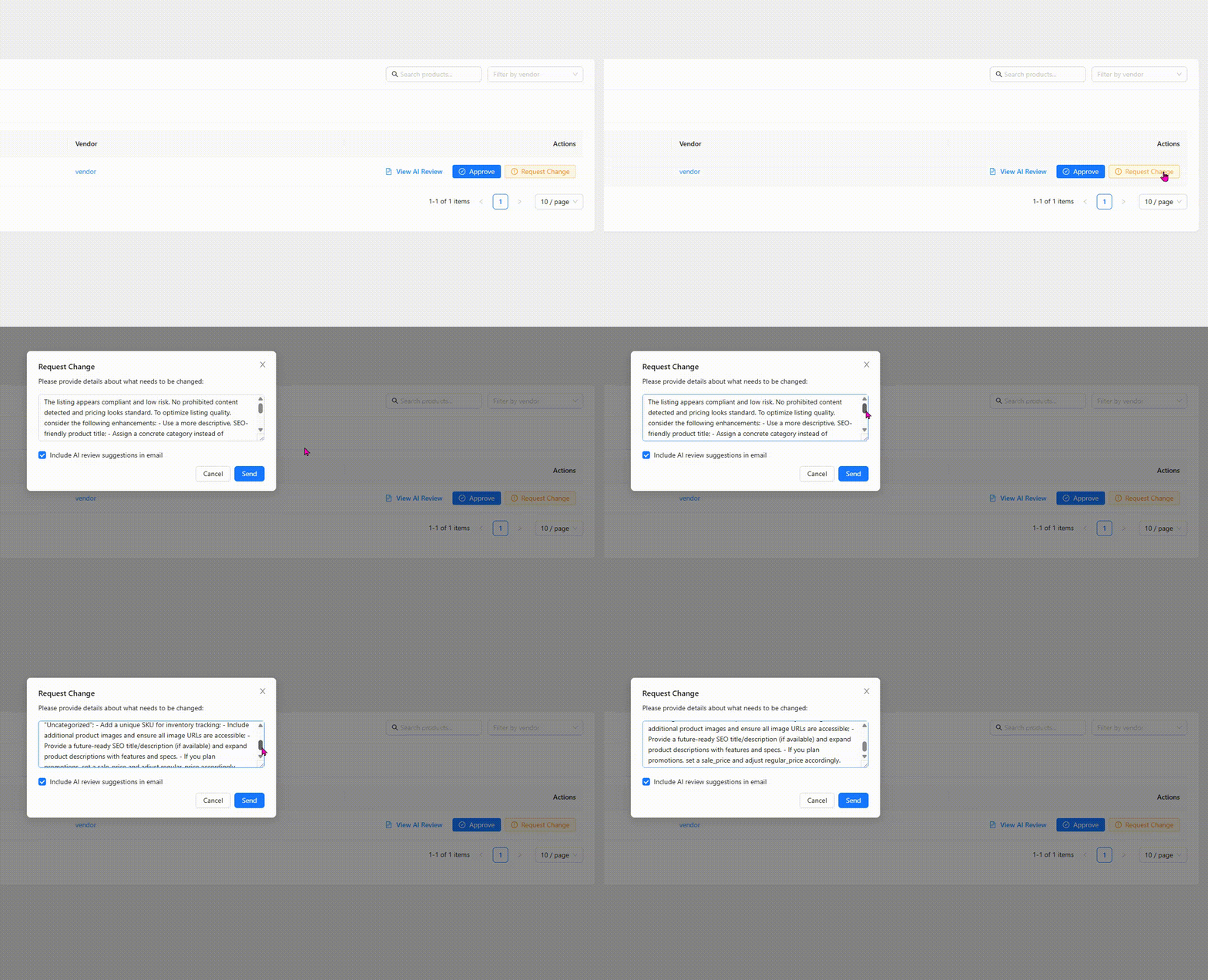
If the product needs work, use Request Changes. In that modal, you can write your own message to the vendor and optionally attach the AI review suggestions in the same email. That last option saves a lot of time. Instead of explaining the issue yourself, the agent’s notes do the heavy lifting for you.
Step 6: What vendors see on their end
On the vendor side, a Review Suggestions panel appears inside their product edit form. Suggestions are organized by field, so vendors know exactly which part of the listing needs fixing. They do not have to guess, and they do not have to wait for a follow-up email to understand what went wrong.
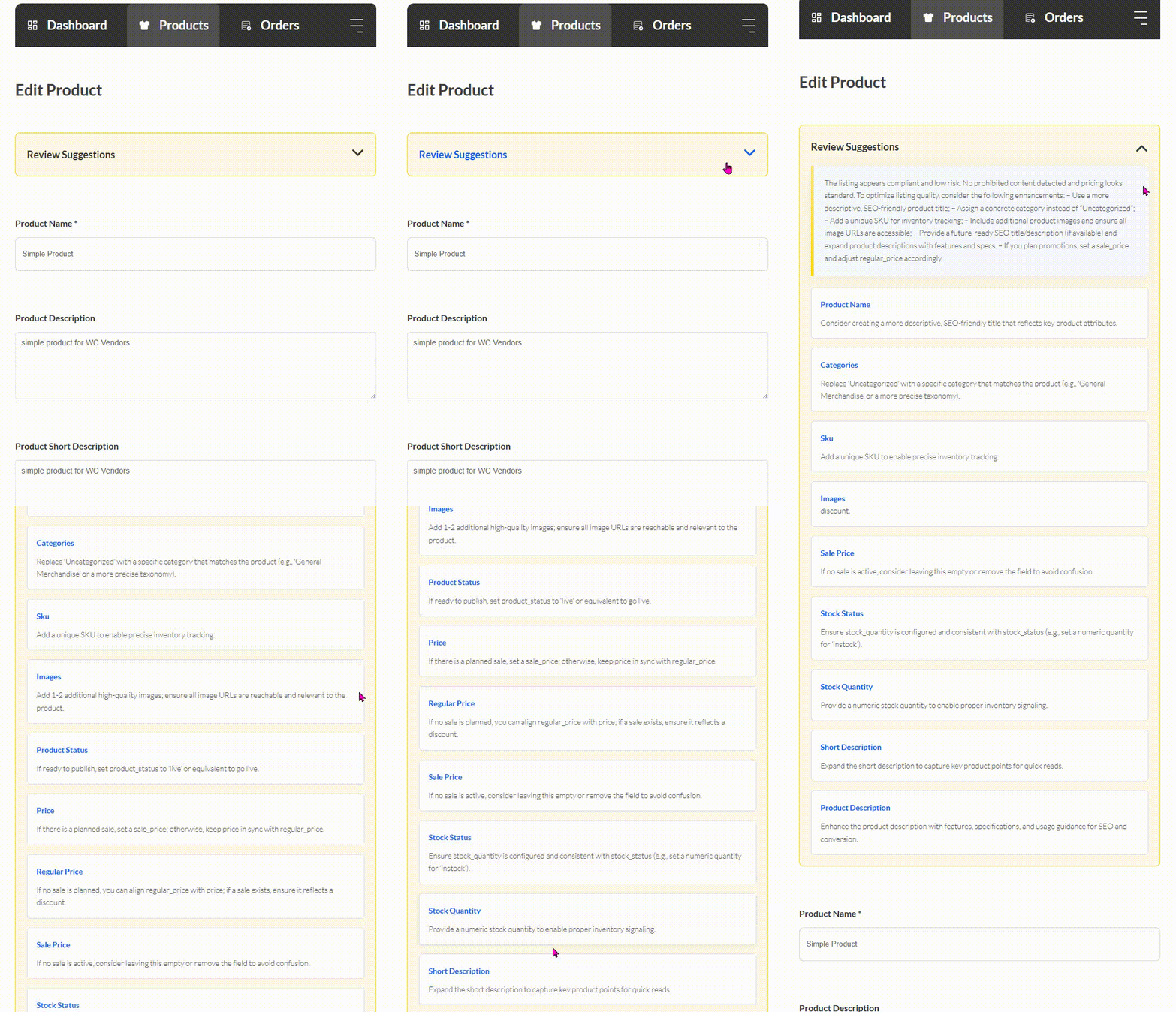
Because the feedback is right there in their workflow, vendors can make the fixes, check the suggestions, and resubmit with confidence. That cuts down back and forth for both sides.
What Does The Agent Not Moderate?
The agent only runs on products that enter “Pending Review” status. It does not screen draft products or already published listings. If products were live on your WooCommerce marketplace before you activated this integration, those will not get a retroactive scan.
Keep that in mind when you first turn things on. Going forward, every new vendor submission that hits “Pending Review” will trigger the WC Vendors AI product moderation agent automatically. That applies to any WooCommerce marketplace running WC Vendors, regardless of size.
Takeaways
If you are a WooCommerce marketplace owner running WC Vendors, this is the part where StoreAgent starts doing work that used to fall entirely on you. The WC Vendors Product Moderator screens every pending submission automatically, gives you a risk score, and flags what needs attention before you open a single listing.
Here is a quick recap of what I covered in this article:
- What the WC Vendors Product Moderator AI Agent screens
- How the async process works
- How to set up WC Vendors AI product moderation step by step
- What the agent does not moderate
On the vendor side, the experience also gets cleaner. Review Suggestions appear directly inside the product edit form, so vendors know exactly what to fix without waiting for a follow-up message or guessing what the rejection was about.
The bigger picture is this: as your marketplace grows, manual moderation does not scale. StoreAgent handles the first-pass review so your queue stays manageable, your catalog stays clean, and your time stays focused on the decisions that actually need a human behind them.
Not on StoreAgent yet? You can get started for free and have the WC Vendors Product Moderator running on your store in minutes. Try StoreAgent free today.
Frequently Asked Questions
Does StoreAgent work with WC Vendors?
Yes. StoreAgent has a dedicated AI agent for WC Vendors called the WC Vendors Product Moderator. It screens vendor-submitted products automatically when they enter “Pending Review” status and delivers a risk score, review results, and field-level suggestions inside your WC Vendors admin.
How does AI product moderation work in WooCommerce?
When a vendor submits a product and it enters “Pending Review,” the AI agent checks the product title, product description, categories, tags, and pricing in the background using Action Scheduler. It then surfaces a risk score and suggestions in your admin so you can approve, request changes, or unpublish the listing.
Can StoreAgent moderate vendor product images?
Yes. Image moderation is available as an optional setting. When enabled, the WC Vendors Product Moderator checks product images for inappropriate visuals alongside the standard content review.
Does AI moderation block vendor submissions?
No. The moderation check runs asynchronously through Action Scheduler, which means it happens in the background after the product enters “Pending Review.” Vendor submissions are never blocked or delayed.
What product fields does the WC Vendors Product Moderator check?
The agent reviews five fields: product title, description, categories, tags, and pricing. Each field gets its own suggestions in the review output so you can see exactly where the issue is.
Does the AI approve or reject products automatically?
No. The agent provides review results and a risk score, but the final decision stays with you. You can approve the product, request changes, or unpublish it manually from the WC Vendors Products dashboard.