
You can easily embed the StoreAgent chat interface directly into your WordPress pages or posts. This allows customers to interact with the support agent in-line rather than through a floating pop-up.
The plugin provides a simple shortcode that works anywhere WordPress content is supported. You only need to copy and paste the specific code snippet where you want the chat window to appear.
You also have the flexibility to adjust the visual dimensions of the chat window to fit your specific page layout. Adding simple parameters allows you to control the exact width and height of the widget.
This guide covers how to insert the basic shortcode and how to customize its size using attributes. You will be able to integrate the chat experience seamlessly into your site design.
Adding the basic chat widget
The primary method for displaying the inline chat is through the standard shortcode. Follow these steps to add it to a page or post:
- Navigate to Pages or Posts in your WordPress dashboard and open the content you wish to edit.
- Click the Plus (+) icon to add a new block and search for the Shortcode block.
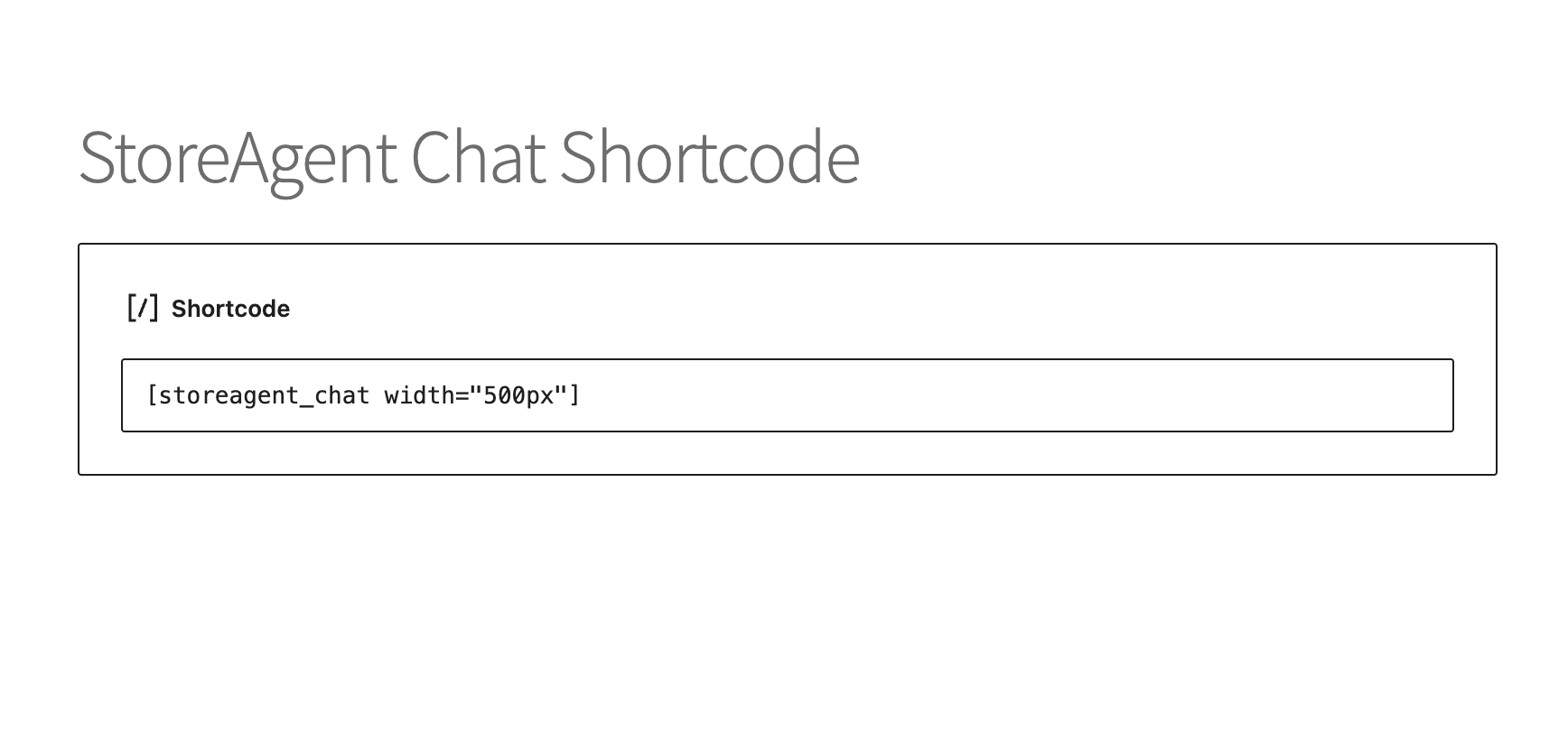
- Paste the following code into the field: [storeagent_chat]
- Then click Update or Publish to save your changes.
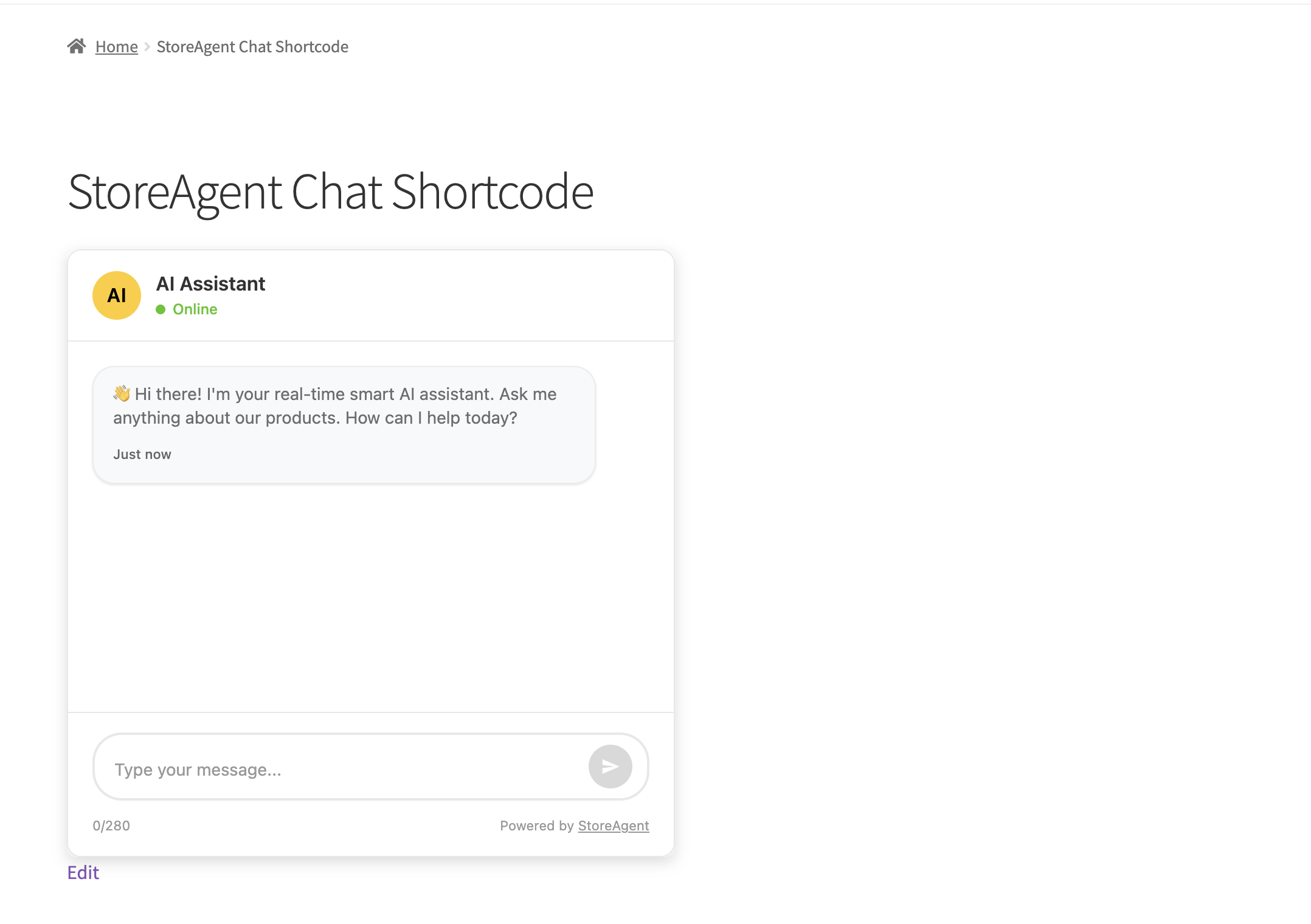
Once saved, the chat widget will appear on the frontend of your site using its default dimensions.
Customizing widget dimensions
You may want the chat widget to take up a specific amount of space on your page. You can modify the height and width by adding parameters directly into the shortcode.
Adjusting height and width
To change the size, simply add height and width attributes inside the brackets. You can use pixels (px) or percentages (%) to define the size.
Example Configuration:
[storeagent_chat height="500px" width="100%"]In this example:
- height=”500px” sets the vertical size of the chat window to 500 pixels.
- width=”100%” ensures the chat window spans the full width of the container it is placed in.
Common places to use the shortcode
Because this feature uses the standard WordPress shortcode system, you are not limited to standard pages. You can place the chat widget in various locations to maximize visibility.
Consider adding the widget to:
- Product Descriptions: Embed the chat directly within a WooCommerce product description tab to answer pre-sales questions.
- Sidebar Widgets: Use a Text or Custom HTML widget in your sidebar to keep the chat persistent across multiple pages.
- Custom Landing Pages: Create a dedicated “Support Center” page with a large, full-width chat interface.
- Footer Areas: Add the shortcode to your footer columns to make support accessible at the bottom of every page.

