
Need to step away from StoreAgent for a while or close your account entirely? Cancelling your subscription is straightforward, but it happens on your StoreAgent.ai account — not inside your WordPress admin. This guide walks you through where to find the cancel option, what happens after you cancel, and how to come back later if you change your mind.
Before you cancel
When you cancel, your subscription is scheduled to end on your next renewal date — you keep full premium access until then, and you can reactivate any time before that date. Before you start, it’s worth checking whether a smaller change would solve what you’re trying to solve.
- Plan too big for your current usage? Downgrade to a smaller plan instead of cancelling. You keep your account, your AI Memory entries, and your chat history. See the pricing page for a side-by-side of what each plan includes.
- Hitting plan limits and seeing the “Plan Limit Exceeded” notice? That’s a usage cap, not a billing problem. Upgrading lifts the cap; cancelling won’t make the cap go away on a different plan.
- Looking for a refund? Cancelling stops future charges but doesn’t automatically refund the current period. Check the refund policy article for what’s eligible.
- Unhappy with a specific feature or behaviour? Open a support ticket first — we can often fix the issue or point you at a setting that helps. Cancelling without telling us means we can’t make it better.
How to cancel your subscription
The cancel option lives in your StoreAgent.ai account portal. You don’t need to be logged into your WordPress admin to do this — billing and the WordPress plugin are separate.
- Go to app.storeagent.ai and log in with the email address you signed up with.
- Click Subscriptions in the left menu, then click View on your active subscription.
- In the Actions row, click Cancel.
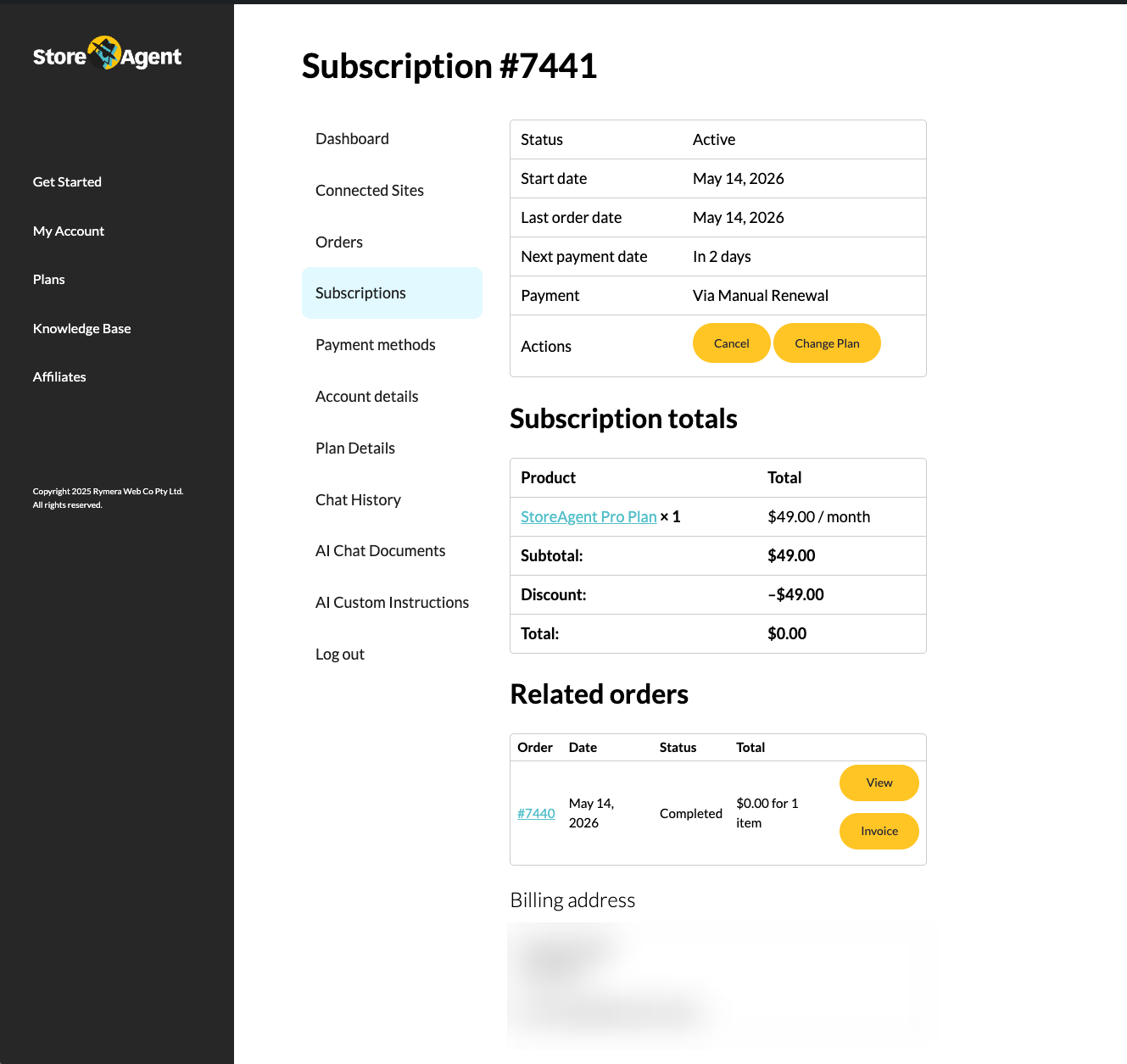
Clicking Cancel opens a short three-step cancellation funnel. Your subscription is only cancelled once you finish all three steps, so don’t close the window partway through if you mean to cancel.
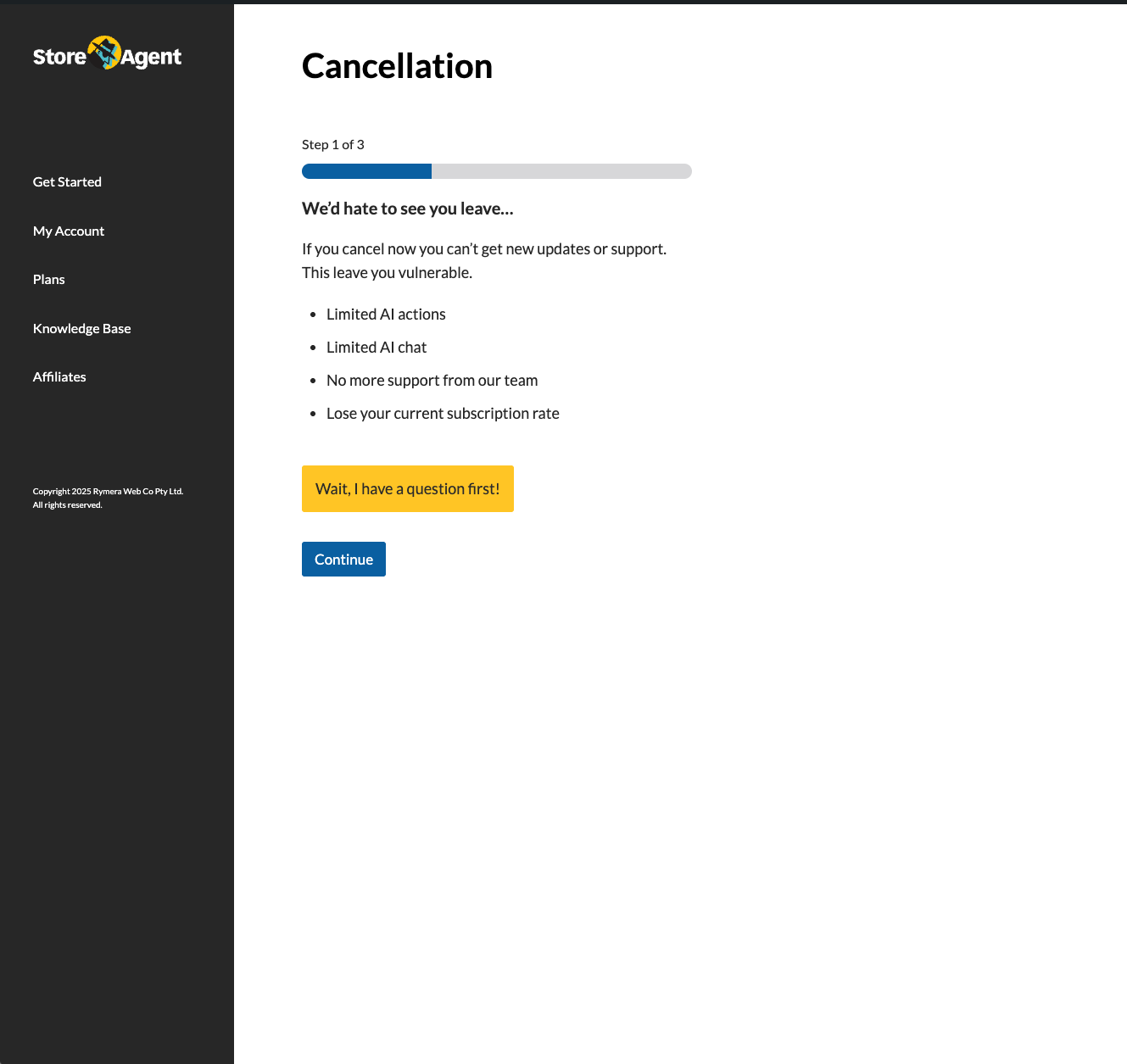
- Step 1 — “We’d hate to see you leave…” This screen lists what you give up by cancelling. Click Continue to go on, or Wait, I have a question first! if you’d rather get help instead.
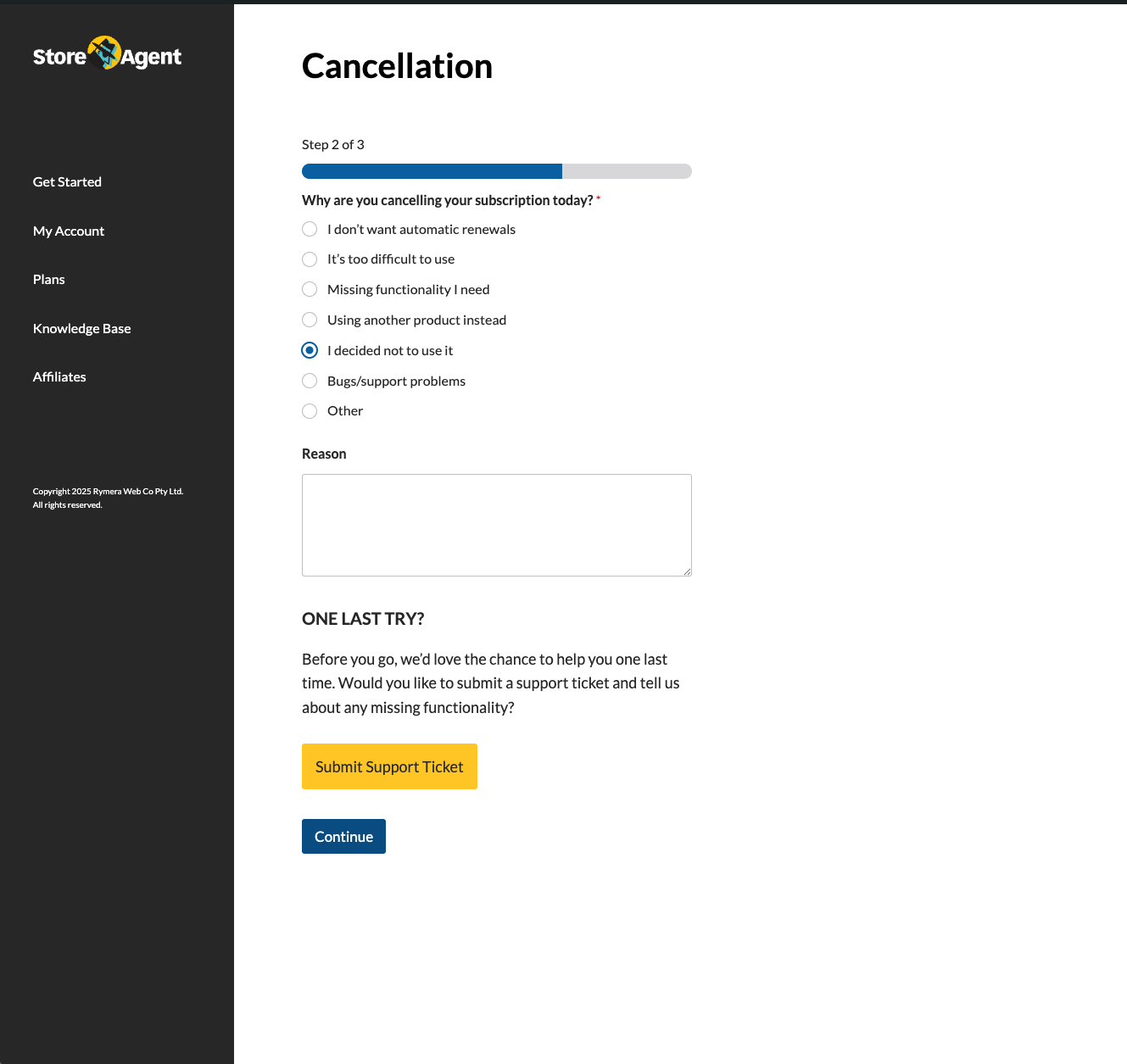
- Step 2 — Tell us why. Choose a reason under Why are you cancelling your subscription today? (this is required), optionally add a note in the Reason box, then click Continue. You can also click Submit Support Ticket here if you’d like us to help before you go.
- Step 3 — Confirm. Complete the final step to confirm the cancellation.
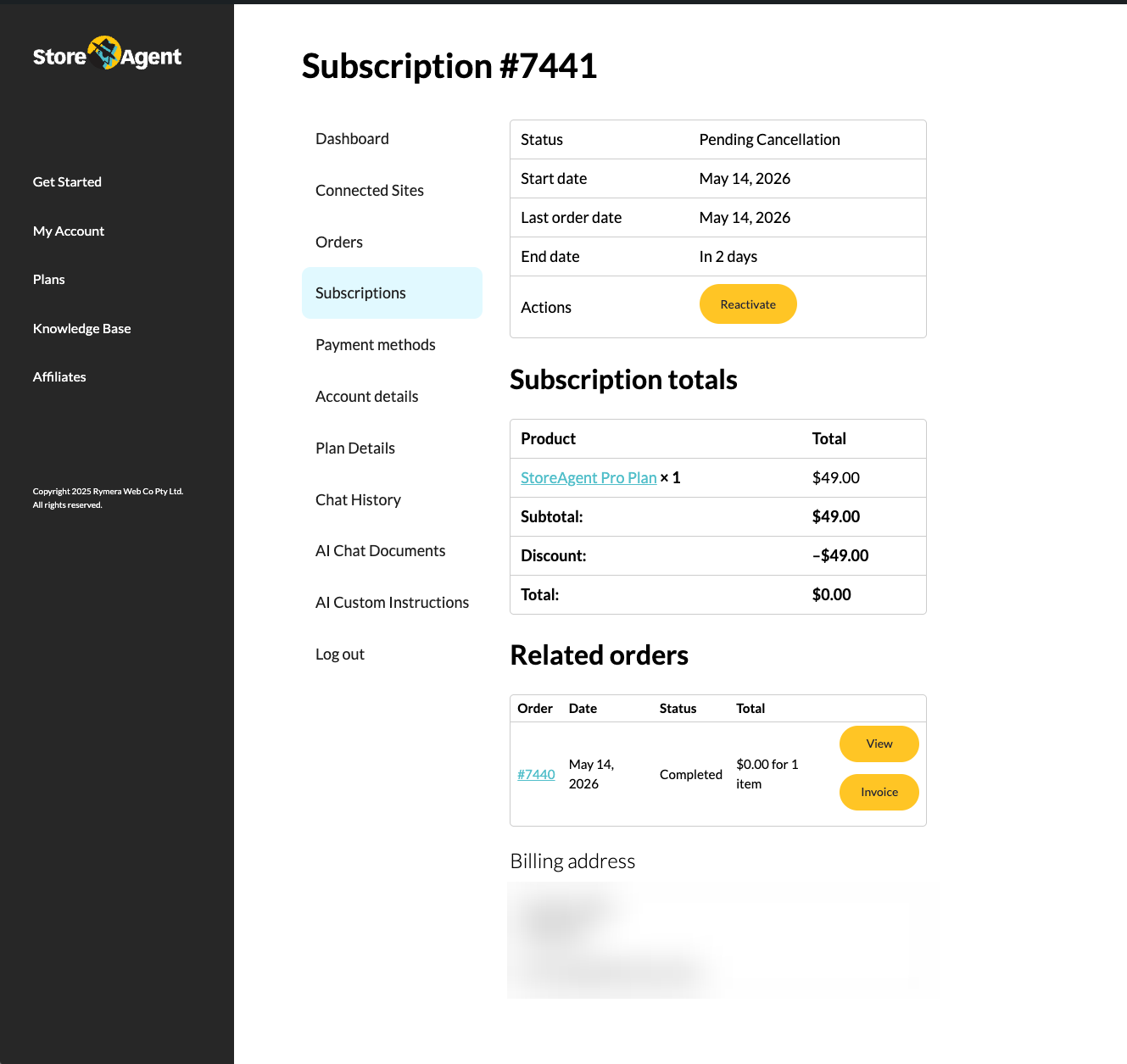
Once you finish the funnel, the subscription status changes to Pending Cancellation and an End date appears (your next renewal date). Cancellation is not immediate — your plan stays fully active with all premium features until that End date.
What changes after you cancel
Your plan
Your subscription stays active with full premium features until the End date shown on the subscription (your next renewal date). At that point it ends and your account drops to the free Lite plan. Premium features then stop — including premium AI Tasks and Actions, higher AI action and chat-reply limits, and any feature that required a paid plan when you signed up.
Your WordPress admin
The WordPress plugin keeps running — your widget stays installed, your settings stay configured, and the plugin checks your plan status once a day. If you continue using premium-gated features after the plan drops, you may see the StoreAgent: Plan Limit Exceeded notice on your WP Dashboard and Plugins page with the message “You’ve exceeded the usage limit of your StoreAgent plan and your account has been paused. Please login to your account to upgrade to a higher plan.” A View Plans button takes you back to your StoreAgent.ai account.
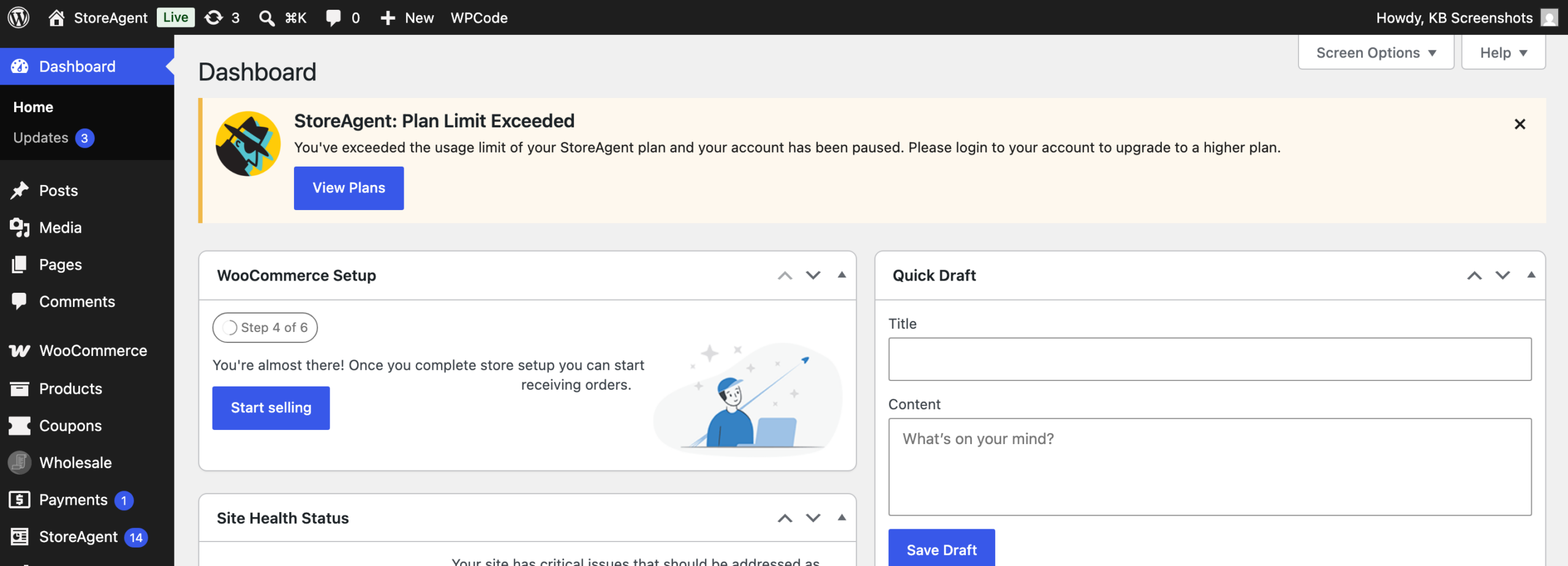
The notice on the WP Dashboard and Plugins page can be dismissed for 7 days; the version that appears on StoreAgent admin pages can’t be dismissed until the plan situation is resolved.
Your data
Your data stays put. Cancelling does not delete your AI Memory items (your indexed product data) or your chat history — StoreAgent doesn’t purge them when your plan changes. What changes is your allowance: your AI Task and AI Chat reply limits reset to the free Lite plan’s limits. If you’ve already indexed more data than the free plan allows, your account is paused — you’ll see the Plan Limit Exceeded notice described above, and premium AI actions and chat pause until you upgrade again — but nothing is erased. Reactivating or re-subscribing restores full access without re-indexing anything.
How to come back later
You don’t need to start from scratch if you change your mind. While the subscription is in Pending Cancellation and the End date hasn’t passed, open the subscription in app.storeagent.ai and click Reactivate in the Actions row. The subscription returns to Active with the same plan, settings, and data, and you’ll see a “Your subscription has been reactivated” confirmation. Nothing needs to be re-indexed.
Reactivating during the Pending Cancellation window resumes your existing subscription — it doesn’t create a new one, and your renewal date stays the same. If the End date has already passed and the subscription has fully ended, log back in with the same email and choose a plan to start a fresh subscription.
Troubleshooting
I cancelled but premium features still work in WordPress
This is usually one of three things. Check each in order:
- Check the renewal end date in your StoreAgent.ai account — premium features keep working until the end of the current billing period.
- Log out and back into your WordPress admin to refresh the local plan cache. The plugin checks your plan status once a day, so a recent cancellation may not have synced yet.
- Log back into app.storeagent.ai and confirm your plan status shows as cancelled or scheduled to cancel. If the cancellation didn’t complete on the StoreAgent.ai side, you’ll need to redo it from there.
I want a refund, not just to cancel
Open a support ticket with your order details — refunds are processed manually, not automatically. Cancellation only stops future charges, so the current period needs a separate refund request. Check the refund policy article for eligibility before opening the ticket.
I can’t find the cancel option in my account portal
Confirm you’re logged into the StoreAgent.ai account that’s tied to your subscription. The account email shown in WordPress under StoreAgent’s plan settings should match the email you used to log into app.storeagent.ai. If you have multiple StoreAgent accounts, you may be looking at the wrong one. If the email matches and you still can’t find the option, open a support ticket with your account email and we’ll cancel it for you.
Frequently asked questions
Will I lose my chat widget and settings if I cancel?
No. The WordPress plugin stays installed and your settings stay configured. What changes is which features are available based on your new plan tier — premium-gated features stop, but the widget itself stays on your site.
Do I need to uninstall the WordPress plugin after cancelling?
Not unless you want to. The plugin works on the free Lite plan as well, so you can leave it installed and keep using the features included on that tier. If you do want to remove it entirely, deactivate and delete it from Plugins → Installed Plugins in your WordPress admin.
Can I cancel and re-subscribe in the same month?
Yes. If you cancel and then change your mind before the End date, click Reactivate on the subscription — this resumes your existing subscription on the same billing cycle, so you aren’t charged again and your renewal date doesn’t change. If the subscription has already ended, re-subscribing starts a fresh subscription.
Need help?
If you have a question or run into any issues, we’re here to help.
- Premium users: Open a support ticket
- Free users: Visit our community forum

