Reviewed by
StoreAgent now shows what each AI tool costs and lets you run AI on a sample product before you use it across your store. Every tool’s settings card has a credit-cost chip and a Run on a sample button, so you can see the price and preview the output on one real item first. Nothing is saved until you choose to apply it.
This fixes a simple problem. The settings page used to be a wall of on/off toggles with no sense of what a tool cost or what it would produce. Now you can check both before spending a single credit across your catalog.
In this article, we’ll cover what’s new on the tool cards, how much each tool costs, how to run AI on a sample product, what the preview shows, and how to apply or bulk-run the result. So, let’s get started!
Table of Contents
What’s New On Your AI Tool Settings Cards?
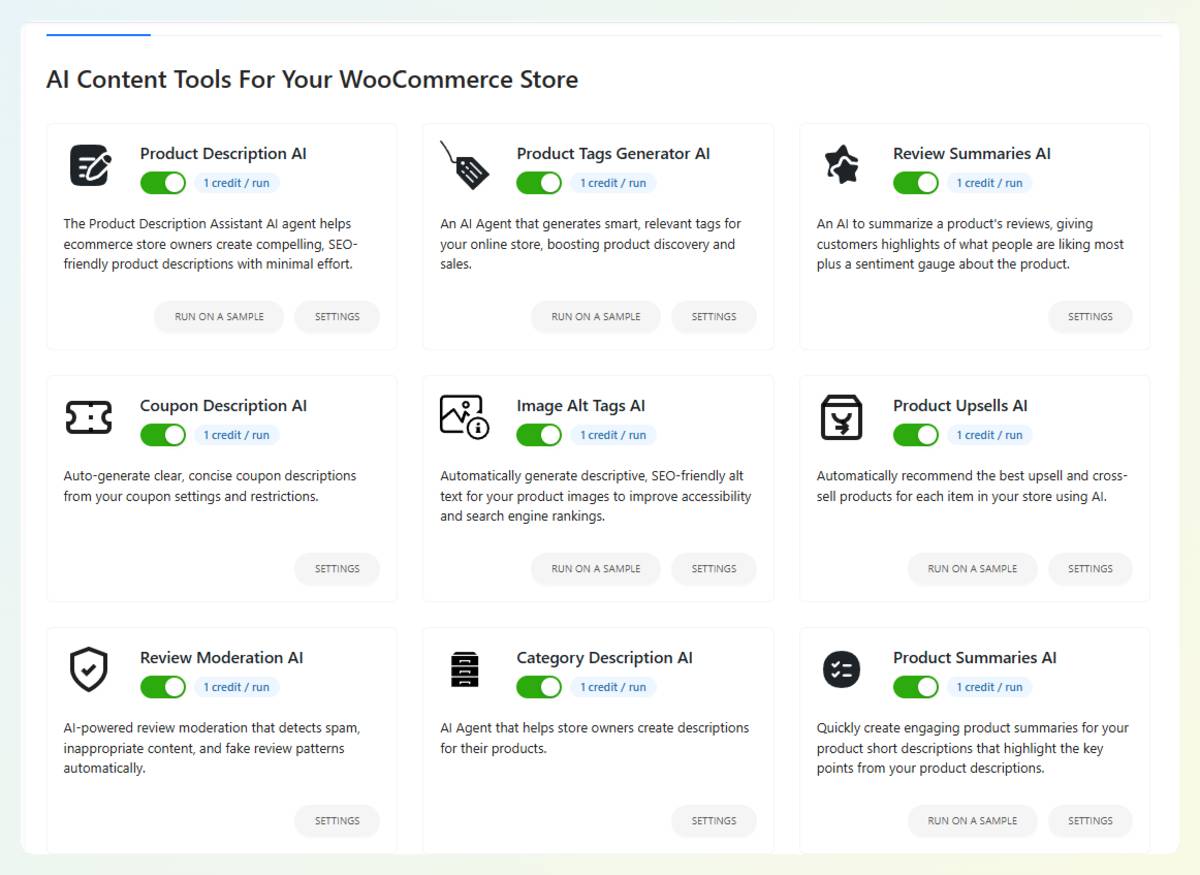
Each AI tool’s settings card now shows two new things: a credit-cost chip and a Run on a sample button. The chip tells you how many credits the tool uses per run, and the button lets you try the tool on one real product without saving. Together they turn a plain on/off toggle into a card you can price and test.
How Much Does Each AI Tool Cost To Run?
Each AI tool shows its cost as a credit chip on its card, such as “1 credit / run,” so you know the price before you use it. The number reflects the real per-run cost rather than a fixed guess, and the chip only appears when a cost is available. That way you can see at a glance what a tool will cost before running it across your catalog.
This matters most when you are about to process a lot of products at once. Knowing a tool costs a set number of credits per run lets you plan a bulk job against your remaining credits instead of guessing.
How Do You Run AI On A Sample Product?
To run AI on a sample product, click Run on a sample on any eligible tool card. StoreAgent picks one representative product, runs the tool on it, and shows the output in a preview, without saving anything to your store. The sample run uses at least one credit, and thin products may cost a little more.
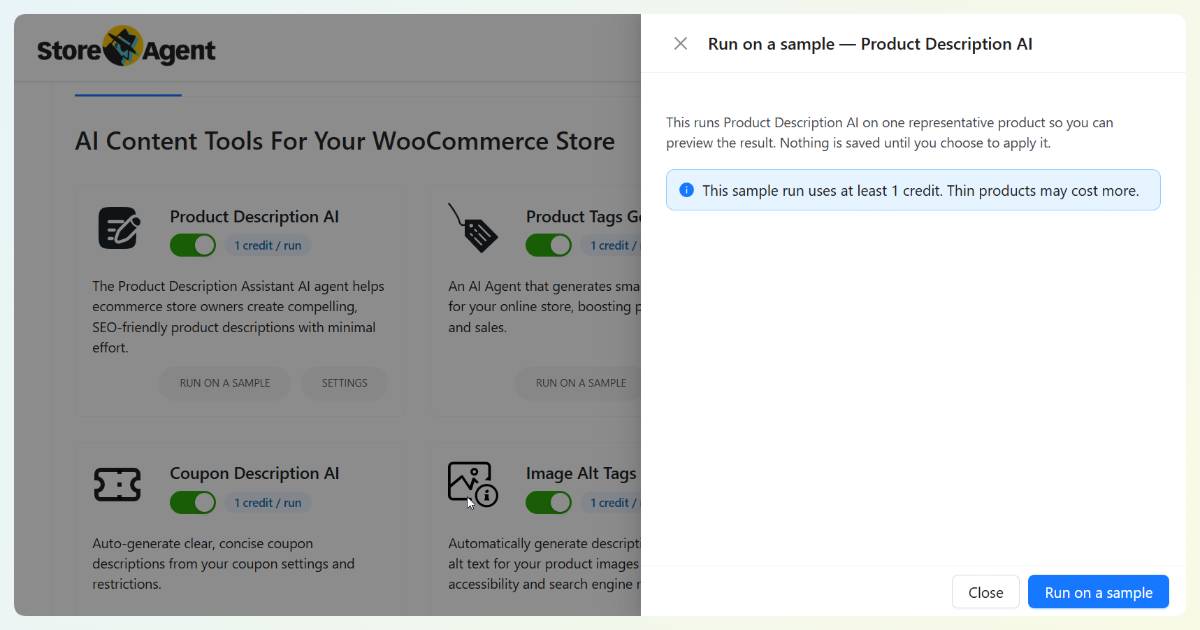
It works with the single-product tools, like the Product Description tool, product tags, and image alt text. If a tool has no eligible item to try, StoreAgent shows a short notice instead of running.
What Does The Sample Preview Show You?
The sample preview shows the product it ran on and the generated output, with buttons to Apply, Run in bulk, or Close. You see exactly what the tool produced for a real item before deciding what to do with it. Nothing changes on your store until you act on the preview.
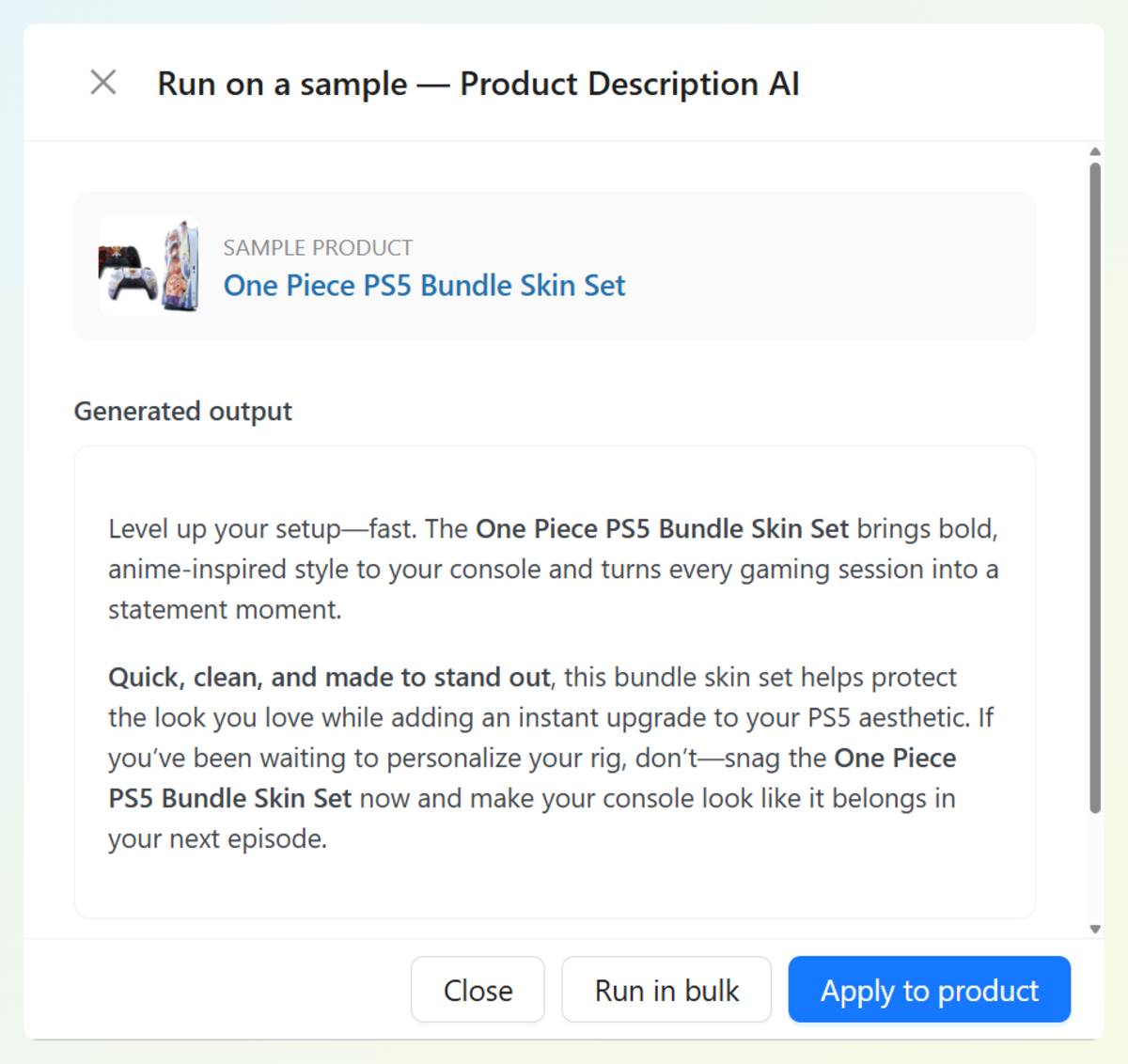
Seeing real output on a real product is the quickest way to judge a tool. For something like image alt text, where quality depends on context, a preview tells you far more than a description of the feature ever could.
How Do You Apply Or Bulk-Run The Result?
From the preview you can Apply to product, which saves the generated output to that one item, or Run in bulk to handle more of your catalog. Apply updates just the sample product and reports the credits the run used. Run in bulk takes you to your WooCommerce products list, where you run the tool across the products you choose.
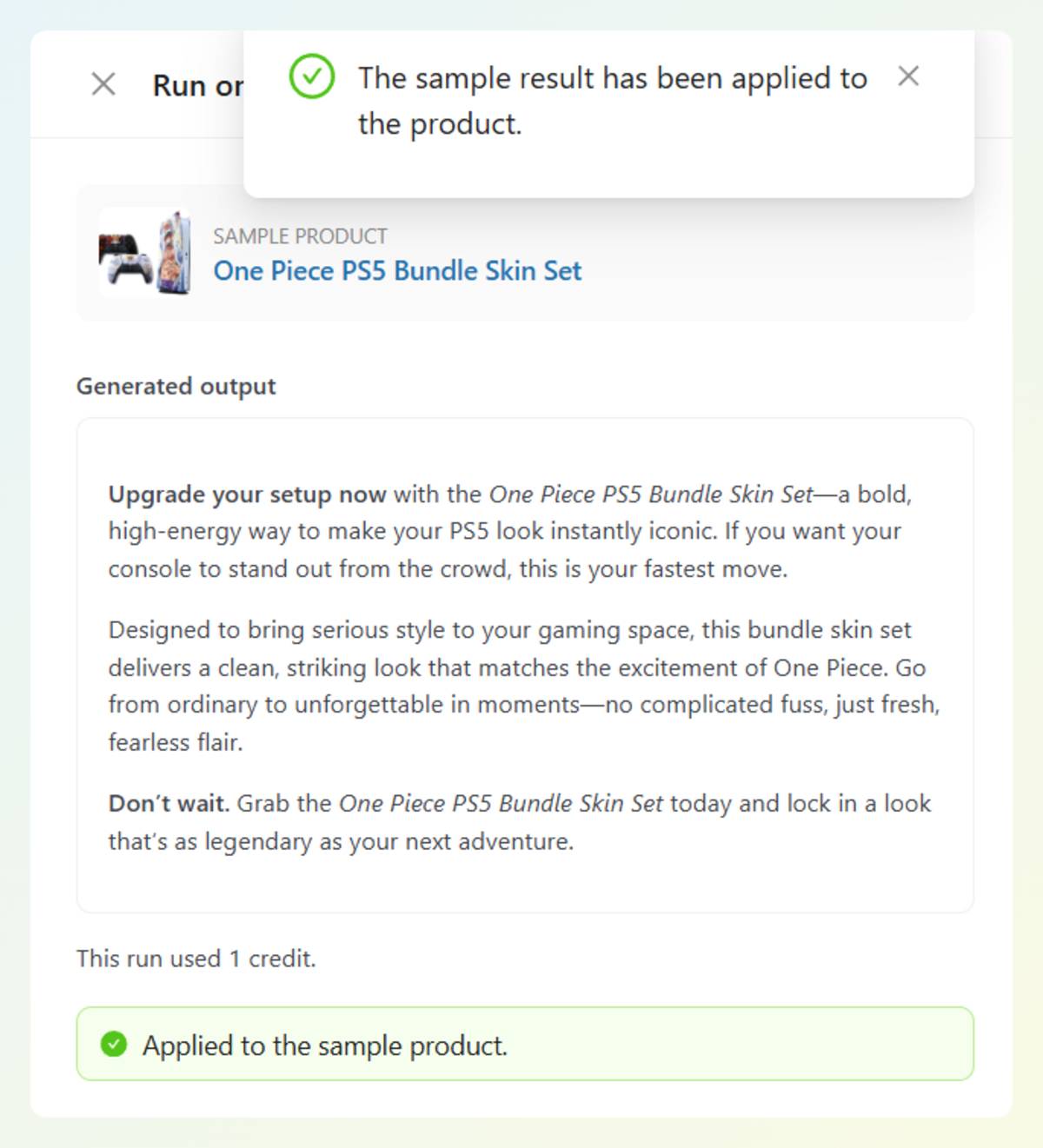
Run in bulk doesn’t process everything on its own. It opens your products list so you can select the products you want and run the tool as a bulk action there. Here’s the full guide to running StoreAgent AI tools in bulk.
Get Started
You no longer have to enable an AI tool and hope for the best. You can see what it costs, try it on a sample product, and only then decide to apply it or run it across your catalog.
Here’s what we covered:
- The credit-cost chip and Run on a sample button on each tool card
- How much each AI tool costs per run
- How to run AI on a sample product and preview the output
- How to apply the result or run the tool in bulk
If you’re ready to see your tools before you commit, open your StoreAgent settings and run AI on a sample product. New to StoreAgent? Explore our plans and pricing today and put your content tools to work.
Frequently Asked Questions
How much do StoreAgent AI tools cost per run?
Each StoreAgent AI tool shows its cost as a credit chip on its settings card, such as “1 credit / run.” The number reflects the real per-run cost, so you can see the price before you use the tool. The chip only appears when a cost is available for that tool.
Does Run on a sample save changes to my product?
No, Run on a sample does not save anything until you choose to apply it. It runs the tool on one product and shows the output in a preview, and your store stays unchanged. You only save the result if you click Apply to product.
What does it mean to run AI on a sample product?
To run AI on a sample product means StoreAgent runs an AI tool on one representative item so you can preview the output before committing. It uses at least one credit, shows you exactly what the tool generated, and saves nothing unless you apply it. It is a no-risk way to check a tool’s output on a real product.
Which AI tools support Run on a sample?
The single-product AI tools support Run on a sample, including the Product Description, Product Tags, Image Alt Tags, Product Summaries, and Product Upsells tools. Tools without an eligible single item to try, or that work differently, may show only a Settings button. When no sample item exists, StoreAgent shows a notice instead of running.
What does the Run in bulk button do?
The Run in bulk button takes you to your WooCommerce products list, where you run the AI tool across the products you select as a bulk action. It does not process your whole catalog automatically from the preview. You can follow StoreAgent’s guide to running AI tools in bulk for the full steps.