Some of the most important details in a store live on the variations, not on the main product. A holiday camp sells one product with a variation for each week, and every week has its own dates and times. A course has a variation for each intake. A tour has one for each departure.
StoreAgent already let you add custom fields to your chat assistant’s AI memory with the Metadata Keys to Include setting. Until now, it only read those fields from the main product. If your dates, capacity or specs sat on the variations, the assistant could not see them, even after you added the keys.
This update closes that gap. StoreAgent now reads the keys you list from each variation too, so your assistant can answer questions about one specific option.
In this article, we’ll cover what changed, how to set it up, what happens to products already in AI memory, and the limits worth knowing. So, let’s get started!
Table of Contents
- What Changed
- Set It Up
- Each Variation Keeps Its Own Values
- Only The Fields You Choose
- Products Already In AI Memory
- Keeping Variation Fields Up To Date
- Limits Worth Knowing
- For Developers
- Get Started
- Frequently Asked Questions
What Changed
When StoreAgent sends a variable product to AI memory, it now checks each variation for the keys in Metadata Keys to Include. Any variation that has a value for one of those keys gets it added to that variation’s details.
Take a coding camp with three weeks. Each week is a variation, and each one stores its own camp_start_date and camp_start_time. Before this update, the assistant saw three weeks at the same price and nothing else. Now it sees that Week 1 starts on 7 December at 9:00 and Week 2 starts on 14 December at 10:30.
So when a customer asks “When does Week 2 start?”, the assistant can answer with the Week 2 date and time, not a guess and not the details of another week.
Set It Up
The setting is the same one you use for product-level custom fields.
- Go to StoreAgent > Settings > AI Chat.
- Open the Post Types tab and expand Products.
- In Metadata Keys to Include, add the keys your variations use, separated by commas.
- Click Save Post Types Settings.
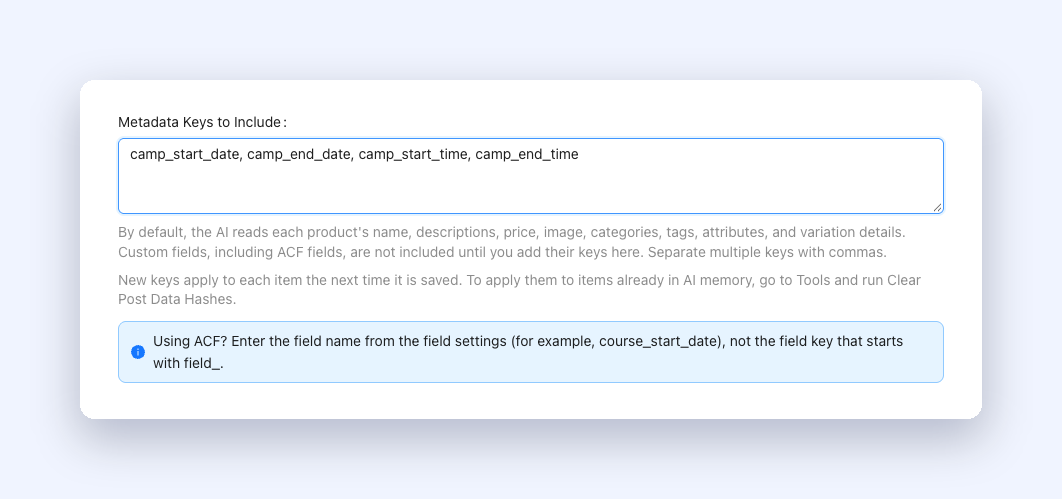
You do not need a separate list for variations. StoreAgent reads each key from the main product and from every variation. Using ACF? Enter the field name from the field settings, not the field key that starts with field_. The settings screen shows the same tip under the field.
Each Variation Keeps Its Own Values
StoreAgent keeps variation values with the variation they belong to. A date stored on Week 2 stays on Week 2. It is not copied to the main product or to the other weeks.
Fields on the main product work the same way they always have. If you already use product-level keys, nothing about them changes.
StoreAgent also skips empty values. If a variation has no value for a key, that key does not appear for it, so half-filled variations do not clutter AI memory.
Only The Fields You Choose
StoreAgent reads only the keys you add to the setting. It does not pull in every piece of data stored on your variations.
It also skips WooCommerce’s own internal fields, such as _price and _sku, even if you add them. The assistant already gets price, SKU, attributes and stock status for each variation from WooCommerce directly.
Products Already In AI Memory
If you already listed a key that only exists on your variations, you do not need to do anything after you update. StoreAgent runs a one-time background job that finds the variable products whose variations carry one of your keys and sends them to AI memory again.
The job only touches those products. Products without variation custom fields keep their existing entries, so your whole catalogue is not re-uploaded. Your chat keeps working while the job runs.
Keeping Variation Fields Up To Date
StoreAgent updates a product in AI memory when you save it. Saving a variation or editing the product in WooCommerce counts, so normal edits flow through on their own.
Some tools write straight to the database without a save, such as WP-CLI scripts and some importers. After a bulk change like that, save the affected products, or run Clear Post Data Hashes under StoreAgent > Settings > Tools.
The same applies when you add a new key to the list later. New keys apply to each item the next time it is saved. To apply them to everything already in AI memory, run Clear Post Data Hashes once.
Limits Worth Knowing
- 20 keys per variation. StoreAgent sends up to 20 of your keys for each variation.
- 1,000 characters per value. StoreAgent trims longer values. Dates, times, locations and short specs fit well within this.
- List fields. When a field holds a list or a group of values, StoreAgent sends it as structured text.
For Developers
The saai_variation_metadata filter runs for each variation. It receives the map of keys and values, the variation object and the parent product, so you can add, change or remove values before StoreAgent sends them.
Keys and values your filter adds go through the same checks. The 20-key and 1,000-character limits still apply.
Get Started
If your real product details live on variations, this is the update that lets your assistant use them. Update StoreAgent, add your variation keys to Metadata Keys to Include, and ask your chat about one specific option.
Not using StoreAgent yet? Take a look at our plans and give your shoppers answers about the exact option they want.
Frequently Asked Questions
Does StoreAgent read custom fields from product variations?
Yes. It reads the keys in Metadata Keys to Include from the main product and from each variation.
Do I need a separate setting for variation fields?
No. One list covers the main product and its variations.
Does it work with ACF fields?
Yes. Enter the ACF field name, not the field key that starts with field_.
Will a variation value show up on other variations?
No. Each value stays with the variation it belongs to.
Do I need to re-sync my products after updating?
Not if the keys were already in your list. A one-time background job re-sends only the affected products. If you add new keys later, run Clear Post Data Hashes.
Why is the chat not seeing a field I changed with an importer?
Imports that skip a product save do not trigger an update. Save the product, or run Clear Post Data Hashes under StoreAgent > Settings > Tools.
How many fields can I add per variation?
Up to 20 keys per variation, with up to 1,000 characters per value.