Some of the most important facts about your products live in custom fields. Course start dates. Event venues. Warranty periods. Care instructions. StoreAgent can already read those fields when you list them in its settings, so your AI chat can answer questions like “When does the next session start?” from your real data.
There was one gap. StoreAgent only refreshed a product in AI memory when someone saved the product. If you changed a date field through an import, a bulk edit, a scheduled task or another plugin, the product never got saved, so your AI chat kept quoting the old date with full confidence.
Now StoreAgent watches the fields you have told it to track. When one of those values changes, StoreAgent refreshes that item in AI memory within a few minutes. You do not need to re-save the product, and you do not need to rebuild AI memory by hand.
In this article, we’ll cover the problem this fixes, how the new sync works, what you need to set up, and what happens when you change the list of tracked fields. So, let’s get started!
Table of Contents
- Why Stale Custom Fields Were A Problem
- How The New Sync Works
- What You Need To Set Up
- Changing Your List Of Tracked Fields
- A Note For Developers
- Get Started
- Frequently Asked Questions
Why Stale Custom Fields Were A Problem
Picture a store that sells kids’ coding camps. Every six weeks the team moves the camp dates. They update a date field on each camp product and move on. They never open the product editor and click Update, because nothing else on the product changed.
Before this release, StoreAgent did not notice those changes. Its AI memory still held the old dates, and your chat assistant told parents the camp started on a day that had already passed. To fix it, the store owner had to re-save every product or rebuild AI memory from the Tools tab after every schedule change.
A missing answer is annoying. A confident wrong answer costs you a sale and a customer’s trust. Stores that keep availability, schedules or specifications in custom fields hit this most, and their data changes the most often.
How The New Sync Works
StoreAgent now listens for changes to the custom fields in your Metadata Keys to Include list. It picks up a change when a value is added, updated or deleted, no matter what made the change:
- A CSV or product importer
- WP-CLI or a script
- A scheduled task
- ACF, or another plugin that writes custom fields
- You, editing the field directly
When StoreAgent sees a change to a tracked field, it marks that item for a fresh upload to AI memory. The upload runs a few minutes later.
A few details keep this quiet and cheap:
- Only tracked fields count. A change to a field that is not in your list does nothing. StoreAgent ignores the busy background fields that plugins write all day.
- Bulk updates stay efficient. If an import changes 500 products at once, StoreAgent collects them and schedules one upload run for that post type, not 500 separate jobs.
- Variations refresh their parent. A change to a tracked field on a product variation refreshes the parent product in AI memory.
- Your chat stays available. While StoreAgent refreshes an item, the current version stays in AI memory. Your chat widget does not drop offline while the update runs.
StoreAgent also skips items that should not be in AI memory: drafts, hidden products, items you have turned AI memory off for, and items that were never uploaded. Items that were never uploaded are already waiting in the first upload queue.
What You Need To Set Up
If you already track custom fields, nothing. The sync works on the fields you have listed.
If you have not listed any fields yet:
- Go to StoreAgent > Settings > AI Chat > Post Types.
- Open the post type you want, for example Products.
- In Metadata Keys to Include, type the keys of the custom fields you want the AI to read. Separate them with commas.
- Click Save Post Types Settings.
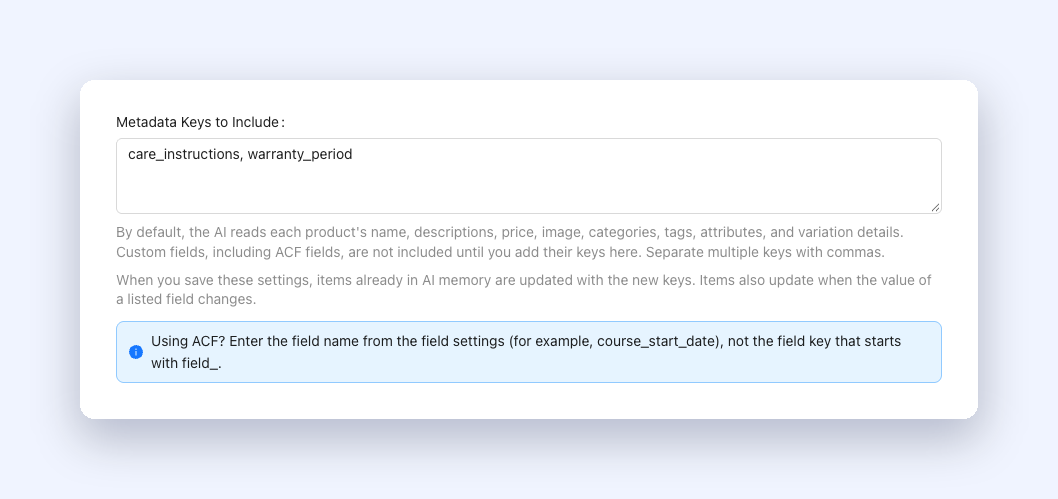
By default, the AI reads each product’s name, descriptions, price, image, categories, tags, attributes and variation details. Custom fields, including ACF fields, stay out until you add their keys here.
If you use ACF, enter the field name from the field settings, for example course_start_date. Do not enter the field key that starts with field_.
The same field is available on your other enabled post types, such as posts and pages. The sync works the same way for them.
Changing Your List Of Tracked Fields
Say you add a new key, such as a venue field, to a list that already has products in AI memory. In the past, the new key only reached each product the next time someone saved it. The old helper text even told you to run a tool that cleared all your upload hashes, which hid the chat widget until the whole store uploaded again.
Now, when you click Save Post Types Settings with a changed key list, StoreAgent queues a refresh of every item of that post type that is already in AI memory. Each item picks up the new field on its next upload. Your chat widget stays on the whole time, because the current version of each item stays in AI memory until the new one replaces it.
The helper text under the field now reads: “When you save these settings, items already in AI memory are updated with the new keys. Items also update when the value of a listed field changes.”
A Note For Developers
The sync hooks into the WordPress meta API, so it catches any write that goes through functions such as update_post_meta(). ACF saves go through the same API, so ACF needs no extra setup.
Two things to know:
- A direct database query that skips the meta API does not trigger a refresh. For those cases, the Clear Post Data Hashes tool on the Tools tab is still there as a fallback.
- If a plugin on your store writes a tracked field very often and you do not want every write to trigger a refresh, use the
saai_meta_change_resync_enabledfilter. It receives the result, the post ID and the meta key, so you can turn the refresh off for one writer or one field.
Get Started
Update StoreAgent to the latest version. If your products already have custom fields in Metadata Keys to Include, the sync starts working straight away. Change a tracked value, wait a few minutes, and ask your chat assistant about it.
If you keep important product details in custom fields and have not listed them yet, add them under StoreAgent > Settings > AI Chat > Post Types. Not using StoreAgent yet? See the plans and give your AI chat the data your customers ask about.
Frequently Asked Questions
Do I still need to re-save products after I change a custom field?
No. If the field is in your Metadata Keys to Include list, StoreAgent refreshes the item in AI memory within a few minutes of the change.
Does this work with ACF fields?
Yes. ACF writes its values through the WordPress meta API, and StoreAgent listens to that API. Add the ACF field name to your list and changes sync on their own.
Will a large import flood my store with uploads?
No. StoreAgent collects the changed items and schedules one upload run for each post type, so a bulk update does not create hundreds of separate jobs.
What happens to my chat while an item refreshes?
Nothing your customers will notice. The current version stays in AI memory until the new upload replaces it, so your chat widget stays available.
Does changing an untracked field trigger a refresh?
No. StoreAgent only reacts to the keys in your Metadata Keys to Include list.