Reviewed by
WooCommerce MCP lets you connect your WooCommerce store to AI assistants like Claude and ChatGPT, so they can read your store and make changes for you. StoreAgent now supports it through WordPress’s Abilities API, which exposes StoreAgent’s tools to any MCP-capable assistant. If you already work with AI assistants, this turns your store into something they can actually operate.
This is a more technical, power-user feature. You connect an AI client to your site over MCP, then drive StoreAgent’s tools straight from a chat. It is not a new button in your dashboard, it is a bridge between your store and the AI tools you already use.
In this article, we’ll explain what MCP is, what your AI assistant can do with it, what it looks like in use, how it stays safe, and how to switch it on. So, let’s get started!
Table of Contents
What Is WooCommerce MCP?
WooCommerce MCP is a way to connect your WooCommerce store to AI assistants using the Model Context Protocol, an open standard for linking AI apps to outside tools and data. StoreAgent registers its store abilities through WordPress’s Abilities API, and an adapter serves them over MCP, so an assistant can discover and use them. In short, your store becomes a set of tools the AI can call.
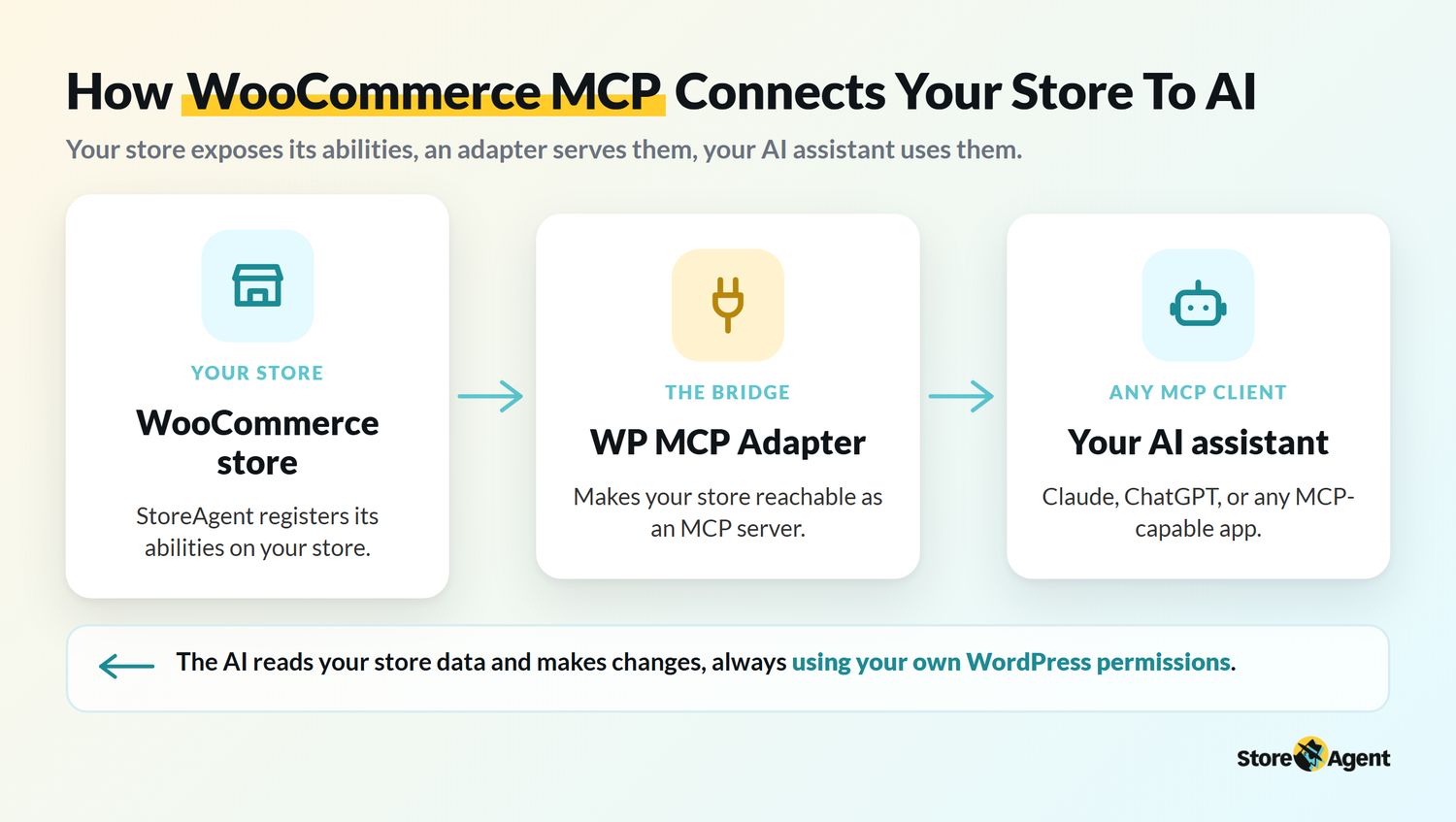
The Model Context Protocol describes itself as a USB-C port for AI apps: one standard way to plug an assistant into outside systems. On the store side, WordPress’s Abilities API is what lets StoreAgent declare its tools in a form those assistants understand.
What Your AI Assistant Can Do
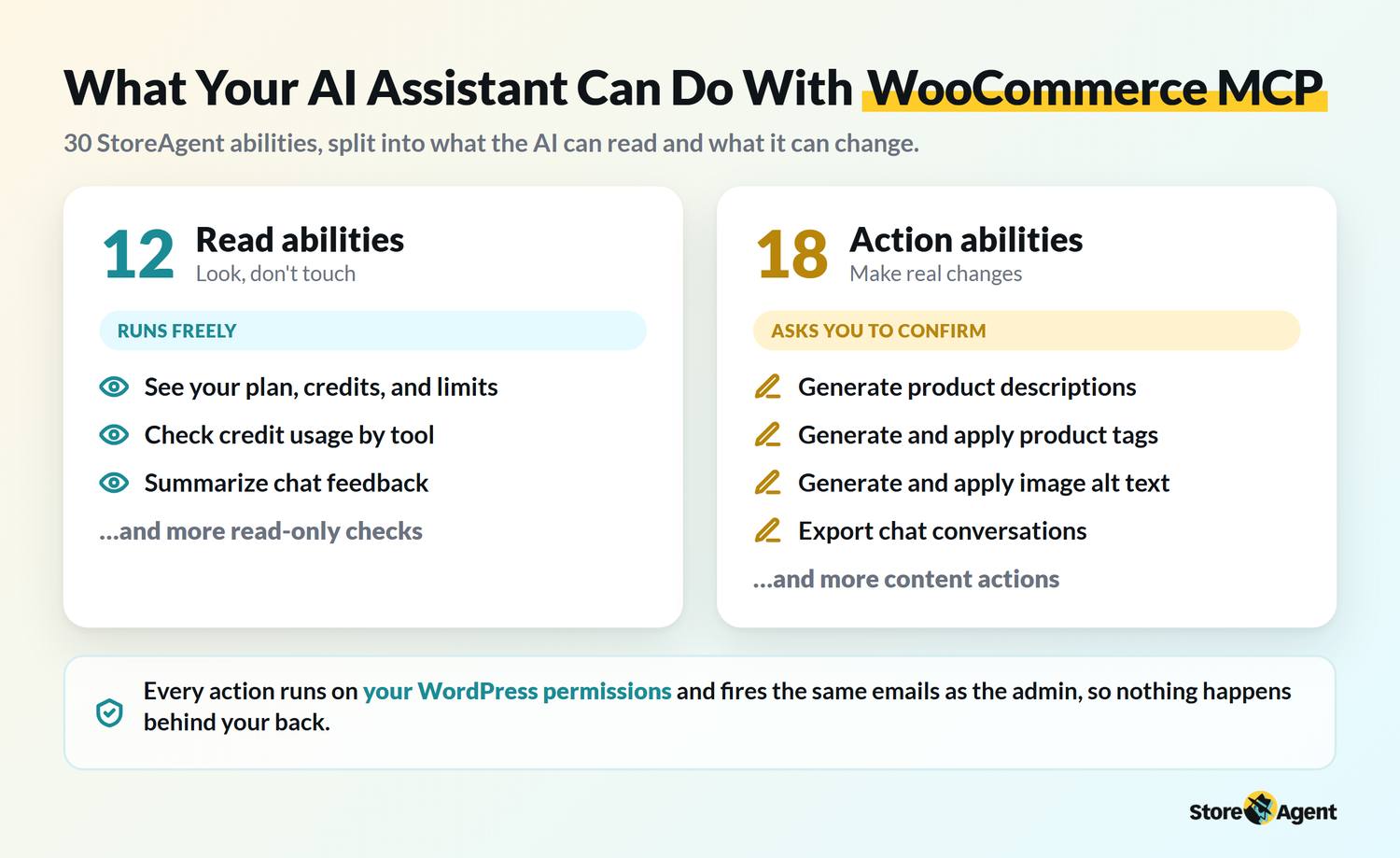
With it, your AI assistant can do two kinds of things: read information about your store, and take actions that change it. StoreAgent exposes 30 abilities, split into 12 read-only checks and 18 actions. The read abilities run freely, while the actions ask you to confirm before anything changes.
- Read (12): safe look-ups like your plan and credit usage, and a summary of your chat feedback.
- Act (18): real changes like generating product descriptions, generating and applying product tags and image alt text, or exporting chat conversations.
What It Looks Like In Use
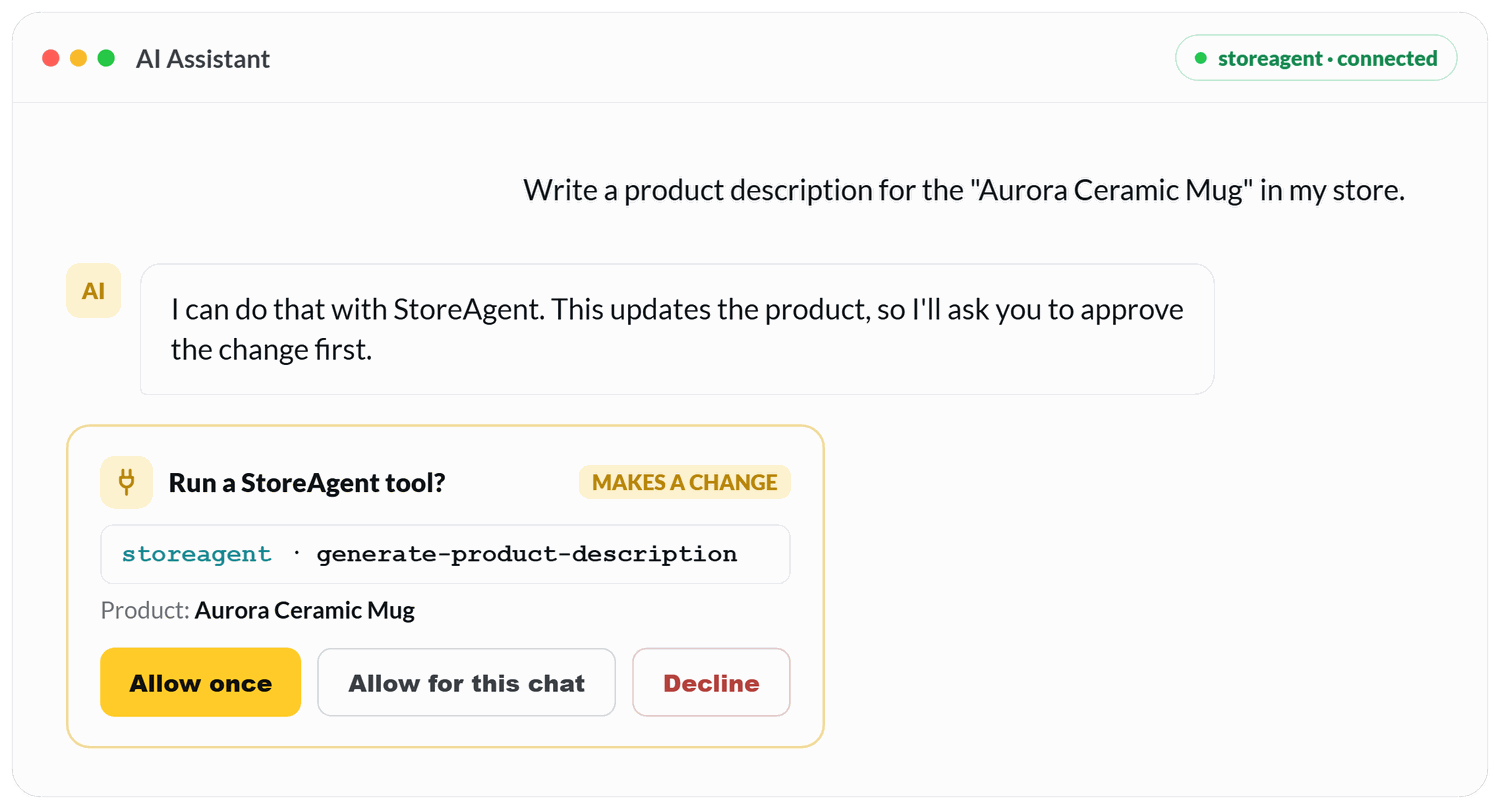
In use, this looks like a normal chat with your AI assistant, with one extra step: before it changes anything, the assistant asks you to approve the tool. You type a request, the assistant picks the matching StoreAgent tool, and a prompt shows exactly what it will run before it runs. You approve or decline, and nothing changes until you do.
How It Keeps Your Store Safe
It keeps your store safe by running every action through your existing WordPress permissions and asking you to confirm any change. Read-only abilities are safe to call freely, while anything that edits your store is flagged so your AI client shows a confirmation prompt first. You stay in control of what actually happens.
Actions also fire the same WordPress and WooCommerce hooks and emails as the admin, so there’s no separate “via AI” path running behind the scenes. Whatever the assistant does leaves the same trail a manual change would.
How To Set Up WooCommerce MCP
To set up WooCommerce MCP, update StoreAgent with your account connected, install the WP MCP Adapter plugin, then connect an MCP client to your site. StoreAgent registers its abilities automatically once WooCommerce and your account are active, the adapter turns them into a live MCP endpoint, and your AI assistant connects to that endpoint. Here are the three steps.
Step 1: Update StoreAgent and connect your account
Make sure WooCommerce is active and your StoreAgent account is connected. StoreAgent then registers its abilities on your site automatically. There is no separate switch to flip in StoreAgent for this.
Step 2: Install the WP MCP Adapter
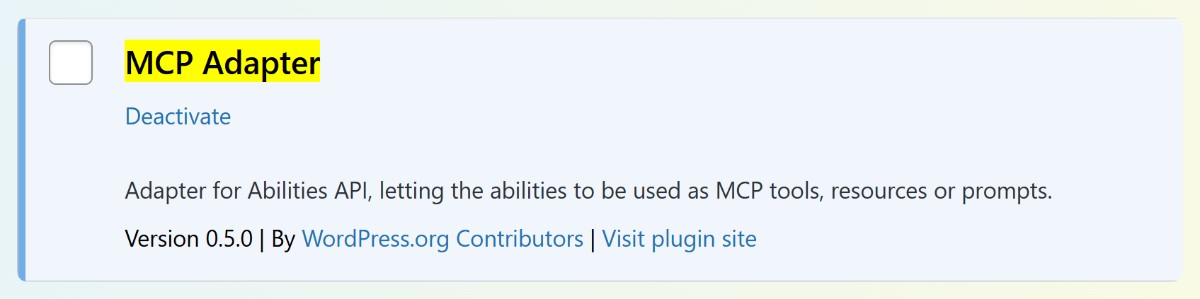
Install and activate the WP MCP Adapter, a separate community plugin that serves your registered abilities over MCP. StoreAgent declares the abilities, and this adapter is the bridge that makes them reachable by an AI client.
Step 3: Connect your AI client
Connect an MCP client, such as Claude or ChatGPT, to your site’s MCP endpoint, authenticating with your WordPress credentials. StoreAgent’s tools then appear in the assistant, ready to use. This is the step that leans on technical setup, so give yourself a little time the first time.
💡 Practical tip: set this up on a staging site first. It lets you connect a client and test the tools without touching your live store.
Who It’s For
This feature is for power users and developers who already work with AI assistants and want them to act on their store. Connecting a client involves an adapter plugin and authentication, so it suits technical users more than someone looking for a one-click dashboard feature. If that’s you, it turns your store into a tool your assistant can drive directly.
Get Started
If you live in AI assistants and want them wired into your store, MCP is the bridge. Your store’s tools become tools your assistant can call, with your permissions and your confirmation in the loop.
Here’s what we covered:
- What MCP is and how it connects your store to AI
- The 30 abilities, split into read-only checks and actions
- What it looks like in use, and how confirmation keeps you in control
- How to set it up, from StoreAgent to the adapter to your AI client
If you’re ready to put your store’s tools in reach of your AI assistant, update StoreAgent and set up WooCommerce MCP. New to StoreAgent? Explore our plans and pricing today and connect your store.
Frequently Asked Questions
What is WooCommerce MCP?
It is a way to connect your store to AI assistants over the Model Context Protocol. StoreAgent registers its tools through WordPress’s Abilities API, and an adapter serves them over MCP, so an assistant like Claude or ChatGPT can read your store and make changes. In practice, your store becomes a set of tools the AI can call.
Which AI assistants work with WooCommerce MCP?
Any MCP-capable AI assistant works, including Claude and ChatGPT. Because MCP is an open standard, StoreAgent’s tools are built once and reachable by any client that speaks MCP. You are not locked into a single assistant.
Do I need another plugin to use MCP with my store?
Yes, connecting your store over MCP needs the WP MCP Adapter, a separate plugin that serves StoreAgent’s abilities over MCP. StoreAgent declares the abilities on your site, and the adapter is the bridge that makes them reachable by an AI client. Without the adapter, the abilities are registered but not exposed.
Is connecting my store over MCP safe?
Connecting your store over MCP is safe because it runs on your existing WordPress permissions and asks you to confirm every change. Read-only abilities run freely, while any action that edits your store shows a confirmation prompt first, and it fires the same emails and hooks as a manual change. Nothing happens without your approval.
Is this feature for non-technical users?
MCP access here is aimed at power users and developers rather than non-technical users. Setting it up means installing the adapter plugin and connecting an AI client with authentication, which is more involved than a standard dashboard feature. If you are comfortable with that, it gives your AI assistant direct, controlled access to your store.