Reviewed by
StoreAgent has a new AI chatbot competitor blocklist: a setting where you name the competitors your AI chatbot must never mention, recommend, or compare against. Add a brand, its alternate spellings, and its website, and the chatbot treats it as off-limits in every reply. Your store’s assistant stays focused on your products, not anyone else’s.
Every store has a different set of rivals, and only you know which brands you never want surfaced in a customer conversation. The new blocklist puts that decision in your hands, per store, with a plain list you control from the chat settings.
In this article, we’ll cover what the competitor blocklist is, what you can add to it, how to set it up step by step, and how it applies across every conversation. So, let’s get started!
Table of Contents
What Is An AI Chatbot Competitor Blocklist?
An AI chatbot competitor blocklist is a per-store list of brands your AI chatbot will never mention, recommend, or compare against in a conversation. You enter each competitor in StoreAgent’s chat settings, and the list travels with every chat request so the assistant treats those names as off-limits. It turns “please don’t send my shoppers to rivals” from a hope into a rule.
StoreAgent’s WooCommerce AI chatbot answers shopper questions in real time, and a conversational assistant guides people toward decisions as they chat. Nielsen Norman Group’s research on chatbots shows how much a bot steers the flow of a conversation. The blocklist makes sure that steering never points at a competitor.
Why You Control The List
You control the list because competitors are specific to your store, and no default list could get that right for everyone. A store that sells Nike treats Nike as a product; another store treats it as a rival. Putting the list in your hands means the chatbot blocks the brands that actually matter to you and leaves the ones you sell alone.
This means the guardrail fits your store instead of a generic template. You decide who counts as a competitor, you update the list whenever the market shifts, and the assistant follows your call. It feels like part of your store, not an off-the-shelf add-on.
What You Can Add To The Blocklist
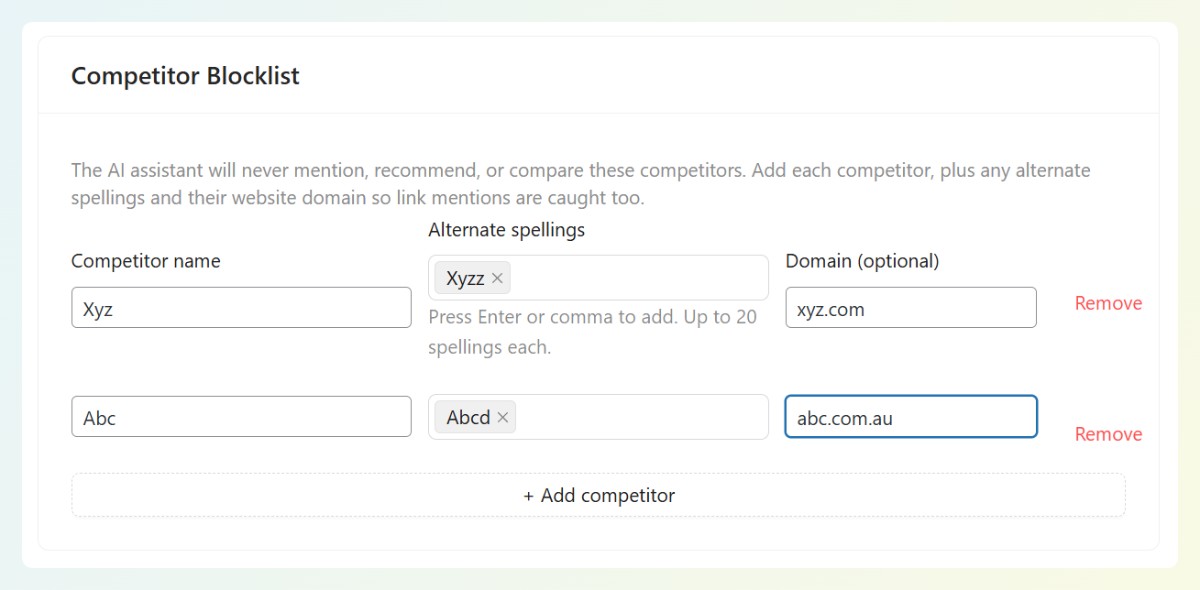
For each competitor, you can add three things: the brand name, any alternate spellings, and the website domain. The name is the core entry, the alternate spellings catch the ways people actually type it, and the domain lets the assistant catch link mentions too. Together they close the gaps a single name would leave open.
- Competitor name: the main brand or product you want kept out of conversations.
- Alternate spellings: the variants and misspellings shoppers use, added as tags (up to 20 per competitor). A brand like “WhatsApp” also gets “Whats App” and “WA”.
- Domain (optional): the competitor’s website, so a link to their site gets caught alongside the name.
Add as many competitors as your store needs, each with its own spellings and domain. The more complete each entry is, the harder it is for a rival to slip through on a technicality.
How To Set Up Your AI Chatbot Competitor Blocklist
To set up your competitor blocklist, open StoreAgent’s AI Chat settings, find the Competitor Blocklist section on the General tab, and add each competitor before saving. It takes a couple of minutes, and the list applies to conversations from the next message onward. Here’s the full walkthrough.
Step 1: Open your AI Chat settings
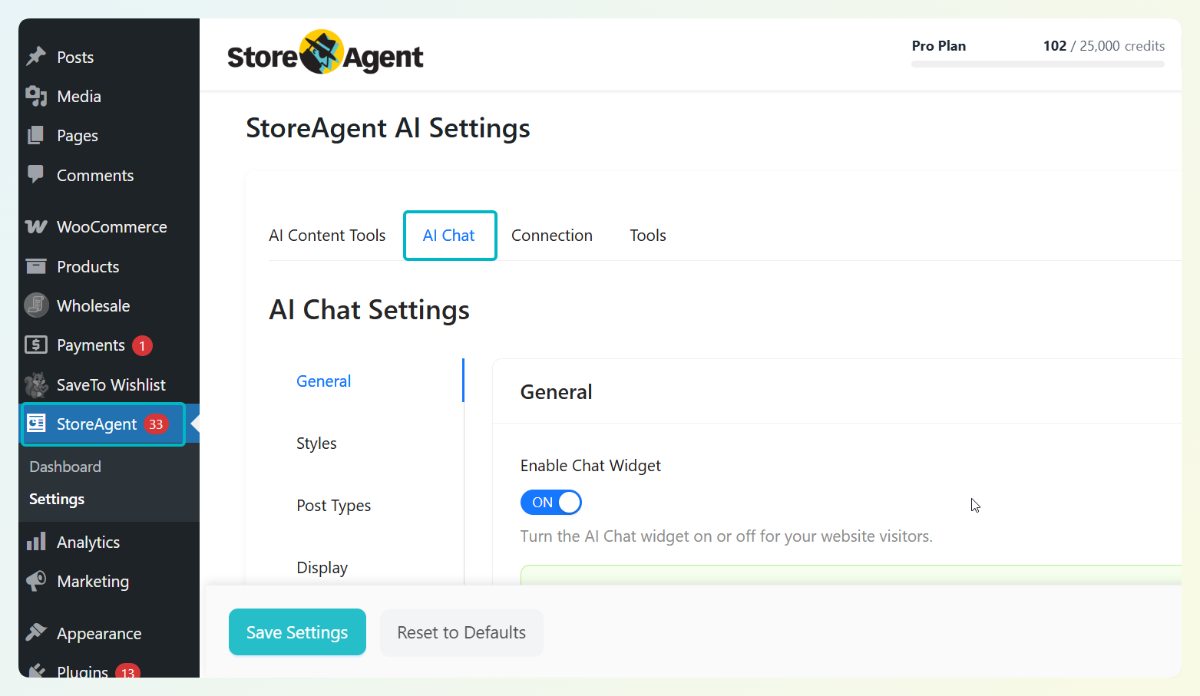
In your WordPress admin, go to StoreAgent > Settings > AI Chat, then open the General tab. This is where your chatbot’s behavior is configured, including the blocklist.
Step 2: Find the Competitor Blocklist section
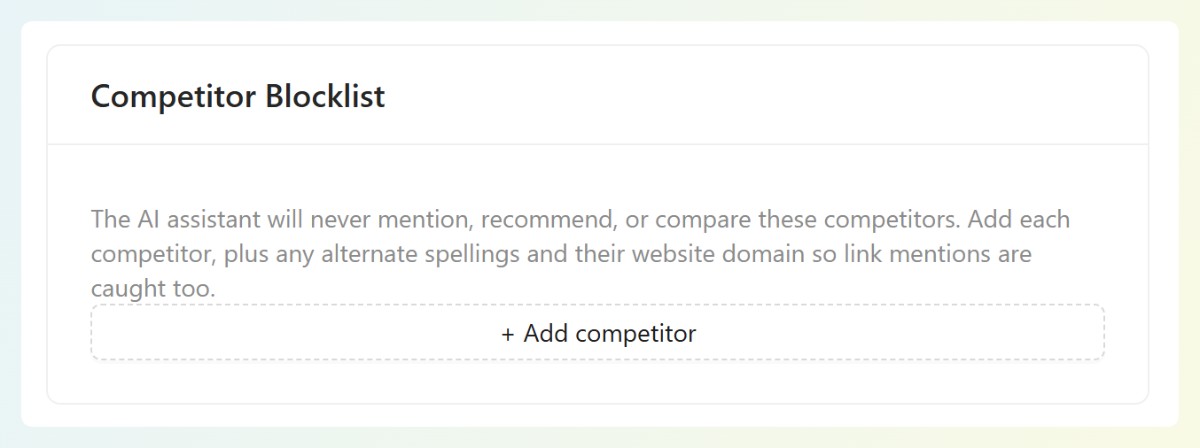
Scroll to the Competitor Blocklist section. It explains that the assistant will never mention, recommend, or compare the brands you add. Click Add competitor to create your first entry.
Step 3: Add each competitor, then save
Enter the Competitor name, press Enter or comma to add each alternate spelling, and add the Domain if you have it. Use Add competitor for each rival, Remove to drop one, then click Save Settings.
💡 Practical tip: add the alternate spellings people really type, not just the official brand name. A rival is far more likely to surface through a casual misspelling than its polished trademark.
How The Blocklist Protects Every Conversation
The blocklist protects every conversation because your list travels with each chat request, not just some of them. That means it applies to the main product answers, the off-topic replies, and everything in between, so a competitor can’t slip through on a path that skips your settings. Wherever the chatbot replies, the blocklist is in force.
Losing a shopper to a rival mid-conversation is a fixable leak, and Baymard Institute’s ecommerce research shows how often stores lose otherwise-ready buyers to avoidable problems. Keeping competitors out of every reply closes one of those gaps for good.
What The Competitor Blocklist Won’t Do
The competitor blocklist won’t block brands you actually sell, because you decide what goes on the list. It only affects the names you add, so legitimate brands in your catalog keep working normally in conversations. You stay in full control of what the assistant treats as a competitor.
It also won’t touch your safety and confidentiality rules, which stay in place underneath it. Think of the blocklist as one more layer of control you own, sitting on top of the protections already built into your chatbot.
Get Started
Your AI chatbot should send shoppers toward your products, never toward a competitor. The new blocklist gives you a simple, per-store way to make sure of it.
Here’s what we covered:
- What the competitor blocklist is and where it lives
- Why you control the list, per store
- The name, alternate spellings, and domain you can add for each competitor
- How to set it up, and how it applies to every reply
If you’re ready to keep rivals out of your customer conversations, open your chat settings and build your AI chatbot competitor blocklist today. New to StoreAgent? Explore our plans and pricing today and put your store’s assistant to work.
Frequently Asked Questions
What is an AI chatbot competitor blocklist in StoreAgent?
A competitor blocklist in StoreAgent is a setting where you list the competitors your chatbot must never mention, recommend, or compare against. You add each brand in the AI Chat settings, and StoreAgent sends the list with every conversation. It keeps your store’s assistant focused on your own products.
How do I stop my AI chatbot from recommending competitors?
To stop your AI chatbot from recommending competitors, add them to the competitor blocklist in StoreAgent’s AI Chat settings. Enter each competitor’s name, alternate spellings, and domain, then save. From the next message on, the chatbot will not mention or recommend anything on that list.
Does the competitor blocklist block brands I sell?
No, the competitor blocklist only blocks the brands you add to it, so it never touches brands you actually sell. You control the list entirely, adding and removing competitors whenever you want. Legitimate products in your catalog keep working normally in chatbot conversations.
Where do I find the competitor blocklist?
You’ll find the competitor blocklist under StoreAgent > Settings > AI Chat, on the General tab. Scroll to the Competitor Blocklist section, add your competitors, and click Save Settings. The list applies to conversations from the next message onward.
Can I add alternate spellings for each competitor?
Yes, you can add alternate spellings for each competitor on the blocklist, up to 20 per brand. Add the misspellings and variants shoppers actually type, plus the competitor’s domain, so link mentions get caught too. This makes the blocklist much harder for a rival to slip past.