
Introduction
Optimizing your media library is essential for improving search engine rankings and ensuring your website remains accessible to all visitors. This powerful AI tool automates the tedious process of writing metadata so you can focus on growing your business.
Every image you upload can now feature high-quality descriptions that help screen readers and search bots understand your content. You will save hours of manual data entry while maintaining a professional and consistent brand voice across your site.
The setup process is remarkably simple and integrates directly into your existing WordPress workflow. You can manage your entire media library with just a few clicks from any device.
By the end of this guide, you will know exactly how to configure the agent and generate perfect metadata for every image. Witness how AI-driven optimization transforms your store into a more inclusive and searchable platform.
Configuring the Image Alt Tags Agent
Before you start generating content, you should verify that the agent is active and configured to meet your specific needs.
Enabling the Agent
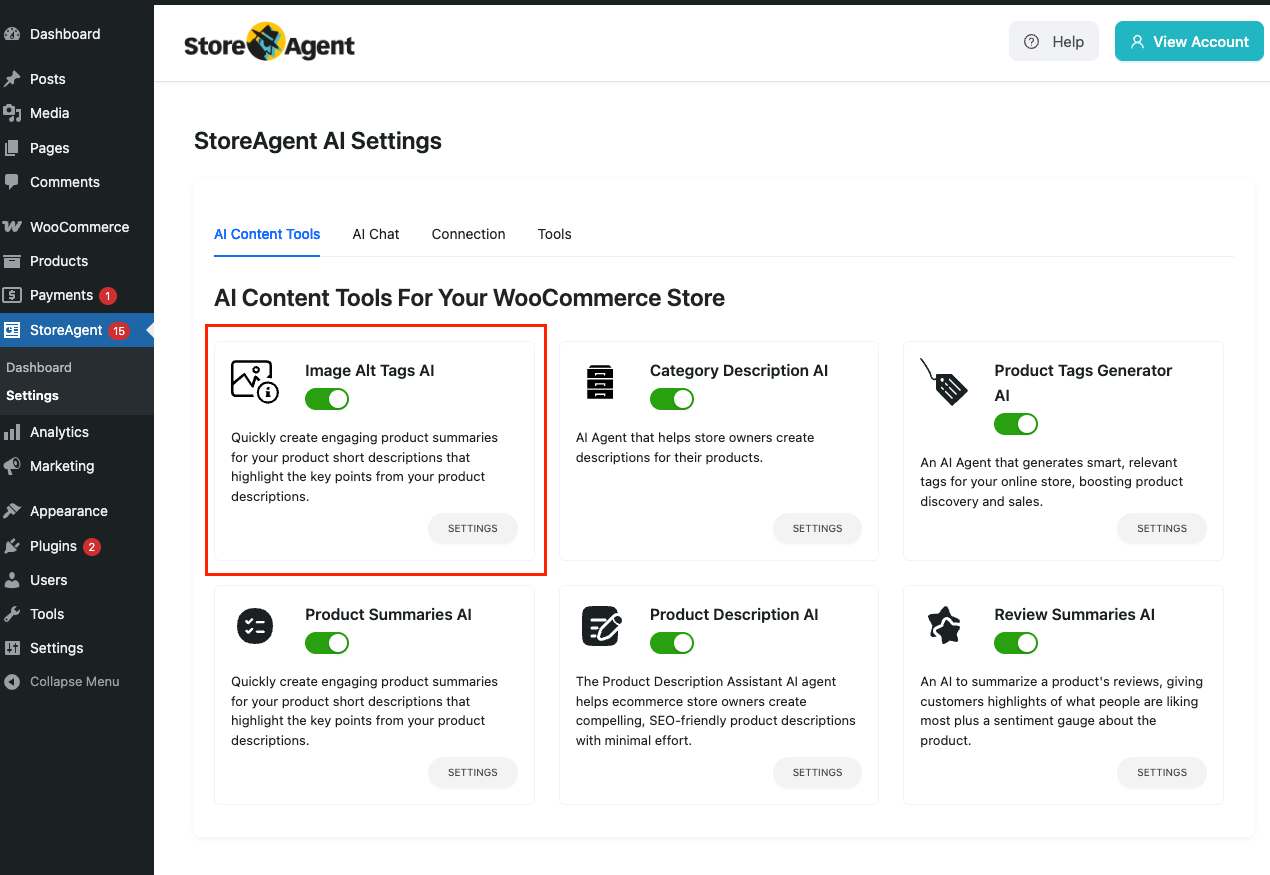
- Navigate to StoreAgent AI in your sidebar and select AI Agents.
- Locate the Image Alt Tags AI entry within the list of available tools.
- Toggle the status to ON to ensure the feature is ready for use.
- Click the Save Settings button at the bottom of the page to apply your changes.
Setting Default Preferences
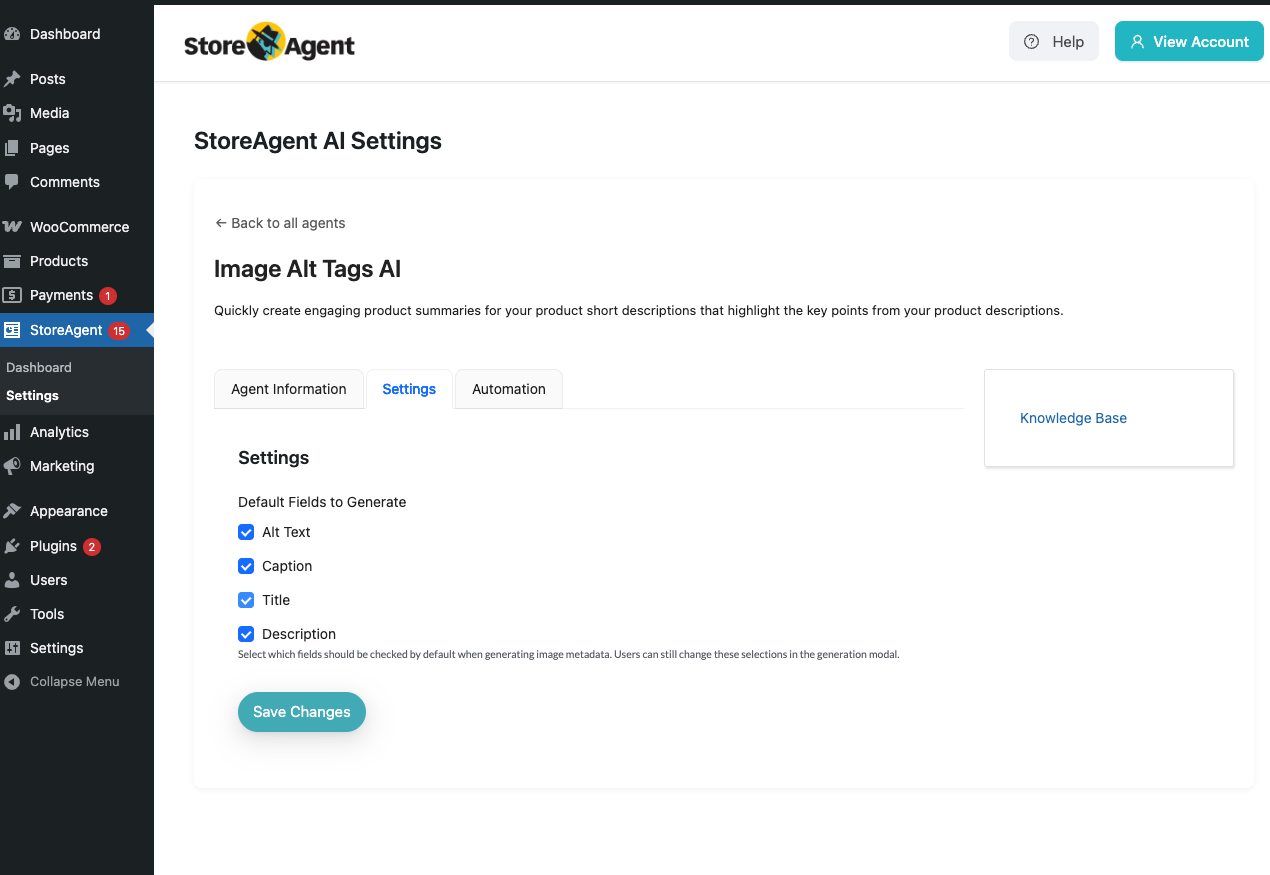
- Access the specific configuration page by clicking on Image Alt Tags AI under the agent menu.
- Find the section labeled Default Fields to Generate to choose your preferred metadata types.
- Mark the checkboxes for Alt Text, Caption, Title, or Description based on your typical requirements.
- Finalize your choices by clicking Save Settings once more.
Generating Image Metadata
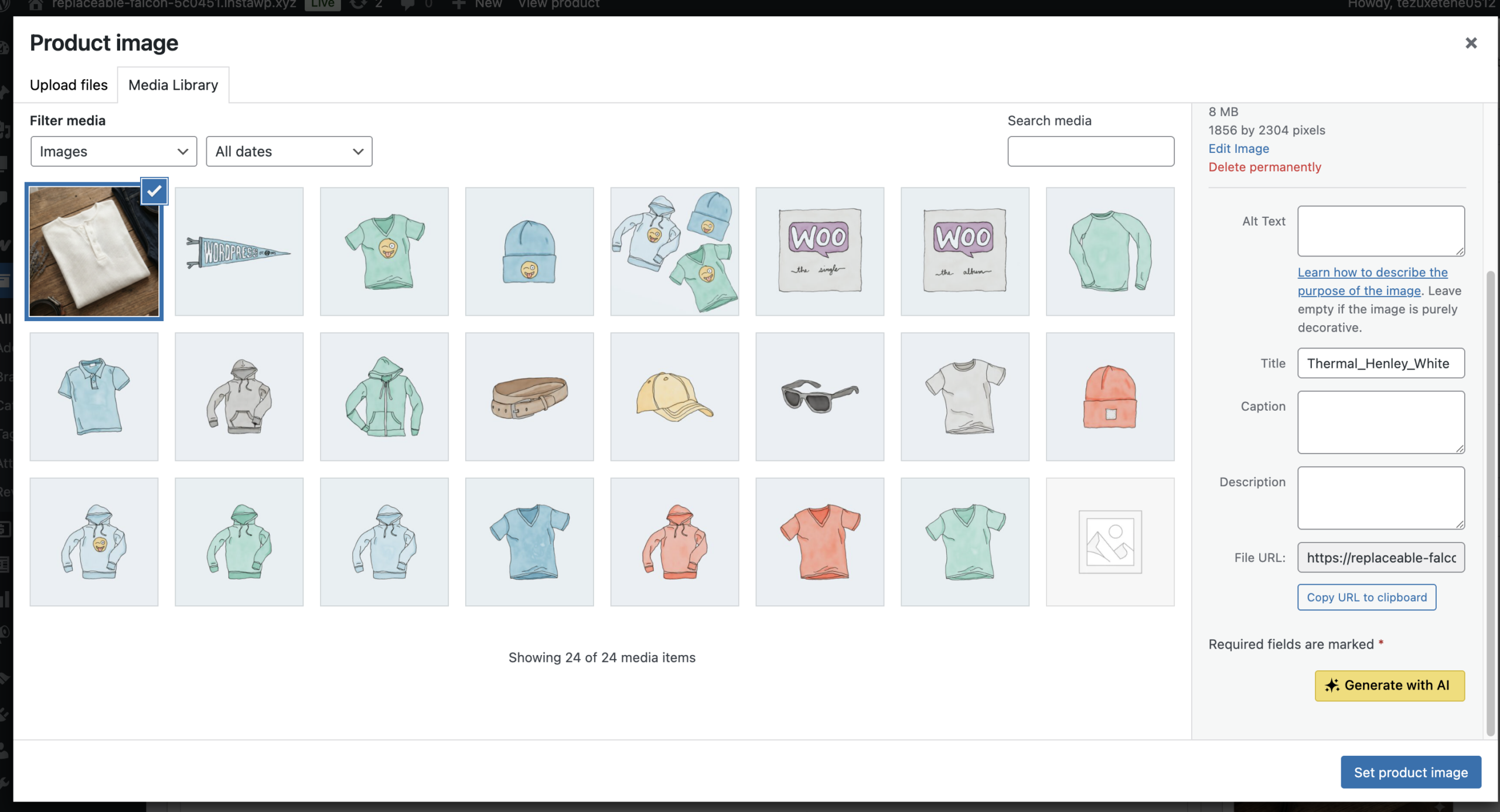
You can access the AI features from several locations within WordPress, including the Media Library and the Product Editor.
Using the Generation Tool
- Open your Media Library and click on any image to open the Attachment Details view.
- Locate and click the yellow Generate with AI button found in the sidebar or modal.
- Select which specific fields you want the AI to create in the What would you like to generate? popup.
- Use the Check All box if you want a complete set of metadata for that specific file.
- Click the blue Generate button to start the analysis of your image.
- Review the text provided in the Generated Content section to ensure it meets your standards.
- Press Save Changes to permanently store the new metadata in your database.
Key Benefits of AI Metadata
Implementing this feature provides several immediate advantages for your online presence:
- Improved Accessibility: Automatically creates descriptive Alt Text to satisfy WCAG guidelines for visually impaired users.
- SEO Boost: Enhances image search rankings by providing context-rich Titles and Descriptions for search engines.
- Time Savings: Eliminates the need for manual writing, allowing for rapid processing of large media galleries.
- Brand Consistency: Maintains a uniform style and level of detail across all product images in your store.
Troubleshooting Common Issues
If you encounter any difficulties while using the agent, check these common solutions.
Resolving “Failed to Generate Alt Tags”
If you encounter the error message “Failed to Generate Alt Tags. Please try again,” it typically indicates an issue with the specific image file or the server connection. This error frequently appears when the AI cannot process the image due to its size or resolution.
- Check Image Size: This error might occur because the image is too large. Furthermore, please use an optimized image with a smaller size to ensure successful generation.
- Optimize Dimensions: Ensure your images are not excessively large in pixels; staying under 2000px on the longest side is recommended for the best results.
- Verify Connection: Confirm that your website can reach the AI processing servers and that your internet connection is stable.
- Retry the Action: Sometimes a temporary server hiccup can cause this; clicking the Generate button a second time often resolves the issue.
Missing Buttons or Permission Errors
- Check Permissions: Ensure you are logged in as an Administrator, as the tool requires the manage_options capability.
- Verify Settings: Double-check that the agent is toggled ON in the StoreAgent AI dashboard.
- Browser Cache: Clear your browser cache if the Generate with AI button does not appear after an update.
