Reviewed by
Every product image on your WooCommerce store needs alt text. It helps search engines understand your images and makes your site accessible to people using screen readers. But writing alt text for hundreds of products takes forever. An AI image alt text generator solves this problem.
These tools use artificial intelligence to create descriptive, SEO-friendly alt text automatically. For WooCommerce stores, the right solution works directly inside your dashboard.
In 2025, over 20 billion visual search queries are conducted monthly via Google Lens, with 15.8% of Google SERPs including images. That’s why more WooCommerce stores are turning to an AI image alt text generator to automate this critical task.
Manual Vs AI Alt Text Generation: Quick Comparison
| Factor | Manual Writing | AI Image Alt Text Generator |
|---|---|---|
| Speed | 2-5 minutes per image | Seconds per image |
| Scalability | Limited to 20-30/day | Hundreds in minutes |
| Consistency | Varies by writer | Uniform quality |
| SEO optimization | Depends on skill | Built-in best practices |
| Product context | Manual research needed | Auto-reads WooCommerce data |
| Cost | Time-intensive | Automated efficiency |
This guide shows you how StoreAgent’s AI Image Alt Text Generator automates alt text generation directly within WooCommerce.
What Is Alt Text And Why Does It Matter?
Alt text is the written description of an image. It appears when the image can’t load. It also appears when someone uses a screen reader. Search engines read alt text to understand what your images show.
It serves two main purposes: accessibility for visually impaired users and SEO value for search rankings.
When you add alt text to product images, you’re telling Google what each image contains. This helps your products appear in image search results. It also creates a better shopping experience for millions of people who browse with assistive technology.
According to AudioEye’s 2024 research, 60% of images had no alternative text. This creates lost traffic from image search. It excludes customers who depend on screen readers.
For WooCommerce stores, missing alt text means fewer people find your products.
Now that you understand what alt text is, let’s look at what separates good alt text from poorly written descriptions.
What Makes Good Alt Text For Product Images?
Good alt text describes what’s in the image clearly and concisely. Keep it under 125 characters when possible because screen readers may cut off longer descriptions.
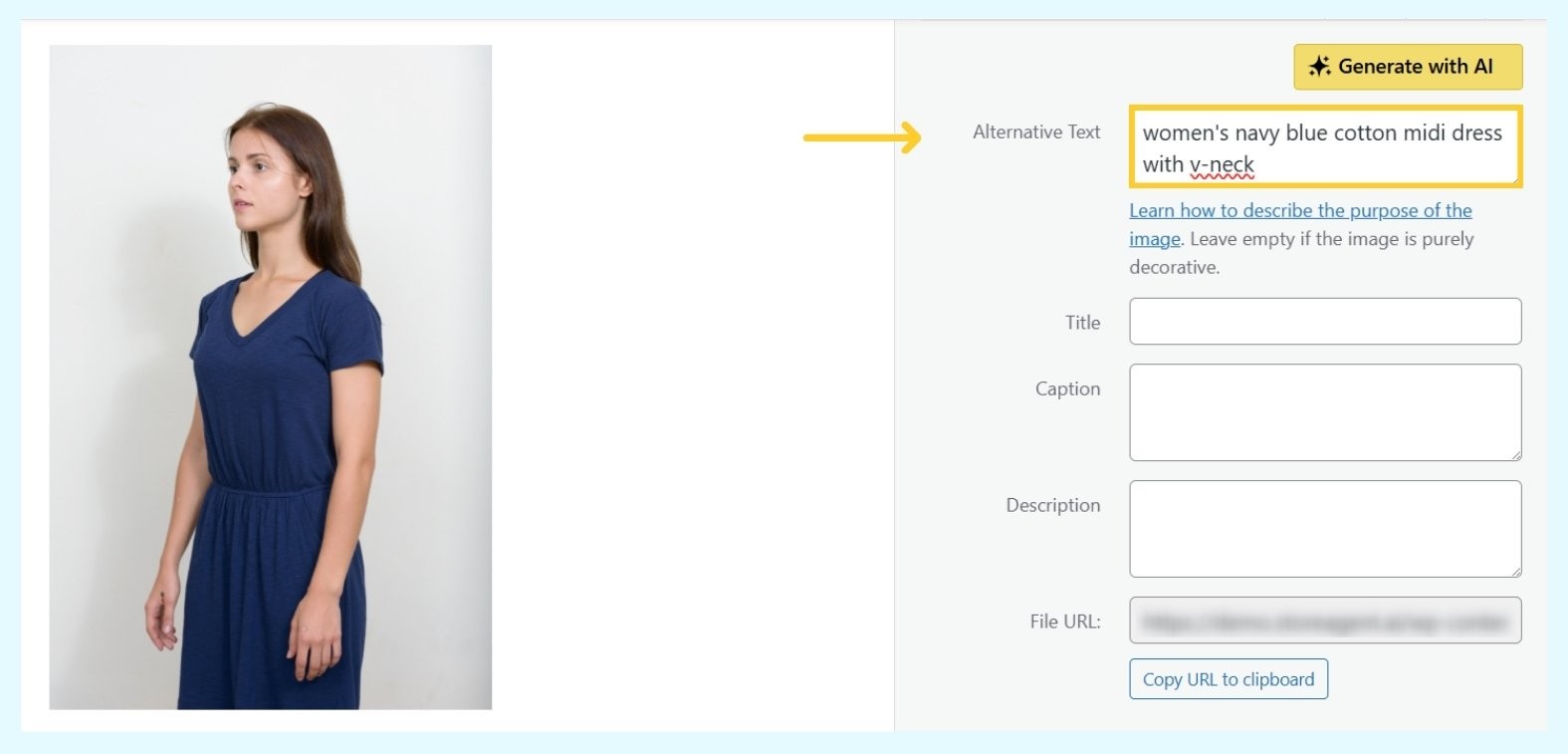
Here are the key elements to include:
- Product type and category (dress, chair, laptop)
- Key features and materials (cotton, leather, stainless steel)
- Colors and patterns (navy blue, striped, floral)
- Size or dimensions when relevant (midi length, queen size)
- Style details (v-neck, adjustable strap, modern design)
For example, “women’s navy blue cotton midi dress with v-neck” works better than just “dress.” The specific details help both search engines and screen readers understand what you’re selling.
Skip phrases like “image of” or “picture of.” Screen readers already announce it’s an image. Also avoid keyword stuffing because it makes alt text sound unnatural.
Writing this level of detail for every image is time-consuming. For stores with large catalogs, manual writing becomes impossible to maintain.
Why Do WooCommerce Stores Need Automated Alt Text?
Manual alt text writing doesn’t scale for growing stores. Here’s why automation matters:
- Time savings: 20 new products weekly = 80+ images monthly that need descriptions, turning hours of work into minutes
- Consistency: Automated generation ensures every product gets the same level of detail, while manual writing varies by person
- Scalability: An AI image alt text generator handles hundreds of images quickly while manual writing limits you to 20-30 per day
- Cost efficiency: Store owners report finishing tasks in one-tenth of the time using online store AI tools
This is especially valuable for small teams running multiple stores or managing large catalogs. That’s why many WooCommerce stores now rely on an AI image alt text generator for efficiency.
How Does StoreAgent’s Image Alt Tags AI Work?
StoreAgent’s Image Alt Tags AI Agent is a free alt text generator that uses computer vision to analyze your product images visually and generate SEO-friendly metadata automatically.
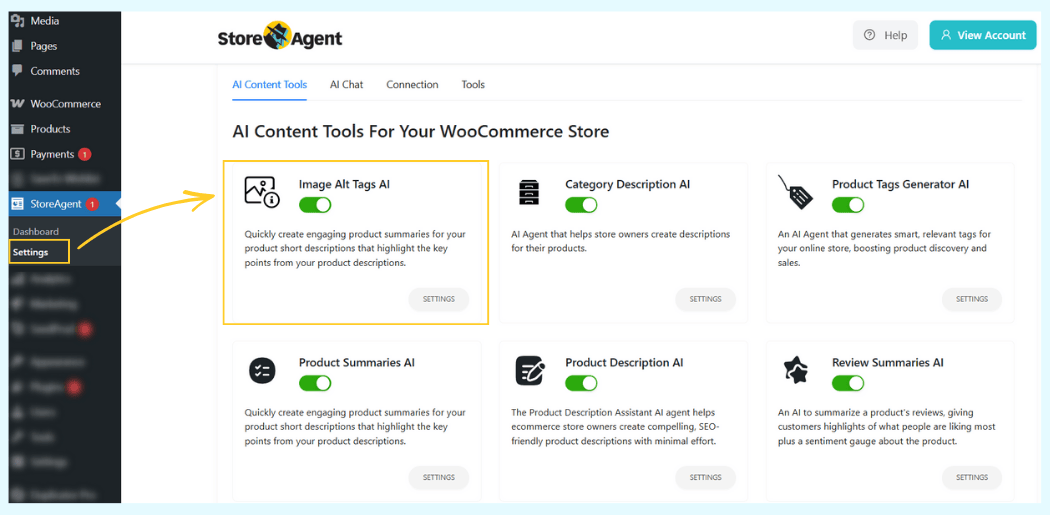
Unlike tools that only read text data, this AI actually “sees” your images to create accurate descriptions. It works directly inside your WordPress Media Library.
The AI generates four types of content for each image: accessible alt text for SEO and screen readers, clean titles for file organization, frontend captions for blog posts and galleries, and detailed descriptions for product pages. You can choose which fields to generate using simple checkboxes.
Unlike external tools that require uploading images elsewhere, this solution works natively in WordPress. Install the plugin and configure your default settings. It processes your product images with just one click. This makes the AI image alt text generator perfect for stores of any size.
How to use Image Alt Tags AI?
Follow these simple steps to start generating alt text automatically:
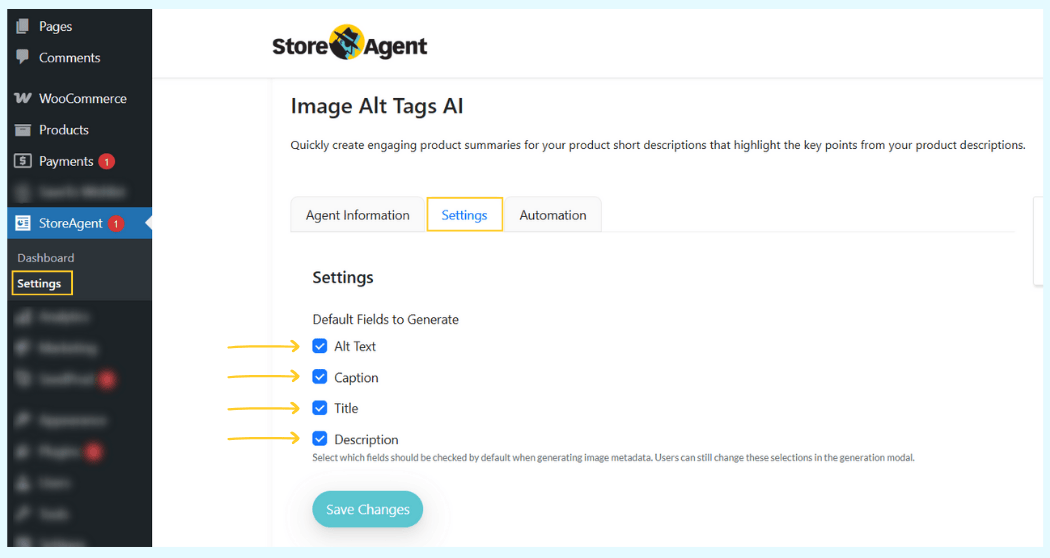
Configure your default settings first
- Go to StoreAgent > Settings in your WordPress dashboard
- Click on the AI Content Tools tab
- Locate the Image Alt Tags AI card and toggle the switch to On
- Click Settings on the card
- Under “Default Fields to Generate,” check the boxes for Alt Text, Caption, Title, or Description
- Click Save Changes
Generate tags for images (two methods)
Method 1: From Media Library
- Go to Media > Library in your dashboard
- Click on any image to open the details modal
- Look for the Generate Image Alt Tags with AI section on the right
- Click Generate with AI to fill the fields instantly
Method 2: From Product Page
- Go to Products and click to edit any product
- In the right sidebar, click Set product image (or click the existing image)
- In the modal, click Generate with AI on the right side
- Review the generated content and save
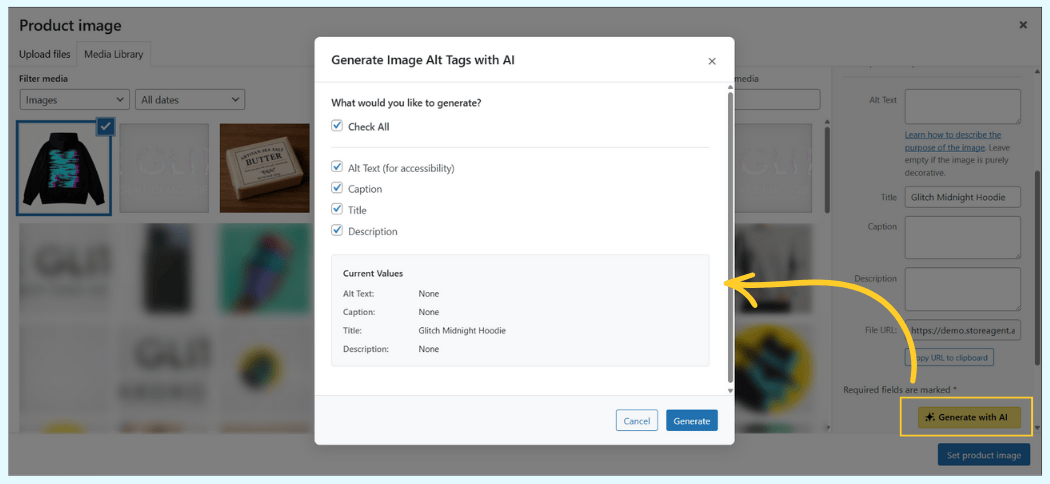
The process takes seconds per image. Your alt text appears automatically in each image’s metadata.
Testing StoreAgent’s Image Alt Tags AI
Let’s put the AI image alt text generator to the test with an actual product image. I used a hoodie from our demo store with the filename “hoodie_final_v2_edit.jpg” – completely generic with no existing metadata.
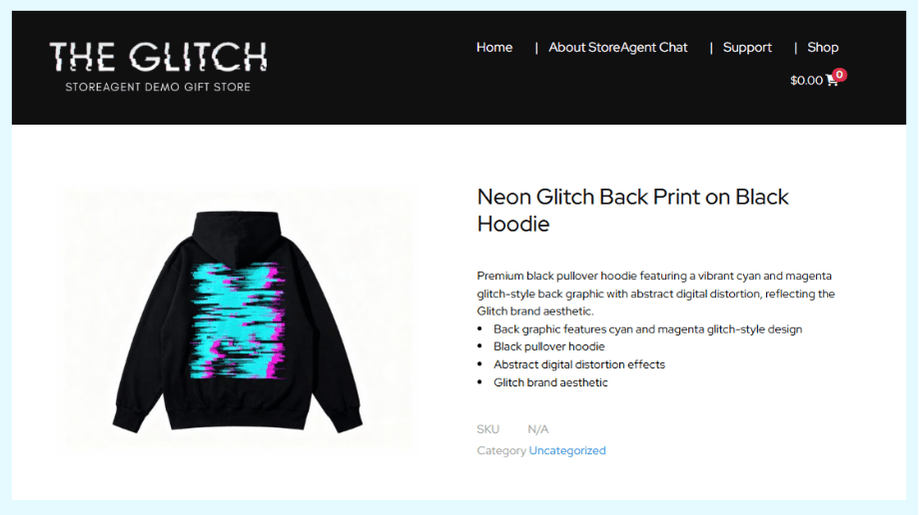
After uploading the image to the Media Library, I clicked Generate with AI. The entire process took 3 seconds.
Here’s what StoreAgent’s computer vision generated for this black hoodie with neon graphics:
- Alt Text: “Back view of a black hoodie with a neon cyan and magenta glitch print running down the back.”
- Title: “Neon Glitch Back Print on Black Hoodie”
- Caption: “Back graphic features a bright cyan and magenta digital glitch pattern.”
- Description: “A black pullover hoodie photographed from the back, featuring a large vertical glitch graphic in cyan and magenta. The print consists of irregular, stacked horizontal bars that resemble a distorted digital signal, giving the garment a bold cyberpunk vibe. The hoodie has a classic silhouette with a roomy hood and ribbed cuffs, making it suitable for casual streetwear.”
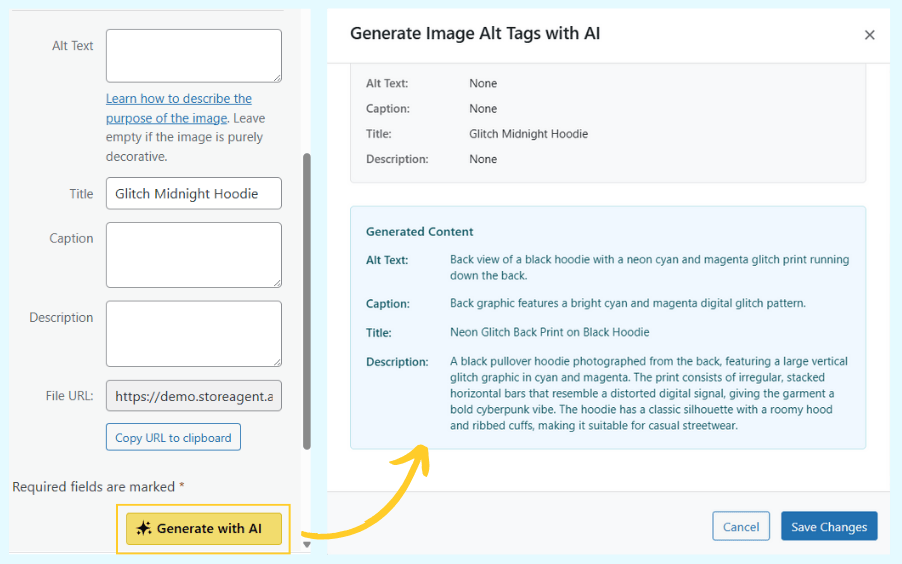
Notice how the AI didn’t just write “hoodie.” It identified specific style elements (cyberpunk streetwear), exact colors (neon cyan and magenta), and garment details (roomy hood, ribbed cuffs).
This is what sets a quality AI image alt text generator apart from basic automation tools. The computer vision analyzes what’s actually in the photo, not your product descriptions.
I’ve also tested this with images that had zero metadata, and it still generated accurate alt text. Perfect when you’re uploading products before descriptions are ready!
What Other AI Tools Work With Image Alt Tags?
StoreAgent offers a complete suite of AI content tools that work together:
- Product Description AI creates detailed, SEO-optimized product copy
- Product Summaries AI writes short snippets for category pages
- Category Description AI generates SEO-friendly text for collection pages
- Product Tags AI automatically tags products for better organization
- Review Summaries AI analyzes and summarizes customer reviews
When you use multiple tools together, they feed better information to each other. Complete product data improves how StoreAgent’s AI chatbot answers customer questions about your products.
What Mistakes Should You Avoid With Alt Text?
Avoid these common alt text errors that hurt accessibility and SEO:
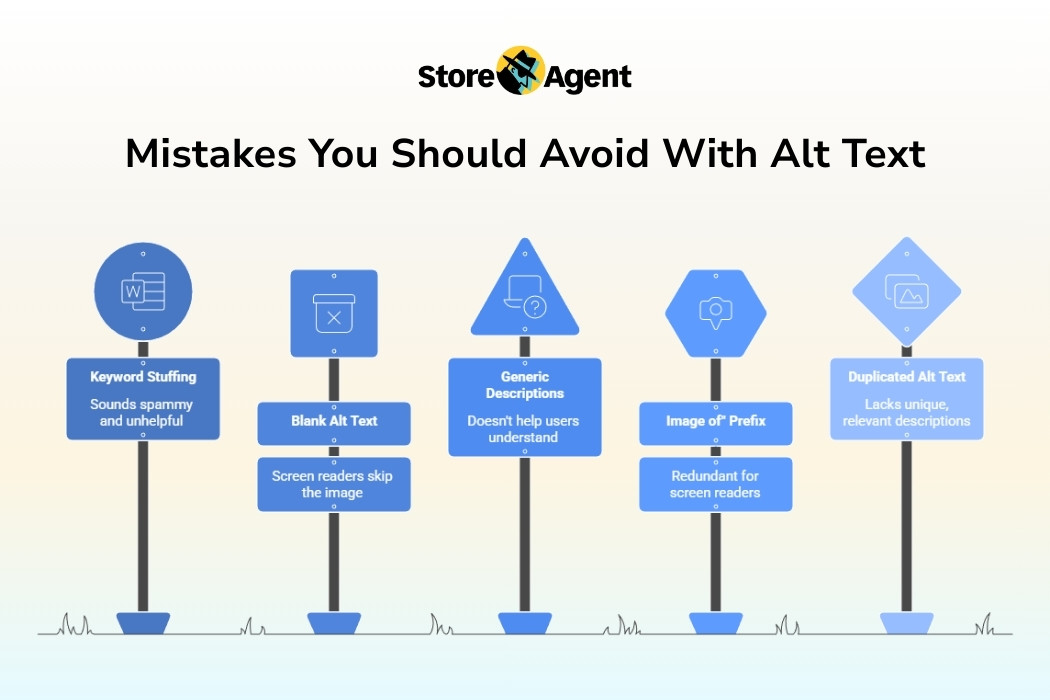
- Keyword stuffing: Phrases like “buy cheap blue dress online discount women’s clothing sale” sound spammy and don’t help users
- Leaving alt text blank: Empty alt attributes tell screen readers to skip the image entirely
- Using generic descriptions: “Product image” or copying the product title doesn’t help anyone
- Adding “image of” or “picture of”: Screen readers already announce it’s an image
- Duplicating alt text: Each image needs a unique description that matches what it shows
An AI image alt text generator like StoreAgent ensures every image gets unique, relevant descriptions automatically. This eliminates these common mistakes.
For a broader look at technical errors beyond just alt tags, refer to our comprehensive guide on how to optimize images for SEO to ensure your entire media library is performance-ready.
Start Automating Your WooCommerce Alt Text Today
Alt text optimization doesn’t have to consume hours of your time. StoreAgent’s Image Alt Tags AI uses computer vision to analyze your product images and generate accurate, SEO-friendly metadata in seconds.
In this guide, you learned:
- What alt text is and why it matters
- What makes good alt text for product images
- Why WooCommerce stores need automated alt text
- How StoreAgent’s Image Alt Tags AI works
- Testing StoreAgent’s Image Alt Tags AI
- What other AI tools work with Image Alt Tags
- What mistakes to avoid with alt text
Ready to optimize your product images? Install StoreAgent’s Image Alt Tags AI free and generate your first batch of alt text in minutes. Check out our complete AI content tools for WooCommerce to automate your entire catalog.
Frequently Asked Questions
Can I use the same alt text for similar products?
No. Each product image needs unique alt text that describes what’s specifically shown. Search engines may penalize duplicate alt text across multiple pages. Even similar products have different colors, angles, or features that need unique descriptions.
What’s the difference between alt text and image captions?
Alt text is hidden code that appears when images fail to load and helps screen readers. Captions are visible text that appears below images for all users. Alt text is required for accessibility, while captions are optional.
How do you manually add alt text to images in WordPress?
Go to Media > Library in WordPress and click any image. Find the “Alternative Text” field in the details modal and type your description. For WooCommerce products, edit the product and click the product image to access the alt text field.
Should I edit AI-generated alt text?
Most AI-generated alt text works without editing. Review a few examples initially to understand how the AI interprets your images. You can adjust descriptions that need brand-specific terminology or additional context.
Can alt text help products rank in Google Images?
Yes. Alt text helps search engines understand and index your product photos for Google Images search. Detailed alt text ranks better than generic descriptions. Google uses alt text as a ranking factor for image search results.