Reviewed by
WooCommerce product tags are descriptive labels you assign to products to help shoppers filter your catalog and help search engines index your store. Unlike categories (which create a hierarchy), tags are flat labels that describe specific attributes — like “organic,” “gift-ready,” or “summer collection.” Well-optimized product tags improve your store’s internal search, create keyword-rich archive pages that rank in Google, and help customers find products faster. You can add tags manually in WooCommerce or use AI tools like StoreAgent’s Product Tag Generator to create them in bulk.
Most store owners set up WooCommerce product tags once and never think about them again. The result? A messy list of duplicate tags, internal codes that mean nothing to shoppers, and dozens of thin archive pages that dilute your SEO instead of helping it.
In this guide, we’ll walk through exactly how to add and manage WooCommerce product tags, share the best practices we recommend for SEO, and show you how AI-powered tagging can save hours of manual work when your catalog grows past a few dozen products.
What Are WooCommerce Product Tags?
WooCommerce product tags are flat, descriptive labels you attach to products to describe their characteristics. Each tag creates its own archive page (like /product-tag/organic-cotton/) that groups every product sharing that tag on a single, indexable page. They sit alongside categories and attributes, adding another layer of detail that helps shoppers filter your catalog and shortens the path to purchase.
For example, a clothing store might tag a t-shirt with “organic cotton,” “summer collection,” “unisex,” and “gift under $30.” A customer searching your store for “organic cotton” would see every product with that tag, regardless of which category it sits in.
Tags work alongside categories but serve a different purpose. Categories define where a product lives in your store’s structure. Tags describe what it is, what it’s made of, who it’s for, or when it’s relevant.
Product tags vs. product categories
Categories are hierarchical. You can nest them (Clothing > Men’s > T-Shirts), and every product should have at least one category. Tags are flat. There’s no parent-child relationship, and a single product can have as many tags as needed. For a deeper look at how these two taxonomies differ, this breakdown covers the key distinctions well.
Think of categories as the filing cabinet that organizes your store, and tags as the sticky notes that describe individual characteristics. A product belongs in one primary category but can carry multiple tags that describe its material, use case, season, style, or target audience. If you’re unsure where the line falls between categories, tags, and attributes, this guide explains each taxonomy’s role in WooCommerce.

Both categories and tags create archive pages that Google can crawl and index. The difference is that category archives tend to rank for broader, navigational queries (“men’s t-shirts”), while tag archives can rank for more specific, long-tail queries (“organic cotton t-shirts under $30”). Using both effectively gives your store more entry points from search. For a practical guide on using WooCommerce product tags to improve SEO, it’s worth seeing how other store owners structure their tagging strategy.
How To Add And Manage Product Tags In WooCommerce
WooCommerce gives you three ways to add product tags: from the dedicated Tags screen, from the product editor, or in bulk using Quick Edit. Here’s how each method works.
Method 1: Creating tags from the main “Tags” screen
Go to Products > Tags in your WordPress sidebar. This screen lets you create, edit, and delete WooCommerce product tags globally without opening individual products.
To create a new tag, fill in three fields:
- Name: The customer-facing label (e.g., “Organic Cotton”)
- Slug: The URL-friendly version (e.g., “organic-cotton”). WooCommerce generates this automatically, but you can customize it for cleaner URLs.
- Description: Optional text that appears on the tag’s archive page. Use this for a short, keyword-rich sentence that describes what products share this tag.

This method is best when you’re setting up your tagging system from scratch or cleaning up existing tags. You can see exactly how many products use each tag and spot duplicates quickly (like “t-shirt” and “tshirt” existing as separate tags).
Method 2: Assigning tags from the product edit page
Open any product in your WooCommerce dashboard and look for the Product tags box on the right side of the editor. Type a tag name and press Enter to add it. WooCommerce will suggest existing tags as you type, which helps you stay consistent.

This approach works well when you’re adding or editing a single product and want to tag it in context. You can see the product’s title, description, and categories while choosing tags, which helps you pick the most relevant ones. For a comprehensive overview of how product tags work in WooCommerce, this guide covers the essentials.
Method 3: Using Quick Edit and Bulk Actions
For faster tagging across multiple products, use Quick Edit or Bulk Edit from the Products list screen.
Quick Edit: Hover over any product in the list and click “Quick Edit.” You’ll see a Product tags field where you can add comma-separated tags without opening the full product editor.

Bulk Edit: Select multiple products using the checkboxes, choose “Edit” from the Bulk Actions dropdown, and click Apply. You can then add the same tags to all selected products at once.

Bulk Edit is the fastest manual method for stores with dozens of products. However, once your catalog grows past 100+ products, even bulk editing becomes time-consuming and error-prone. We’ll cover a faster alternative later in this article.
Best Practices For WooCommerce Product Tags (SEO Focus)
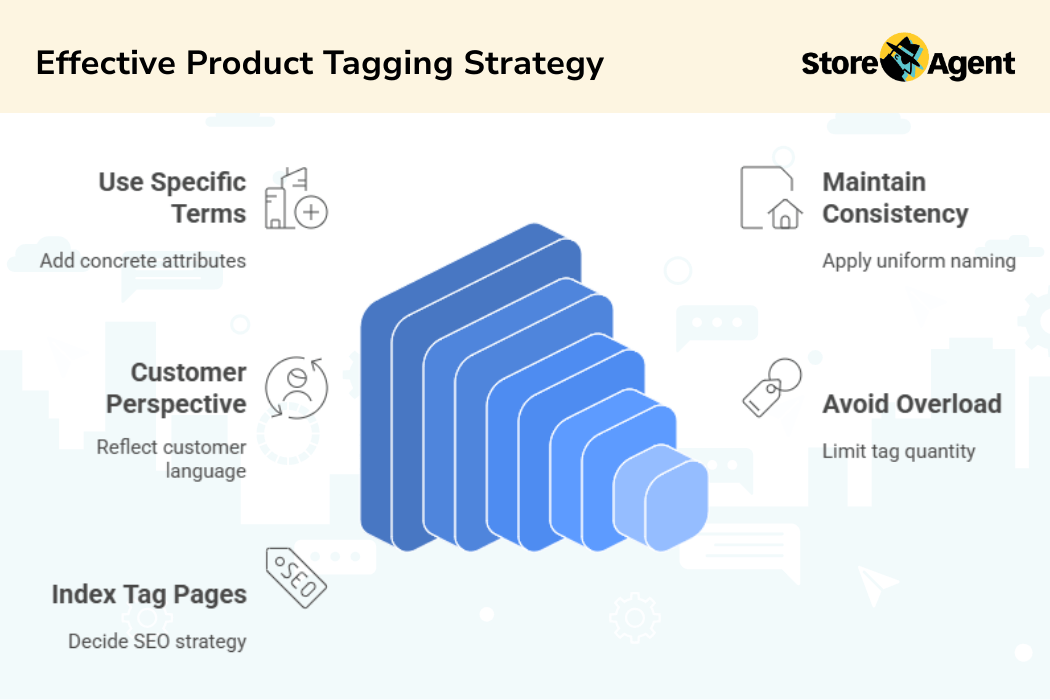
Adding tags is straightforward. Using them strategically for SEO is where most store owners fall short. These five best practices will help you get more search traffic from your WooCommerce product tags without over-complicating your setup.
1. Use specific, customer-facing terms
Tags should match the words your customers actually type into Google or your store’s search bar. Instead of “blue,” use “navy blue” or “royal blue.” Instead of “small,” use “women’s small” or “compact size.” The more specific the tag, the more likely it matches a real search query.
Check your site search data in Google Analytics or your WooCommerce analytics to see what terms shoppers are already using. Those search terms make excellent tags.
2. Keep tags consistent across your catalog
Inconsistent tags are one of the most common problems we see. If some products use “eco-friendly” and others use “eco friendly” (no hyphen), you end up with two separate archive pages splitting your SEO value in half.
Pick one version of each tag and stick with it. Create a simple tagging guide (even a spreadsheet works) that lists your approved tags so anyone managing products uses the same terms.
3. Aim for 3-7 tags per product
Too few tags means missed search opportunities. Too many (15+) dilutes the value of each tag and creates thin archive pages that Google may choose to ignore entirely. We recommend 3-7 tags per product as a practical sweet spot.
Each tag should describe a genuine, searchable attribute: material, use case, style, season, target audience, or feature. If a tag only applies to a single product in your entire catalog, it’s probably too specific to be worth creating.
4. Avoid internal jargon and codes
One thing we commonly see: store owners create tags like “promo-q2,” “warehouse-b,” or “restock-pending” that mean nothing to search engines or shoppers. These internal codes create empty archive pages that dilute your SEO. Use customer-facing language that matches how people actually search — “summer sale,” “organic cotton,” “gift under $50.”
If you need internal labels for inventory management, use a separate system (like custom fields or a plugin built for inventory tracking). Don’t mix operational labels with customer-facing tags.
5. Review and prune tags regularly
Tags accumulate over time, especially when multiple people manage products. Schedule a quarterly review where you go to Products > Tags and sort by count. Any tag with zero or one product is a candidate for deletion or merging.
Also look for near-duplicates (like “handmade” and “hand-made”), seasonal tags that are no longer relevant, and tags that overlap too much with existing categories. Fewer, stronger tags create better archive pages than dozens of weak ones.
Why Manual Tagging Falls Short At Scale
The manual methods above work fine when your store has 20 or 30 products. Once your catalog grows past 100 products, manual tagging becomes a real bottleneck.
The first problem is time. Tagging each product individually (choosing 3-7 relevant tags, checking for consistency, avoiding duplicates) takes 2-3 minutes per product on a good day. For a 500-product catalog, that’s over 16 hours of tagging work. For a 2,000-product store, the math stops making sense entirely.
The second problem is consistency. Even with a tagging guide, different team members will use slightly different terms, forget to apply seasonal tags, or skip products when they’re in a rush. Over time, your tag library drifts into a mix of well-tagged products and products with zero tags.
The third problem is missed opportunities. Manual taggers tend to stick with the obvious terms they already know. They’re unlikely to research what customers are actually searching for, or to spot long-tail keyword variations that could drive traffic to tag archive pages. Writing strong product descriptions already takes enough time without adding exhaustive tag research on top.
A Faster Method: Using StoreAgent’s AI Product Tag Generator
If manual tagging doesn’t scale for your store, AI-powered tagging can fill the gap. StoreAgent is a WooCommerce AI plugin that analyzes your existing product data and suggests relevant, SEO-friendly tags in bulk.
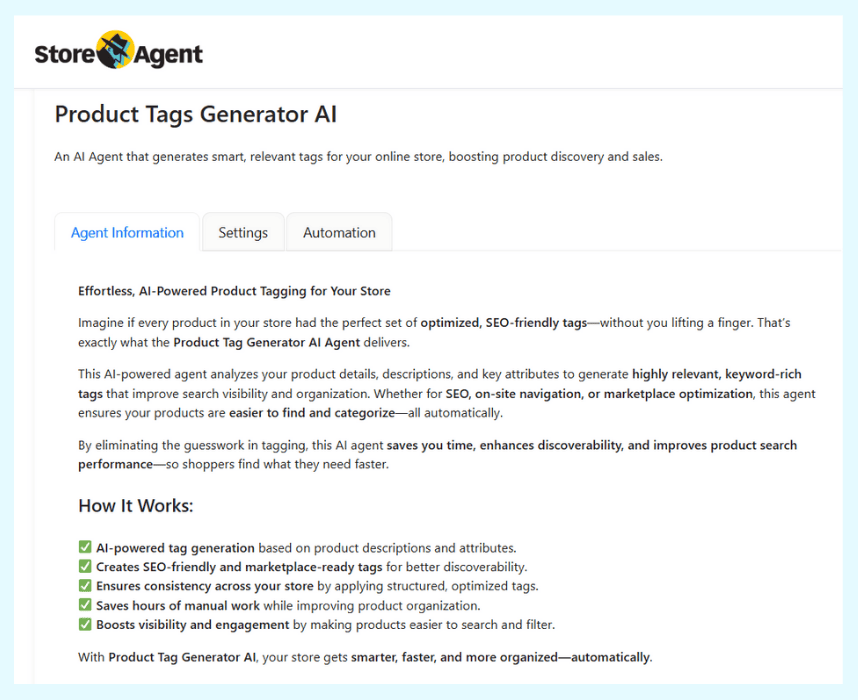
Here’s how it works: the AI reads your product titles, descriptions, categories, and attributes, then generates tag suggestions based on how customers actually search for similar products. It doesn’t just pull words from your existing content. It identifies search-relevant terms that you might not have considered.
You can configure the generator to include product categories and attributes in its analysis, which gives it more context for accurate suggestions.
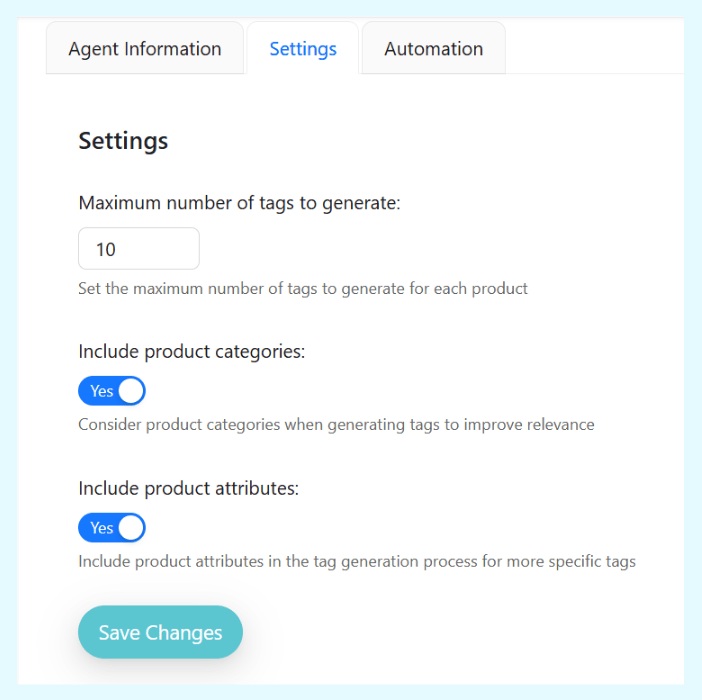
The generator works directly inside your WooCommerce product editor. When editing a product, you’ll see a “Generate with AI” button in the Product tags box. Click it, review the suggestions, and apply the ones that fit.

The practical benefits for larger stores are significant:
- Bulk processing: Tag hundreds of products in a fraction of the time it would take manually.
- SEO-aware suggestions: The AI suggests tags based on actual search patterns, not just what’s already in your product data.
- Consistency: AI applies the same naming conventions across your entire catalog, eliminating the “eco-friendly” vs. “eco friendly” problem.
- Works with your existing data: The generator builds on your current product titles, descriptions, and attributes. It adds to what you have rather than replacing it.
If you’re also looking to improve your product copy alongside tags with AI for WooCommerce, StoreAgent’s AI product description tool uses a similar approach to generate optimized descriptions that complement your tagging strategy. You can explore all available tools and StoreAgent’s pricing plans to find the right fit for your store.
Frequently Asked Questions
What is the difference between WooCommerce product tags and categories?
Categories create a hierarchy for your store (like Clothing > Men’s > T-Shirts), while tags are flat, descriptive labels that cut across categories (like “organic cotton,” “summer sale,” or “new arrival”). A product should have one primary category but can have multiple tags. Think of categories as the filing system and tags as sticky notes that describe characteristics. Both create archive pages that Google can index for SEO.
How many product tags should I use per product in WooCommerce?
Aim for 3-7 tags per product. Using too few means missed search opportunities. Using too many (15+) dilutes the SEO value and creates thin archive pages that Google may ignore. Each tag should describe a genuine attribute that customers might search for, such as material, use case, style, season, or feature. If a tag only applies to one product, it’s probably too specific to be useful.
Do WooCommerce product tags help with SEO?
Yes. Each tag creates an archive page in WooCommerce (e.g., /product-tag/organic-cotton/) that Google can index. When customers search for “organic cotton WooCommerce” or similar terms, these archive pages can rank. The key is using tags that match real search queries, not internal jargon. One thing we commonly see: store owners create tags like “promo-q2” or “warehouse-b” that mean nothing to search engines. Use customer-facing language instead.
Can I generate WooCommerce product tags automatically with AI?
Yes. StoreAgent’s Product Tag Generator analyzes your product titles, descriptions, categories, and attributes to suggest relevant tags in bulk. You can process hundreds of products at once, and the AI suggests tags based on how customers actually search for similar products, not just the words in your existing content. This is especially useful for stores with large catalogs where manual tagging would take days.
How do I add product tags in WooCommerce?
Go to Products > Tags in the WordPress sidebar to manage tags globally, or add them per product from the product editor’s “Product tags” box on the right. For bulk tagging, use Quick Edit from the product list (select multiple products > Quick Edit > add tags). For AI-powered bulk tagging, install StoreAgent AI and use the Product Tag Generator to analyze your entire catalog and suggest tags automatically.
Start Using WooCommerce Product Tags To Drive More Traffic
WooCommerce product tags are one of the simplest ways to create more indexable pages, improve your store’s internal search, and help customers find what they’re looking for. The stores that get the most out of tags treat them as an ongoing SEO strategy, not a one-time setup task.
Here’s a quick recap of what to focus on:
- Understand the difference between tags and categories so you use each one for its intended purpose
- Add tags from the Tags screen, product editor, or Bulk Edit depending on how many products you’re working with
- Follow the five best practices to keep your tags clean, consistent, and search-friendly
- Recognize when manual tagging stops scaling and consider AI-powered alternatives
- Use StoreAgent’s Product Tag Generator to tag products in bulk with SEO-aware suggestions
If your store has more products than you can realistically tag by hand, StoreAgent’s Product Tag Generator can handle the heavy lifting. It analyzes your entire catalog, suggests search-relevant WooCommerce product tags, and keeps everything consistent across hundreds of products. Check out StoreAgent’s pricing and start turning your product tags into a real SEO advantage.