Reviewed by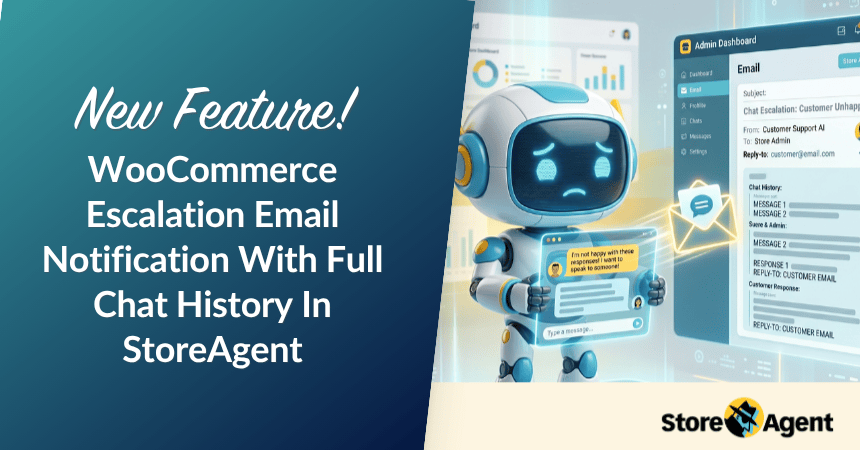
WooCommerce escalation email notification is now live in StoreAgent Chat!
When a customer asks to speak with someone, your store admin now gets an email with the full chat history. The customer’s email is set as the reply-to address, so you can respond directly without asking them to start over on a separate page.
Before this update, escalation only sent customers to a support URL. You had no idea it happened until you checked your dashboard, and the customer had to re-explain their whole issue from scratch. This update fixes both problems at once.
Why We Built the WooCommerce Escalation Email Notification
A lot of store owners don’t realize how much context gets lost during escalation. The customer spends several minutes chatting with the AI, explains their order issue in detail, then clicks “contact support” and lands on a blank form with nothing carried over.
That’s a frustrating experience on both sides. On the admin side, you’re flying blind because you don’t know who escalated, what they asked, or when it happened.
We wanted the WooCommerce escalation email notification to bridge that gap so you get the full picture and the customer gets a faster reply.
How To Set Up Escalation Email Notifications In StoreAgent
Everything is under Support Escalation in your AI Chat Settings, and the whole setup takes about two minutes.
First, make sure escalation is on
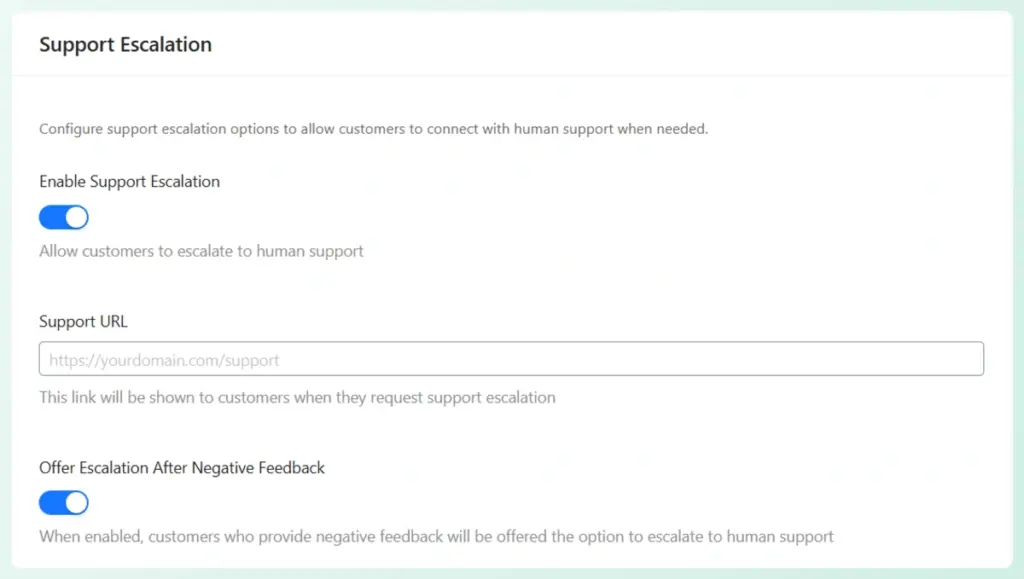
- Open AI Chat Settings and go to Support Escalation
- Toggle on “Enable Support Escalation”
- Add your Support URL so customers have somewhere to go when they request help
Then turn on the email notification
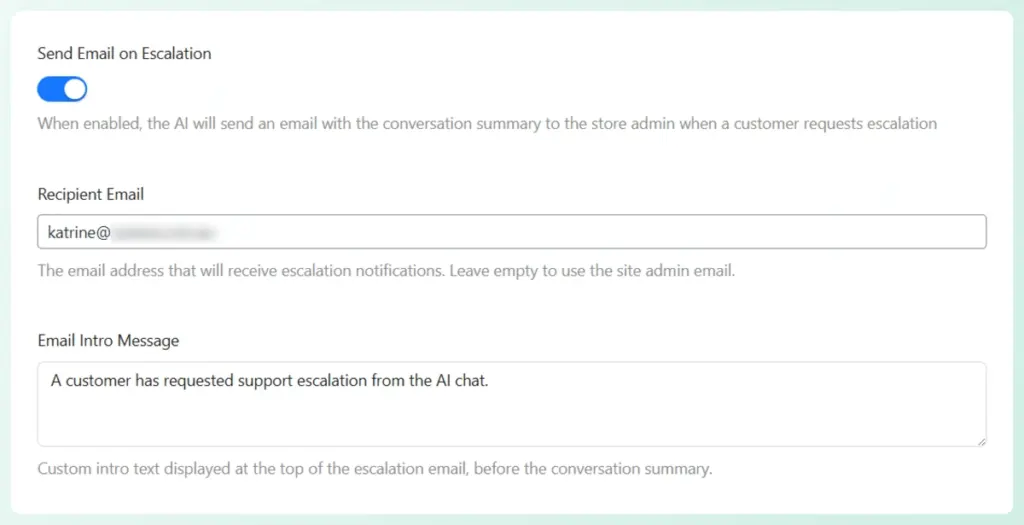
- Toggle on “Send Email on Escalation”
- Add a Recipient Email, or leave it empty to default to your WordPress admin email
- Write a short Email Intro Message that appears at the top of every escalation email, just above the chat summary
The default intro reads: “A customer has requested support escalation from the AI chat.” You can keep it as is or rewrite it to match your brand’s tone. Either way, the full chat history comes through automatically below it.
How It Looks in Practice
When a customer wants help, the AI handles the handoff naturally inside the chat:
Customer: “I need to speak to someone.”
AI: “I’d be happy to connect you with our support team. Can I get your email so they can reach out?”
Customer: “[email protected]”
AI: “Done! I’ve sent your conversation to our support team. They’ll reach out to you at [email protected] shortly.”
You then get an email with the subject line: [StoreAgent] Customer Support Request from [Customer Name/Email].
Inside is the customer’s name, email, the full chat transcript with timestamps, and a note on next steps. You just hit reply and you’re talking to the customer directly.
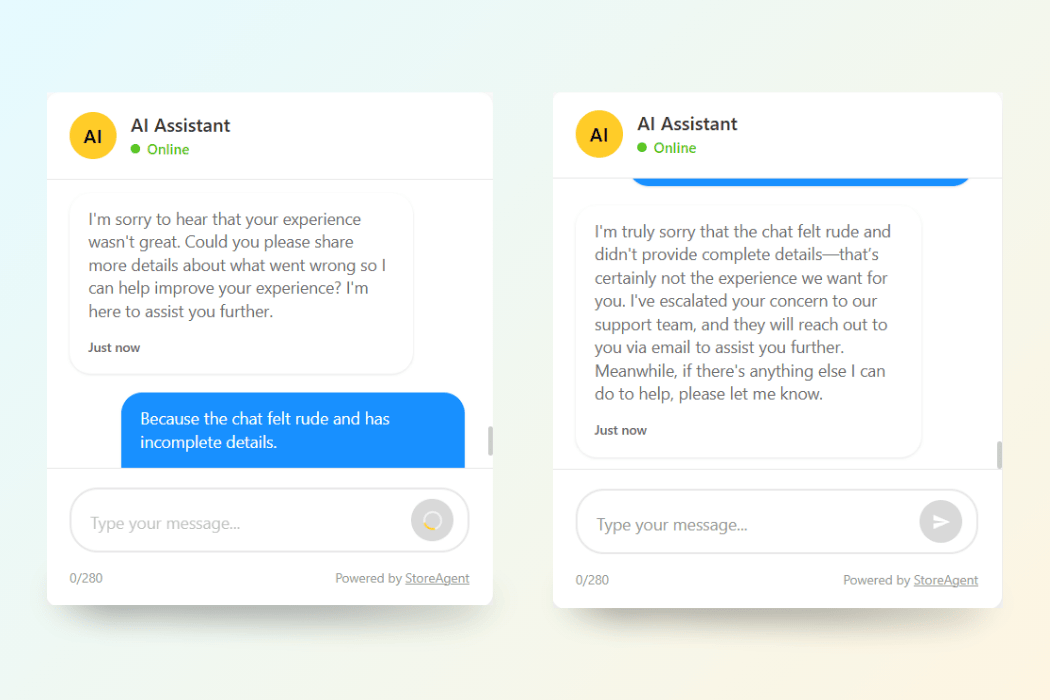
If you also have “Offer Escalation After Negative Feedback” turned on, the same email fires when a customer leaves a thumbs down rating. Poor chat experiences get routed to your inbox automatically, not just manual escalation requests.
One Panel, Full Control
All of this lives in the Support Escalation settings panel. You can update the recipient email, change the intro message, or turn off notifications completely at any time. Every change takes effect on the next escalation that comes in.
For the full breakdown of how feedback collection and escalation work together, read our original guide: AI Chatbot Escalation and Feedback Collection in StoreAgent.
For the full breakdown of how feedback collection and escalation work together, read our original guide: AI Chatbot Escalation and Feedback Collection in StoreAgent.
Frequently Asked Questions
What is the WooCommerce escalation email notification in StoreAgent?
The WooCommerce escalation email notification is a feature in StoreAgent that automatically sends your store admin an email when a customer requests human support inside the AI chat. The email includes the full chat history and uses the customer’s email as the reply-to address, so you can respond directly without any extra steps.
What does the escalation email include?
The escalation email includes the customer’s name and email address, the full chat transcript with timestamps, a customizable intro message, and suggested next steps for your team. The subject line is formatted as: [StoreAgent] Customer Support Request from [Customer Name/Email].
Do I need a paid plan to use the escalation email notification?
Yes. Support escalation, including the email notification feature, is available on paid StoreAgent plans. Free users can still collect chat feedback ratings, but the escalation features are premium-only.
Can I change who receives the escalation email?
Yes. By default, the notification goes to your WordPress admin email. You can override this with any email address in the Recipient Email field under your Support Escalation settings, such as a dedicated support inbox.
What happens if the customer hasn’t shared their email yet?
If a customer requests escalation without providing their email, the AI asks for it naturally during the chat before sending the notification. The process feels smooth to the customer and doesn’t interrupt the conversation.
Does the escalation email fire for negative feedback too?
Yes, if you have “Offer Escalation After Negative Feedback” enabled. When a customer leaves a thumbs down rating and chooses to escalate, the same email notification fires automatically. You don’t need to set anything up separately.
Can I customize the escalation email content?
You can customize the intro message that appears at the top of every escalation email, just above the chat summary. The full chat transcript is added automatically by StoreAgent and cannot be removed. You can update your intro message at any time from the Support Escalation settings panel.
Where do I find the escalation email settings in StoreAgent?
All escalation email settings are in AI Chat Settings under the Support Escalation section. From there you can toggle the email notification on or off, set a custom recipient, and edit your intro message.