Reviewed by
Flexible design is key to a great online store. Our new WordPress chat widget shortcode gives you full control over your layout. Before this, you were stuck with a chat box in the bottom-right corner.
That location often blocks other buttons or looks out of place. Now, you can decide exactly where your chat widget belongs!
We are excited to introduce the new StoreAgent Chat shortcode. This simple, powerful tool allows you to place your WordPress chat widget shortcode anywhere on your site. This gives you total control over where and how you engage your customers.
Finally! Custom Placement For Your AI Chatbot
Most chatbot plugins treat the chat widget WordPress interface as an overlay—something that floats on top of your content. StoreAgent is changing that perspective. With our new update, you can now embed the full chat interface directly into your content flow.
This might seem like a small technical change. However, it opens up entirely new ways to design your customer support experience. Instead of an intrusive pop-up that covers your “Add to Cart” button on mobile, you can give the chat its own dedicated space.
3 Ways To Use Embedded Chat Widgets
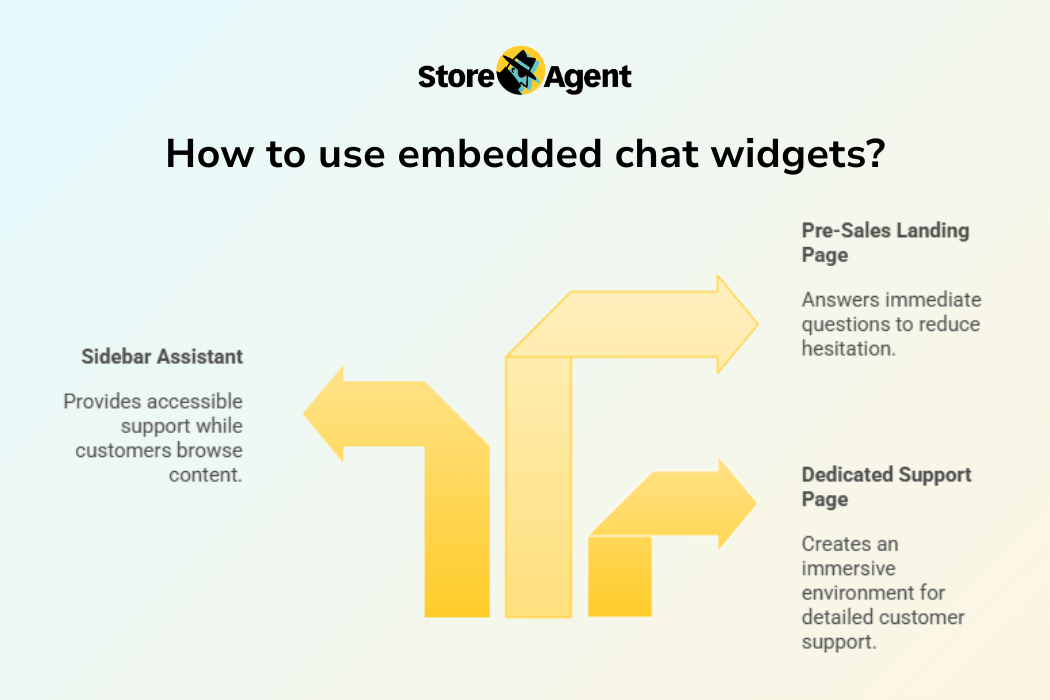
Here are three powerful ways our users are already planning to use this feature:
1. The dedicated support page
Instead of a tiny contact form, build a full-width “Chat with AI” page. By embedding the chat widget WordPress element in the center of the screen, you create a focused, immersive environment where customers can get detailed answers without distractions.
2. The sidebar assistant
If you have a blog or a documentation section, your customers often have questions while they are reading. When you place the WordPress chat widget shortcode in your sidebar, the AI stays visible and accessible as they scroll through your content, ready to explain complex terms or recommend related products.
3. The “pre-sales” landing page
On high-stakes landing pages (like a custom product launch or a wholesale application page), you want to answer questions immediately. Embedding the chat directly next to your pricing table invites hesitation-busting questions like, “Do you offer bulk discounts?” or “Is this compatible with X?”
When you use a flexible chat widget WordPress solution, you stop fighting against your theme’s layout. As a result, you start building a support experience that fits your brand’s unique flow.
How To Use The StoreAgent Chat Shortcode
Adding the chat widget to your site is now as easy as copying and pasting. We have designed this to work with the standard WordPress editor (Gutenberg), Classic Editor, and popular page builders like Elementor or Divi.
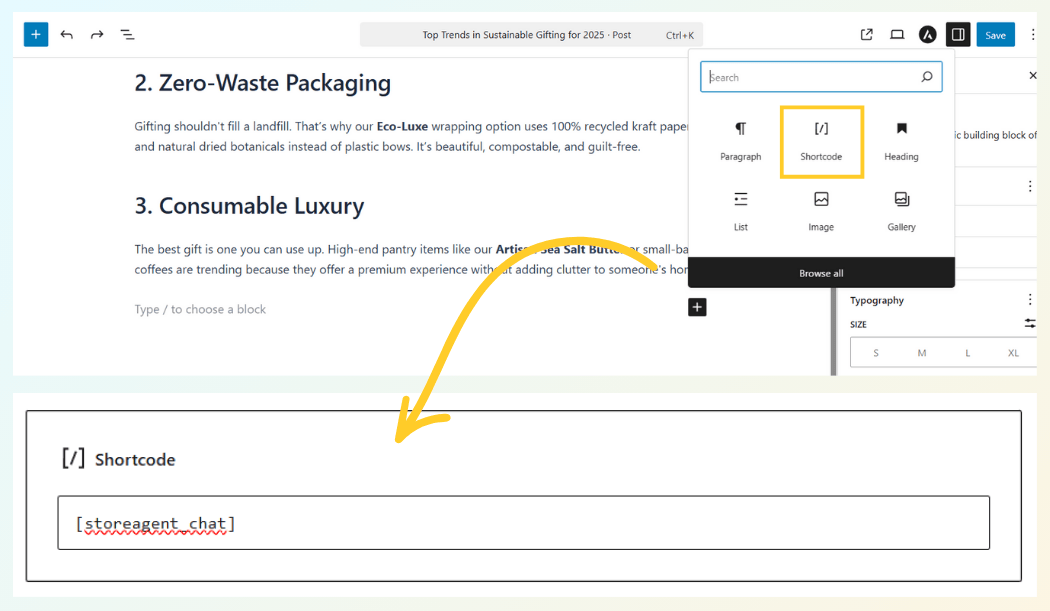
StoreAgent Chat code anywhere on your pageStep-by-step guide:
- Open any page or post: Navigate to the WordPress editor for the page where you want the chat to appear.
- Add a shortcode block: Click the (+) button to add a new block and search for “Shortcode.”
- Paste the code: Enter the shortcode into the box.
- Publish: Save your page, and your fully functional AI chat widget will appear right there in the content.
You can also use this shortcode in any standard text widget. Basically, this makes it incredibly easy to add your WordPress chat widget shortcode to global areas like footers, sidebars, or headers without needing a developer to write custom code.
Customizing The Size And Style
We know that “one size fits all” rarely works in web design. That is why the shortcode supports parameters to control the container size.
- Width: Set it to
100%to fill the container width, or use a fixed pixel value like400pxfor a narrower column. - Height: Control exactly how much vertical space the chat occupies.
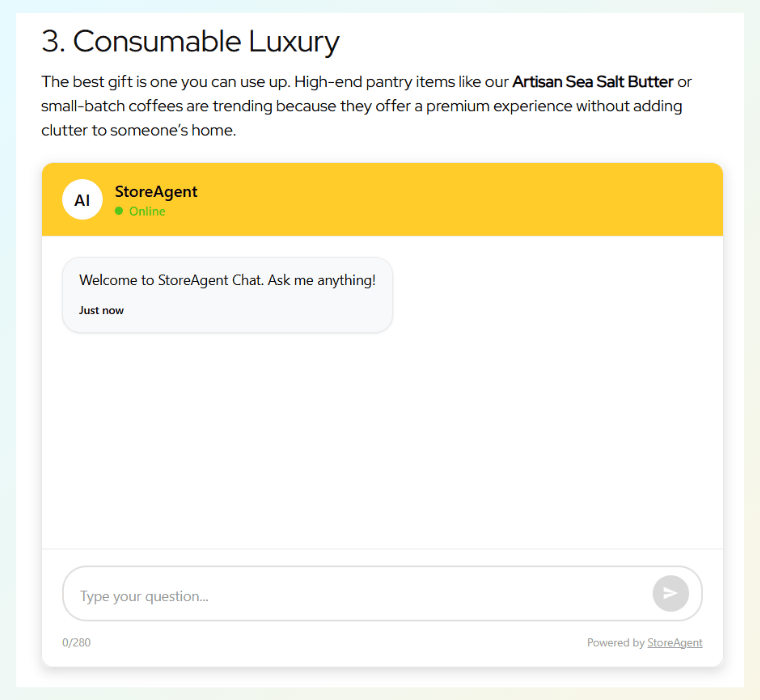
For example, in the image above, we set the height to 300px to match the article’s flow. This flexibility ensures your chat widget WordPress element looks perfect on any screen, whether it’s a full-width mobile view or a compact sidebar box.
New Display Settings: Control Where Your Chat Appears
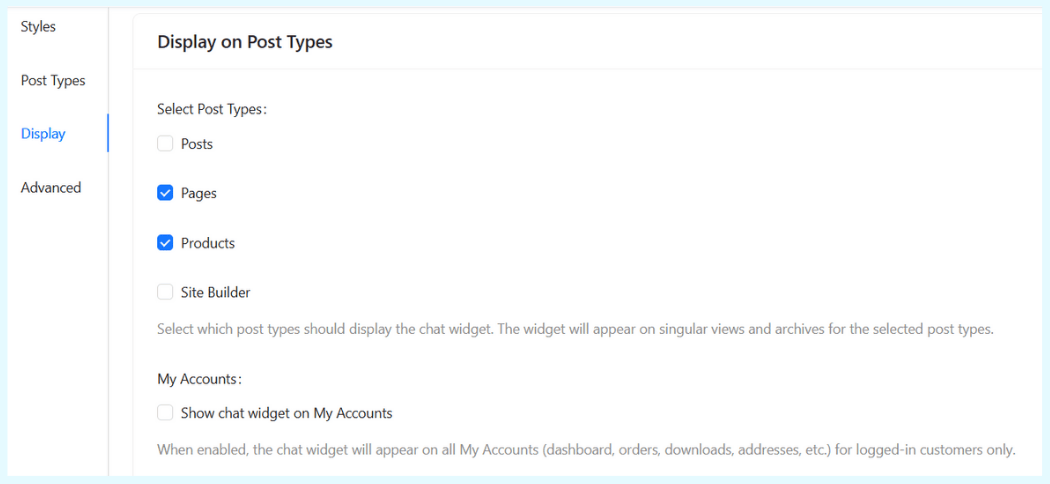
Sometimes, having a chat widget WordPress tool visible can actually hurt your conversion rates. For instance, you typically want a distraction-free environment on your Checkout page.
With this release, we’ve introduced a dedicated Display Settings tab to give you granular visibility control. Thus, you no longer need complex CSS hacks or third-party plugins to manage where your bot appears.
Key visibility controls:
- Exclude specific pages: We added a powerful search field that lets you find and select specific pages (like “Checkout,” “Thank You,” or “Privacy Policy”) where the widget should never load. Basically, this overrides all other settings, ensuring your sensitive pages stay clean.
- Filter by post type: You can now toggle the widget on or off for entire sections of your site. Want it on Products but not Blog Posts? Just uncheck the “Posts” box.
- My account visibility: The WooCommerce “My Account” area is often a private space for customers. We added a simple toggle to show or hide the widget here with a single click.
These settings ensure your chat widget WordPress tool is helpful when needed, and invisible when it’s not.
Better Organization For Easier Management
As StoreAgent adds more powerful features, we want to keep your dashboard clean and usable. You might notice a few changes in the Settings menu with this update.
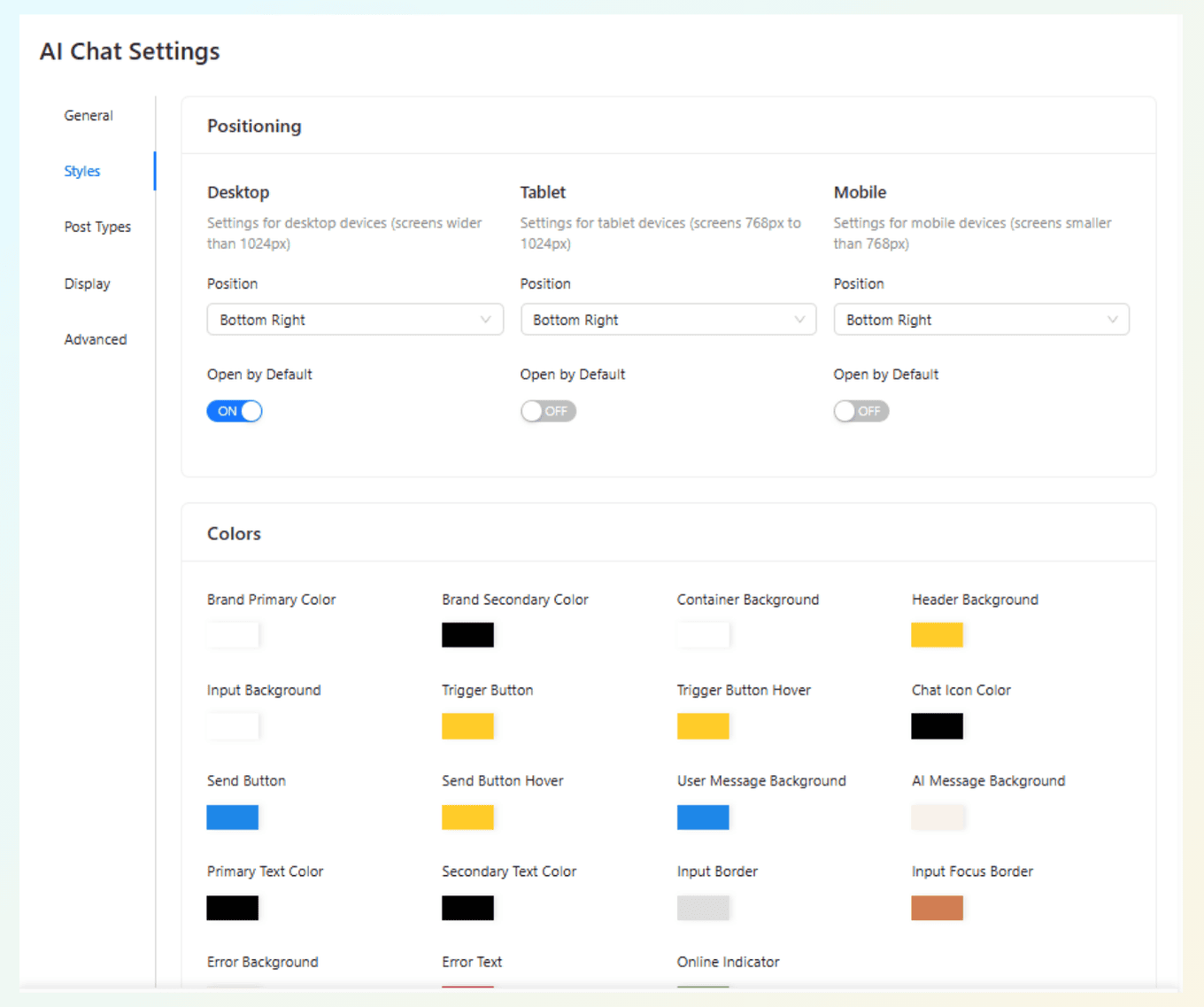
We have reorganized the configuration into clearer Advanced and Styles tabs.
- Styles tab: This is where you will find all your color customization options and positioning settings.
- Advanced tab: This houses developer-focused tools, like the new “Disable Preview Mode” toggle, which allows you to test real API responses from the backend without deploying to your live site.
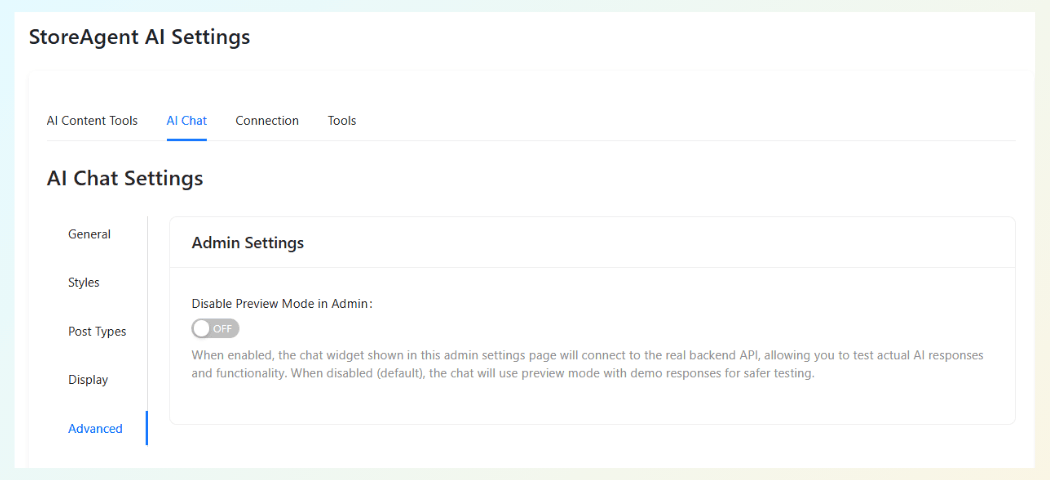
These quality-of-life improvements make finding your settings faster and more intuitive, letting you focus on selling rather than configuring.
Summary
Your store’s design is unique, and your support tools should be too. By using the new WordPress chat widget shortcode, you can finally break free from the “floating button” standard and build a support experience that genuinely fits your layout and customer journey.
To recap, here’s what we covered in this update:
- Custom Placement For Your AI Chatbot
- 3 Ways To Use Embedded Chat Widgets
- How To Use The StoreAgent Chat Shortcode
- Customizing The Size And Style
- Control Where Your Chat Appears
- Better Organization For Easier Management
Update your plugin today to start using the WordPress chat widget shortcode on your store. If you haven’t tried StoreAgent yet, get started for free and see how an intelligent, flexible AI assistant can transform your customer support.
Frequently Asked Questions
Does the shortcode work with Elementor?
Yes! You can use the StoreAgent Chat shortcode inside Elementor’s “Shortcode” widget. It works seamlessly with Divi, Beaver Builder, and WPBakery as well.
Can I have the floating widget AND the embedded widget on the same page?
Technically yes, but we don’t recommend it. It creates a cluttered experience. We suggest using the Display Settings to hide the floating widget on pages where you plan to use the embedded shortcode.
Will the embedded chat work on mobile?
Absolutely. The embedded chat widget WordPress interface is fully responsive. It will adapt to the width of the container you place it in, ensuring a smooth experience for mobile shoppers.