Reviewed by
The AI Chat Document Upload feature in StoreAgent closes one of the most overlooked gaps in WooCommerce AI chat setups. Your chatbot knows your products and order data, but what about your return policy, your shipping guide, or your warranty documentation? Those files probably live outside WordPress, and your chatbot has never had a way to reach them.
That’s exactly why StoreAgent now lets store owners upload those files directly from the WooCommerce My Account page and put them to work inside the chatbot’s knowledge base.
In this article, we cover what the AI Chat Document Upload feature does, which file types it supports, how to set it up step by step, and what happens to your files after they are processed.
What Is The AI Chat Document Upload Feature?
Store owners can now upload TXT, PDF, MD, DOCX, and CSV files directly to their StoreAgent AI chatbot’s knowledge base. Once uploaded, StoreAgent vectorizes the files so the chatbot understands them and retrieves relevant content when customers ask questions.
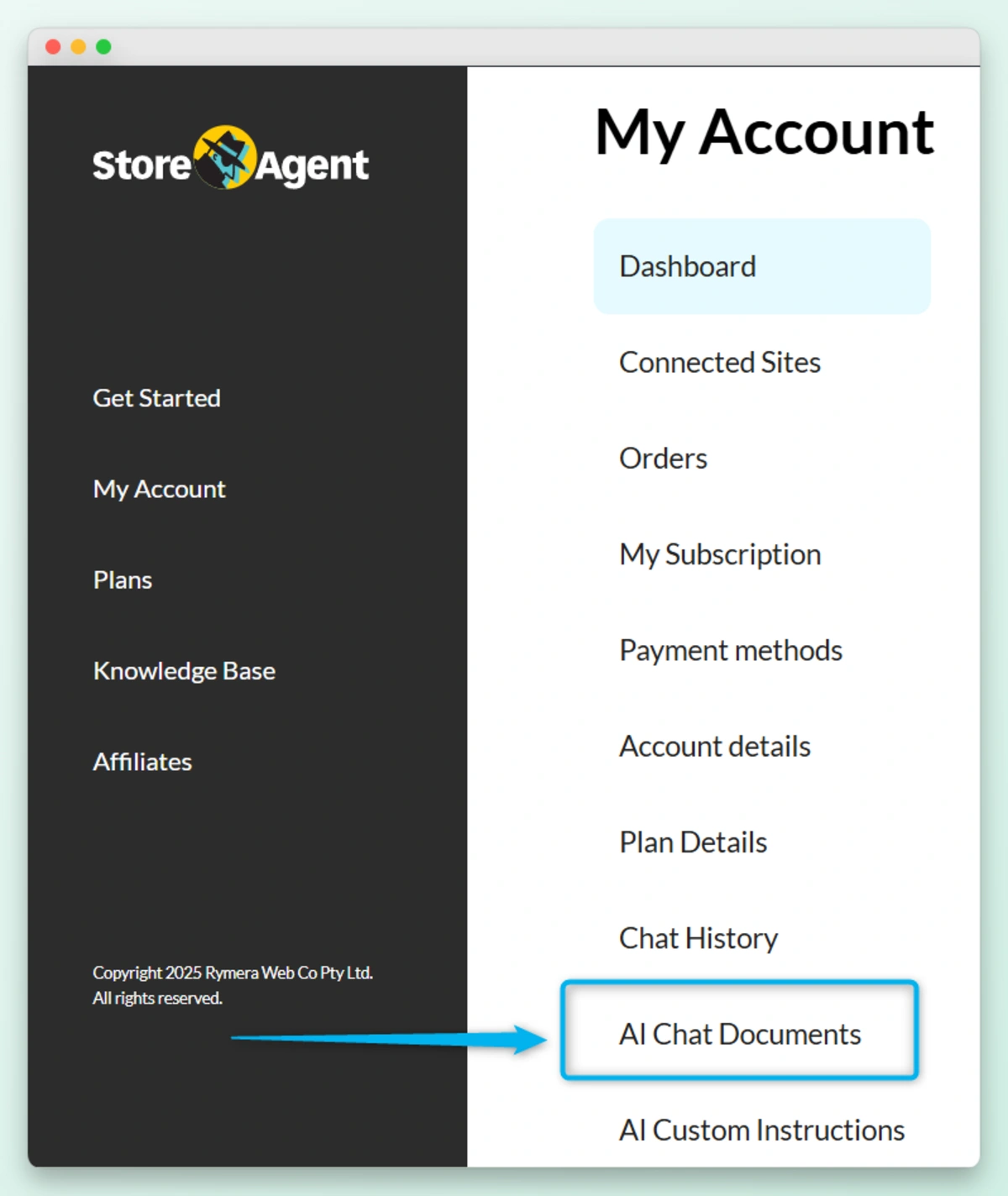
AI Chat Document Upload is available on all paid plans. Additionally. the setup lives entirely inside StoreAgent “My Account“ under a new “AI Chat Documents” section.
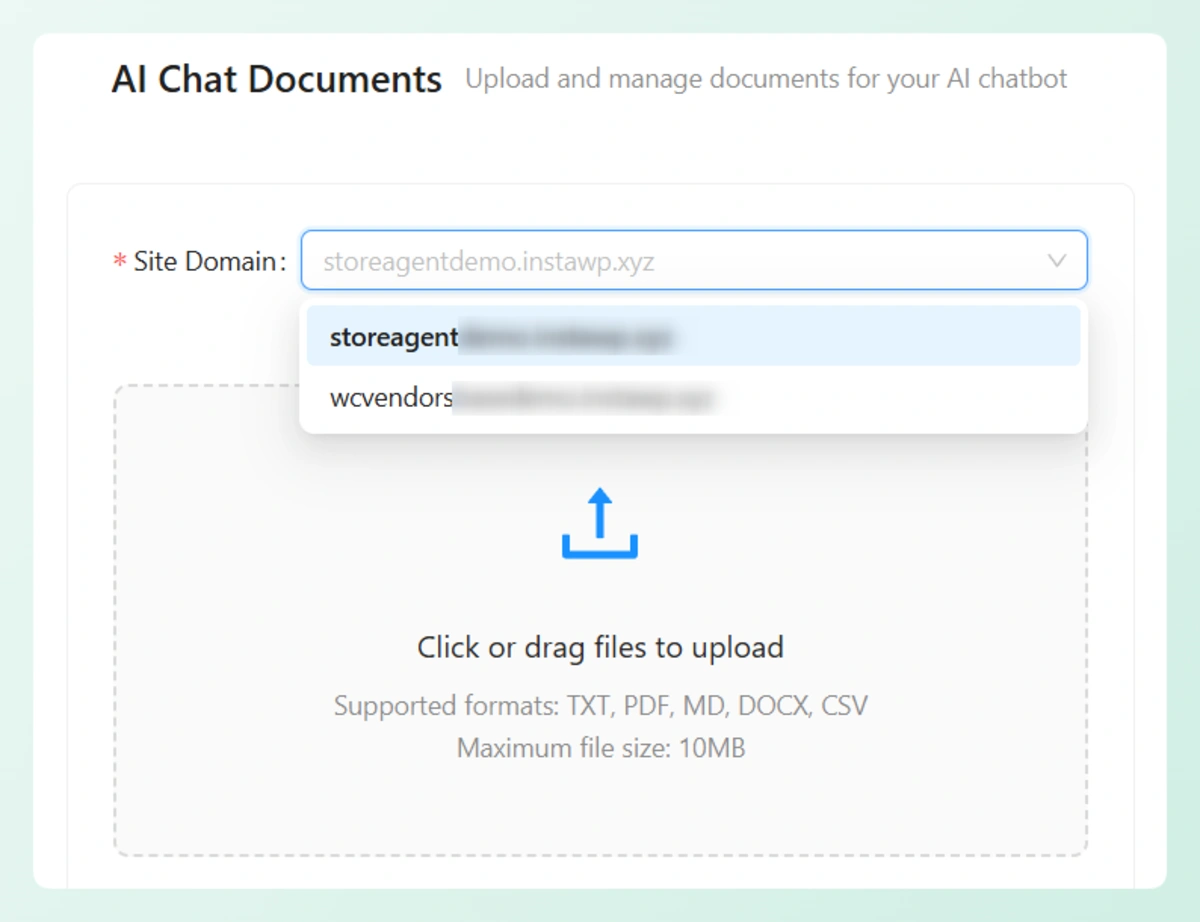
If you manage multiple stores, a domain selector lets you assign documents to a specific site. Each store’s knowledge base stays isolated.
Previously, StoreAgent Chat could learn from your WooCommerce products, order data, and WordPress pages. Now, document upload extends that training to the files that have always lived outside WordPress.
What Are The Benefits Of AI Chat Document Upload?
AI Chat Document Upload gives your chatbot access to your store policies, shipping guides, and warranty docs. This means faster answers for customers and fewer support tickets for you.
Here’s what changes when you upload them directly from your WooCommerce My Account page:
- Support feels seamless to customers. When a shopper asks about warranty terms and gets the exact right answer from your uploaded PDF.
- Customers get faster answers. According to Zendesk, 51% of consumers expect 24/7 AI support. That expectation breaks down when your chatbot can’t reference your actual store policies.
- Your existing store data works harder. StoreAgent has always pulled answers from your actual products and orders. Document upload also brings that same logic to the files sitting in your Downloads folder.
What File Types Does It Support?
StoreAgent supports five file formats: PDF, DOCX, TXT, MD, and CSV. If you’ve been searching for an AI that accepts document uploads without switching platforms, this is it.
It accepts five formats most store documentation already exists in:
- PDF – product manuals, warranty documents, branded FAQ sheets
- DOCX – Word files such as return policies and onboarding guides
- TXT – plain-language policy documents and internal notes
- MD (Markdown) – developer documentation and structured knowledge bases
- CSV – product data tables and FAQ lists in spreadsheet format
You don’t need to convert files before uploading. Just drop them directly from WooCommerce and they queue for processing immediately.
How Do You Use AI Chat Document Upload?
The setup takes under five minutes. The flow feels familiar, similar to uploading files in Dropbox or Google Drive.
- Log into WooCommerce and go to My Account
- Click AI Chat Documents from the My Account menu
- If you manage multiple stores, select your target site domain from the dropdown
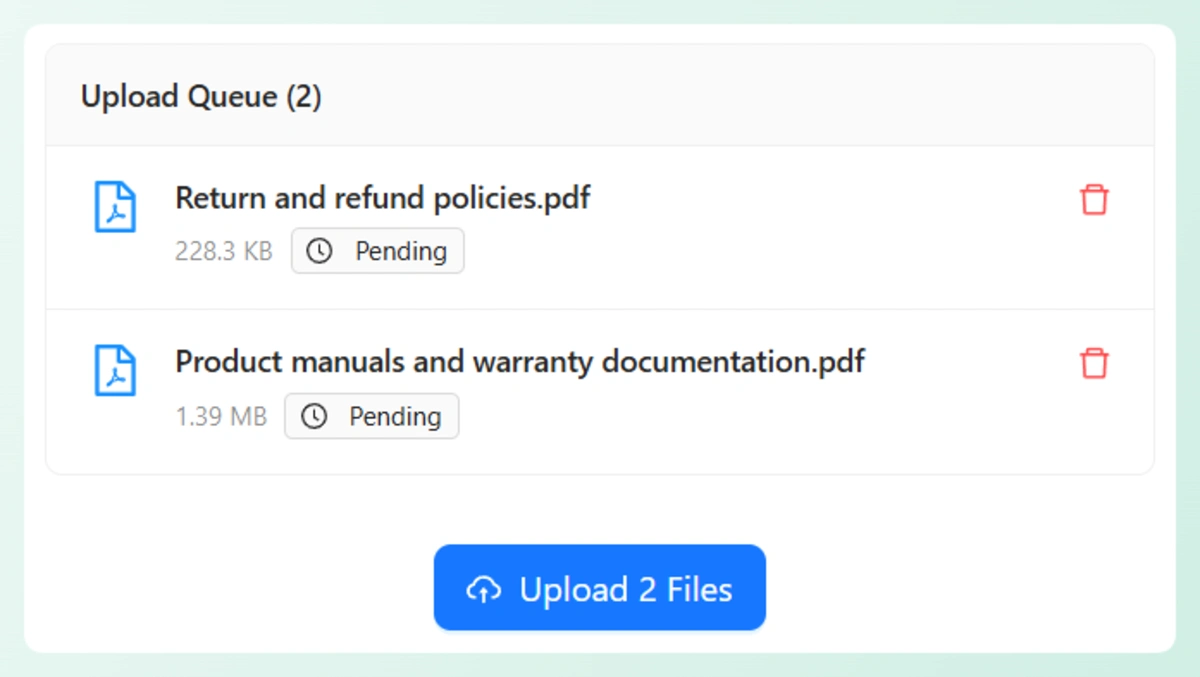
- Drag and drop files into the upload area, or click to browse; multiple files are supported at once
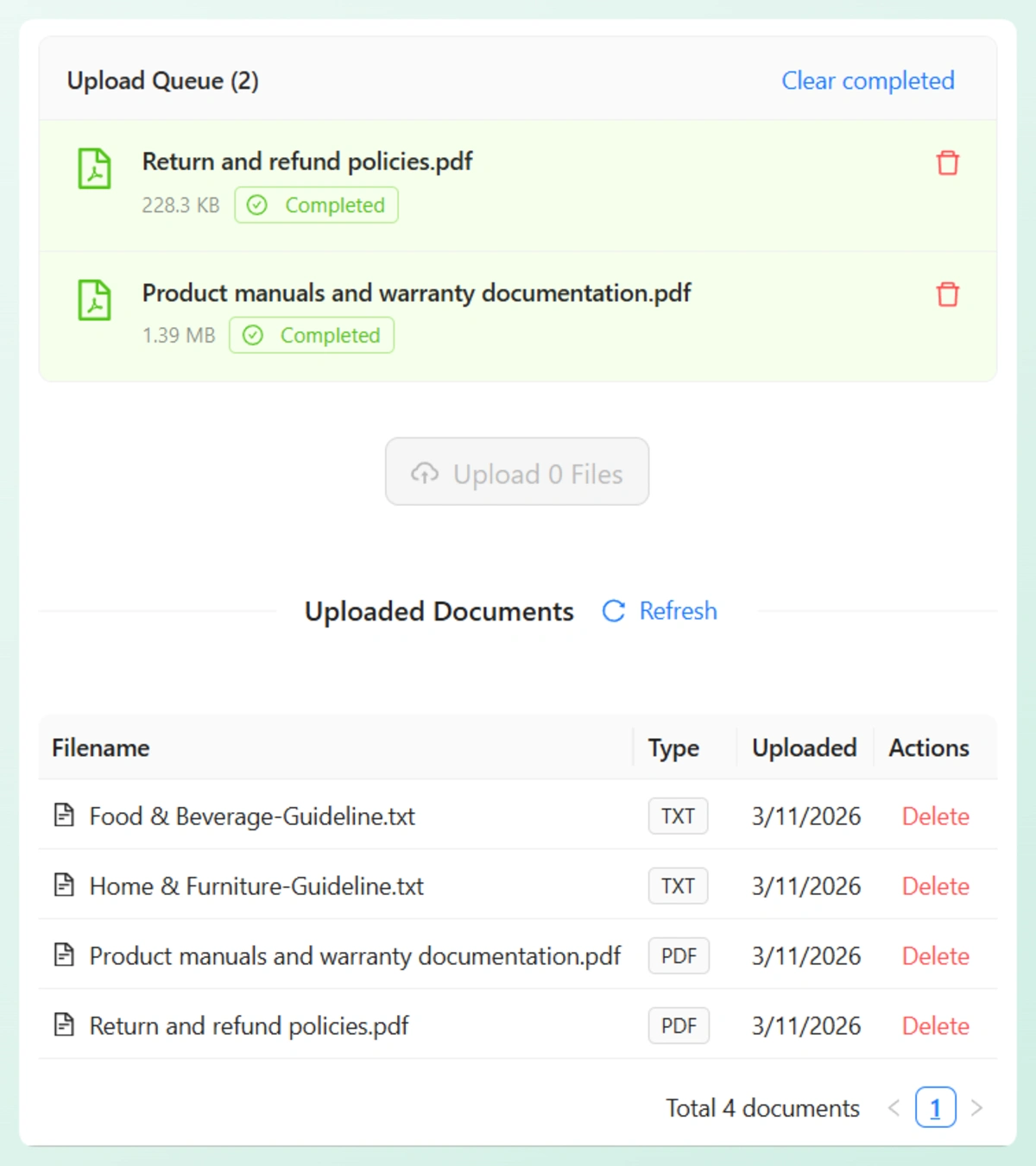
- Click “Upload [n] Files” and watch the per-file progress bars
- Uploaded files appear in a document table showing filename, file type, and upload date
Additionally, to remove outdated content, delete it from the table and it is removed from the vector database immediately
Files validate instantly before upload, with format and size checks running client-side. You also get a clear error message before the upload even starts, so nothing fails halfway through.
Additionally, if an upload fails, the file stays in the queue with an error message and a retry button so you can fix it without starting over.
What to Upload First
Start with the documents customers ask about most:
- Return and refund policies
- Shipping information and delivery timelines
- Product manuals and warranty documentation
- FAQs not covered in product descriptions
- Brand story or About Us content for trust-related questions
💡 Practical Tip: Break large documents into focused, topic-specific files. A 40-page company handbook is harder for the chatbot to retrieve from than five clearly scoped documents on separate topics. This is one of the chatbot best practices that makes the biggest difference in answer quality.
What Happens to Your Files After Upload?
After you upload a file, StoreAgent processes it and adds it to your chatbot’s knowledge base. The whole thing runs securely in the background.
Once processing is done, the content is live. Your chatbot can start referencing it right away.
See how StoreAgent manages all your store data in AI memory updates and product syncs.
Does It Work Across Multiple Stores?
If you run more than one WooCommerce store under a single StoreAgent account, the domain selector lets you assign documents to the right site before uploading. Each store also keeps its own knowledge base, completely separate from the others.
This pairs naturally with StoreAgent’s AI chatbot escalation feature. More documents uploaded means fewer questions reaching your support team. It also builds on training your AI chatbot on your entire WordPress site, now extended to files that live outside WordPress too.
Conclusion
Think about how much time your support team spends answering the same questions about return windows or shipping timelines. Those answers live in documents you already have. They just haven’t been connected to your chatbot!
Today, here’s what we covered:
- What the feature does
- Supported file types
- Step-by-step setup
- Why document upload matters for support
- What happens after upload
- Managing documents across multiple stores
Ready to give your chatbot the full picture of your store? AI Chat Document Upload is available on all paid plans. Log into your StoreAgent account and start uploading today.
Frequently Asked Questions
What file types does StoreAgent’s AI Chat Document Upload support?
StoreAgent’s AI Chat Document Upload feature supports PDF, DOCX, TXT, MD, and CSV files. These are the five formats most WooCommerce store documentation already exists in, so no file conversion is needed before uploading.
Can StoreAgent’s AI chatbot use uploaded PDFs to answer customer questions?
Yes. Once you upload a PDF to StoreAgent, the chatbot vectorizes the content and uses it to answer relevant customer questions directly. Return policies, product manuals, and shipping guides all work well as uploaded sources.
Does StoreAgent support document upload for multiple WooCommerce stores?
Yes. Store owners managing multiple WooCommerce stores can assign uploaded documents to specific site domains from a single StoreAgent account. Each store’s knowledge base stays completely separate.
How long does it take for an uploaded document to be available to the StoreAgent chatbot?
StoreAgent processes and vectorizes uploaded documents automatically. Once processing completes, the content is available to the AI chatbot right away.
Can I delete uploaded documents from my StoreAgent chatbot knowledge base?
Yes. You can delete any uploaded document directly from the AI Chat Documents table in My Account. StoreAgent removes it from the chatbot’s knowledge base immediately.